

The QUARTILE function in Excel returns a quartile of a list of numbers. You can use it to find the value that marks off the lowest 25%, the middle point, or the highest 25% of your data.
That makes it handy whenever you want to know if a number is on the low side or the high side compared to the rest.
In this tutorial, I’ll show you how to use QUARTILE with six practical examples, from finding a single quartile to grouping values and comparing categories.
Follow along with the example file
QUARTILE Function Examples.xlsx
QUARTILE Function Syntax
Here is the syntax of the QUARTILE function:
=QUARTILE(array,quart)
- array – the range of numbers you want the quartile of.
- quart – a number from 0 to 4 that tells Excel which value to return.
Here is what each quart value gives you:
| quart | What QUARTILE returns |
|---|---|
| 0 | The smallest value (same as MIN) |
| 1 | The first quartile, or 25th percentile |
| 2 | The median, or 50th percentile (same as MEDIAN) |
| 3 | The third quartile, or 75th percentile |
| 4 | The largest value (same as MAX) |
If quart has decimals, Excel drops them, so a quart of 2.9 is treated as 2 and you get the median.
A quart below 0 or above 4 returns the #NUM! error.
Only numbers in the array count. Text and empty cells in the range are skipped, so a note like “No data” typed among your numbers won’t break the formula.
A 0, on the other hand, is a real number, so it gets included and can pull the results down.
The QUARTILE function works in Excel 365, 2024, 2021, 2019, 2016, and older versions, on both Windows and Mac. Microsoft now lists it as a compatibility function, and its newer version, QUARTILE.INC, gives exactly the same results.
When to Use the QUARTILE Function
Use this function when you need to:
- Find the first or third quartile of a list of numbers
- Get the minimum, first quartile, median, third quartile, and maximum in one go
- Flag the values that fall in the top 25% (or bottom 25%)
- Put every value into one of four quartile groups
- Compare quartiles across categories, like sales channels or regions
- Measure the spread of the middle half of your data (the interquartile range)
Let me show you a few practical examples of how to use the QUARTILE function.
Example 1: Find the First Quartile (Q1) in Excel
Let’s start with a simple example.
Below is a log of daily phone screen time (in minutes) for 12 days, and I want to find the first quartile of these numbers in cell B15.
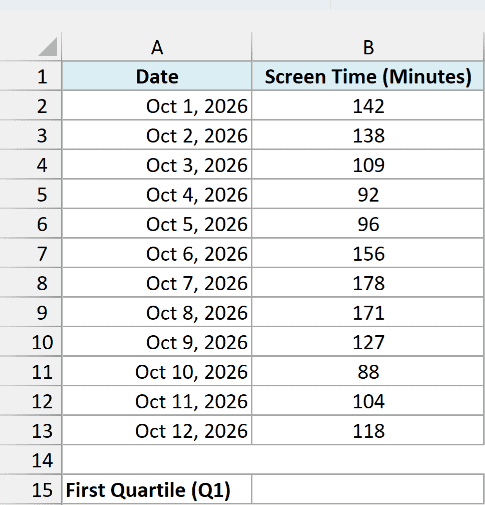
Here is the formula:
=QUARTILE(B2:B13,1)
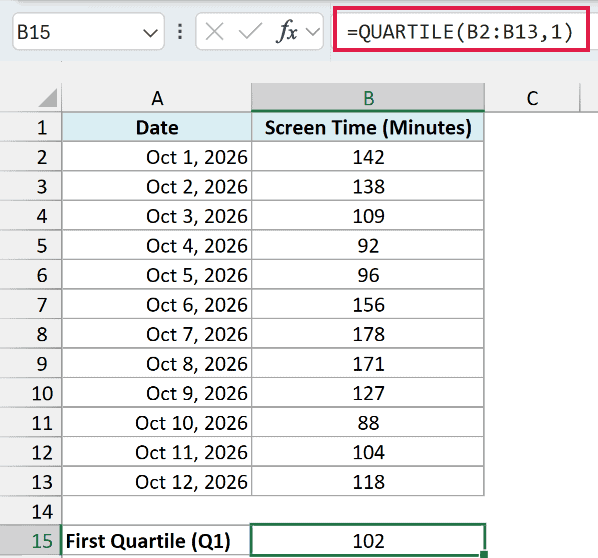
This returns 102, which means on a quarter of these days, the screen time was 102 minutes or less.
None of the days has exactly 102 minutes. Excel lines the 12 values up from smallest to largest and works out a position for Q1, which is (12 – 1) × 0.25 + 1 = 3.75.
A position of 3.75 means Q1 sits three quarters of the way between the 3rd value (96) and the 4th value (104).
The gap between those two values is 8, and three quarters of 8 is 6. Add that to 96, and you get 102.
If you work out Q1 by hand by taking the median of the lowest six values, you’ll get 100 instead.
Both are valid ways to define a quartile. They just place the cut point a little differently, so don’t be surprised when Excel doesn’t match a textbook answer.
Excel’s QUARTILE.EXC function uses yet another method and returns 98 for this same data. So stick with QUARTILE (or QUARTILE.INC) when you want the 102 answer.
To get the third quartile, change the 1 in the formula to a 3, and you get 145.5.
Example 2: Get All Quartile Values With One Formula
Now let’s get all five quartile values at once.
Below is a list of nightly rates for 12 hotels, and I want the minimum, first quartile, median, third quartile, and maximum rate in column E.
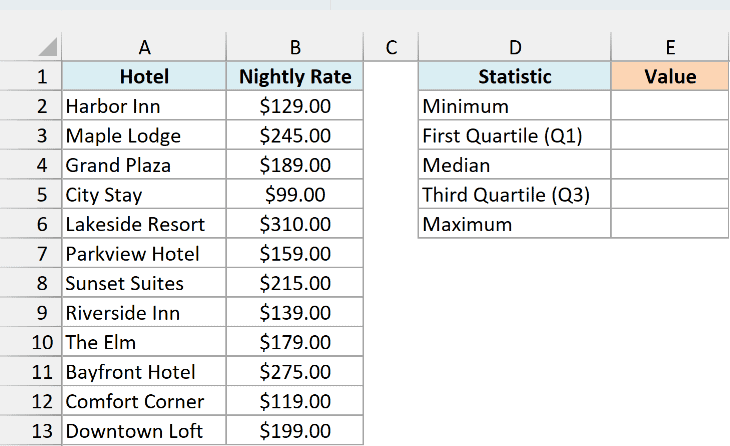
Here is the formula:
=QUARTILE(B2:B13,{0;1;2;3;4})
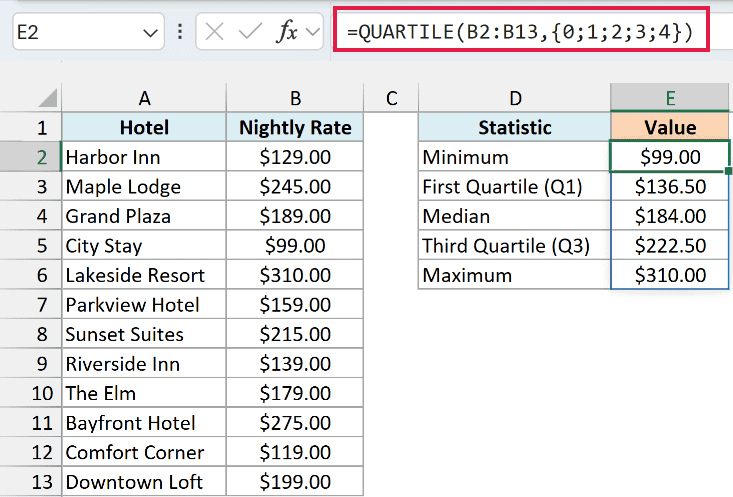
This one formula in E2 returns all five values: $99.00, $136.50, $184.00, $222.50, and $310.00.
Instead of a single quart number, I’ve given QUARTILE a list of all five, inside curly brackets. Excel runs QUARTILE once for each number in the list and spills the five results into E2:E6.
The semicolons in {0;1;2;3;4} put the results in a column. If you want them in a row instead, use commas, like {0,1,2,3,4}.
In Excel 2019 or earlier, the formula won’t spill on its own. If you are using one of these versions, select E2:E6 first, enter the below formula, and press Control + Shift + Enter so it fills all five cells:
=QUARTILE(B2:B13,{0;1;2;3;4})
Example 3: Flag Values in the Top 25% Using QUARTILE
Here’s a practical use of the third quartile.
Below is a list of gym members with the number of times each one visited this month, and I want to mark the members in the top 25% in column C.
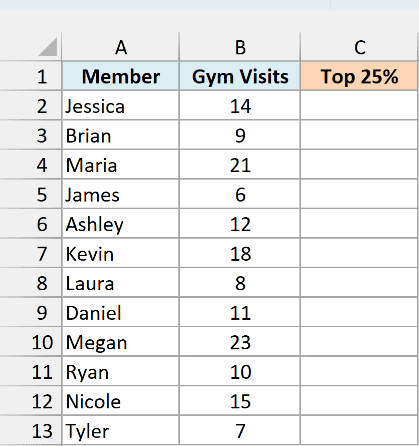
Here is the formula:
=IF(B2:B13>=QUARTILE(B2:B13,3),"Top 25%","")
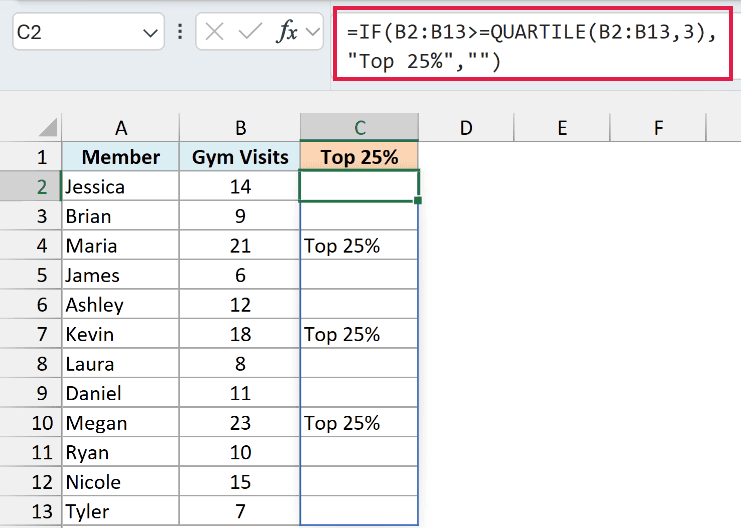
Maria, Kevin, and Megan get the Top 25% label, and every other cell stays blank. Nicole, with 15 visits, just misses the cut.
QUARTILE(B2:B13,3) returns the third quartile of the visits, which is 15.75. The IF function then checks each member’s visits against that number, and returns “Top 25%” when the visits are equal to or higher than it.
Since the formula checks the whole range B2:B13 at once, the results spill down to C13.
To flag the bottom 25% instead, use 1 as the quart and change the >= to <=.
If you are using Excel 2019 or earlier, enter the below formula in cell C2 and then copy it down the range:
=IF(B2>=QUARTILE($B$2:$B$13,3),"Top 25%","")
Example 4: Assign Each Value to a Quartile Group
Quartiles are also handy for splitting customers into spending tiers.
Below is a list of customers with how much each one spent in the last year, and I want to show which quartile group (1 to 4) each customer falls in, in column C.
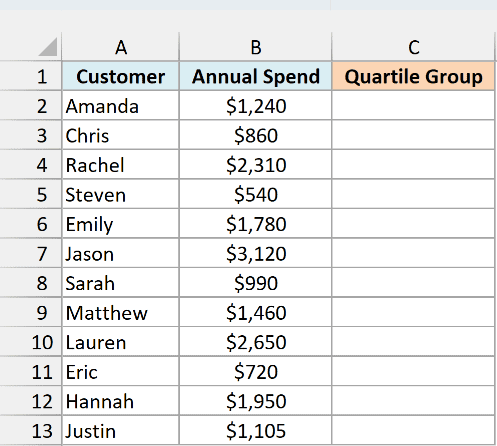
Here is the formula:
=MATCH(B2:B13,QUARTILE(B2:B13,{0,1,2,3}),1)
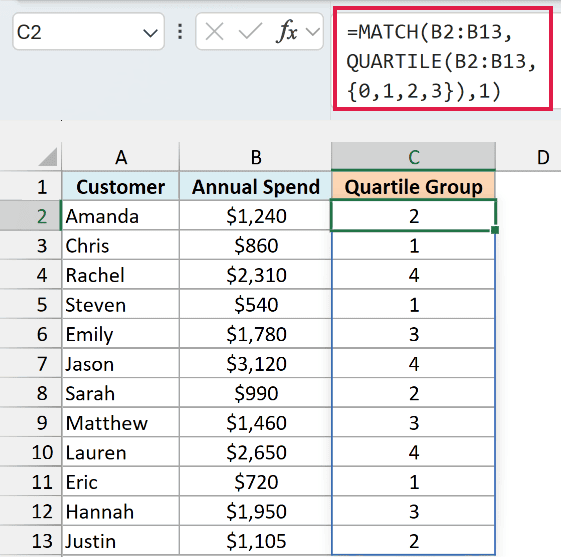
Each customer now has a group number, where 1 is the lowest-spending quarter and 4 is the highest.
How this formula works:
- QUARTILE(B2:B13,{0,1,2,3}) returns the starting point of each group: $540 (the minimum), $957.50, $1,350, and $2,040.
- The MATCH function looks up each customer’s spend in that list. With 1 as the last argument, it returns the position of the largest starting point that is less than or equal to the spend.
- Amanda’s $1,240 is higher than $957.50 but lower than $1,350, so MATCH returns 2.
A spend that is exactly equal to a starting point goes into the higher group. For example, a spend of exactly $957.50 would be in group 2, not group 1.
If you are using Excel 2019 or earlier, enter the below formula in cell C2 and then copy it down the range:
=MATCH(B2,QUARTILE($B$2:$B$13,{0,1,2,3}),1)
Example 5: Find Quartiles for Each Category (QUARTILE With FILTER)
Now let’s look at something a bit more interesting.
Below is a list of orders with the sales channel and order amount, and I want the first quartile, median, and third quartile for each channel in columns F to H.
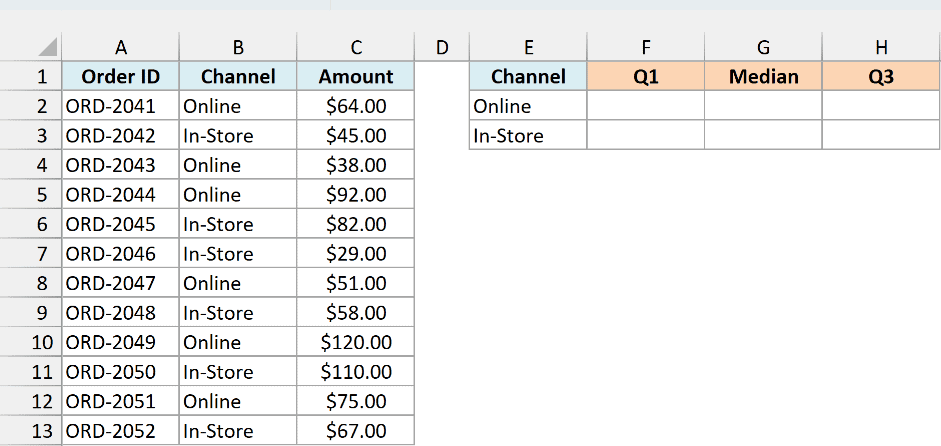
Here is the formula for cell F2, which I then copied to F3:
=QUARTILE(FILTER($C$2:$C$13,$B$2:$B$13=E2),{1,2,3})
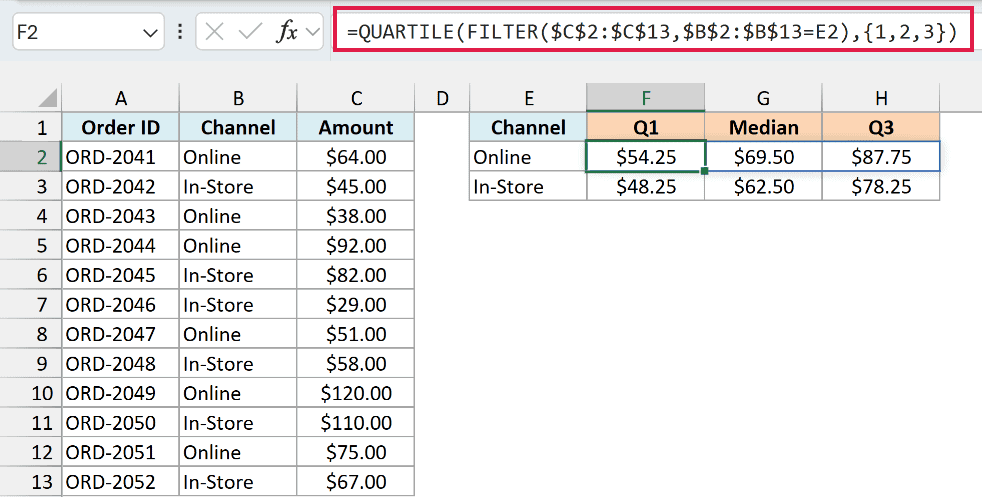
For Online orders, this gives $54.25, $69.50, and $87.75. For In-Store orders, it gives $48.25, $62.50, and $78.25.
How this formula works:
- FILTER($C$2:$C$13,$B$2:$B$13=E2) keeps only the order amounts where the channel matches the one in E2 (Online).
- QUARTILE then works on just those amounts, and the {1,2,3} list returns Q1, the median, and Q3, which spill across F2:H2.
- The data ranges are locked with dollar signs, so when you copy the formula to F3, only E2 changes to E3 (In-Store).
The FILTER function is available in Excel 2021, 2024, and Excel 365. If you are using Excel 2019 or earlier, enter the below formula in cell F2, press Control + Shift + Enter, and then copy it to F3:
=QUARTILE(IF($B$2:$B$13=$E2,$C$2:$C$13),1)
This returns the first quartile only. For the median and the third quartile, use the same formula in columns G and H with 2 and 3 as the last argument.
Example 6: Calculate the Interquartile Range (IQR) With QUARTILE
Let’s finish with a common statistics task.
Below is a list of employees with their one-way commute time in minutes, and I want the interquartile range of these commute times in cell B15.
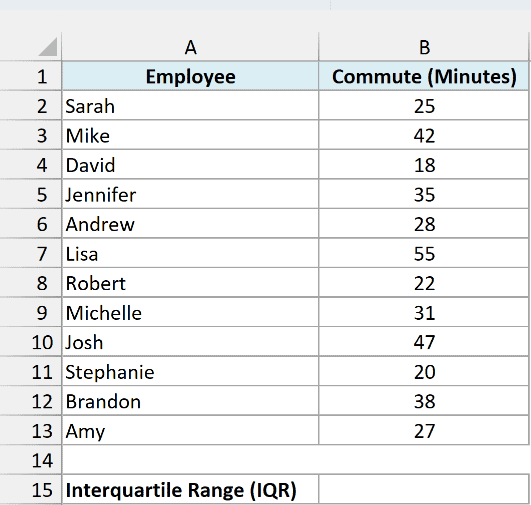
Here is the formula:
=QUARTILE(B2:B13,3)-QUARTILE(B2:B13,1)
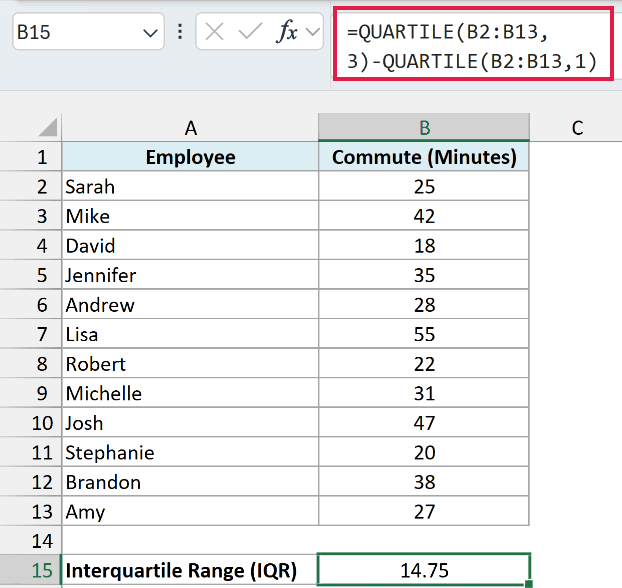
This returns 14.75. The third quartile is 39 minutes and the first quartile is 24.25 minutes, so the middle half of these commutes are within 14.75 minutes of each other.
The interquartile range is a good way to see how spread out your typical values are, because the very shortest and longest commutes don’t affect it.
So these are some practical ways to use the QUARTILE function in Excel. You can use it to get a single quartile, all five quartile values at once, flag or group values, and work out quartiles for each category.
I hope you found this tutorial helpful.
Other Excel Articles You May Also Like:
