

The PERCENTILE.EXC function in Excel gives you the value at a specific percentile in a list of numbers. For example, it can tell you the step count that roughly 75% of your days fall at or below.
It’s one of two modern percentile functions in Excel. Its twin, PERCENTILE.INC, does the same job but calculates a little differently, so the two can give you different answers on the same data.
In this article, I’ll show you how the PERCENTILE.EXC function works with six practical examples, including the #NUM! error it’s known for and how it compares with PERCENTILE.INC.
Follow along with the example file
PERCENTILE.EXC Function Examples.xlsx
PERCENTILE.EXC Function Syntax
Here is the syntax of the PERCENTILE.EXC function:
=PERCENTILE.EXC(array, k)
- array – The range of numbers you want the percentile from.
- k – The percentile you want, as a decimal or a percentage. For example, 0.75 or 75% for the 75th percentile.
Both arguments are required.
Your numbers don’t need to be sorted. PERCENTILE.EXC sorts them in the background before it does the calculation.
If the array has text, TRUE/FALSE values, or empty cells, PERCENTILE.EXC simply skips them and uses only the numbers. But if any cell in the array has an error (like #N/A), the formula returns that same error.
The k value has to be more than 0 and less than 1, otherwise you get a #NUM! error. On a short list, the allowed range is even narrower, and Example 3 shows what that means.
If k is text that isn’t a number, you get a #VALUE! error.
The PERCENTILE.EXC function works in Excel 2010 and later versions, including 365, 2024, 2021, 2019, 2016, Mac, and the web.
When to Use the PERCENTILE.EXC Function
Use this function when you need to:
- Find the value below which a certain share of your data falls (like the 75th or 90th percentile)
- Get the quartiles or other cut-off points of a list in one go
- Find a percentile for only part of your data, such as one store or one product
- Flag values that are unusually high or low compared to the rest
Let me show you a few practical examples of how to use the PERCENTILE.EXC function in Excel.
Example 1: Find the 75th Percentile of a List
Let’s start with a simple example.
Below I have my daily step counts for 11 days, and I want to find the 75th percentile in cell E2.
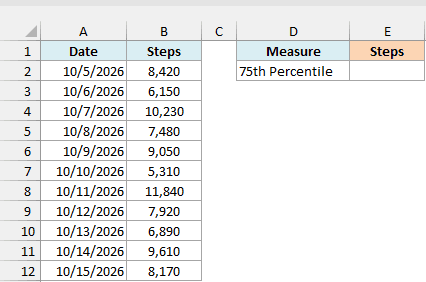
Here is the formula:
=PERCENTILE.EXC(B2:B12,0.75)
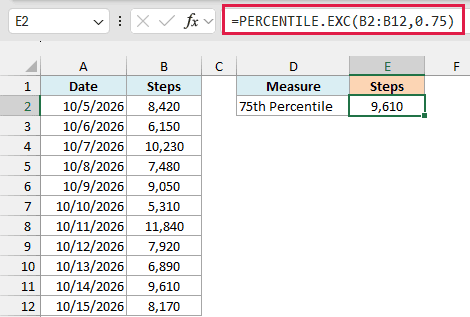
The formula returns 9,610, so 9,610 steps is the 75th percentile of these 11 days.
Here is how PERCENTILE.EXC gets there. It multiplies k by the number of values plus 1, so 0.75 × (11 + 1) = 9, and then picks the 9th smallest step count, which is 9,610.
Example 2: Get Several Percentiles With One PERCENTILE.EXC Formula
Now let’s get more than one percentile at once.
Below I have the monthly rents of 12 apartments, and I want the 25th, 50th, 75th, and 90th percentile rents in column E.
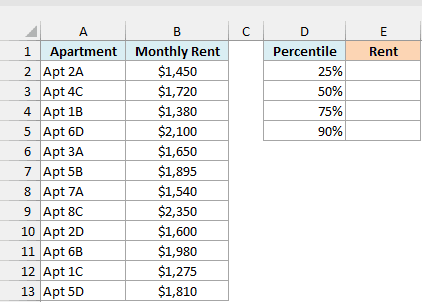
Here is the formula:
=PERCENTILE.EXC(B2:B13,D2:D5)
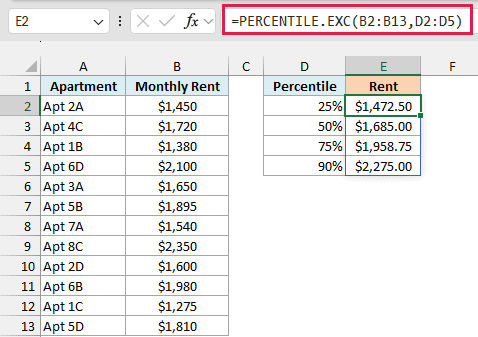
Instead of a single k value, I’ve given the formula the range D2:D5, which holds all four percentiles. PERCENTILE.EXC calculates each one, and the results spill into E2:E5.
In this example, all four positions land between two rents, so PERCENTILE.EXC interpolates (picks a value in between). For the 25th percentile, the position is 0.25 × (12 + 1) = 3.25, which sits between the 3rd smallest rent ($1,450) and the 4th ($1,540).
Since 3.25 is a quarter of the way from position 3 to position 4, the result is a quarter of the way from $1,450 to $1,540, which is $1,472.50.
Since the 25th, 50th, and 75th percentiles are the quartiles of the list, this one formula also gives you what the QUARTILE.EXC function would, and the 50th percentile ($1,685.00) is the median.
If you are using Excel 2019 or earlier, enter the below formula in cell E2 and then copy it down the range:
=PERCENTILE.EXC($B$2:$B$13,D2)
The dollar signs keep the rent range locked as you copy the formula down, while D2 changes to D3, D4, and D5.
Example 3: Why PERCENTILE.EXC Returns the #NUM! Error
Now let’s look at the error you’ll see when your list is short.
Below I have the tips a server earned on 8 shifts, and I want the 10th, 25th, 50th, 75th, and 90th percentiles in column E.
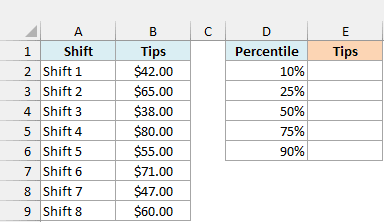
Here is the formula:
=PERCENTILE.EXC(B2:B9,D2:D6)
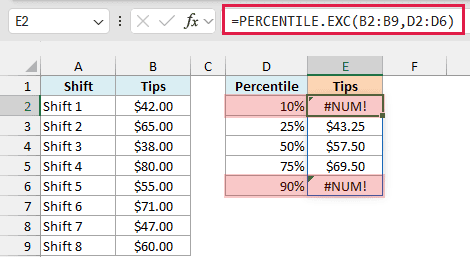
The 25th, 50th, and 75th percentiles work fine ($43.25, $57.50, and $69.50), but the 10th and 90th percentiles return the #NUM! error.
This happens because of how PERCENTILE.EXC finds the position. For the 10th percentile, the position is 0.1 × (8 + 1) = 0.9, which is before the first (smallest) value, so there is nothing for Excel to interpolate between.
The same thing happens at the other end. For the 90th percentile, the position is 0.9 × (8 + 1) = 8.1, which is past the 8th (largest) value.
So with 8 values, the lowest k you can use is 1/9 (about 11.1%), and the highest is 8/9 (about 88.9%). In general, k has to be between 1/(n+1) and n/(n+1), where n is the count of numbers in your list.
This also tells you how much data you need. A 90th percentile needs at least 9 values, and a 95th percentile needs at least 19.
PERCENTILE.INC doesn’t have this limit, as you’ll see in the next example.
If you are using Excel 2019 or earlier, enter the below formula in cell E2 and then copy it down the range:
=PERCENTILE.EXC($B$2:$B$9,D2)
Example 4: PERCENTILE.EXC vs PERCENTILE.INC
Since the two functions look so similar, let’s put them side by side on the same data.
Below I have the number of customers a coffee shop had on each of 10 days, and I want the percentiles from both functions in columns E and F, so we can compare them.
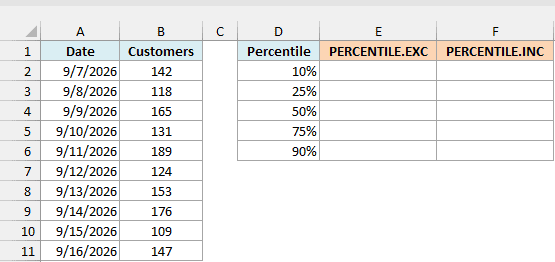
Here is the PERCENTILE.EXC formula:
=PERCENTILE.EXC(B2:B11,D2:D6)
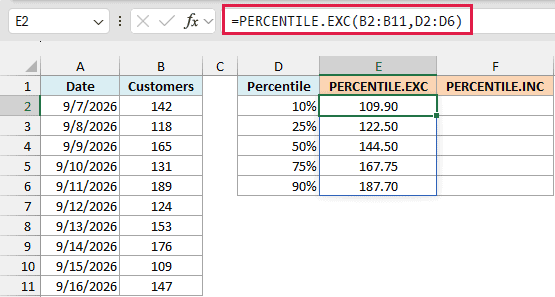
And here is the PERCENTILE.INC formula on the same data:
=PERCENTILE.INC(B2:B11,D2:D6)
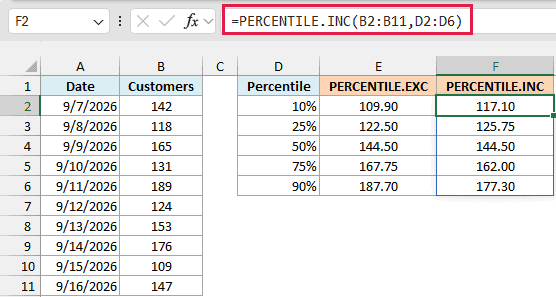
Both functions return 144.50 for the 50th percentile, so the middle of the data is the same either way.
The difference shows up as you move away from the middle. For the 10th percentile, PERCENTILE.EXC returns 109.90 while PERCENTILE.INC returns 117.10, and for the 90th percentile, it’s 187.70 versus 177.30.
This happens because the two functions find the position differently. PERCENTILE.EXC uses k × (n + 1), while PERCENTILE.INC uses k × (n − 1) + 1.
The PERCENTILE.INC positions stay closer to the middle of the list, so its results don’t stretch as far toward the smallest and largest values.
Note that PERCENTILE.EXC does not leave out the smallest and largest values from the calculation. Both functions use all 10 values here, and the “exclusive” only means that k can’t be 0 or 1.
In most cases, PERCENTILE.INC (which works the same as the older PERCENTILE function) is the safer choice, because it never gives you #NUM! for a k between 0 and 1.
Use PERCENTILE.EXC when you need to match a statistics course or another tool that uses the exclusive method.
If you are using Excel 2019 or earlier, enter the below formula in cell E2 and then copy it down the range:
=PERCENTILE.EXC($B$2:$B$11,D2)
And enter the below formula in cell F2 for the PERCENTILE.INC results, and copy it down the same way:
=PERCENTILE.INC($B$2:$B$11,D2)
Example 5: Percentile Based on a Condition (With FILTER)
Let’s step it up with a percentile for only part of the data.
Below I have sales receipts from two stores, and I want the 75th percentile sale amount for one store in cell F3. The store name (Mall) is in cell F2.
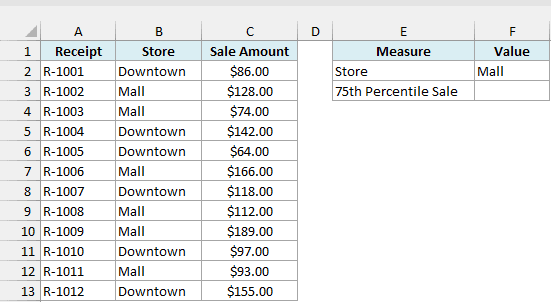
Here is the formula:
=PERCENTILE.EXC(FILTER(C2:C13,B2:B13=F2),0.75)
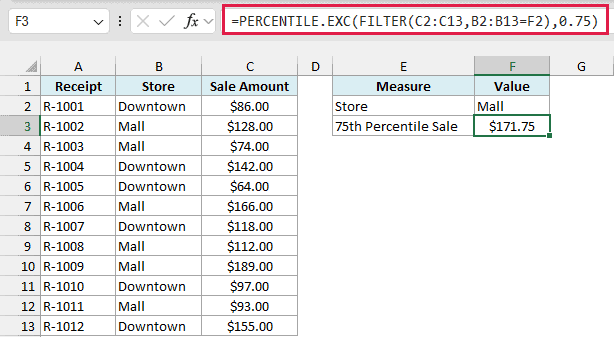
How this formula works:
FILTER(C2:C13,B2:B13=F2)goes through the receipts and returns only the sale amounts where the store is Mall. That’s 6 sales.- PERCENTILE.EXC then finds the 75th percentile of just those 6 sales, which is $171.75.
Since the store name comes from F2, you can type Downtown in that cell, and the formula gives you the 75th percentile for that store instead.
If the store in F2 doesn’t match any receipt, FILTER has nothing to return and the formula gives a #CALC! error. So check the spelling of the store name if you see it.
Important: The k limits from Example 3 apply to the filtered list, not the full one. Mall has only 6 sales, so any k below 1/7 (14.3%) or above 6/7 (85.7%), like the 90th percentile, returns #NUM!.
The FILTER function is available in Excel 2021, 2024, and Microsoft 365. If you are using Excel 2019 or earlier, enter the below formula in cell F3 and press Ctrl + Shift + Enter (instead of just Enter):
=PERCENTILE.EXC(IF(B2:B13=F2,C2:C13),0.75)
Here, the IF function keeps the Mall sale amounts and turns the rest into FALSE, which PERCENTILE.EXC skips.
Example 6: Flag Values Above the 75th Percentile
Here’s another practical use, where the percentile becomes a cut-off point.
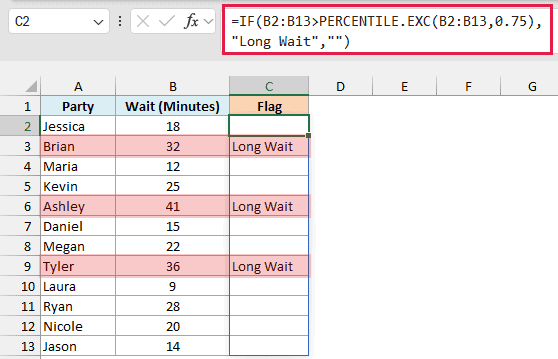
Below I have the wait times for 12 parties at a restaurant, and I want to show “Long Wait” in column C for every party that waited longer than the 75th percentile.
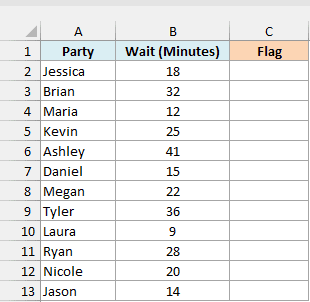
Here is the formula:
=IF(B2:B13>PERCENTILE.EXC(B2:B13,0.75),"Long Wait","")
How this formula works:
PERCENTILE.EXC(B2:B13,0.75)finds the 75th percentile of all 12 wait times, which is 31 minutes.- The IF function then checks each wait time against 31. If it’s higher, it returns “Long Wait”, and if not, it returns an empty string (“”).
The results spill into C2:C13, and Brian (32 minutes), Ashley (41 minutes), and Tyler (36 minutes) get flagged.
Since the cut-off is calculated from the data, it updates on its own when you add or change wait times. You don’t need to work out a fixed number and type it in.
If you are using Excel 2019 or earlier, enter the below formula in cell C2 and then copy it down the range:
=IF(B2>PERCENTILE.EXC($B$2:$B$13,0.75),"Long Wait","")
So these are six ways you can use the PERCENTILE.EXC function in Excel, from finding a single percentile to flagging values above a cut-off.
Just remember that k has to stay between 1/(n+1) and n/(n+1), so a short list can’t give you very low or very high percentiles.
And if you want to go the other way, and find what percentile a value falls at, use the PERCENTRANK.EXC function.
Other Excel Articles You May Also Like:
