

The NORM.INV function in Excel gives you the value that sits at a given percentile of a normal distribution (the bell curve). You tell it the probability, the average, and the standard deviation, and it returns the matching value.
So instead of starting with a value and asking for its chances, you start with the chance and get the value back. It answers questions like “what score do I need to be in the top 10%?”
In this article, I’ll show you how the NORM.INV function works, with six practical examples, including cutoffs for the top and bottom of a group, a whole list of percentiles at once, a typical range, and random numbers for a simulation.
Follow along with the example file
NORM.INV Function Examples.xlsx
NORM.INV Function Syntax
Here is the syntax of the NORM.INV function:
=NORM.INV(probability, mean, standard_dev)
- probability – The share of values you want at or below the result (for example, 90% for the 90th percentile).
- mean – The average of the distribution.
- standard_dev – The standard deviation, which tells Excel how spread out the values are around the average.
All three arguments are required.
The probability is always counted from the bottom of the curve. So with 90%, NORM.INV returns the value that 90% of the data falls below, which is the same as the cutoff for the top 10%.
The probability has to be more than 0 and less than 1. If it’s 0, 1, or anything outside that range, NORM.INV returns a #NUM! error.
The standard_dev must be greater than 0, or you get a #NUM! error.
And if any of the arguments is text instead of a number, NORM.INV returns a #VALUE! error.
The NORM.INV function works in Excel 2010 and later versions, including 365, 2024, 2021, 2019, 2016, Mac, and the web.
When to Use the NORM.INV Function
Use this function when you need to:
- Find the value someone needs to reach to be in the top (or bottom) part of a group
- Turn a list of percentiles into actual values
- Get the typical range that most values fall within
- Estimate a percentile cutoff from your own data
- Generate random numbers that follow a bell curve for a simulation
Let me show you a few practical examples of how to use the NORM.INV function in Excel.
Example 1: Find the Value Needed for the Top 10%
Let’s start with a simple example.
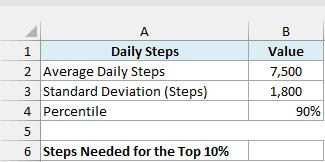
Below I have the details of a walking challenge where people average 7,500 steps a day, and I want to find how many steps it takes to be in the top 10% in cell B6.
Here is the formula:
=NORM.INV(B4,B2,B3)
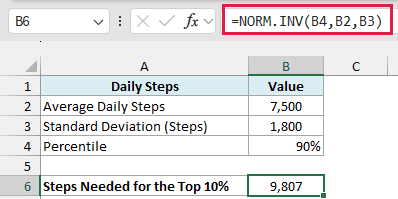
The formula returns 9,807, so someone needs to walk about 9,807 steps a day to make it into the top 10%.
Here, B4 is the probability (90%), B2 is the average (7,500 steps), and B3 is the standard deviation (1,800 steps).
I used 90% and not 10% because NORM.INV counts from the bottom of the curve. 90% of people walk fewer steps than 9,807, which leaves the top 10% at or above it.
Important: Enter the probability as 90% or 0.9, not 90. If you type 90, NORM.INV returns a #NUM! error, because the probability has to be between 0 and 1.
Example 2: Get Values for a List of Percentiles at Once
Now let’s get several percentiles with one formula.
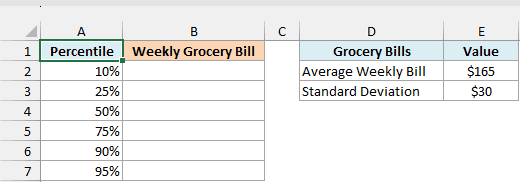
Below I have a list of percentiles for a household’s weekly grocery bill, which is $165 on average, and I want the bill amount at each percentile in column B.
Here is the formula:
=NORM.INV(A2:A7,E2,E3)
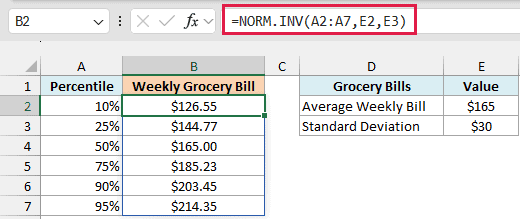
Instead of a single probability, I’ve given NORM.INV the whole range A2:A7. It returns a value for each percentile, and the results spill down into B2:B7 from this one formula, which means Excel fills the cells below automatically.
So in 10% of weeks the bill comes in under $126.55, and in 90% of weeks it stays under $203.45. Only one week in twenty goes above $214.35.
Notice that the 50% row returns exactly $165, the average. The bell curve is symmetric, so half the values sit below the average and half sit above it.
A formula that spills like this needs Excel 365 or Excel 2021 or later. If you are using Excel 2019 or earlier, enter the below formula in cell B2 and then copy it down the range:
=NORM.INV(A2,$E$2,$E$3)
The dollar signs keep the average and standard deviation locked on E2 and E3 as you copy the formula down.
Example 3: Find the Cutoff for the Bottom 5% (When Lower Is Better)
Sometimes a lower value is the better one, like a finish time in a race.
Below I have the finish times for a marathon, where runners take 270 minutes on average, and I want the finish time a runner needs to be among the fastest 5% in cell B6.
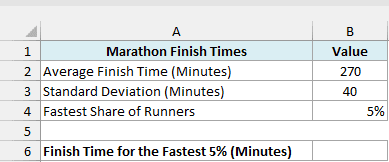
Here is the formula:
=NORM.INV(B4,B2,B3)
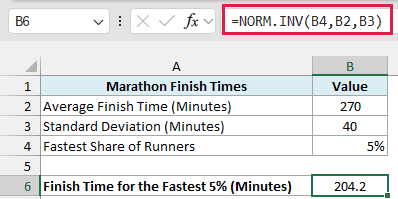
The formula returns 204.2, so a runner needs to finish in about 204 minutes (roughly 3 hours and 24 minutes) to be among the fastest 5%.
This time I used 5% directly, because the fastest runners have the lowest times and already sit at the bottom of the curve.
An easy way to pick the right probability is to ask what share of values should be below your cutoff. For the top 10% of steps it’s 90%, and for the fastest 5% of runners it’s 5%.
Example 4: Get the Range That Covers the Middle 80%
Now let’s find a typical range instead of a single cutoff.
Below I have the details of a monthly electricity bill that’s $140 on average, and I want the range that covers the middle 80% of months in cells B6 and B7.
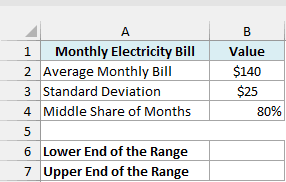
Here is the formula for the lower end of the range:
=NORM.INV((1-B4)/2,B2,B3)
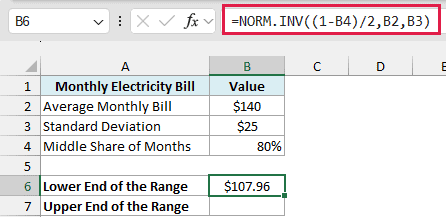
The middle 80% leaves 20% of months outside the range, split equally between the two ends. So (1-B4)/2 works out to 10%, and NORM.INV returns $107.96 as the lower end.
And here is the formula for the upper end:
=NORM.INV((1+B4)/2,B2,B3)
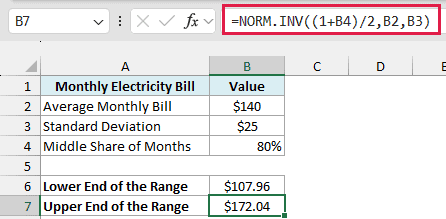
Here, (1+B4)/2 works out to 90%, which is the point that leaves the top 10% of months above it. That gives $172.04 as the upper end.
So in about 8 out of 10 months, the bill lands between $107.96 and $172.04. A bill outside this range is unusual and worth a second look.
Since both formulas use the share in B4, you can change it to 95% to get the middle 95% range without touching the formulas.
Example 5: Estimate a Cutoff From Your Own Data
So far, I’ve typed in the average and standard deviation. But you can also calculate them from your data right inside the formula.
Below I have the average scores of 12 bowlers picked from a large bowling league, and I want to estimate the score a bowler needs to be in the top 5% of the whole league in cell E3.
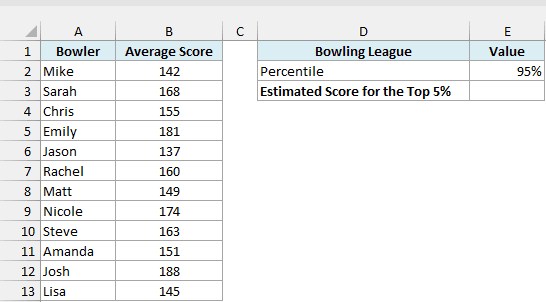
Here is the formula:
=NORM.INV(E2,AVERAGE(B2:B13),STDEV.S(B2:B13))
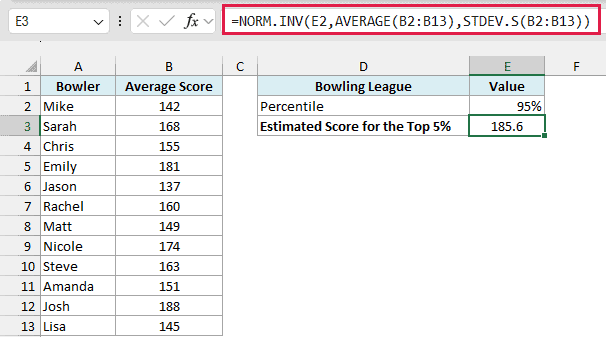
How this formula works:
AVERAGE(B2:B13)calculates the average score of the 12 bowlers, which is about 159.4.STDEV.S(B2:B13)calculates the standard deviation of the scores, which is about 15.9.- NORM.INV uses these with the 95% in E2 and returns 185.6, the estimated score needed to be in the top 5%.
I used STDEV.S because these 12 bowlers are only a sample of the league. If your list covers the whole group you care about, use STDEV.P instead.
This is an estimate that assumes the scores follow a bell curve, which is handy when you only have a few values. If you just want the 95th percentile of these 12 scores as they are, use the PERCENTILE.INC function instead.
Example 6: Generate Random Numbers for a Simulation
Let’s step it up with a more advanced use case.
Below I have the details of an ice cream stand that sells 120 cones a day on average, and I want to simulate the sales for 10 days in column B.
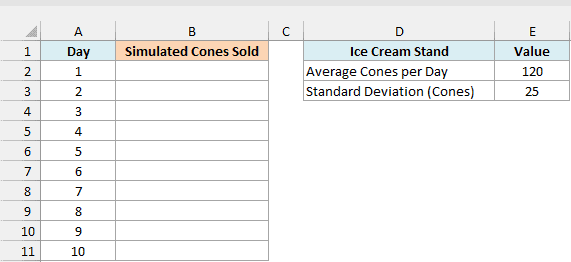
Here is the formula:
=ROUND(NORM.INV(RANDARRAY(10),E2,E3),0)
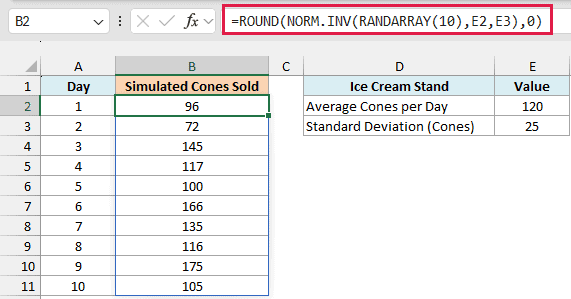
How this formula works:
RANDARRAY(10)creates 10 random probabilities between 0 and 1, one for each day.- NORM.INV turns each probability into a number of cones, using the average in E2 and the standard deviation in E3.
- ROUND rounds each result to a whole number, since you can’t sell part of a cone.
RANDARRAY spreads the probabilities evenly between 0 and 1, but NORM.INV maps them onto the bell curve. So most days land close to 120 cones, and only a few go far above or below it.
Important: These numbers change every time Excel recalculates, such as when you edit any cell or press F9. To keep one set of results, copy the cells and paste them as values.
The RANDARRAY function is only available in Excel 365 and Excel 2021 or later. If you are using Excel 2019 or earlier, enter the below formula in cell B2 and then copy it down the range:
=ROUND(NORM.INV(RAND(),$E$2,$E$3),0)
So these are six ways you can use the NORM.INV function in Excel, from finding a top 10% cutoff to generating random numbers for a simulation.
If you need to go the other way and get the probability for a value, use NORM.DIST with its cumulative argument set to TRUE. And if your data has an average of 0 and a standard deviation of 1, NORM.S.INV does the same job with only the probability.
If you’re still on Excel 2007 or earlier, NORM.INV isn’t available, so use the older NORMINV function, which takes the same three arguments.
Other Excel Articles You May Also Like:
