

The NORM.S.DIST function in Excel takes a z-score and tells you how much of the bell curve sits to its left. It works on the standard normal distribution, which is the bell curve with an average of 0 and a standard deviation of 1.
That’s exactly what you need when your numbers are already z-scores, like a child’s growth chart score or the result of a statistical test. You can also use it in place of a printed z-table, because it gives you the same values.
Below, I’ll walk you through five examples, from turning z-scores into percentiles to working out p-values for website A/B tests.
Follow along with the example file
NORM.S.DIST Function Examples.xlsx
NORM.S.DIST Function Syntax
Here is the syntax of the NORM.S.DIST function (both arguments are required):
=NORM.S.DIST(z, cumulative)
- z – The z-score you want the probability for. It says how many standard deviations a value is above (positive) or below (negative) the average.
- cumulative – TRUE or FALSE. This decides what kind of answer you get back.
With TRUE, you get the probability that a value is less than or equal to z, which is the area under the curve to the left of z. This is the one you’ll use most of the time.
With FALSE, you get the height of the bell curve at z (called the probability density). It is not a probability, and Example 4 shows where it’s useful.
The z argument has to be a z-score, not a raw value. If you have something like a test score along with its average and standard deviation, the NORM.DIST function is a better fit, because it does that conversion for you.
If z is text that can’t be read as a number, NORM.S.DIST returns the #VALUE! error.
The NORM.S.DIST function works in Excel 2010 and later versions, including 365, 2024, 2021, 2019, 2016, Mac, and the web.
When to Use the NORM.S.DIST Function
Use this function when you need to:
- Turn z-scores into percentiles
- Find the chance of a value landing above a z-score
- Find the share of values between two z-scores
- Get the height of the bell curve to plot it
- Calculate p-values from a z-test statistic
Let me show you a few practical examples of how to use the NORM.S.DIST function in Excel.
Example 1: Convert Z-Scores to Percentiles
Let’s start with a simple example.
Below I have the height z-scores of eight children from their last checkup, and I want each child’s height percentile in column C.
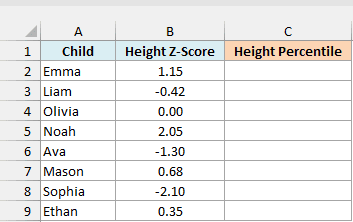
Here is the formula:
=NORM.S.DIST(B2:B9,TRUE)
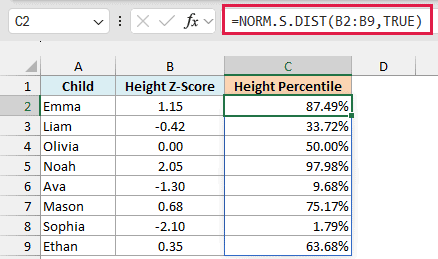
I’ve given the z argument the whole range B2:B9, so NORM.S.DIST returns one result per child, and the results spill down into C2:C9 from this one formula.
Emma’s z-score of 1.15 returns 87.49%, which means she is taller than about 87% of children her age.
The area to the left of each z-score is the share of children who are shorter, which is exactly what a percentile is.
Olivia’s z-score of 0 lands right on the average, so she gets exactly 50.00%. A negative z-score, like Sophia’s -2.10, gives a small percentile (1.79%) because almost all of the curve sits to the right of it.
NORM.S.DIST returns a decimal (0.8749 for Emma), and the cells are formatted as percentages so they’re easier to read. If your results show up as decimals, just apply the Percentage format.
Important: If a z-score cell is blank, NORM.S.DIST treats it as 0 and returns 50.00% instead of an error. So a missing value can look like a perfectly average result.
If you are using Excel 2019 or earlier, enter the below formula in cell C2 and then copy it down the range:
=NORM.S.DIST(B2,TRUE)
The same goes for the other examples in this article. Use the first cell of each range instead of the whole range, and copy the formula down.
In workbooks made before Excel 2010, you may see the NORMSDIST function instead. It’s the older version of NORM.S.DIST and gives the same result as using TRUE, but it has no option for the curve height.
Example 2: Find the Probability Above a Z-Score
Now let’s flip the question around and look at the right side of the curve.
Below I have the z-scores of eight players from a mobile game’s weekly scores, and I want the share of players who scored higher than each one in column C.
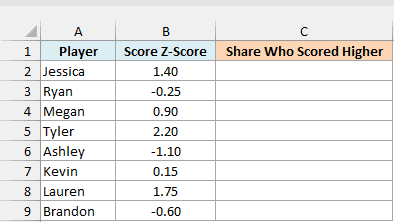
Here is the formula:
=1-NORM.S.DIST(B2:B9,TRUE)
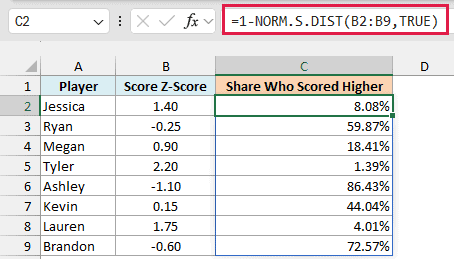
Jessica’s z-score of 1.40 returns 8.08%, so only about 8 in 100 players scored higher than her. Ashley’s z-score of -1.10 returns 86.43%, because most players beat a below-average score.
NORM.S.DIST with TRUE only gives you the area to the left of z. The whole curve adds up to 1 (100%), so subtracting that left side from 1 leaves everything to the right.
If you leave out the 1- part, you get the share of players who scored lower instead, which is the exact opposite of what we want here.
Example 3: Probability Between Two Z-Scores
Next, let’s find the share of values that falls between two z-scores.
Below I have five ranges of the bell curve with their lower and upper z-scores, and I want the share of values that falls inside each range in column D.
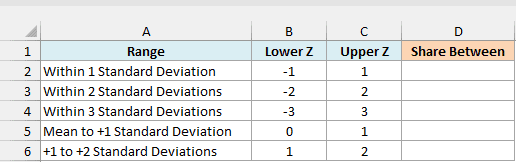
Here is the formula:
=NORM.S.DIST(C2:C6,TRUE)-NORM.S.DIST(B2:B6,TRUE)
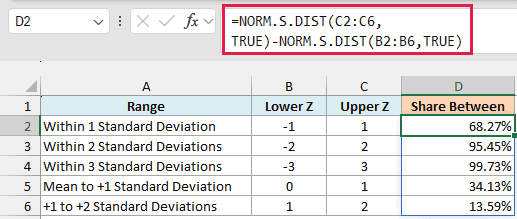
The first NORM.S.DIST gives the area to the left of each upper z-score, and the second gives the area to the left of each lower z-score. Subtracting one from the other leaves just the slice of the curve between the two.
The first three rows give you the well-known 68-95-99.7 rule. About 68.27% of values sit within 1 standard deviation of the average, 95.45% within 2, and 99.73% within 3.
The last two rows show that the range doesn’t have to be centered on the average. The band from the average to 1 standard deviation above it holds 34.13% of values, while the next band (1 to 2 standard deviations above) holds only 13.59%.
Make sure the upper z-score goes in the first NORM.S.DIST. If you swap them, you get the same number with a minus sign in front of it.
Example 4: Get the Height of the Bell Curve
So far, all the examples have used TRUE. Let’s now see what FALSE does.
Below I have a list of z-scores from -3 to 3, and I want the height of the bell curve at each one in column B.
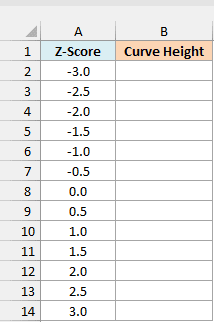
Here is the formula:
=NORM.S.DIST(A2:A14,FALSE)
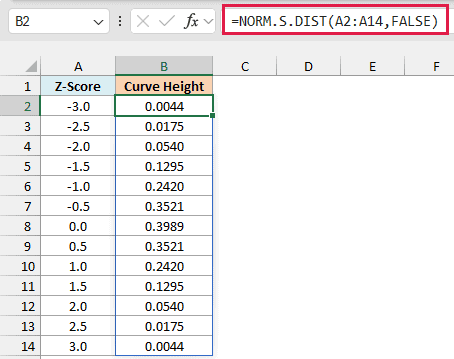
With FALSE, NORM.S.DIST returns the height of the curve at each z-score instead of a probability. The height peaks at 0.3989 when z is 0 and drops off evenly on both sides, which is what gives the curve its bell shape.
Important: These heights are not probabilities. A height of 0.3989 doesn’t mean a 39.89% chance of anything, so use TRUE whenever you need a probability.
Where FALSE comes in handy is charting. If you plot the z-scores against these heights as a scatter chart with smooth lines, you get a bell curve, and I’ve covered the full steps in my guide on how to make a bell curve in Excel.
Example 5: Calculate a P-Value from a Z-Score
Let’s step it up with a use case from hypothesis testing.
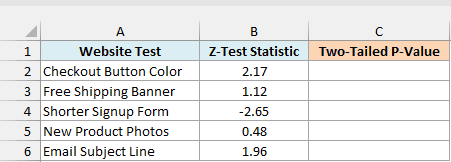
Below I have the z-test statistics from five website A/B tests, and I want the two-tailed p-value for each test in column C.
Here is the formula:
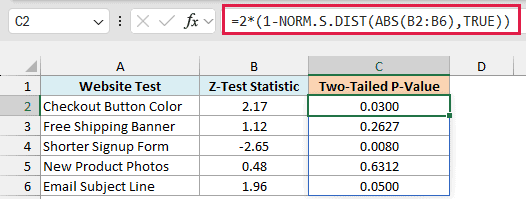
=2*(1-NORM.S.DIST(ABS(B2:B6),TRUE))
How this formula works:
- ABS(B2:B6) turns every z-statistic into a positive number, so a negative result like -2.65 is treated the same as 2.65.
- 1-NORM.S.DIST(…,TRUE) gives the area in the right tail beyond that z-score, just like in Example 2.
- 2*(…) doubles that area to count both tails, because a two-tailed test looks for a difference in either direction.
The checkout button test with a z-statistic of 2.17 gets a p-value of 0.0300. A p-value below 0.05 is the usual cutoff for calling a result statistically significant, so this test clears the bar.
The email subject line test lands exactly on 0.0500, because 1.96 is the classic z-score cutoff for 5%. The free shipping banner (0.2627) and the new product photos (0.6312) are nowhere close.
So these are some practical ways to use the NORM.S.DIST function in Excel, whenever your numbers are already z-scores.
I hope you found this Excel tutorial useful.
Other Excel Articles You May Also Like:
