

The NORM.DIST function in Excel gives you probabilities for data that follows a normal distribution (the familiar bell curve). You give it a value, the average, and the standard deviation, and it gives you a probability.
It’s useful for questions like “what are the chances this takes less than 40 minutes?” or “what share of customers falls in this range?”. You don’t need to know the math behind the curve, just the average and how spread out the data is.
In this article, I’ll show you how the NORM.DIST function works, with seven practical examples, including probabilities below, above, and between values, the curve height, and percentiles from real data.
Follow along with the example file
NORM.DIST Function Examples.xlsx
NORM.DIST Function Syntax
Here is the syntax of the NORM.DIST function:
=NORM.DIST(x, mean, standard_dev, cumulative)
- x – The value you want the probability for.
- mean – The average of the distribution.
- standard_dev – The standard deviation, which tells Excel how spread out the values are around the average.
- cumulative – TRUE or FALSE. This decides what kind of answer you get back.
All four arguments are required.
With TRUE, you get the probability that a value is less than or equal to x. This is the one you’ll use most of the time, because it answers questions like “what are the chances it’s 40 or less?”.
With FALSE, you get the height of the bell curve at x (called the probability density). It is not a probability, and Example 5 shows what it’s good for.
The standard_dev must be greater than 0. If it’s 0 or negative, NORM.DIST returns a #NUM! error, and if the mean or standard_dev is text, you get a #VALUE! error.
The NORM.DIST function works in Excel 2010 and later versions, including 365, 2024, 2021, 2019, 2016, Mac, and the web.
When to Use the NORM.DIST Function
Use this function when you need to:
- Find the chance that a value is at or below a limit
- Find the chance that a value goes over a limit
- Find the chance that a value lands between two numbers
- Estimate how many people or items fall into each range
- Get the height of the bell curve to plot it
- Estimate where a value sits (its percentile) compared to the rest of the data
Let me show you a few practical examples of how to use the NORM.DIST function in Excel.
Example 1: Probability of a Value at or Below a Limit
Let’s start with a simple example.
Below I have the details of a daily commute that takes 34 minutes on average, and I want the chance of arriving within 40 minutes in cell B6.
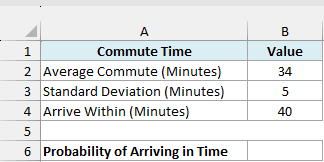
Here is the formula:
=NORM.DIST(B4,B2,B3,TRUE)
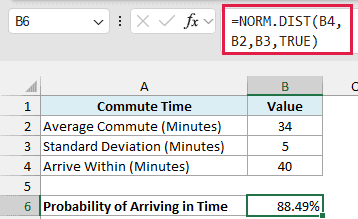
The formula returns 88.49%, so there’s about an 88% chance the commute takes 40 minutes or less.
Here, B4 is the value I’m checking (40), B2 is the average (34), and B3 is the standard deviation (5).
The TRUE at the end tells NORM.DIST to add up everything from the left side of the curve up to 40, which gives the probability of 40 or less.
NORM.DIST returns a decimal (0.8849), and the cell is formatted as a percentage so it’s easier to read. If your result shows up as a decimal, just apply the Percentage format to the cell.
Example 2: Get Probabilities for a List of Values
Now let’s do the same thing for a whole list of values at once.
Below I have a list of delivery times for a pizza place that delivers in 28 minutes on average, and I want the chance of the pizza arriving within each time in column B.
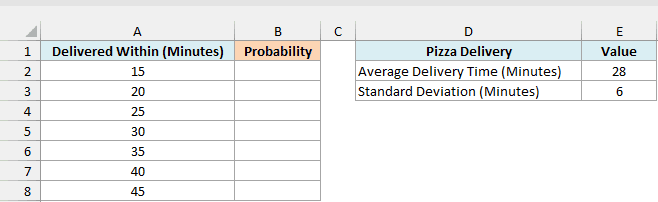
Here is the formula:
=NORM.DIST(A2:A8,E2,E3,TRUE)
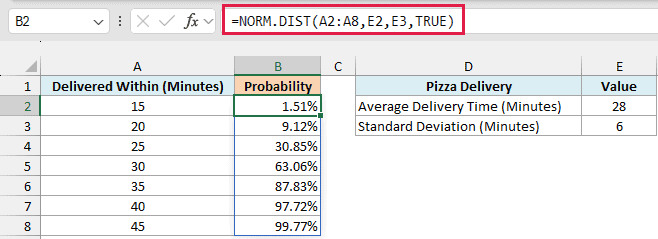
Instead of a single value, I’ve given the x argument the whole range A2:A8. NORM.DIST calculates a probability for each time, and the results spill down into B2:B8 from this one formula.
You can see how the chance grows as the time limit goes up. There’s only a 1.51% chance of getting the pizza within 15 minutes, a 63.06% chance within 30 minutes, and 99.77% within 45 minutes.
Since the average is 28 minutes, the 30-minute row is just over 50%. A limit right at the average always gives you exactly 50%, because half the bell curve sits on each side of it.
If you are using Excel 2019 or earlier, enter the below formula in cell B2 and then copy it down the range:
=NORM.DIST(A2,$E$2,$E$3,TRUE)
The dollar signs keep the mean and standard deviation locked on E2 and E3 as you copy the formula down.
Example 3: Probability of Going Over a Limit
Let’s now flip the question around and look at the chance of going over a number.
Below I have the details of checked bags that weigh 41 pounds on average, and I want the chance that a bag is over the 50-pound limit in cell B6.
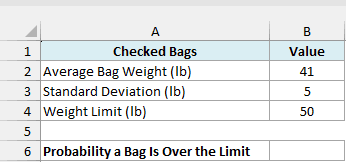
Here is the formula:
=1-NORM.DIST(B4,B2,B3,TRUE)
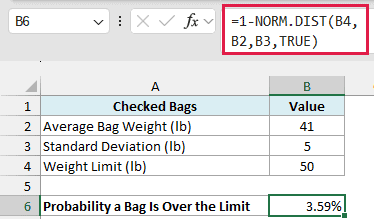
This returns 3.59%, so roughly 1 in 28 bags will be over the 50-pound limit.
NORM.DIST with TRUE always gives you the chance of being at or below the value. There’s no option to get “above” directly, so I subtract the result from 1 (the whole curve) to get everything above 50.
Important: If you forget the 1- part, the formula returns 96.41%, which is the chance a bag is within the limit. That’s the exact opposite of what you wanted, so always check which side of the value your question is about.
Example 4: Probability Between Two Values
Here’s another common question, which is the chance of a value landing inside a range.
Below I have the battery life of a phone that lasts 12 hours on average, and I want the chance that it lasts between 10 and 14 hours in cell B7.
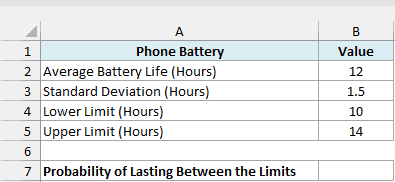
Here is the formula:
=NORM.DIST(B5,B2,B3,TRUE)-NORM.DIST(B4,B2,B3,TRUE)
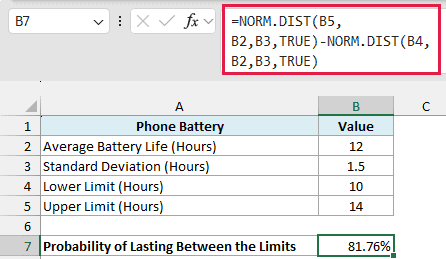
The formula returns 81.76%, so about 4 out of 5 phones will last somewhere between 10 and 14 hours.
How this formula works:
NORM.DIST(B5,B2,B3,TRUE)gives the chance of the battery lasting 14 hours or less, which is 90.88%.NORM.DIST(B4,B2,B3,TRUE)gives the chance of it lasting 10 hours or less, which is 9.12%.- Subtracting the second from the first removes the phones that die before 10 hours, leaving only the ones between 10 and 14 hours.
The order of the two parts matters. If you swap them, you get -81.76%, a negative number that isn’t a valid probability, so always put the upper limit first.
Example 5: Get the Height of the Bell Curve (Density)
So far every example has used TRUE. Now let’s see what FALSE does.
Below I have a list of movie runtimes, with an average of 120 minutes, and I want the height of the bell curve at each runtime in column B.
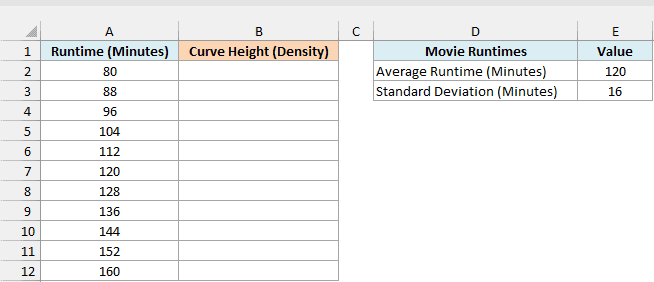
Here is the formula:
=NORM.DIST(A2:A12,E2,E3,FALSE)
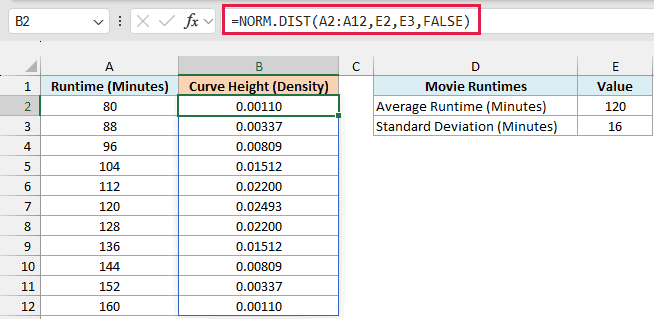
With FALSE, NORM.DIST returns the probability density, which is how tall the bell curve is at each runtime. The values peak at 0.02493 for 120 minutes (the average) and drop off evenly on both sides, so 80 and 160 minutes both get 0.00110.
These numbers are great for drawing the curve. If you plot the runtimes against these values in a line or scatter chart, you get the bell shape, and I’ve covered the full steps in my guide on how to make a bell curve in Excel.
Important: Don’t read these values as probabilities. 0.02493 does not mean a 2.49% chance of a movie running exactly 120 minutes.
For a smooth value like time, the chance of hitting one exact number is basically zero. So when you need an actual probability, use TRUE and ask about a range, like 115 to 125 minutes, the way Example 4 does.
If you are using Excel 2019 or earlier, enter the below formula in cell B2 and then copy it down the range:
=NORM.DIST(A2,$E$2,$E$3,FALSE)
Example 6: Estimate How Many Items Fall Into Each Range
Let’s step it up with a more practical use case, where the probabilities turn into an actual plan.
Below I have T-shirt sizes with the chest measurement range for each, and I want the share of customers for each size in column D and the number of shirts to order out of 600 in column E.

Here is the formula for the share of customers:
=NORM.DIST(C2:C5,H2,H3,TRUE)-NORM.DIST(B2:B5,H2,H3,TRUE)
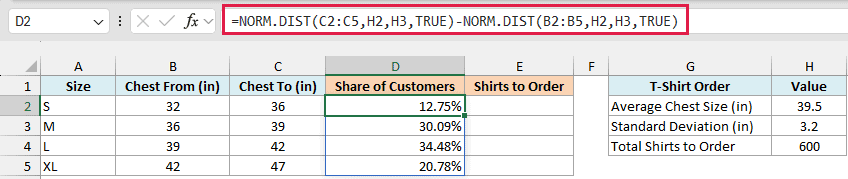
This is the same “between two values” idea from Example 4, but for all four sizes at once. For each row, it takes the chance of being up to the “Chest To” size and subtracts the chance of being below the “Chest From” size.
The results spill into D2:D5. With an average chest size of 39.5 inches, L gets the biggest share (34.48%), followed by M (30.09%), XL (20.78%), and S (12.75%).
If you are using Excel 2019 or earlier, enter the below formula in cell D2 and then copy it down the range:
=NORM.DIST(C2,$H$2,$H$3,TRUE)-NORM.DIST(B2,$H$2,$H$3,TRUE)
Now here is the formula that turns those shares into the number of shirts:
=ROUND(D2:D5*H4,0)
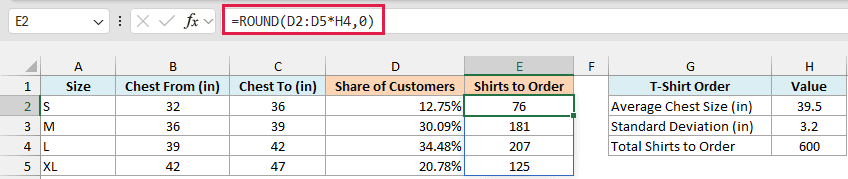
This multiplies each share by the 600 shirts in H4, and the ROUND function rounds it to a whole shirt, so you’d order 76 S, 181 M, 207 L, and 125 XL.
These add up to 589, not 600, and that’s expected. About 2% of customers have a chest size below 32 or above 47 inches, which falls outside these four size ranges.
If you are using Excel 2019 or earlier, enter the below formula in cell E2 and then copy it down the range:
=ROUND(D2*$H$4,0)
Example 7: Estimate the Percentile of Each Value in a List
In the examples so far, I already knew the average and standard deviation. In this one, I’ll work them out from real data with the AVERAGE and STDEV.S functions, right inside the same formula.
Below I have the typing test results for ten people in words per minute, and I want to estimate where each person stands compared to the group (their percentile) in column C.
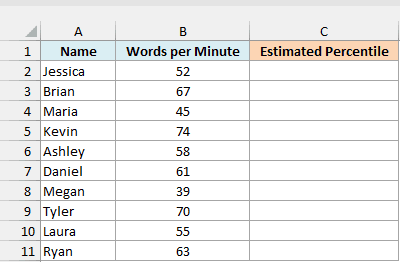
Here is the formula:
=NORM.DIST(B2:B11,AVERAGE(B2:B11),STDEV.S(B2:B11),TRUE)
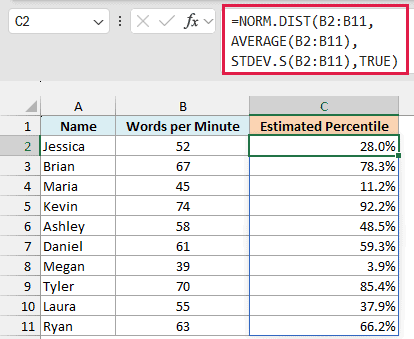
How this formula works:
AVERAGE(B2:B11)calculates the average typing speed of the group, which is 58.4 words per minute.STDEV.S(B2:B11)calculates the standard deviation, which is about 11 words per minute.- NORM.DIST then uses these to find the chance of a score being at or below each person’s speed, and spills the results into C2:C11.
So Kevin, at 74 words per minute, is faster than about 92.2% of typists, while Megan, at 39, is faster than only about 3.9%.
I used STDEV.S here because these ten people are a sample of all the people who could take the test. If your list covers everyone you care about (the whole population), use STDEV.P instead.
Keep in mind that these are estimates, which assume the scores follow a bell curve. If you want each person’s exact rank within these ten scores instead, use the PERCENTRANK.INC function.
If you are using Excel 2019 or earlier, enter the below formula in cell C2 and then copy it down the range:
=NORM.DIST(B2,AVERAGE($B$2:$B$11),STDEV.S($B$2:$B$11),TRUE)
So these are seven ways you can use the NORM.DIST function in Excel, from a simple “at or below” probability to planning an order and estimating percentiles.
Use TRUE for probabilities and FALSE only when you need the height of the curve.
If you’re on Excel 2007 or earlier, use the older NORMDIST function instead, which takes the same four arguments.
And if your data has an average of 0 and a standard deviation of 1 (the standard normal curve), the NORM.S.DIST function gives the same answer with fewer arguments to type.
Other Excel Articles You May Also Like:
