

The FREQUENCY function in Excel counts how many values fall into each range you set, like how many numbers are up to 10 and how many are from 11 to 20.
You give it the values and the top of each range, and it returns all the counts at once. It’s basically a frequency table built with one formula, and the counts update when your data changes.
In this article, I’ll walk you through five examples, starting with a basic frequency distribution and ending with a trick that finds the longest streak in a list.
Follow along with the example file
FREQUENCY Function Examples.xlsx
FREQUENCY Function Syntax
Here is the syntax of the FREQUENCY function:
=FREQUENCY(data_array,bins_array)
- data_array – the values you want to count. Only numbers are counted, so text and blank cells are skipped.
- bins_array – the upper limit of each range (bin) you want to group the values into.
Each bin works as “up to and including this number”. So each count covers the values above the previous bin, up to and including that bin.
The result always has one more count than the number of bins. That extra last count is for everything above the highest bin.
The FREQUENCY function works in all Excel versions, including 365, 2024, 2021, 2019, 2016, Mac, and the web.
When to Use the FREQUENCY Function
Use this function when you need to:
- Build a frequency distribution that counts values in bands, like 0-20 and 21-30
- Show what share of the values falls in each band
- Count values in bands for just one category
- Find the longest run of consecutive days that something happened
Let me show you five practical examples of how FREQUENCY works.
Example 1: Create a Frequency Distribution Table
Let’s start with a simple example.
Below is a list of food delivery orders with the delivery time in minutes, and I want to count how many orders fall into each time band in column F.
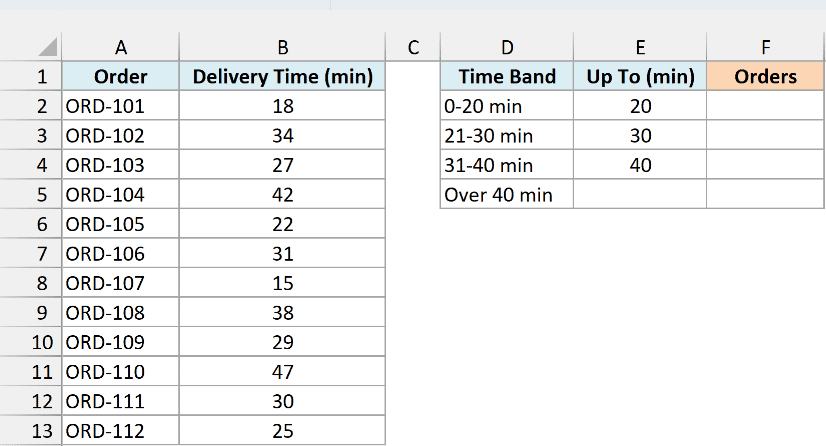
Here is the formula:
=FREQUENCY(B2:B13,E2:E4)
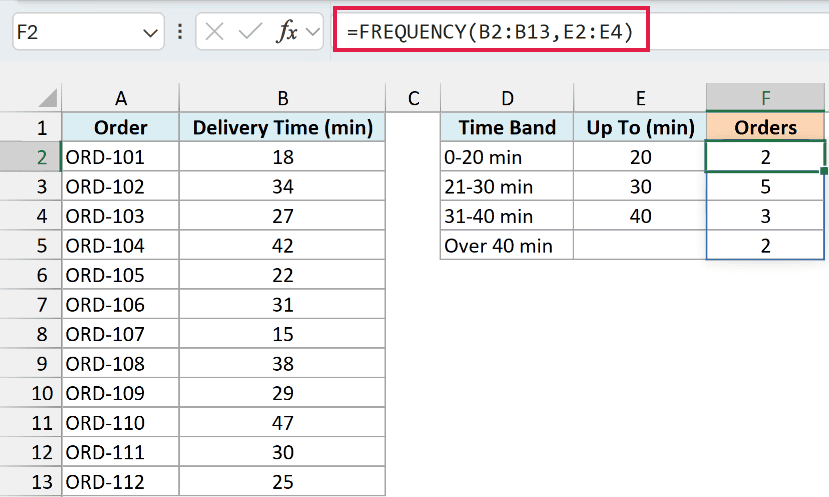
This returns 2, 5, 3, and 2, and the counts spill into F2:F5 on their own.
FREQUENCY checks every delivery time in B2:B13 against the bins in E2:E4. Since each bin is an upper limit, the first count is for orders up to 20 minutes, the second for 21 to 30 minutes, and the third for 31 to 40 minutes.
Order ORD-111 took exactly 30 minutes, and it lands in the 21-30 band. A value that equals a bin always goes into that bin, not the next one.
The fourth count in F5 is the extra one for orders that took more than 40 minutes. There’s no upper limit for it, which is why E5 is empty and its label says Over 40 min.
If any cell in F2:F5 already has something in it, you get a #SPILL! error instead of the counts. Clear those cells, and the results show up.
Important: In Excel 2019 or earlier, FREQUENCY doesn’t spill. Select F2:F5 first (one more cell than the bins), type the formula, and press Control + Shift + Enter.
Example 2: Show Each Band as a Percentage
Here’s another practical scenario.
Below is a list of hotel bookings with the number of nights each guest stayed, and I want to see what share of the stays falls in each stay length in column F.
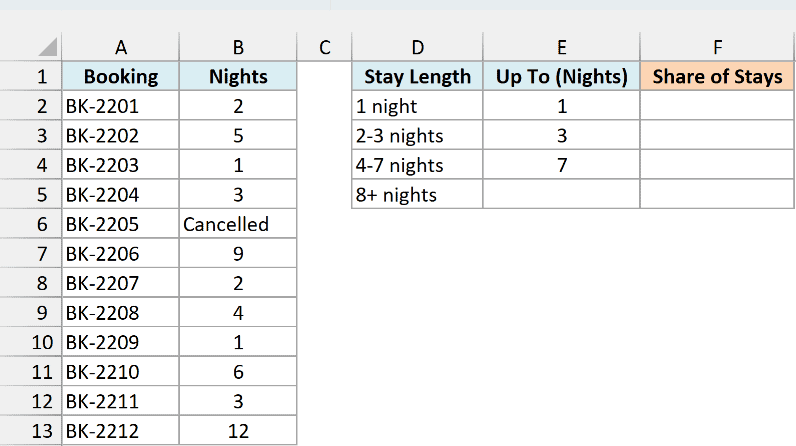
Here is the formula:
=FREQUENCY(B2:B13,E2:E4)/COUNT(B2:B13)
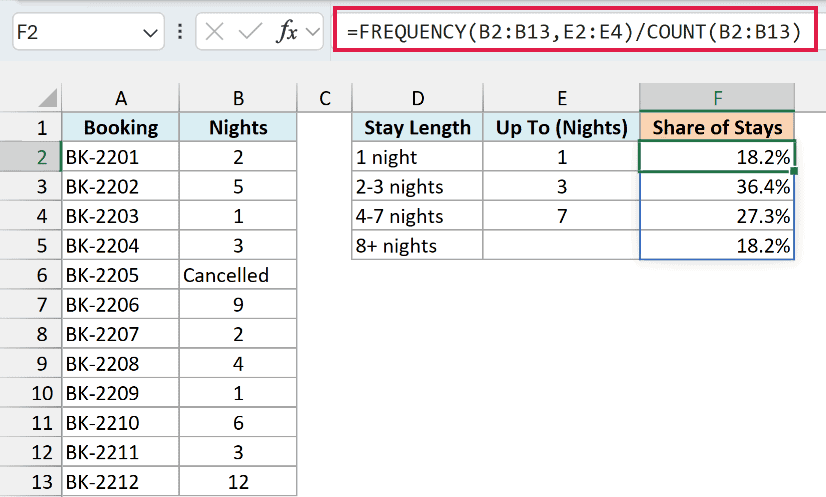
This returns 18.2%, 36.4%, 27.3%, and 18.2%.
Booking BK-2205 was cancelled, so it has the text Cancelled instead of a number. FREQUENCY skips text, so it counts only the 11 bookings that have a number of nights.
It first counts the stays in each band (2, 4, 3, and 2). Dividing those counts by the total from the COUNT function, which also counts only numbers, turns each one into a share of the 11 stays.
Important: Divide by COUNT, not COUNTA or ROWS. Those also count the Cancelled entry and return 12, so every share comes out too small and the shares no longer add up to 100%.
Example 3: Type the Bins Right Into the FREQUENCY Formula
Now let’s look at a quicker way to set up the bins.
Below is a list of employees with their one-way commute in miles, and I want to count how many employees fall into each distance band in column E.
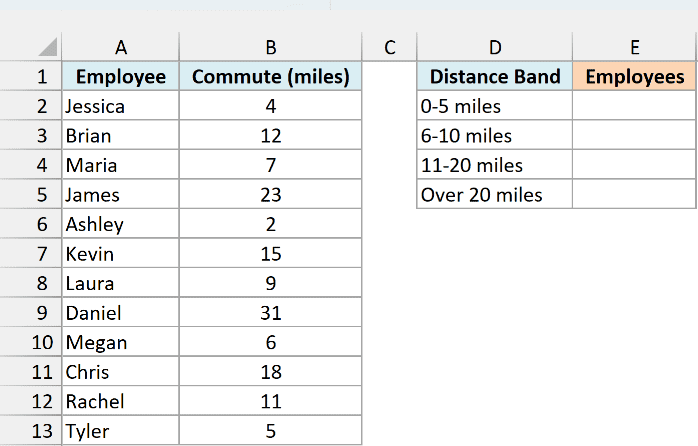
Here is the formula:
=FREQUENCY(B2:B13,{5,10,20})
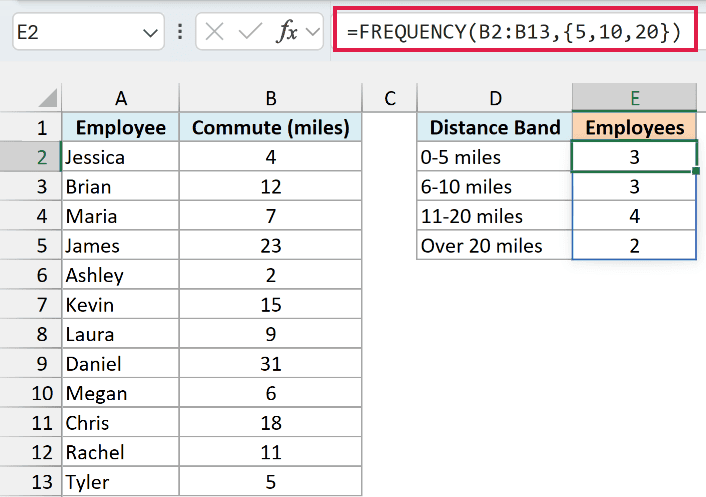
This returns 3, 3, 4, and 2.
Instead of pointing to bin cells, I typed the bins into the formula as an array constant, with commas between the numbers and curly brackets around them.
These bins work exactly like bin cells, and the fourth count is still the overflow for commutes over 20 miles.
This is handy for a quick summary where the bands won’t change. If you want to try different bands, bin cells are easier, because you can change a bin without editing the formula.
Pro Tip: FREQUENCY always returns its counts down a column. If you want them across a row instead, wrap it in the TRANSPOSE function, like =TRANSPOSE(FREQUENCY(B2:B13,{5,10,20})).
Example 4: Count Values in Bands for One Category Only
Let’s step it up with a more practical use case.
Below is a list of orders with the sales channel and the number of items in each order, and I want to count the online orders by order size in column G.
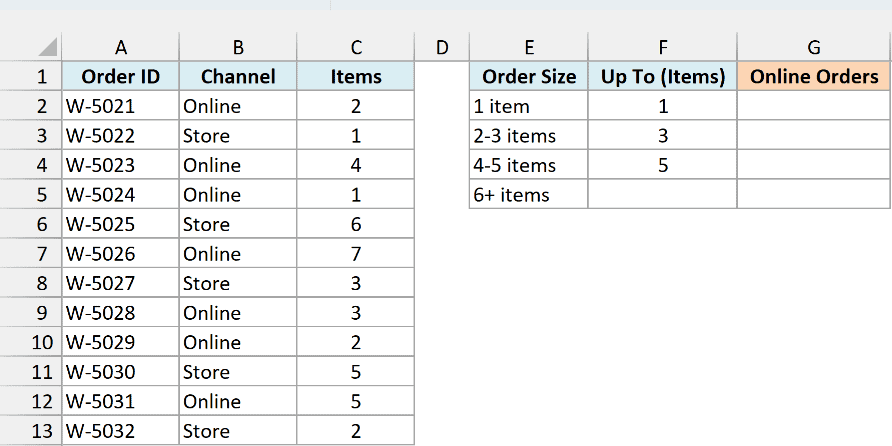
Here is the formula:
=FREQUENCY(FILTER(C2:C13,B2:B13="Online"),F2:F4)
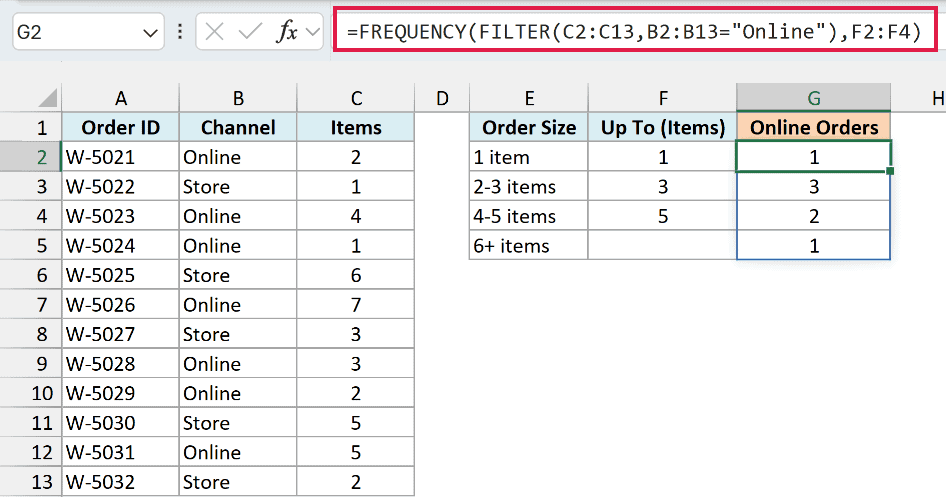
This returns 1, 3, 2, and 1.
How this formula works:
- FILTER(C2:C13,B2:B13=”Online”) keeps only the item counts of the Online orders, which are 2, 4, 1, 7, 3, 2, and 5.
- FREQUENCY then groups those seven values using the bins in F2:F4, so you get one count per order size.
If you ran FREQUENCY on all of C2:C13 instead, the Store orders would be counted too, and you’d get 2, 5, 3, and 2.
If no order matches the channel, FILTER returns a #CALC! error, and so does the whole formula. So if you see #CALC! here, check that the channel name in the formula matches the one in column B.
The FILTER function is available in Excel 365, 2024, and 2021. If you are using Excel 2019 or earlier, select G2:G5, enter the below formula, and press Control + Shift + Enter:
=FREQUENCY(IF(B2:B13="Online",C2:C13),F2:F4)
The IF function part returns the item count for Online orders and FALSE for Store orders. FREQUENCY ignores the FALSE values, so only the Online orders get counted.
Example 5: Find the Longest Streak of Consecutive Days
This last one uses FREQUENCY for something you might not expect from a counting function.
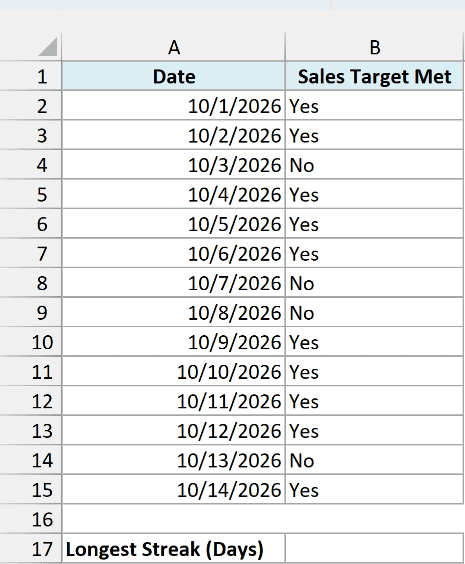
Below is a bakery’s log of whether it hit its daily sales target, and I want the longest run of consecutive days the target was met in cell B17.
Here is the formula:
=MAX(FREQUENCY(IF(B2:B15="Yes",ROW(B2:B15)),IF(B2:B15<>"Yes",ROW(B2:B15))))
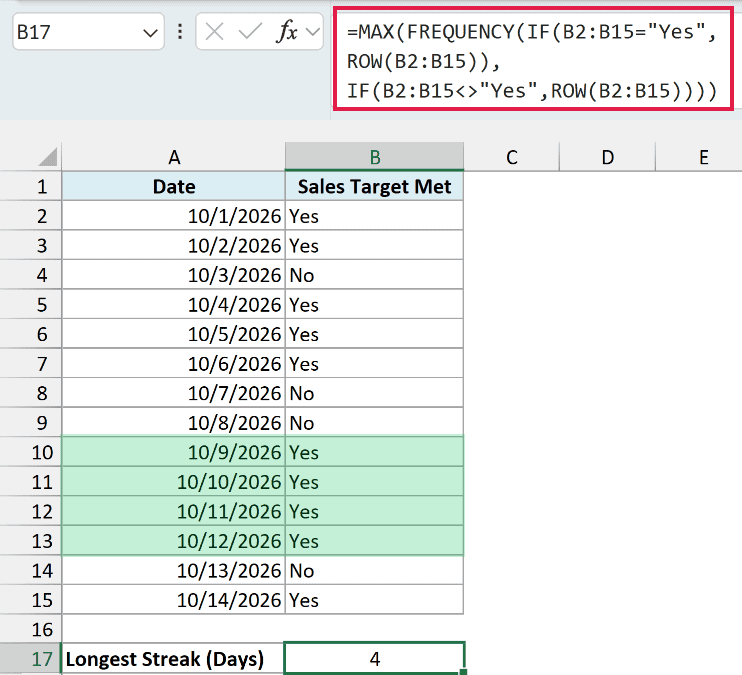
This returns 4, which is the run from October 9 to October 12.
How this formula works:
- IF(B2:B15=”Yes”,ROW(B2:B15)) returns the row number of every day the target was met, and FALSE for the other days. FREQUENCY uses these as the values to count.
- IF(B2:B15<>”Yes”,ROW(B2:B15)) returns the row numbers of the days the target was missed, which act as the bins.
- FREQUENCY treats each missed day as a wall and counts how many “Yes” rows fall between one wall and the next. That gives the length of every streak, which here is {2;3;0;4;1}.
- MAX picks the longest of those streaks, which is 4.
The 0 in the middle comes from October 7 and 8, two missed days in a row with no streak between them.
If you are using Excel 2019 or earlier, type this formula in cell B17 and press Control + Shift + Enter instead of just Enter.
So these are five practical ways to use the FREQUENCY function in Excel, from a simple frequency distribution to the longest streak in a list.
Once you have the counts, you can also turn them into a chart, which I cover in my histogram tutorial.
I hope you found this article helpful.
Other Excel Articles You May Also Like:
