

The PROB function in Excel gives you the probability that a value falls between two limits. You give it a list of possible values and the chance of each one, and it adds up the chances for the values you care about.
It’s useful whenever you already have a probability table, like how many items people buy per order or how many goals a team scores in a match.
In this article, I’ll show you how PROB works with five examples, including how to fix the #NUM! error it returns when your probabilities don’t add up.
Follow along with the example file
PROB Function Examples.xlsx
PROB Function Syntax
Here is the syntax of the PROB function:
=PROB(x_range, prob_range, [lower_limit], [upper_limit])
- x_range – The list of possible values, such as the number of goals scored in a match (0, 1, 2, and so on). These need to be numbers.
- prob_range – The probability of each value in x_range. It needs the same number of cells as x_range, and all the probabilities must add up to exactly 1 (or 100%).
- lower_limit – The lowest value you want the probability for. Microsoft lists it as optional, but Excel won’t accept a PROB formula without it, so always include it.
- upper_limit – (Optional) The highest value you want the probability for.
PROB includes both limits. So if the lower limit is 3 and the upper limit is 5, you get the combined chance of 3, 4, and 5.
If you leave out the upper limit, PROB returns the probability of exactly the lower limit value.
The PROB function works in all Excel versions, including Excel for Microsoft 365 (Windows and Mac), 2024, 2021, 2019, and 2016.
When to Use the PROB Function
Use this function when you need to:
- Find the chance of one exact outcome from a probability table, like an order with exactly 3 items
- Find the chance that a value falls within a range, like a group of 3 to 4 people
- Build “or fewer” and “or more” probability columns for every value in a table
- Turn survey counts into probabilities and get the chance of a range in one formula
Let me show you a few practical examples of how to use the PROB function.
Example 1: Find the Probability of an Exact Value
Let’s start with a simple example.
Below I have the probability of how many items a customer buys in one online order, and I want to find the chance that an order has exactly the number of items in D2 (which is 3), with the result in E2.
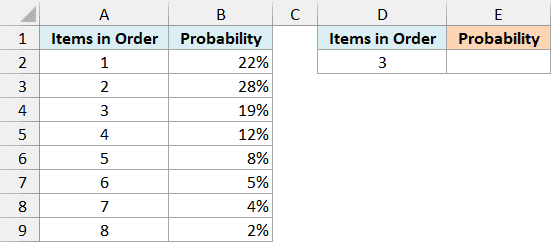
Here is the formula:
=PROB(A2:A9,B2:B9,D2)
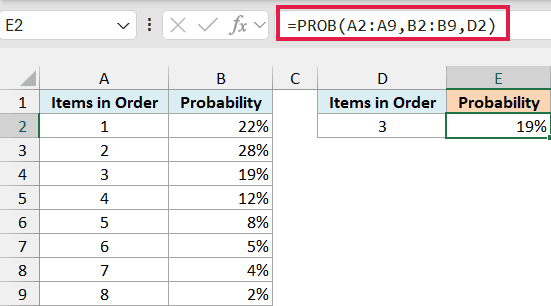
Since there’s no upper limit, PROB returns the probability of exactly the value in D2. It finds 3 in A2:A9 and returns its probability from B2:B9, which is 19%.
Because the item count sits in its own cell, you can change D2 to any other number and the result updates. If you enter a value that isn’t in column A, PROB returns 0, since there’s no chance of that outcome in the table.
Example 2: Calculate the Probability Between Two Numbers
Here’s another practical scenario.
Below I have the probability of different party sizes for bookings at a restaurant, and I want to use the From and To limits in columns E and F to find the chance that a booking needs each table size in column G.
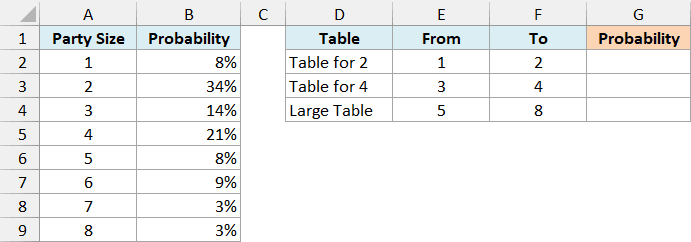
Here is the formula:
=PROB(A2:A9,B2:B9,E2:E4,F2:F4)
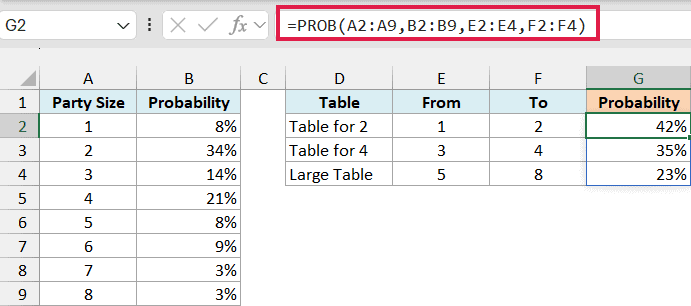
You only need to enter the formula in cell G2, and the results spill down into G2:G4. For each table, PROB adds up the probabilities of the party sizes from the From value to the To value, including both.
So the Table for 4 row covers parties of 3 and 4 people, which is 14% + 21% = 35%. The Large Table row covers 5 to 8 people and returns 23%.
If you accidentally swap the limits (like From 4 and To 3), PROB returns 0 instead of an error. So if you get a 0 you didn’t expect, check that the lower limit is the smaller number.
Giving PROB a range of limits like this needs Excel for Microsoft 365 or Excel 2021 and later.
If you are using Excel 2019 or earlier, enter the below formula in cell G2 and then copy it down the range (the dollar signs keep the two ranges fixed as you copy):
=PROB($A$2:$A$9,$B$2:$B$9,E2,F2)
Example 3: Calculate At Most and At Least Probabilities
Now let’s look at something a bit more interesting.
Below I have the probability of how many goals a soccer team scores in a match, and I want to find the chance of scoring that many goals or fewer in column C.
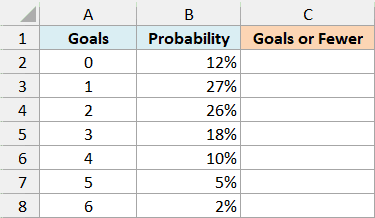
Here is the formula:
=PROB(A2:A8,B2:B8,0,A2:A8)
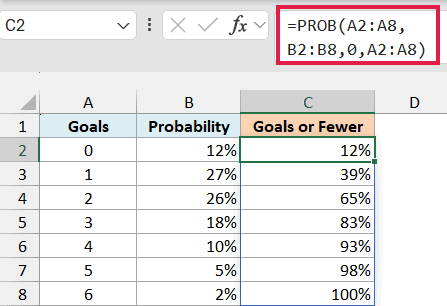
Here, the lower limit is always 0, and the upper limit is the whole goals column. So PROB runs once for each number of goals in A2:A8, and the results spill down.
For example, C4 shows 65%, which is the chance of scoring 2 goals or fewer (12% + 27% + 26%). The last row is 100%, because the team always scores 6 goals or fewer in this table.
If you are using Excel 2019 or earlier, enter the below formula in cell C2 and then copy it down the range:
=PROB($A$2:$A$8,$B$2:$B$8,0,A2)
Now let’s get the chance of scoring that many goals or more in column D.
Here is the formula:
=PROB(A2:A8,B2:B8,A2:A8,MAX(A2:A8))
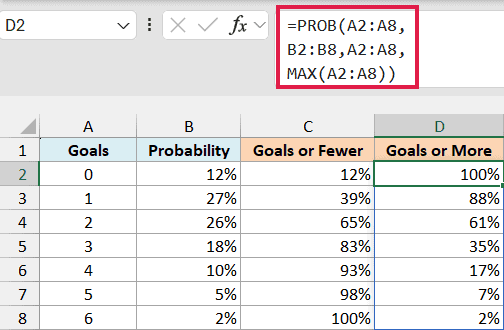
This time, the goals column is the lower limit, and the upper limit comes from the MAX function, which returns the highest number of goals in the table (6). So you don’t have to type that number yourself.
D5 shows 35%, which means the team has a 35% chance of scoring 3 or more goals in a match.
If you are using Excel 2019 or earlier, enter the below formula in cell D2 and then copy it down the range:
=PROB($A$2:$A$8,$B$2:$B$8,A2,MAX($A$2:$A$8))
Example 4: Calculate Probability from Survey Counts
Let’s step it up with a more practical use case.
Below I have the number of people who gave each answer in a survey about daily cups of coffee, and I want to find the chance that someone drinks 2 to 3 cups (the limits in D2 and E2) in F2.
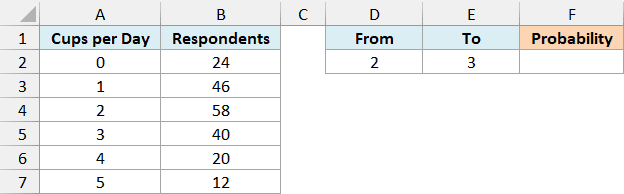
Here is the formula:
=PROB(A2:A7,B2:B7/SUM(B2:B7),D2,E2)
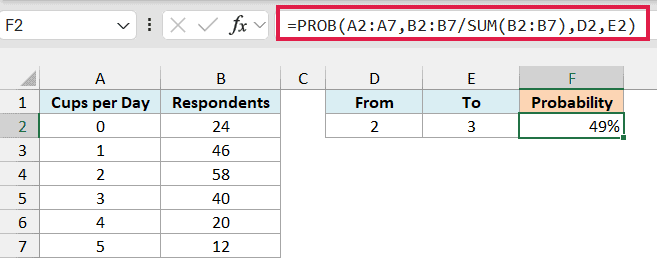
If you give PROB the counts directly, you get the #NUM! error, because they add up to 200 instead of 1.
How this formula works:
- B2:B7/SUM(B2:B7) divides each count by the total of 200, which turns the counts into probabilities that add up to exactly 1 (24 becomes 0.12, 46 becomes 0.23, and so on).
- D2,E2 are the lower and upper limits, so PROB adds up the probabilities for 2 and 3 cups (0.29 + 0.2), which gives 49%.
This saves you from adding a helper column of probabilities next to the counts.
Example 5: Fix the #NUM! Error in the PROB Function
Finally, let’s look at the error you’re most likely to run into with PROB.
Below I have survey results with the share of households that own 0 to 5 pets, and I want to find the chance that a household has between 1 and 2 pets in F2.
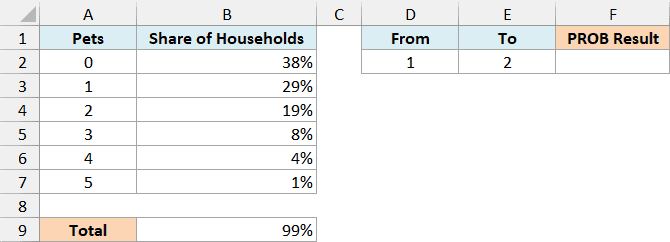
Here is the formula:
=PROB(A2:A7,B2:B7,D2,E2)
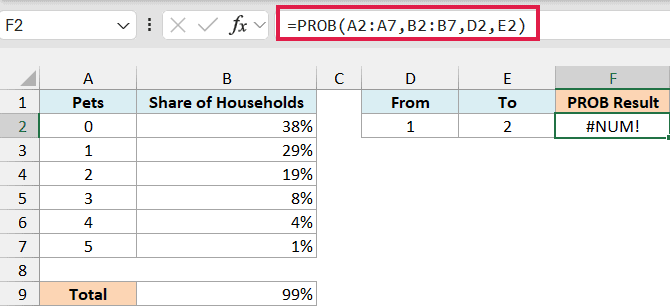
This returns the #NUM! error. PROB gives this error when the probabilities don’t add up to exactly 1, and the total in B9 shows that these only add up to 99%.
That’s very common with survey percentages, because each one is rounded to a whole number. PROB doesn’t allow even a tiny gap, so a total of 99.99% also gives the #NUM! error.
To fix this, you can divide each percentage by the total, just like in Example 4. Let’s do that in G2.
Here is the formula:
=PROB(A2:A7,B2:B7/SUM(B2:B7),D2,E2)
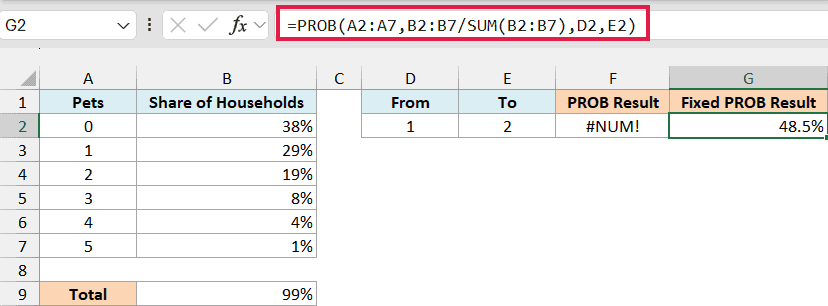
This returns 48.5%. Dividing by the total scales the percentages up a little so they add up to exactly 1, and then PROB adds up the shares for 1 and 2 pets.
Important: The same error shows up when you type rounded fractions yourself. If six outcomes each have a 1 in 6 chance, typing 0.17 (or even 0.1667) in each cell gives #NUM!, but entering =1/6 in each cell works.
PROB also returns the #NUM! error if a cell in x_range is blank but has a probability next to it. So if the total is 100% and you still get #NUM!, check column A for an empty cell.
And if x_range and prob_range have a different number of cells (like A2:A7 and B2:B8), you get the #N/A error instead. Make sure both ranges cover the same rows.
So these are five examples of how you can use the PROB function in Excel.
I hope you found this article helpful.
Other Excel Articles You May Also Like:
