

The BINOM.DIST function in Excel tells you the chance of getting a certain number of successes when you repeat something a fixed number of times. Think of how many emails get a reply, or how many orders come back as returns.
All you need is how many tries there are and the chance of success on each one. BINOM.DIST then gives you the probability of exactly that many successes, or of that many or fewer.
In this article, I’ll show you how the BINOM.DIST function works with six practical examples, starting with a simple exact count and ending with a real overbooking decision.
Follow along with the example file
BINOM.DIST Function Examples.xlsx
BINOM.DIST Function Syntax
Here is the syntax of the BINOM.DIST function:
=BINOM.DIST(number_s, trials, probability_s, cumulative)
All four arguments are required.
- number_s – The number of successes you want the probability for.
- trials – The total number of tries (independent trials).
- probability_s – The chance of success on each try, as a decimal or a percentage (0.2 or 20%).
- cumulative – FALSE gives the probability of exactly number_s successes. TRUE gives the probability of number_s or fewer successes.
TRUE is also the building block for “at least” and “between” questions, which Examples 4 and 5 cover.
The number_s and trials arguments are whole numbers. If you give them a decimal, Excel cuts off the decimal part, so 2.9 is treated as 2.
If number_s is more than trials, or probability_s is below 0 or above 1, you get a #NUM! error. A common way to hit this is typing 25 instead of 25% for the probability.
The BINOM.DIST function works in Excel 2010 and later versions, including 365, 2024, 2021, 2019, 2016, Mac, and the web. In Excel 2007 or earlier, use the older BINOMDIST function, which takes the same four arguments.
When to Use the BINOM.DIST Function
Use this function when you need to:
- Find the chance of getting exactly a certain number of successes
- Check how likely it is to stay at or under a limit
- Work out the odds of hitting at least a target number
- See how likely it is that the result lands between two values
- Build a table of probabilities for every possible outcome
- Decide how far you can push a number (like extra bookings) before the risk gets too high
Let me show you a few practical examples of how to use the BINOM.DIST function in Excel.
Example 1: Binomial Probability of an Exact Number
Let’s start with a simple example.
Below I have the details of a coffee shop where 70% of reviews are five stars, and I want the chance that exactly 9 of the next 12 reviews are five stars in cell B6.
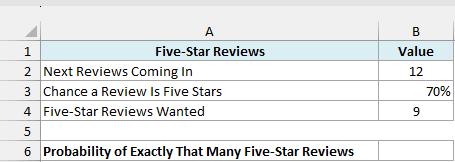
Here is the formula:
=BINOM.DIST(B4,B2,B3,FALSE)
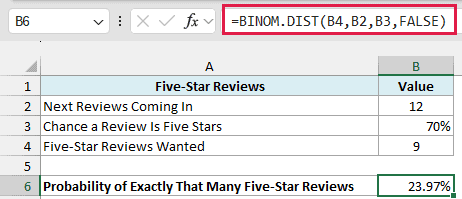
The formula returns 23.97%, so there’s roughly a 1 in 4 chance that exactly 9 of the next 12 reviews are five stars.
Here, B4 is the number of successes I’m checking (9), B2 is the number of trials (12), and B3 is the chance of success on each one (70%).
The FALSE at the end tells BINOM.DIST to give the probability of exactly 9, not 9 or fewer.
The result is a decimal (0.2397), and the cell is formatted as a percentage so it’s easier to read.
Example 2: Build a Binomial Distribution Table in Excel
Now let’s get the probability of every possible outcome in one go.
Below I have a seed packet where each seed has an 80% chance of sprouting, and I want the chance of each number of seeds sprouting (from 0 to 10) in column B.
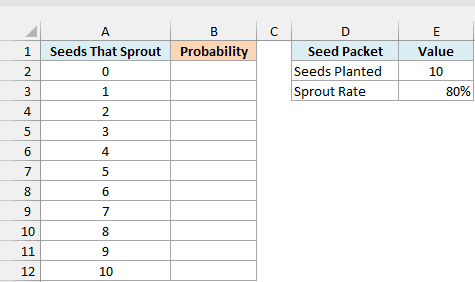
Here is the formula:
=BINOM.DIST(A2:A12,E2,E3,FALSE)
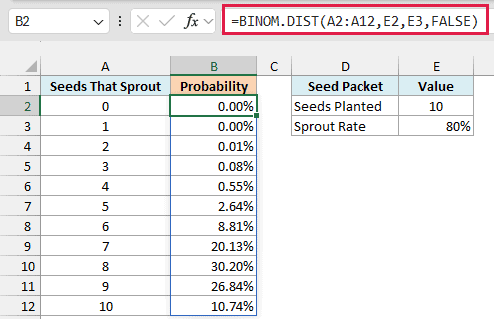
Since I gave BINOM.DIST the whole range A2:A12 as number_s, it returns 11 results that spill down into B2:B12. E2 is the number of seeds planted (10) and E3 is the sprout rate (80%).
You can see that 8 seeds sprouting is the most likely result (30.20%), followed by 9 (26.84%). The chance of 0 or 1 seeds sprouting isn’t zero, but it’s so small that it shows as 0.00%.
All 11 probabilities add up to 100%, because one of these outcomes has to happen.
If you are using Excel 2019 or earlier, enter the below formula in cell B2 and then copy it down to B12:
=BINOM.DIST(A2,$E$2,$E$3,FALSE)
Example 3: Probability of At Most a Certain Number
Here’s another practical scenario.
Below I have an online store that ships 50 orders this week with an 8% return rate, and I want the chance of getting 5 or fewer returns in cell B6.
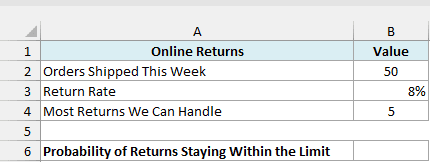
Here is the formula:
=BINOM.DIST(B4,B2,B3,TRUE)
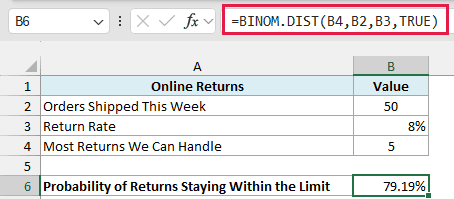
The formula returns 79.19%, so there’s about an 80% chance that the returns stay at 5 or fewer.
The only change from Example 1 is the last argument. TRUE makes BINOM.DIST add up the probabilities of 0, 1, 2, 3, 4, and 5 returns, which gives the chance of 5 or fewer.
Example 4: Probability of At Least a Certain Number
Now let’s look at something a bit trickier.
Below I have 15 job applications with a 20% callback rate, and I want the chance of getting at least 3 callbacks in cell B6.
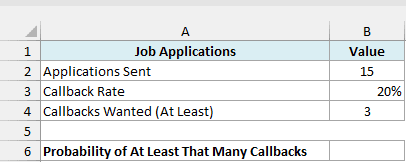
Here is the formula:
=1-BINOM.DIST(B4-1,B2,B3,TRUE)
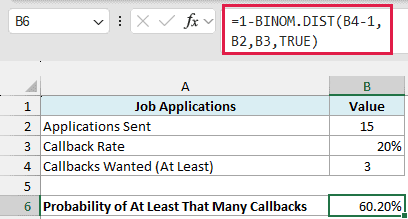
The formula returns 60.20%, so there’s about a 60% chance of getting 3 or more callbacks.
BINOM.DIST with TRUE only gives you “this many or fewer”. So I first get the chance of 2 or fewer callbacks (that’s B4-1), and then subtract it from 1 to get everything else, which is 3 or more.
Important: For “at least 3”, subtract 1 from the number first. If you use =1-BINOM.DIST(B4,B2,B3,TRUE), you get the chance of more than 3 (35.18%), which leaves out exactly 3.
If you’re on Excel 2013 or later, the BINOM.DIST.RANGE function can skip the minus 1 step, and the Pro Tip in Example 5 shows how it works.
Example 5: Probability Between Two Numbers
Let’s step it up with a range of outcomes.
Below I have a customer survey sent to 40 people with a 25% response rate, and I want the chance of getting between 8 and 12 responses in cell B7.
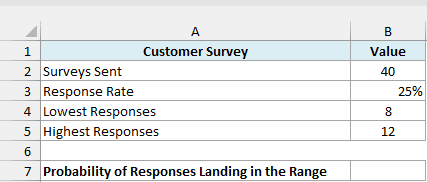
Here is the formula:
=BINOM.DIST(B5,B2,B3,TRUE)-BINOM.DIST(B4-1,B2,B3,TRUE)
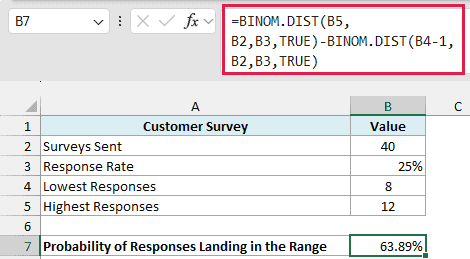
The formula returns 63.89%, so there’s about a 64% chance of getting 8 to 12 responses.
The first BINOM.DIST gives the chance of 12 or fewer responses. The second one gives the chance of 7 or fewer (B4-1), and subtracting it leaves only 8, 9, 10, 11, and 12.
Subtracting the chance of 8 or fewer instead would drop the 8 itself and give 52.10%, which is the same minus 1 trap from Example 4.
Pro Tip: The BINOM.DIST.RANGE function (Excel 2013 and later) does this in one go, with no minus 1 to remember. It takes the trials, the probability, and the lowest and highest counts, so =BINOM.DIST.RANGE(B2,B3,B4,B5) returns the same 63.89%.
Example 6: Check the Risk of Overbooking
Let’s finish with a real decision you can make with BINOM.DIST.
Below I have a 40-room hotel where 90% of guests show up, and I want the overbooking risk (the chance of more guests than rooms) in column B for each number of bookings.
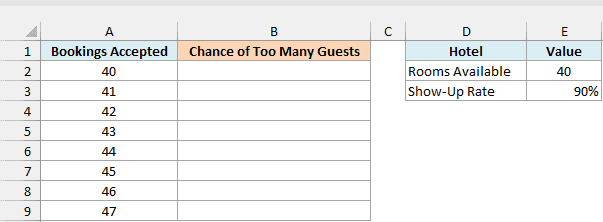
Here is the formula:
=1-BINOM.DIST(E2,A2:A9,E3,TRUE)
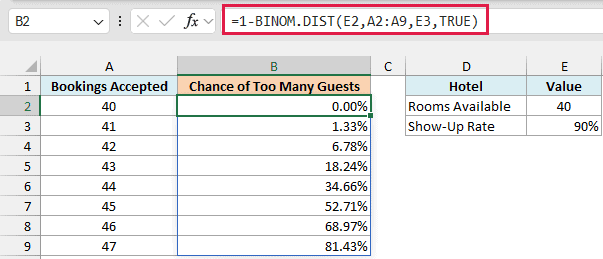
The formula returns 0.00% for 40 bookings, 1.33% for 41, and 6.78% for 42, and then the risk climbs fast, passing 50% at 45 bookings. With 40 bookings the risk is zero, because there can’t be more guests than bookings.
This time the range goes in the trials argument. For each number of bookings in A2:A9, BINOM.DIST gets the chance that 40 guests or fewer show up, and 1 minus that is the chance of more than 40 guests.
So if the hotel is fine with a small risk, taking 41 or 42 bookings is a reasonable choice.
You can also change the show-up rate in E3, and the whole column updates to show the new risk.
If you are using Excel 2019 or earlier, enter the below formula in cell B2 and then copy it down to B9:
=1-BINOM.DIST($E$2,A2,$E$3,TRUE)
So these are six practical ways to use the BINOM.DIST function in Excel, from the chance of an exact number to “at most”, “at least”, and “between” probabilities.
You also saw how one spilling formula can build a full probability table or compare several scenarios at once.
I hope you found this Excel tutorial useful.
Other Excel Articles You May Also Like:
