

BINOM.DIST.RANGE tells you how likely it is that a set of repeated tries ends with a number of successes inside a range you pick. Think of quiz answers, delivered orders, or free throws, where each try either works or doesn’t.
You can also use it for one exact count, and it answers “at least” and “between” questions in one formula, without calculating two separate probabilities and subtracting one from the other.
In this tutorial, I’ll show you how the function works with five examples, starting with a simple exact count and ending with a comparison across several players.
Follow along with the example file
BINOM.DIST.RANGE Function Examples.xlsx
BINOM.DIST.RANGE Function Syntax
Here is the syntax of the BINOM.DIST.RANGE function:
=BINOM.DIST.RANGE(trials, probability_s, number_s, [number_s2])
- trials – The total number of tries (independent trials), such as 10 quiz questions or 20 deliveries.
- probability_s – The chance of success on each try, as a decimal or a percentage (0.25 or 25%).
- number_s – The lowest number of successes you want to count. If you leave out number_s2, this is the exact count you get the probability for.
- number_s2 – (Optional) The highest number of successes you want to count.
When you give both number_s and number_s2, the function adds up the chance of every count between them, and both ends are included. So a lowest count of 15 and a highest count of 18 covers 15, 16, 17, and 18.
The function assumes every try has the same chance of success and that one try doesn’t change the odds of the next (that’s what independent means). The results are only as reliable as that assumption.
The lowest count can’t be more than the highest count, and neither of them can be more than trials. If they are, you get a #NUM! error.
The three count arguments are whole numbers. If you give one of them a decimal, Excel cuts off the decimal part, so 3.9 is treated as 3.
The BINOM.DIST.RANGE function works in Excel 2013 and later versions, including Microsoft 365, 2024, 2021, 2019, and 2016. The spilling formulas in Examples 2, 4, and 5 need Microsoft 365, Excel 2024, or Excel 2021.
When to Use the BINOM.DIST.RANGE Function
Use this function when you need to:
- Find the chance of getting exactly a certain number of successes
- Work out the odds of hitting at least a target number
- See how likely it is that the result lands between two values
- Split all the possible outcomes into bands and get the chance of each one
- Compare the same target across people or options with different success rates
Let me show you a few practical examples of how to use the BINOM.DIST.RANGE function in Excel.
Example 1: Probability of an Exact Number of Successes
Let’s start with a simple example.
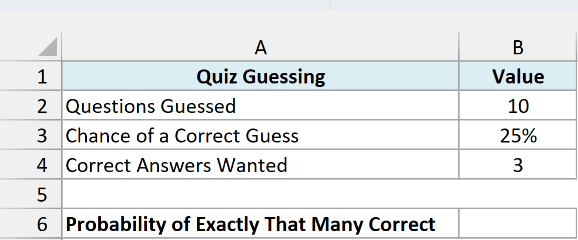
Below I have a 10-question multiple-choice quiz where someone guesses every answer (with 4 choices, that’s a 25% chance per guess), and I want the chance of getting exactly 3 right in cell B6.
Here is the formula:
=BINOM.DIST.RANGE(B2,B3,B4)
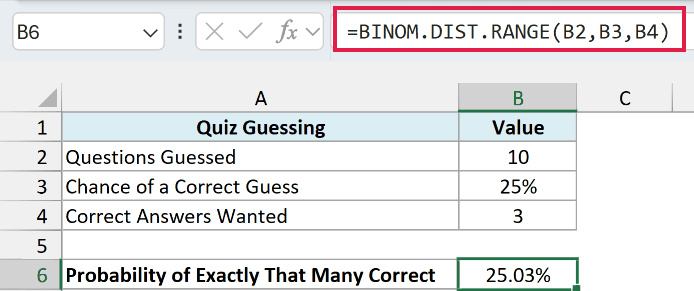
The formula returns 25.03%, so there’s about a 1 in 4 chance of guessing exactly 3 answers right.
Here, B2 is the number of tries (10 questions), B3 is the chance of success on each one (25%), and B4 is the number of successes I’m checking (3).
Since I left out the fourth argument, BINOM.DIST.RANGE gives the probability of exactly 3, not a range.
The result is a decimal (0.2503), and the cell is formatted as a percentage so it’s easier to read.
Important: Enter the chance of success as 25% or 0.25. A plain 25 typed in the formula (or in a cell with General formatting) means 2,500% to Excel, and the formula returns a #NUM! error.
The count arguments need numbers too. If a cell holds text such as “ten” instead of 10, you get a #VALUE! error.
Example 2: Probability of At Least a Certain Number
Now let’s get several answers from one formula.
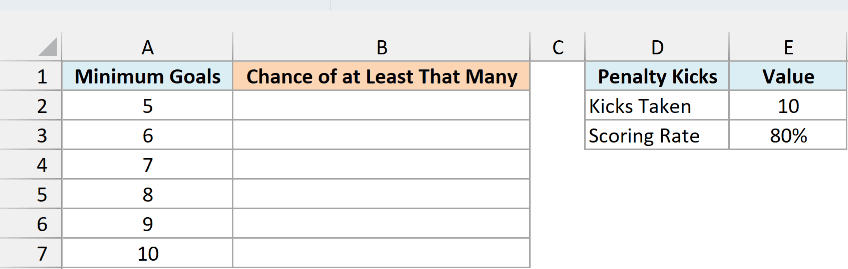
Below I have a player who scores 80% of penalty kicks and takes 10 in practice, and I want the chance of scoring at least each number of goals in column A, with the results in column B.
Here is the formula:
=BINOM.DIST.RANGE(E2,E3,A2:A7,E2)
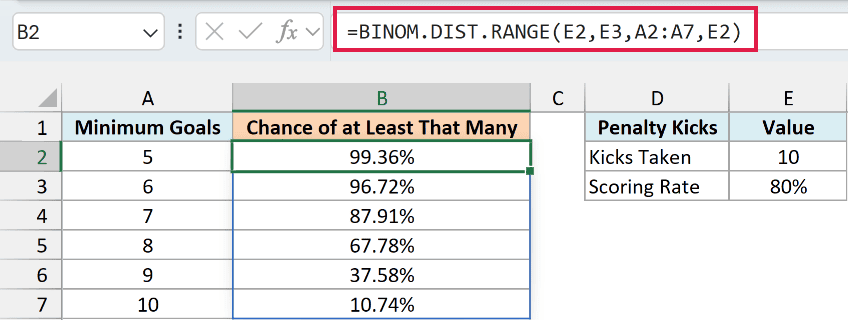
Since I gave the function the whole range A2:A7 as number_s, it returns six results that spill down into B2:B7. E2 is the number of kicks taken (10), and E3 is the scoring rate (80%).
The trick for “at least” is the last argument. I used E2 there as well, so the highest count is all 10 kicks, and each result covers the minimum in column A up to 10.
For example, the chance of scoring at least 7 goals is 87.91%. The chance drops as the minimum goes up, and scoring all 10 has only a 10.74% chance.
Pro Tip: For an “at most” question, flip it around. Use 0 as number_s and your maximum as number_s2, and you get the chance of that many successes or fewer.
The results spill from the single formula in B2, so keep the cells below it empty. If anything is already there, you get a #SPILL! error.
If you are using Excel 2019 or earlier, enter the below formula in cell B2 and then copy it down to B7:
=BINOM.DIST.RANGE($E$2,$E$3,A2,$E$2)
Example 3: Probability Between Two Numbers
This next one is the job BINOM.DIST.RANGE was made for.
Below I have a store that delivers 20 orders today with an 85% on-time rate, and I want the chance that 15 to 18 of them arrive on time in cell B7.
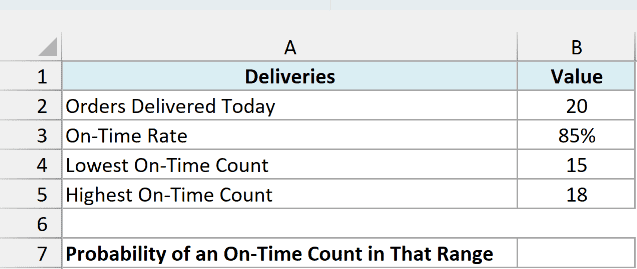
Here is the formula:
=BINOM.DIST.RANGE(B2,B3,B4,B5)
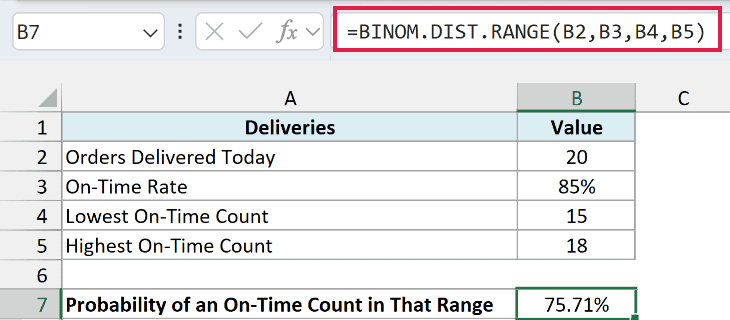
The formula returns 75.71%, so there’s roughly a 3 in 4 chance that between 15 and 18 orders are on time.
B4 is the lowest count (15) and B5 is the highest count (18). Both are included, so the result adds up the chances of 15, 16, 17, and 18 on-time orders.
Important: An empty cell used as the highest count is read as 0, not as a missing argument. Since 0 is below the lowest count, you get a #NUM! error, and the same happens if you swap the two limits.
You could get the same answer with the BINOM.DIST function by subtracting the chance of 14 or fewer from the chance of 18 or fewer. It has to be 14, because subtracting 15 or fewer would also remove the 15 you want to keep.
BINOM.DIST.RANGE takes 15 and 18 exactly as they are, so there’s no minus 1 to remember.
Example 4: Probability for Each Range of Outcomes
Let’s step it up with a planning question.
Below I have a party with 40 invitations where each guest has a 75% chance of coming, and I want the chance of the headcount landing in each guest band in column C.
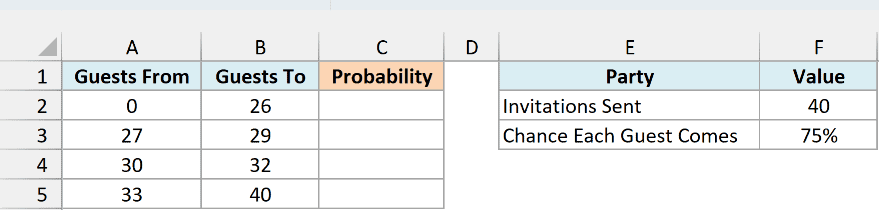
Here is the formula:
=BINOM.DIST.RANGE(F2,F3,A2:A5,B2:B5)
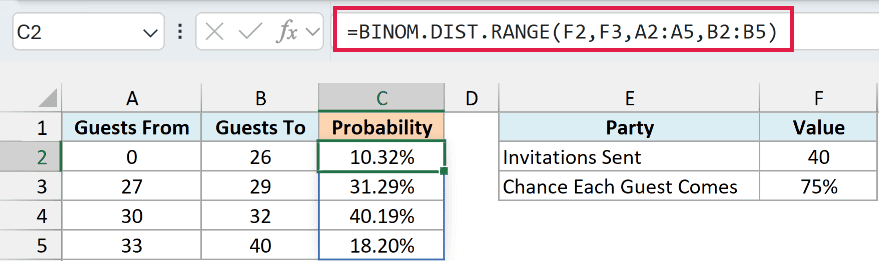
F2 is the number of invitations (40), and F3 is the chance each guest comes (75%). This time, both limits are ranges, with the lowest count of each band in A2:A5 and the highest in B2:B5.
The function pairs them up row by row (0 with 26, 27 with 29, and so on) and spills one result for each band into C2:C5.
The most likely band is 30 to 32 guests, at 40.19%. There’s also an 18.20% chance that 33 or more people show up.
The bands don’t overlap or skip any number, so the four results add up to 100%. That also means the first three bands together give the chance of 32 guests or fewer (81.80%), which helps when deciding how many chairs to rent.
If you change the number of invitations in F2, check the band limits too. The 40 in B5 is typed in, and a limit above the number of invitations returns a #NUM! error.
If you are using Excel 2019 or earlier, enter the below formula in cell C2 and then copy it down to C5:
=BINOM.DIST.RANGE($F$2,$F$3,A2,B2)
Example 5: Compare the Same Target Across Different Success Rates
Let’s finish by comparing people instead of counts.
Below I have eight basketball players and their free-throw rates, and I want each player’s chance of making at least 8 out of 10 free throws in column C.
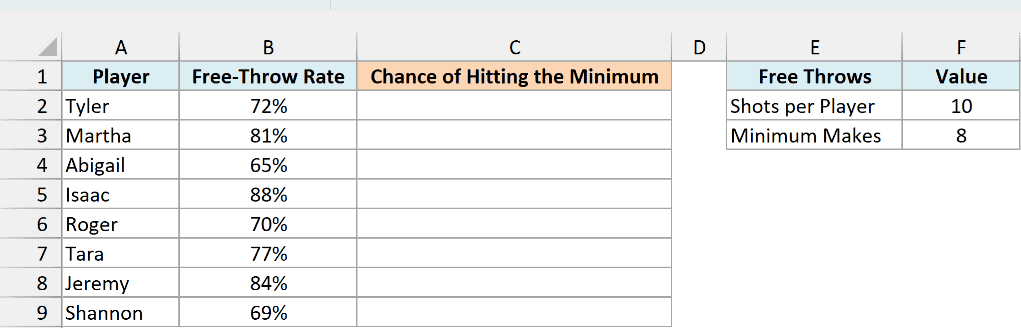
Here is the formula:
=BINOM.DIST.RANGE(F2,B2:B9,F3,F2)
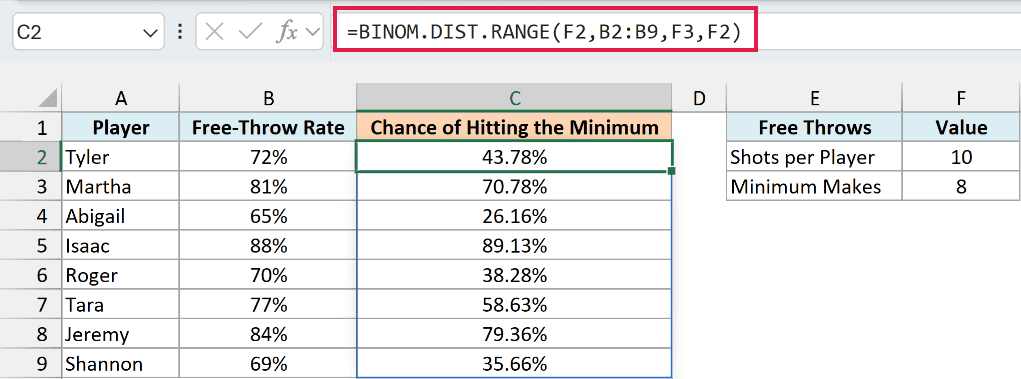
This time the range goes in the probability_s argument. For each player’s rate in B2:B9, the function gets the chance of making anywhere from 8 (F3) up to all 10 (F2) free throws.
Isaac, with an 88% free-throw rate, has an 89.13% chance of hitting the target. Abigail, at 65%, has only a 26.16% chance.
Notice that Tyler has just a 43.78% chance, even though 72% sounds like a decent rate. Making 8 out of 10 asks for more than a 72% shooter usually makes, so falling short is the more likely outcome.
You can change the minimum in F3, and the whole column updates to show the new chances.
If you are using Excel 2019 or earlier, enter the below formula in cell C2 and then copy it down to C9:
=BINOM.DIST.RANGE($F$2,B2,$F$3,$F$2)
So these are five practical ways to use the BINOM.DIST.RANGE function in Excel, from an exact count to “at least”, “between”, and banded probabilities.
I hope you found this Excel tutorial useful.
Other Excel Articles You May Also Like:
