

The NEGBINOM.DIST function in Excel calculates the probability of a given number of failures before you reach a target number of successes.
You fix the success target and let the number of attempts vary. For example, you could keep trying until you get your third success, then work out how likely a particular number of failures is along the way.
In this tutorial, I’ll show you how to calculate exact probabilities, include a range of failure counts, and turn a total attempt limit into the failure count Excel needs.
Follow along with the example file
NEGBINOM.DIST Function Examples.xlsx
NEGBINOM.DIST Function Syntax
Here is the syntax of the NEGBINOM.DIST function:
=NEGBINOM.DIST(number_f,number_s,probability_s,cumulative)
- number_f is the failure count you want to evaluate. It must be zero or greater.
- number_s is the number of successes you’re waiting for. It must be at least 1.
- probability_s is the chance of success on each attempt, entered as a decimal or percentage between 0 and 1.
- cumulative selects the calculation. Use FALSE for exactly that many failures, or TRUE for that many failures or fewer.
All four arguments are required. With TRUE, Excel adds the probabilities for zero failures through the failure count you supply, including that count.
NEGBINOM.DIST is available in Excel 2010 and later, including Microsoft 365 and Mac. The spilling examples below use Microsoft 365, Excel 2024, or Excel 2021.
When to Use the NEGBINOM.DIST Function
Use this function when you need to:
- Find the chance of a specific number of failures before a success target.
- Compare how likely you are to reach that target under different failure limits.
- Estimate whether an attempt allowance is enough to reach the target.
Let’s work through four examples, starting with one exact probability.
Example 1: Calculate an Exact Failure Probability
Let’s start with a sticker collection.
Suppose each pack contains either one special sticker or none, with a 40% chance of a special sticker. You keep opening packs until you collect your third special sticker.
Below are the sticker-pack inputs, and I want the chance of exactly four packs without a special sticker before the third special sticker in cell B5.
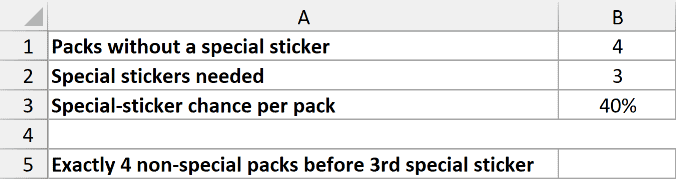
Enter this formula in cell B5:
=NEGBINOM.DIST(B1,B2,B3,FALSE)
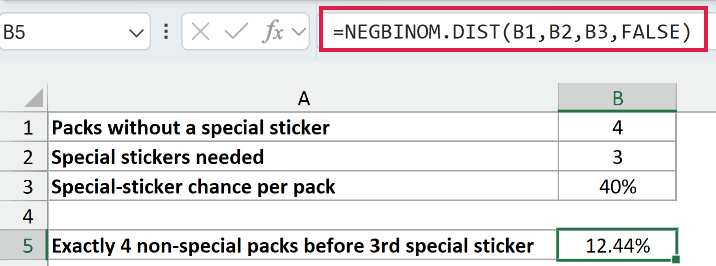
The result is 0.124416, which displays as 12.44% when formatted as a percentage.
Here, B1 supplies the four failures, B2 supplies the three successes, and B3 supplies the 40% success chance. FALSE asks for exactly four failures before the third success.
That means the seventh pack contains the third special sticker. The first six packs contain two special stickers and four packs without one, in any order.
This stays a single-cell calculation because we’re asking about one specific event. The next example calculates a whole list of probabilities at once.
Important: All these examples assume independent attempts and the same success chance on every attempt. If the chance changes as you go, the calculated probabilities won’t describe that process.
Enter 40% or 0.4 for a 40% chance. Entering 40 returns #NUM! because the probability must be between 0 and 1.
Negative failure counts or a success target below 1 also return #NUM!. Text such as “four” in place of a number returns #VALUE!, so keep the inputs numeric.
Excel drops the decimal part of the failure and success counts. For example, it treats 4.9 failures as 4, so use whole-number counts to avoid silently calculating a different event.
Older workbooks may use NEGBINOMDIST, without the dot. That older function returns exact probabilities and has no cumulative argument; use NEGBINOM.DIST for the examples here.
Example 2: Compare Cumulative Probabilities
Now let’s compare several loss limits at once.
For this example, an online game has a 35% win chance on each play and no ties. You stop when you reach two wins.
Below is a list of maximum losses for the game, and I want the chance of reaching two wins within each loss limit in column B.
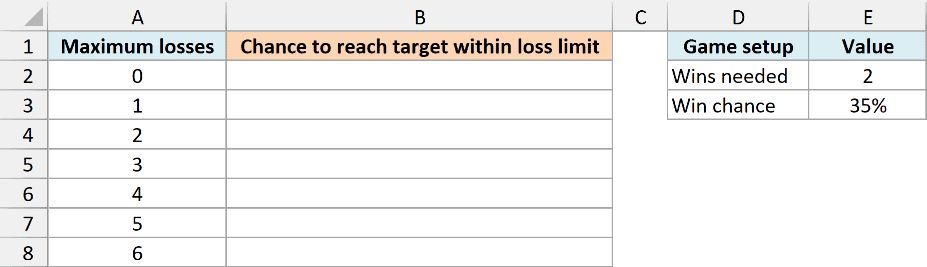
Enter this formula in cell B2:
=NEGBINOM.DIST(A2:A8,$E$2,$E$3,TRUE)
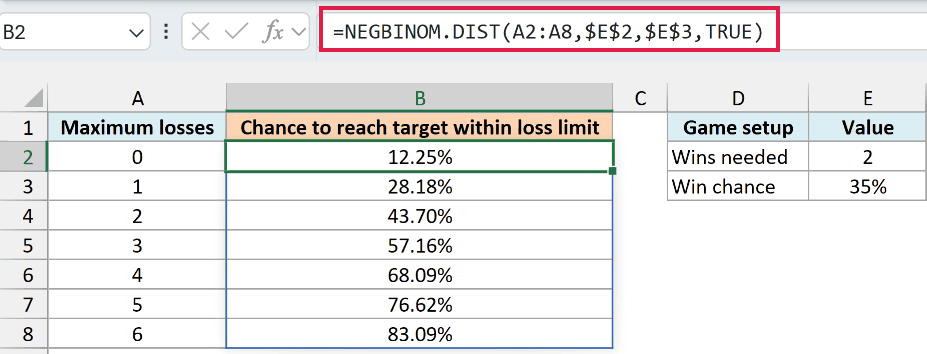
The formula spills seven probabilities into B2:B8, one for each maximum loss count. You enter it once in B2 instead of copying a formula down.
The range A2:A8 supplies the loss limits. The absolute references $E$2 and $E$3 hold the two-win target and 35% win chance fixed.
With a maximum of zero losses, the result is 12.25%, because both of the first two games must be wins. With up to four losses before the second win, the chance rises to 68.09%.
TRUE includes the listed loss count. So the four-loss row includes reaching the second win after zero, one, two, three, or four losses, rather than only after exactly four.
If Excel shows #SPILL!, clear anything blocking B3:B8 so the results can fill those cells. Edit the formula in B2, which is the first cell of the spill.
If you use Excel 2019 or earlier, enter the following formula in cell B2 and copy it down to B8:
=NEGBINOM.DIST(A2,$E$2,$E$3,TRUE)
Example 3: Find an At-Least Probability
Let’s look at the chance of a longer wait for a connection.
Assume every connection attempt has a 70% success chance, independently of earlier attempts.
Below are the connection retry settings, and I want the chance of at least three failed attempts before the first successful connection in cell B5.
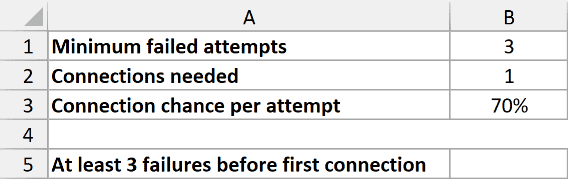
Enter this formula in cell B5:
=1-NEGBINOM.DIST(B1-1,B2,B3,TRUE)
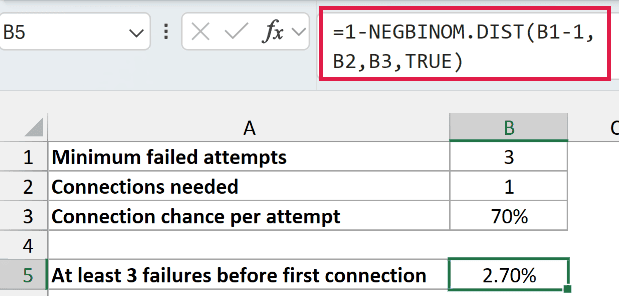
The result is 2.70%.
The cumulative part calculates the chance of zero, one, or two failures before the first connection. Subtracting that probability from 1 leaves the chance of three or more failures.
B1 contains 3, so B1-1 gives the upper limit of 2 for the part we subtract. Using 3 there would subtract the three-failure case as well, leaving only four or more failures.
When you need just one success, there’s a simpler check: three initial failures have a probability of 30% multiplied by 30% multiplied by 30%, or 2.70%.
The cumulative-complement method is useful to learn because the same formula works with a larger success target too. The result stays in one cell here because we’re evaluating one chosen threshold.
Example 4: Work Within a Total Attempt Limit
Sometimes you know the total number of attempts available, rather than the number of failures.
Suppose each seed has an independent 45% chance of germinating, and you want four seedlings. A seed that germinates is a success; one that doesn’t is a failure.
Below are different seed allowances, and I want the chance of reaching four seedlings within each allowance in column B.
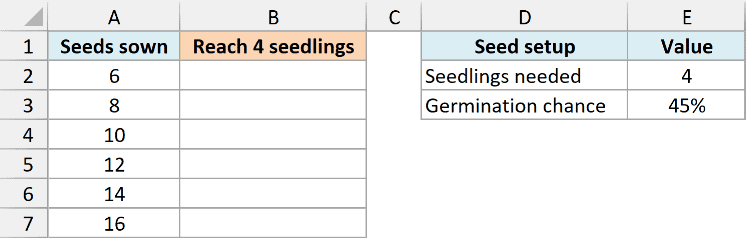
Enter this formula in cell B2:
=NEGBINOM.DIST(A2:A7-$E$2,$E$2,$E$3,TRUE)
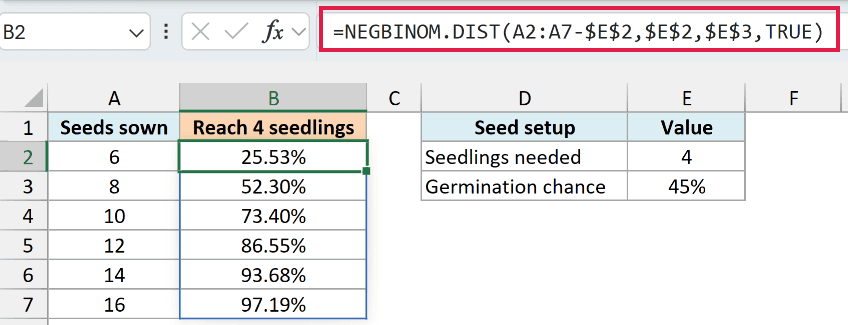
The formula spills the probabilities into B2:B7. With six seeds, the chance of reaching four seedlings is 25.53%; with twelve seeds, it’s 86.55%.
Here’s how the total seed count becomes a failure limit:
- A2:A7 supplies the total seed allowances.
- Subtracting $E$2 removes the four successes you need. For six seeds, that leaves room for at most two failures before the fourth success.
- TRUE adds the probabilities through that failure limit, using the 45% germination chance in $E$3.
Reaching four seedlings earlier also counts. The fourth seedling doesn’t have to come from the final seed in the allowance, because TRUE includes smaller failure counts too.
Important: Keep the seed allowance at least as large as the seedling target. With fewer than four seeds, four seedlings are impossible, and this subtraction gives a negative failure limit that returns #NUM!.
For a fixed number of seeds, the BINOM.DIST function can also calculate probabilities for how many germinate. Here, the conversion shows how to express an attempt allowance using the failures that NEGBINOM.DIST expects.
If you use Excel 2019 or earlier, enter the following formula in cell B2 and copy it down to B7:
=NEGBINOM.DIST(A2-$E$2,$E$2,$E$3,TRUE)
I’ve shown you how to use NEGBINOM.DIST for exact failure counts, cumulative probabilities, and limits on total attempts. I hope you found this tutorial helpful.
Other Excel Articles You May Also Like:
