

The GAMMA.INV function in Excel takes a probability and gives you the value that matches it in a gamma distribution. For example, it can tell you the delivery time that 90% of orders stay under.
The gamma distribution is a good fit for things that can’t go below zero and sometimes run long, like wait times and usage amounts. GAMMA.INV turns that kind of data into a number you can plan around.
In this article, I’ll show you how GAMMA.INV works with five examples, including how to use it when all you have is an average and a standard deviation.
Follow along with the example file
GAMMA.INV Function Examples.xlsx
GAMMA.INV Function Syntax
Here is the syntax of the GAMMA.INV function:
=GAMMA.INV(probability, alpha, beta)
- probability – The percentile you want, as a number from 0 to just under 1 (or a percentage like 90%).
- alpha – The shape of the distribution. It must be greater than 0.
- beta – The scale of the distribution. It must be greater than 0.
Think of the probability as a percentile. With 0.9, GAMMA.INV returns the value that 90% of outcomes stay at or below.
Alpha decides the shape of the curve. A small alpha (like 1 or 2) gives a long tail of high values, and a bigger alpha makes the values bunch up more evenly around the middle.
Beta stretches the results. If you double beta and keep everything else the same, every result doubles.
Alpha multiplied by beta is the average of the distribution. So alpha 4 and beta 6 describe data that averages 24.
The GAMMA.INV function works in Excel 2010 and later versions, including Excel for Microsoft 365 (Windows and Mac), 2024, 2021, 2019, and 2016. In Excel 2007, use GAMMAINV instead, which takes the same three arguments.
When to Use the GAMMA.INV Function
Use this function when you need to:
- Find the value that a set share of outcomes stays under, like the time by which 90% of deliveries arrive
- Build a percentile table for data that can’t go below zero, such as wait times or usage amounts
- Turn an average and a standard deviation into a realistic “most days” estimate
- Generate random but realistic values for a simulation
Let me show you a few practical examples of how to use the GAMMA.INV function.
Example 1: Get Percentiles with GAMMA.INV
Let’s start with a simple example.
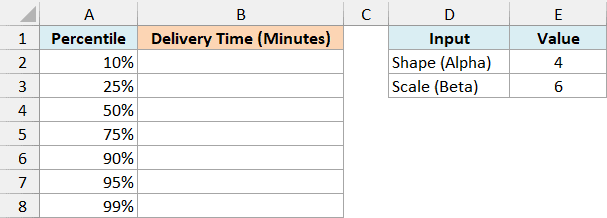
Below I have a list of percentiles for a pizza shop’s delivery times, with the shape and scale of the delivery times in E2 and E3, and I want to get the delivery time for each percentile in column B.
Here is the formula:
=GAMMA.INV(A2:A8,E2,E3)
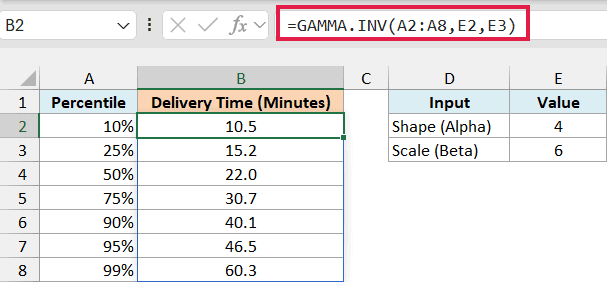
You only need to enter the formula in cell B2, and the results spill down into B2:B8, one for each percentile in column A.
The 50% row returns 22.0, so half of all deliveries arrive within 22 minutes. The 90% row returns 40.1, which means 9 out of 10 deliveries arrive within about 40 minutes.
Notice that the 50% result (22.0) is a bit lower than the average delivery time of 24 minutes (alpha times beta). That’s because a few really slow deliveries pull the average up, while the middle value stays put.
If you want to double-check a result, the GAMMA.DIST function does the opposite job. Give it the 90% result in B6, the shape and scale in E2 and E3, and TRUE as its last argument, and it returns 0.9, the probability you started with.
If you are using Excel 2019 or earlier, enter the below formula in cell B2 and then copy it down the range (the dollar signs keep E2 and E3 fixed as you copy):
=GAMMA.INV(A2,$E$2,$E$3)
The same idea works for the other examples in this article. Point the formula at the first cell instead of the whole range, lock the input cells with dollar signs, and copy it down.
Example 2: Use a Different Shape and Scale for Each Row
Now let’s give every row its own shape and scale.
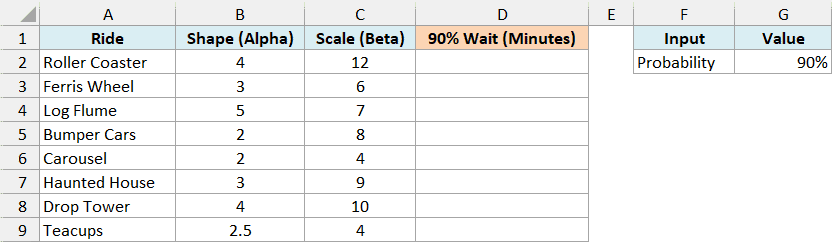
Below I have a list of theme park rides with the shape and scale of each ride’s wait time, and I want to get the wait time that 90% of riders stay under in column D, using the probability in G2.
Here is the formula:
=GAMMA.INV(G2,B2:B9,C2:C9)
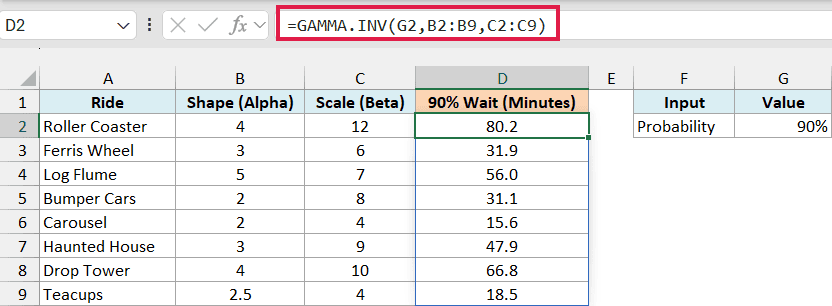
Since the shape and scale arguments are ranges, GAMMA.INV returns one result for each ride. For the Roller Coaster, 90% of riders wait 80.2 minutes or less, while for the Carousel it’s only 15.6 minutes.
Look at Bumper Cars and Carousel, which both have a shape of 2. Bumper Cars has twice the scale (8 vs 4), so its wait is twice as long (31.1 vs 15.6 minutes).
Pro Tip: Since the probability sits in its own cell (G2), you can change it to 95% or 50% and see the new wait times for every ride at once.
Example 3: Use GAMMA.INV with an Average and Standard Deviation
In real life, you rarely know the alpha and beta of your data. What you usually have is the average and the standard deviation.
You can work out alpha and beta from those two numbers, right inside the GAMMA.INV formula.
Below I have the average and standard deviation of commute times for different ways of getting to work, and I want to get the commute time that 90% of days stay under in column D, using the probability in G2.
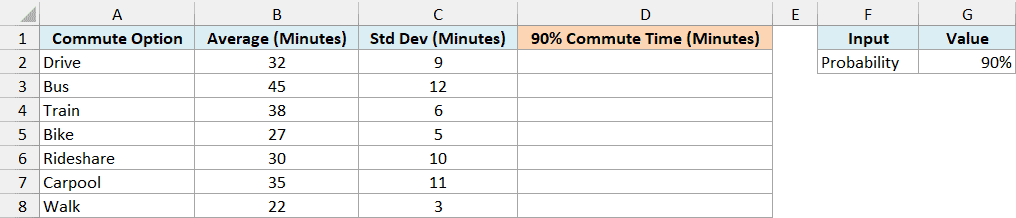
Here is the formula:
=GAMMA.INV(G2,(B2:B8/C2:C8)^2,C2:C8^2/B2:B8)
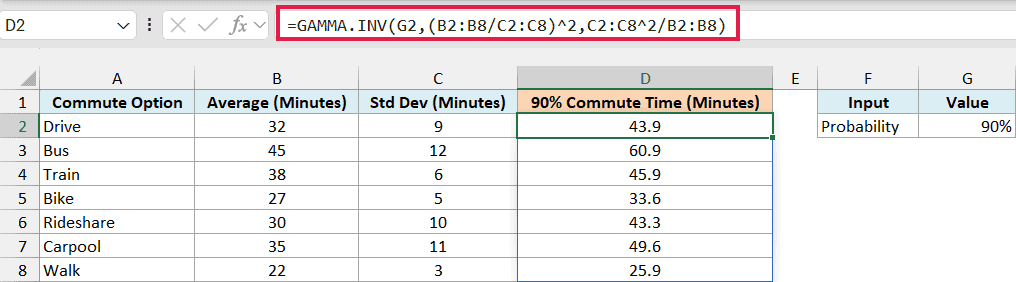
For driving, this returns 43.9, so on 9 out of 10 days, the drive to work takes 43.9 minutes or less.
How this formula works:
- (B2:B8/C2:C8)^2 calculates alpha. It divides each average by its standard deviation and squares the result. For Drive, that’s (32/9)^2, or about 12.64.
- C2:C8^2/B2:B8 calculates beta. It squares each standard deviation and divides it by the average. For Drive, that’s 81/32, or about 2.53.
- GAMMA.INV(G2, …) then uses these two values with the 90% probability.
These two calculations give you a gamma distribution with exactly the average and standard deviation you started with.
The standard deviation matters a lot here. Rideshare has a lower average than Drive (30 vs 32 minutes), but because it’s less predictable, its 90% time (43.3) is almost the same as driving (43.9).
Important: Don’t put the average and standard deviation straight in as alpha and beta. =GAMMA.INV(G2,B2:B8,C2:C8) returns 354.9 minutes for Drive, which is way off from the real 43.9.
Example 4: Why GAMMA.INV Returns the #NUM! or #VALUE! Error
Let’s look at the inputs that cause trouble.
Below I have a few sets of inputs, including some that GAMMA.INV can’t work with, and I want to see what the function returns for each one in column D.
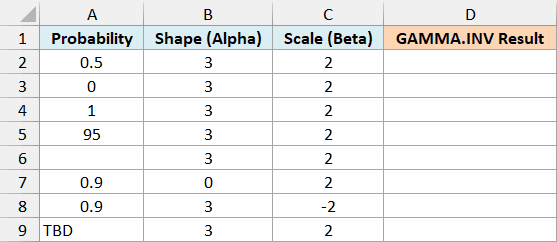
Here is the formula:
=GAMMA.INV(A2:A9,B2:B9,C2:C9)
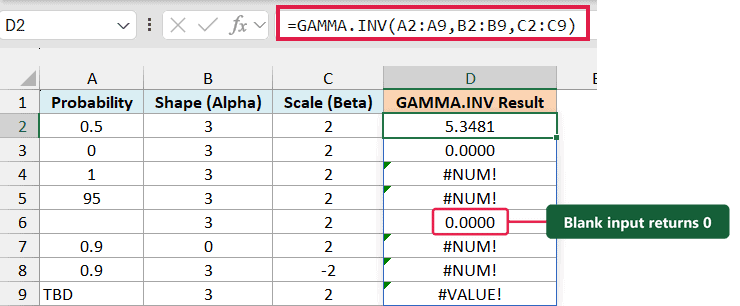
A probability of 0 returns 0, which makes sense, since 0% of outcomes are below zero.
A probability of 1 returns the #NUM! error. There’s no value that 100% of outcomes stay under, so the probability needs to be less than 1.
The 95 in row 5 also returns #NUM!. This happens when you type 95 when you meant 95%, so enter it as 95% or 0.95.
An alpha of 0 and a negative beta (-2) return #NUM! too, because both need to be greater than 0.
The text “TBD” returns the #VALUE! error, because GAMMA.INV needs numbers.
Important: A blank probability cell (row 6) returns 0 instead of an error, so a missing input can look like a real answer. To leave those rows empty, use =IF(A2:A9="","",GAMMA.INV(A2:A9,B2:B9,C2:C9)).
Example 5: Simulate Random Values with GAMMA.INV
Let’s end with a fun one, where GAMMA.INV generates random numbers that follow a gamma distribution.
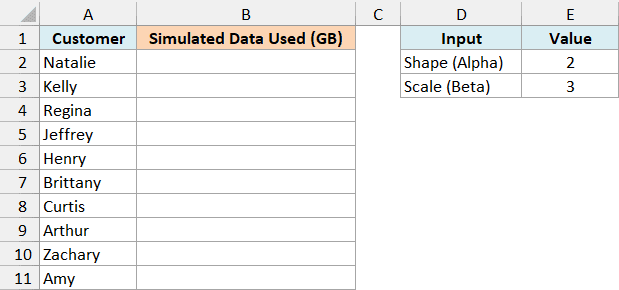
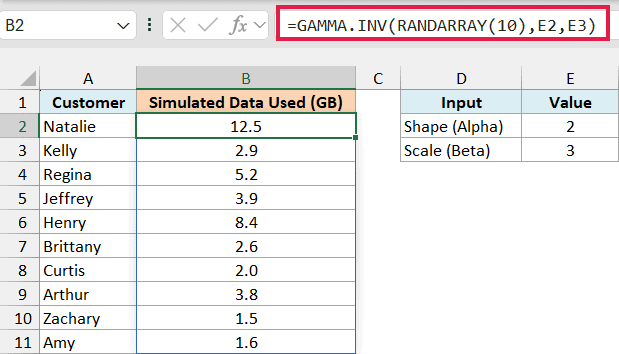
Below I have a list of 10 customers, with the shape and scale of monthly mobile data use in E2 and E3, and I want to generate a random but realistic data use number for each customer in column B.
Here is the formula:
=GAMMA.INV(RANDARRAY(10),E2,E3)
How this formula works:
- RANDARRAY(10) creates 10 random probabilities between 0 and 1, one for each customer.
- GAMMA.INV turns each probability into the matching data use, based on the shape (2) and scale (3) in E2 and E3.
Most customers land at a few GB, and every now and then someone uses a lot more. That long tail of high values is typical of a gamma distribution.
If you generate a lot of these values, their average comes out close to 6 GB, the average of this distribution (alpha times beta).
Important: These numbers change every time Excel recalculates, such as when you edit any cell or press F9. To keep one set of results, copy the cells and paste them as values.
The RANDARRAY function is only available in Excel for Microsoft 365 and Excel 2021 or later. If you are using Excel 2019 or earlier, enter the below formula in cell B2 and then copy it down the range:
=GAMMA.INV(RAND(),$E$2,$E$3)
So these are five examples of how you can use the GAMMA.INV function in Excel, including how to work from an average and standard deviation and how to run a quick simulation.
I hope you found this article helpful.
Other Excel Articles You May Also Like:
