

The GAMMA function in Excel returns the value of the gamma function for a number. It’s closely tied to factorials, and for any whole number n, GAMMA gives you the factorial of n-1.
It also works with decimals, which means you can use it to get the factorial of a number like 2.5. You’ll mostly run into it in math and statistics work, like probability distributions.
In this article, I’ll show you how GAMMA works with six examples, including the errors it returns and how to handle really big numbers.
Follow along with the example file
GAMMA Function Examples.xlsx
GAMMA Function Syntax
Here is the syntax of the GAMMA function:
=GAMMA(number)
- number – The value you want the gamma function of. It can be a number, a cell reference, or a range of cells.
If you give GAMMA a range instead of a single cell, it returns one result for each cell in that range, and the results spill into the cells below. Spilling needs Excel for Microsoft 365 or Excel 2021 and later.
The GAMMA function works in Excel 2013 and later versions, including Excel for Microsoft 365 (Windows and Mac), 2024, 2021, 2019, and 2016.
When to Use the GAMMA Function
Use this function when you need to:
- Calculate the factorial of a decimal number, which the FACT function can’t do
- Work with statistics formulas that include the gamma function, like the gamma distribution
- Build a probability formula by hand to see how Excel’s built-in functions get their results
Let me show you a few practical examples of how to use the GAMMA function.
Example 1: Calculate GAMMA for a List of Numbers
Let’s start with a simple example.
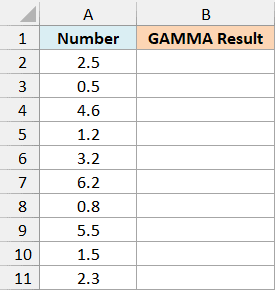
Below I have a list of decimal numbers in column A, and I want to get the GAMMA value of each one in column B.
Here is the formula:
=GAMMA(A2:A11)
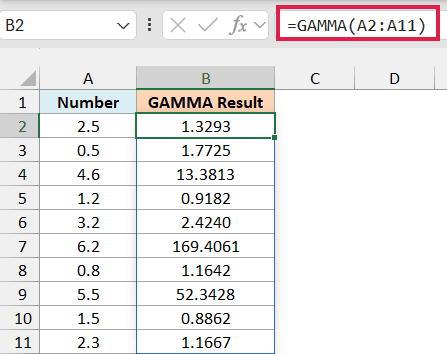
You only need to enter the formula in cell B2, and the results spill down into B2:B11.
The results dip below 1 for numbers between 1 and 2 (like 1.2 and 1.5), and then grow quickly, so 6.2 already gives 169.4061.
Keep in mind that these aren’t the factorials of the numbers in column A, because GAMMA is shifted by one (Example 2 shows how).
If you are using Excel 2019 or earlier, enter the below formula in cell B2 and then copy it down the range:
=GAMMA(A2)
The same idea works for the other examples in this article. Point the formula at the first cell instead of the whole range, and copy it down.
Example 2: GAMMA and the Factorial of Whole Numbers
Now let’s see how GAMMA connects to factorials.
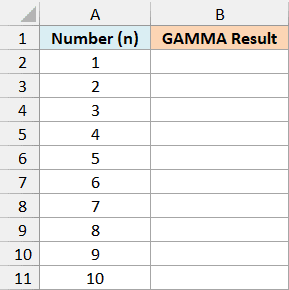
Below I have the whole numbers from 1 to 10, and I want to get the GAMMA value of each one in column B.
Here is the formula:
=GAMMA(A2:A11)
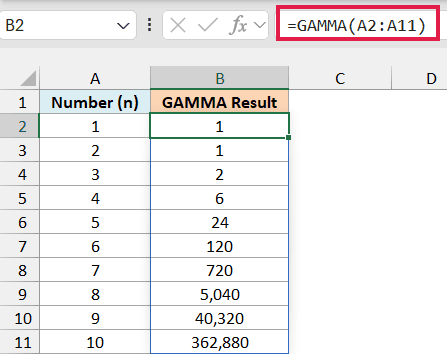
The results are 1, 1, 2, 6, 24, and so on. These are factorials, but each one is shifted by one, so GAMMA(5) returns 24, which is the factorial of 4 (4 x 3 x 2 x 1).
To confirm this, let’s calculate the factorial of n-1 with the FACT function in column C.
Here is the formula:
=FACT(A2:A11-1)
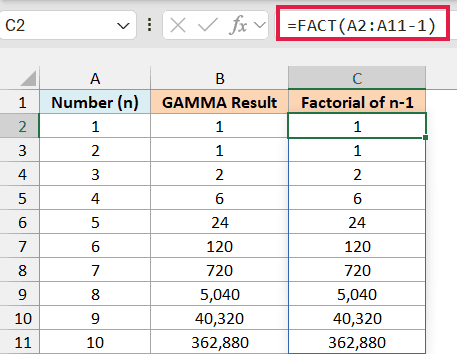
Both columns match row for row. So for any whole number n, GAMMA(n) gives the same result as FACT(n-1).
This happens because GAMMA follows one rule: the value for x+1 is x times the value for x. Start from GAMMA(1), which is 1, and that rule builds the factorials one step at a time.
For whole numbers, the FACT function is the simpler choice.
Example 3: Calculate the Factorial of a Decimal Number in Excel
This next one is where GAMMA does something the FACT function can’t.
Below I have a list of numbers, some with decimals, and I want to get the factorial of each one, first with FACT in column B and then with GAMMA in column C.
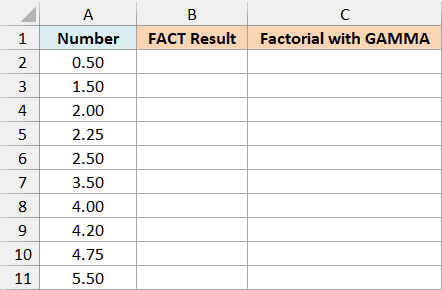
Here is the FACT formula:
=FACT(A2:A11)
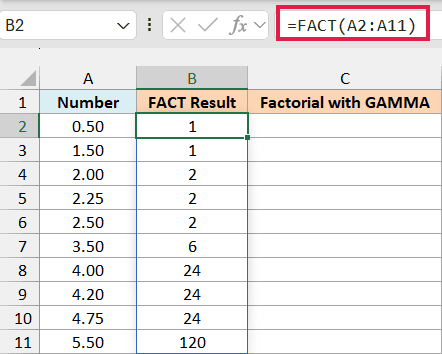
FACT drops the decimal part before it calculates anything. So 2.5 is treated as 2 and returns 2, and 4.75 is treated as 4 and returns 24.
Here is the formula that gives the actual factorial with GAMMA:
=GAMMA(A2:A11+1)
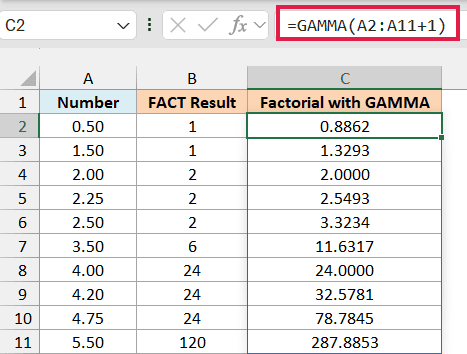
This returns 3.3234 for 2.5 and 78.7845 for 4.75. For the whole numbers 2 and 4, both columns agree (2 and 24), so GAMMA gives you the same answer as FACT whenever there’s no decimal.
Important: Don’t forget the +1, because GAMMA(n) gives the factorial of n-1. Without the +1, =GAMMA(A2:A11) returns 1.3293 for 2.5 instead of 3.3234.
Example 4: Why GAMMA Returns the #NUM! or #VALUE! Error
Let’s look at the inputs that GAMMA can’t handle.
Below I have a mix of inputs, including zero, negative numbers, and some text, and I want to see what GAMMA returns for each one in column B.
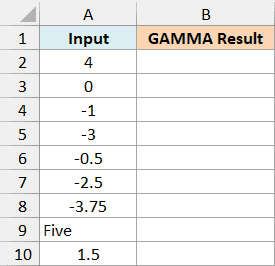
Here is the formula:
=GAMMA(A2:A10)
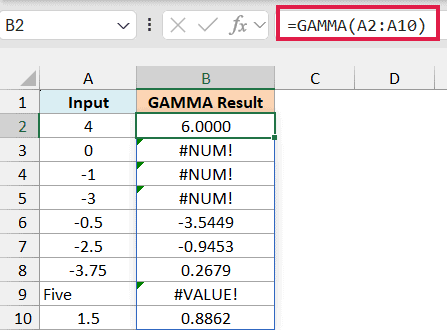
Zero and negative whole numbers (0, -1, and -3) return the #NUM! error. The gamma function isn’t defined at these values, so Excel has no number to give you.
Negative numbers with a decimal part work fine, though. For example, -0.5 returns -3.5449, and -3.75 returns 0.2679.
The text “Five” returns the #VALUE! error, because GAMMA needs a number to work with.
GAMMA also treats an empty cell as 0, so a blank cell in your range returns the #NUM! error too.
Example 5: Handle Large Numbers with GAMMALN.PRECISE
GAMMA results grow very fast, and at some point they get too big for Excel.
Below I have numbers from 10 to 200, and I want to get the GAMMA value of each one in column B.
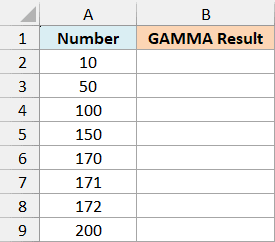
Here is the formula:
=GAMMA(A2:A9)
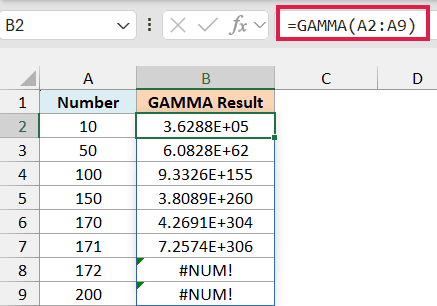
GAMMA works up to 171, which returns 7.2574E+306 (a number with 307 digits). For 172 and 200, you get the #NUM! error.
This happens because Excel can’t store a number bigger than about 1.8E+308. The exact cutoff for GAMMA is a little over 171.6, so any input above that returns #NUM!.
To work with numbers this big, you can use the GAMMALN.PRECISE function, which returns the natural log of the GAMMA value instead. Let’s get that in column C.
Here is the formula:
=GAMMALN.PRECISE(A2:A9)
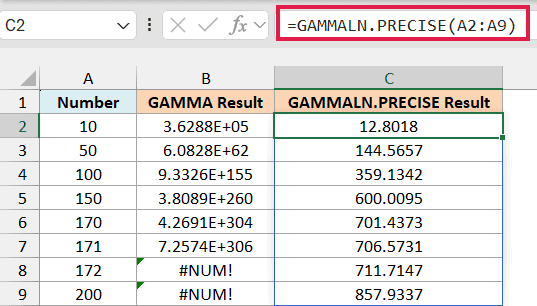
This keeps working past 171, so 200 returns 857.9337. That’s the natural log of GAMMA(200), which is a much smaller number and fits in a cell without any trouble.
Unlike GAMMA, GAMMALN.PRECISE only accepts positive numbers, so it returns the #NUM! error for a negative decimal like -0.5.
Logs help when you need to divide one huge GAMMA value by another. With logs, you subtract one from the other instead, and then turn the answer back into a regular number with the EXP function.
Pro Tip: =GAMMA(200)/GAMMA(198) returns #NUM! because both values are too big. But =EXP(GAMMALN.PRECISE(200)-GAMMALN.PRECISE(198)) returns 39402, which is the right answer.
Example 6: Build the Gamma Distribution Formula with GAMMA
Let’s end with the gamma distribution, which is one of the main places the gamma function shows up in statistics.
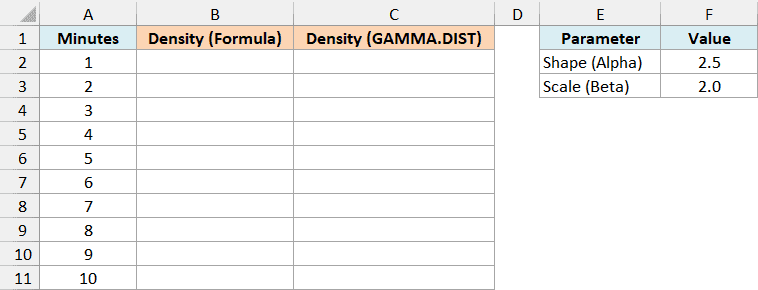
Below I have call lengths from 1 to 10 minutes and the two settings of a gamma distribution (shape and scale) in F2 and F3, and I want to calculate how likely each call length is in column B.
The shape decides how the curve looks (above 1, it rises to a peak and then falls), and the scale stretches it over shorter or longer times.
Here is the formula:
=A2:A11^(F2-1)*EXP(-A2:A11/F3)/(F3^F2*GAMMA(F2))
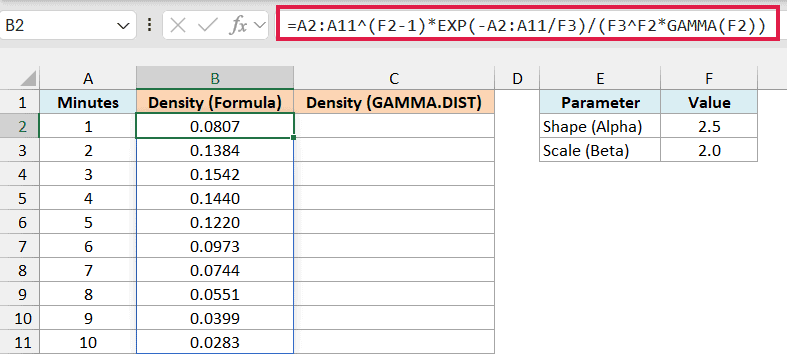
This returns 0.0807 for a 1-minute call, peaks at 0.1542 for 3 minutes, and drops to 0.0283 at 10 minutes.
These numbers are probability densities, which measure how likely each call length is. So the peak at 3 minutes means calls of about 3 minutes are the most common ones here.
How this formula works:
- A2:A11^(F2-1) raises each call length to the power of the shape minus 1.
- EXP(-A2:A11/F3) shrinks the result as the calls get longer, based on the scale in F3.
- F3^F2*GAMMA(F2) is the bottom part of the formula, where GAMMA(F2) is GAMMA(2.5), or 1.3293. Dividing by this whole part scales the results so that all possible call lengths together have a total probability of 1.
If you are using Excel 2019 or earlier, enter the below formula in cell B2 and then copy it down the range (the dollar signs keep F2 and F3 fixed as you copy):
=A2^($F$2-1)*EXP(-A2/$F$3)/($F$3^$F$2*GAMMA($F$2))
Now let’s check this against Excel’s built-in GAMMA.DIST function in column C.
Here is the formula:
=GAMMA.DIST(A2:A11,F2,F3,FALSE)
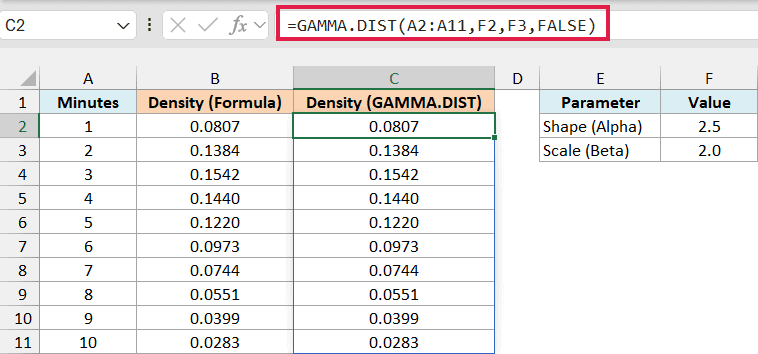
Both columns match exactly. The FALSE at the end tells GAMMA.DIST to return the density for each call length.
If you use TRUE instead, you get the cumulative probability, which is the chance of a call lasting up to that many minutes.
In your own work, just use GAMMA.DIST. The manual formula is only here to show where GAMMA fits inside it.
So these are six examples of how you can use the GAMMA function in Excel, from basic values and factorials of decimal numbers to very large numbers and the gamma distribution.
I hope you found this article helpful.
Other Excel Articles You May Also Like:
