

The GAMMALN function in Excel returns the natural logarithm of the gamma function for a positive number. In simple terms, it gives you the log of what the GAMMA function would return, instead of the value itself.
That matters because gamma values (and factorials, which are closely tied to them) get huge very quickly. Past a certain point, they’re too big for Excel to store, but their logs stay small and easy to work with.
GAMMALN is the older name for this function (Excel 2010 added the GAMMALN.PRECISE function, which does the same job). In this article, I’ll show you how GAMMALN works with six examples, including how it compares to that newer version.
Follow along with the example file
GAMMALN Function Examples.xlsx
GAMMALN Function Syntax
Here is the syntax of the GAMMALN function:
=GAMMALN(x)
- x – The number you want the log of the gamma value for. It must be greater than 0, and it can be a number, a cell reference, or a range of cells.
If you give GAMMALN a range instead of a single cell, it returns one result for each cell in that range, and the results spill into the cells below. Spilling needs Excel for Microsoft 365 or Excel 2021 and later.
A number stored as text, like “4”, still works, because GAMMALN converts it to a number first. So =GAMMALN("4") returns the same 1.7918 as =GAMMALN(4).
The GAMMALN function works in Excel for Microsoft 365 (Windows and Mac), Excel 2024, 2021, 2019, and 2016, as well as older versions such as Excel 2007.
When to Use the GAMMALN Function
Use this function when you need to:
- Work with factorials or gamma values that are too big for the FACT or GAMMA functions
- Divide one huge factorial by another, which is common in probability formulas
- Find out how many digits a huge factorial has
- Keep a formula working in a file that might be opened in Excel 2007 or earlier
Let me show you a few practical examples of how to use the GAMMALN function.
Example 1: Calculate GAMMALN for a List of Numbers
Let’s start with a simple example.
Below I have a list of numbers in column A, and I want to get the GAMMALN value of each one in column B.
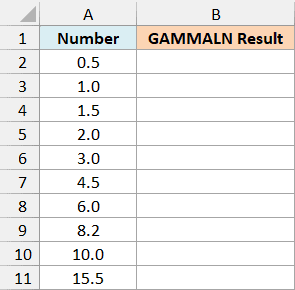
Here is the formula:
=GAMMALN(A2:A11)
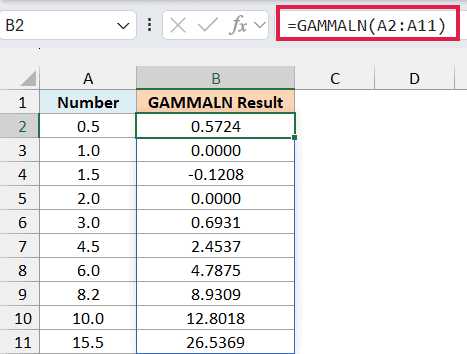
You only need to enter the formula in cell B2, and the results spill down into B2:B11.
Notice that both 1 and 2 return 0. The gamma value at 1 and at 2 is exactly 1, and the log of 1 is 0.
For numbers between 1 and 2, the gamma value dips just below 1, so its log is a small negative number (1.5 returns -0.1208). After 2, the results keep growing, and 15.5 returns 26.5369.
Since GAMMALN is just the log of what the GAMMA function returns, =LN(GAMMA(A2)) gives you the same result for these numbers (15.5 returns 26.5369 either way).
The difference is that the GAMMA function returns the #NUM! error for any number above about 171.6, because its result gets too big for Excel. GAMMALN keeps going, so =GAMMALN(172) returns 711.7147.
If you are using Excel 2019 or earlier, enter the below formula in cell B2 and then copy it down the range:
=GAMMALN(A2)
The same idea works for the other examples in this article. Point the formula at the first cell instead of the whole range, and copy it down.
Example 2: Get the Log of a Factorial with GAMMALN
Now let’s see how GAMMALN connects to factorials.
Below I have the number of books on a shelf, and I want to find how many different ways I can arrange them, first as a log in column B and then as a regular number in column C.
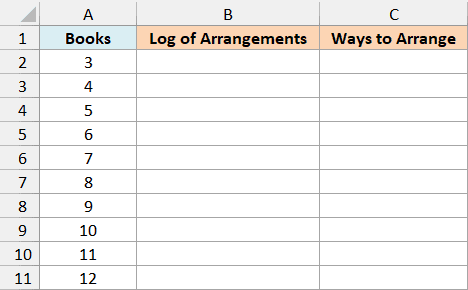
The number of ways to arrange a set of books is the factorial of the number of books. For 3 books, that’s 3 x 2 x 1, which is 6.
Here is the formula that gives you the log of that factorial:
=GAMMALN(A2:A11+1)
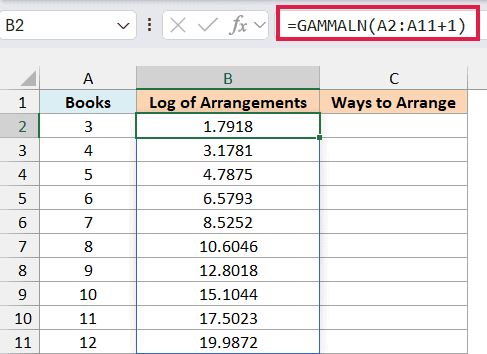
GAMMALN of a number gives you the natural log of the factorial of one less than that number. So to get the log of n!, you add 1 to n first, which is why the formula uses A2:A11+1.
Important: Don’t forget the +1. Without it, =GAMMALN(A2:A11) returns 0.6931 for 3 books (the log of 2!) instead of 1.7918 (the log of 3!).
To turn the log back into a regular number, you can wrap it in the EXP function.
Here is the formula:
=EXP(GAMMALN(A2:A11+1))
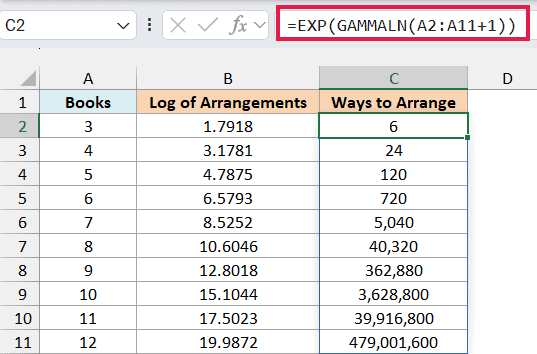
This gives 6 ways for 3 books, 120 for 5 books, and 479,001,600 for 12 books. These are the same numbers the FACT function returns.
The EXP function can leave a tiny bit of noise in the last decimal places. For example, 5 books is stored as 119.99999999999997, so the cell shows 120, but if you need an exact whole number, wrap the formula in the ROUND function.
For numbers this small, the FACT function is the simpler choice. The GAMMALN version starts to matter when the factorials get too big for the FACT function, which is what the next example is about.
Example 3: Handle Factorials Too Big for the FACT Function
Here’s where GAMMALN does something the FACT function can’t.
Below I have playlists with different numbers of songs, and I want to find the number of different orders each playlist can be shuffled in, as a log in column B.
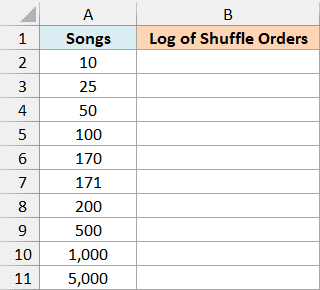
The number of shuffle orders is the factorial of the number of songs. The problem is that the FACT function only works up to 170, so =FACT(171) returns the #NUM! error.
This happens because 171! is bigger than the largest number Excel can store (about 1.8E+308). And since =FACT(171) fails, =LN(FACT(171)) fails too.
Here is the formula:
=GAMMALN(A2:A11+1)
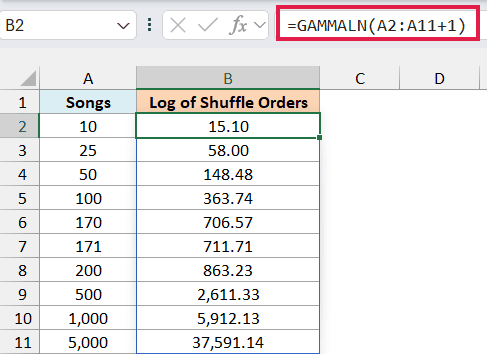
GAMMALN never calculates the huge factorial itself. It returns the log directly, so 171 songs gives 711.71, 1,000 songs gives 5,912.13, and even 5,000 songs works fine.
A log is hard to picture, though. So let’s use it to find how many digits each of these numbers has, in column C.
Here is the formula:
=INT(GAMMALN(A2:A11+1)/LN(10))+1
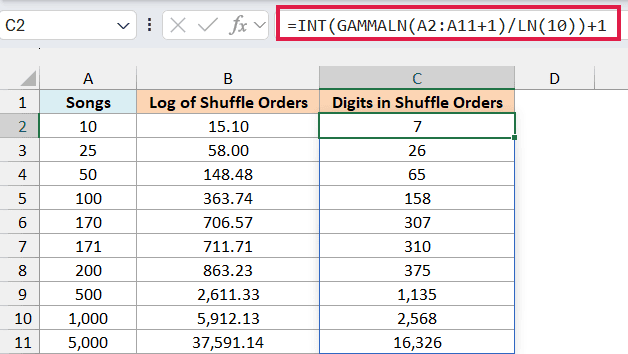
A 10-song playlist has 3,628,800 possible orders, which is 7 digits. A 1,000-song playlist has a number of orders that’s 2,568 digits long.
How this formula works:
- GAMMALN(A2:A11+1) returns the natural log of the factorial of the number of songs.
- /LN(10) turns that natural log into a base-10 log. A base-10 log tells you how many digits a number has, minus a fraction (for example, the base-10 log of 3,628,800 is 6.56).
- INT(…)+1 drops the decimal part and adds 1, which gives the exact digit count (6 + 1 = 7).
Example 4: Divide Huge Factorials Without the #NUM! Error
GAMMALN is most useful in probability formulas, where you often divide one huge factorial by another.
Below I have the number of times a coin is flipped and the number of heads that’s exactly half of that, and I want to find the chance of getting exactly that many heads in column C.
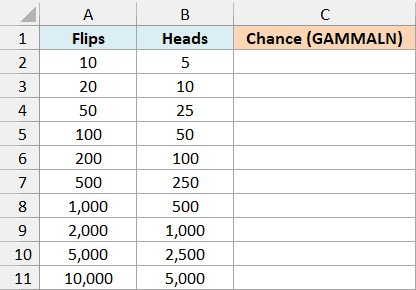
The usual way to calculate this is the number of ways to get those heads (with the COMBIN function) divided by 2 raised to the number of flips.
That works for 1,000 flips, but for 2,000 flips, both =COMBIN(2000,1000) and =2^2000 return the #NUM! error.
The number of ways that the COMBIN function calculates is itself a division of factorials: the factorial of the flips, divided by the factorial of the heads and the factorial of the tails. That’s why logs of factorials help here.
With logs, you can subtract instead of divide, and only turn the answer back into a regular number at the end.
Here is the formula:
=EXP(GAMMALN(A2:A11+1)-GAMMALN(B2:B11+1)-GAMMALN(A2:A11-B2:B11+1)-A2:A11*LN(2))
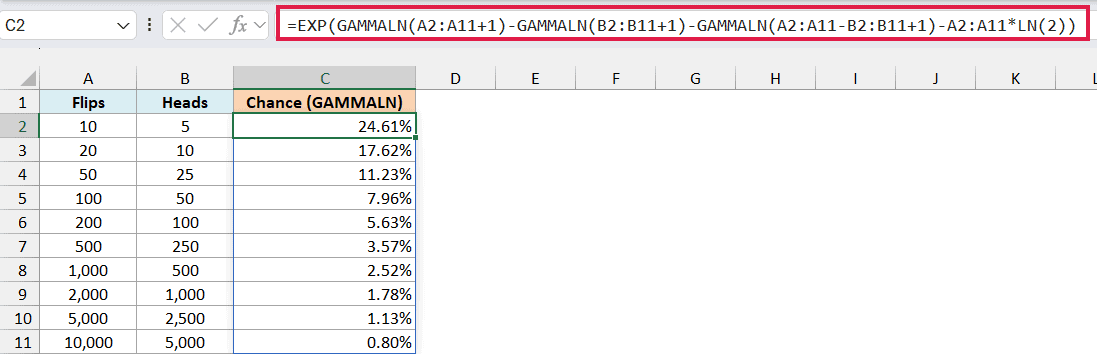
This returns 24.61% for 10 flips, 1.78% for 2,000 flips, and 0.80% for 10,000 flips. The chance of getting exactly half heads drops as you flip more, because there are so many other results that are close to half.
How this formula works:
- GAMMALN(A2:A11+1) is the log of the factorial of the number of flips.
- GAMMALN(B2:B11+1) and GAMMALN(A2:A11-B2:B11+1) are the logs of the factorials of the heads and the tails. Subtracting them from the first part gives the log of the number of ways to get that many heads.
- A2:A11*LN(2) is the log of 2 raised to the number of flips (all the possible results), and subtracting it does the division.
- EXP(…) turns the final log back into a regular number. That number is a small chance between 0 and 1, so Excel has no trouble storing it.
If you are using Excel 2019 or earlier, enter the below formula in cell C2 and then copy it down the range:
=EXP(GAMMALN(A2+1)-GAMMALN(B2+1)-GAMMALN(A2-B2+1)-A2*LN(2))
Now let’s check this in column D with Excel’s built-in BINOM.DIST function, which returns the chance of getting an exact number of successes in a set number of tries.
Here is the formula:
=BINOM.DIST(B2:B11,A2:A11,0.5,FALSE)
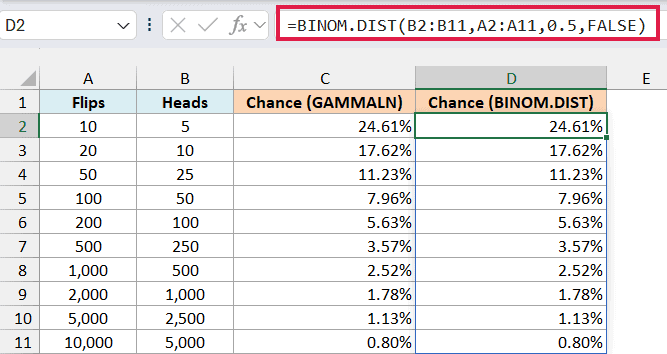
Here, B2:B11 is the number of heads, A2:A11 is the number of flips, and 0.5 is the chance of heads on a single flip. FALSE tells the function to return the chance of exactly that many heads.
Both columns match. For this exact job, the BINOM.DIST function is the simpler choice.
The GAMMALN pattern (subtract the logs, then use the EXP function at the end) is what you use when you need to divide huge factorials and Excel has no built-in function for it.
Example 5: Why GAMMALN Returns the #NUM! or #VALUE! Error
Let’s look at the inputs that GAMMALN can’t handle.
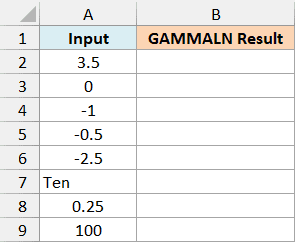
Below I have a mix of inputs, including zero, negative numbers, and some text, and I want to see what GAMMALN returns for each one in column B.
Here is the formula:
=GAMMALN(A2:A9)
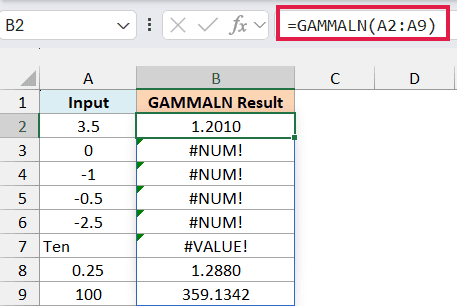
Zero and all the negative numbers return the #NUM! error, because GAMMALN only accepts numbers greater than 0.
This is stricter than the GAMMA function. For example, =GAMMA(-0.5) returns -3.5449, but =GAMMALN(-0.5) returns #NUM!.
So GAMMALN only matches =LN(GAMMA(A2)) for numbers above 0. If your data has negative decimals, you’ll need the GAMMA function for those.
The text “Ten” returns the #VALUE! error, because GAMMALN needs a number to work with.
GAMMALN also treats an empty cell as 0, so a blank cell in your range returns the #NUM! error too.
Example 6: GAMMALN vs GAMMALN.PRECISE
Let’s end with how GAMMALN compares to its newer version, GAMMALN.PRECISE.
Below I have a list of numbers, and I want to get the result of GAMMALN in column B and the GAMMALN.PRECISE function in column C.
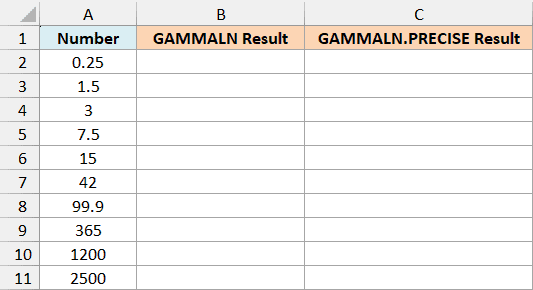
Here is the GAMMALN formula:
=GAMMALN(A2:A11)
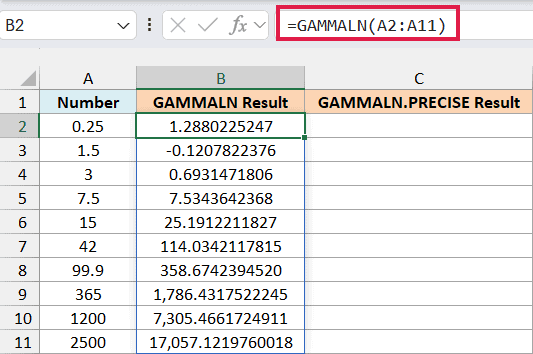
And here is the GAMMALN.PRECISE formula:
=GAMMALN.PRECISE(A2:A11)
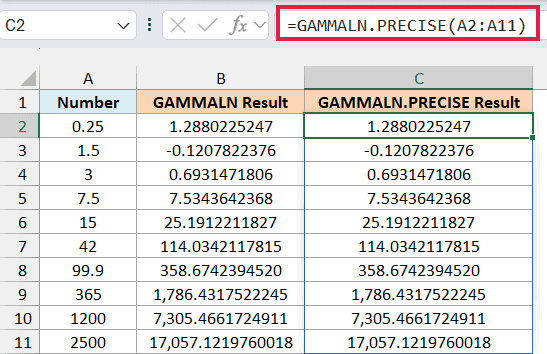
Both columns match, all the way to the 10 decimal places shown. The two functions take the same argument and return the same errors for zero, negatives, and text.
Microsoft added the GAMMALN.PRECISE function in Excel 2010. Its VBA reference for GAMMALN says the function has been replaced by a newer one and is kept for compatibility with earlier versions.
In current Excel, the two returned exactly the same values in a test of more than 500 numbers.
So you can use either one. If your file might be opened in Excel 2007 or earlier, stick with GAMMALN, because the GAMMALN.PRECISE function doesn’t exist there.
Otherwise, the GAMMALN.PRECISE function is the newer name, and it’s the one that VBA reference suggests for new work.
So these are six examples of how you can use the GAMMALN function in Excel, including factorials too big for the FACT function, probability formulas, and how it compares to the GAMMALN.PRECISE function.
I hope you found this article helpful.
Other Excel Articles You May Also Like:
