

The LOG10 function gives you the base-10 logarithm of a number. In plain words, it tells you the power you need to raise 10 to in order to get that number, so LOG10 of 1,000 is 3 because 10 × 10 × 10 is 1,000.
It comes in handy when your numbers range from tens to millions and you want a simple way to compare their size.
In this tutorial, I’ll show you how LOG10 works, how to handle zeros, and how to reverse it. I’ll also cover two practical uses, grouping values by size and rounding to significant digits.
Follow along with the example file
LOG10 Function Examples.xlsx
LOG10 Function Syntax
Here is the syntax of the LOG10 function:
=LOG10(number)
- number – the positive number you want the base-10 logarithm of. It can be a number, a cell reference, or a range of cells.
The number has to be greater than 0. A zero or a negative number returns the #NUM! error, and text that isn’t a number returns the #VALUE! error.
When you give LOG10 a range instead of a single cell, it returns one result for each cell, and the results spill into the cells below.
The LOG10 function works in all Excel versions, including Excel 365, 2024, 2021, 2019, 2016, Excel for Mac, and Excel for the web. The spilling range formulas in this tutorial need Excel 365 or Excel 2021 and later.
When to Use the LOG10 Function
Use this function when you need to:
- Compare numbers that range from very small to very large, like views, downloads, or revenue
- See whether a number is in the tens, hundreds, thousands, or higher
- Group values into size brackets like $10+, $100+, and $1,000+
- Convert log values back to regular numbers (the antilog)
- Round numbers to a set number of significant digits
Let me show you a few practical examples of how to use the LOG10 function.
Example 1: Calculate Log Base 10 of a List of Numbers
Let’s start with a simple example.
Below is a list of videos with the number of views each one got, and I want to get the base-10 log of each view count in column C.
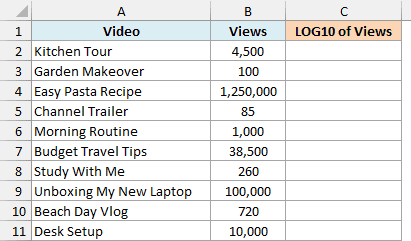
Here is the formula:
=LOG10(B2:B11)
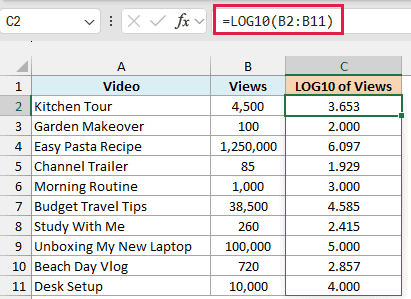
I entered this formula in cell C2, and since it refers to the whole range B2:B11, the results spill down to C11 automatically.
Look at the views that are exact powers of 10. Garden Makeover has 100 views and gets 2, Morning Routine has 1,000 views and gets 3, and Unboxing My New Laptop has 100,000 views and gets 5.
Every other number falls in between. Kitchen Tour has 4,500 views, which is between 1,000 and 10,000, so its log is 3.653, somewhere between 3 and 4.
So the whole-number part of the result tells you the size of the number. A result starting with 1 means tens, 3 means thousands, and 6 means millions, which is why Easy Pasta Recipe with 1,250,000 views gets 6.097.
If you are using Excel 2019 or earlier, enter the below formula in cell C2 and then copy it down the range:
=LOG10(B2)
The same idea works for the other spilling formulas in this tutorial. Use the first cell (B2) instead of the whole range (B2:B11), lock any fixed cell like F1 in Example 6 as $F$1, and copy the formula down.
Example 2: LOG10 of Numbers Less Than 1 (Negative Results)
Now let’s see what happens when the numbers are smaller than 1.
Below is a list of raffle prizes with the chance of winning each one, and I want to get the base-10 log of each chance in column C.
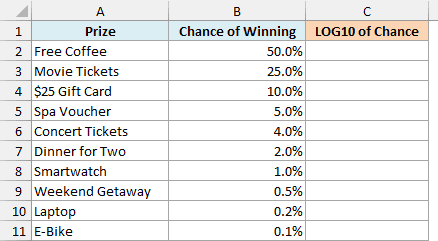
Here is the formula:
=LOG10(B2:B11)
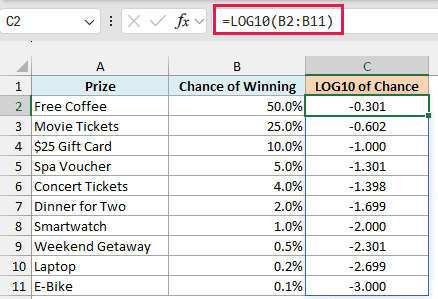
All the results are negative. That’s because a percentage is stored as a decimal (10% is 0.1), and any number between 0 and 1 has a negative base-10 log.
The pattern is the same as before, just going the other way. A 10% chance gives -1, 1% gives -2, and 0.1% gives -3, so each extra zero after the decimal point takes the result down by 1.
A 1 in 10 chance (the $25 Gift Card) and a 1 in 1,000 chance (the E-Bike) are 2 apart on this scale. That makes it easy to see how much rarer one prize is than another.
Example 3: Handle Zeros and Blank Cells with LOG10
Real data often has zeros or empty cells in it, and LOG10 can’t handle either. Here’s how to deal with that.
Below is a list of podcast episodes with the number of downloads each one got, and I want to get the base-10 log of the downloads in column C.
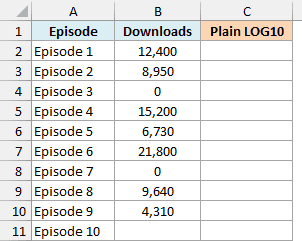
Here is the formula:
=LOG10(B2:B11)
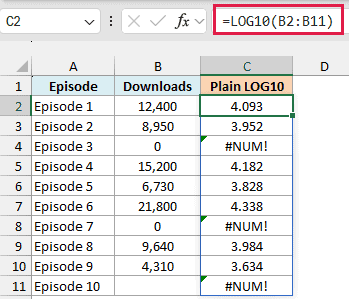
This works for most episodes, but Episode 3 and Episode 7 (with 0 downloads) return the #NUM! error.
Important: LOG10 treats an empty cell as 0, which is why Episode 10 (with an empty cell) also returns the #NUM! error.
To skip these cells, you can check that the number is greater than 0 before taking the log.
Here is the formula that will do this:
=IF(B2:B11>0,LOG10(B2:B11),"")
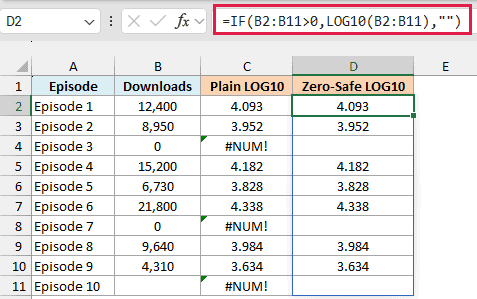
In the above formula, the IF function checks each download count. If it’s greater than 0, you get its LOG10 value, and if it’s 0 or blank, you get an empty string (“”) instead of the error.
If someone typed “n/a” in a cell, this IF formula still shows #VALUE! for it, so you know the data needs fixing. Wrapping LOG10 in IFERROR instead would hide that error too.
Example 4: Group Values into Size Brackets (Order of Magnitude)
This next one uses LOG10 to group numbers by their order of magnitude, which is a fancy way of saying whether they’re in the tens, hundreds, thousands, and so on.
Below is a list of donors with the amount each one donated, and I want to put each donation in a size bracket ($10+, $100+, $1,000+, and so on) in column C.
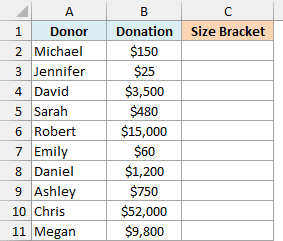
Here is the formula:
=10^INT(LOG10(B2:B11))
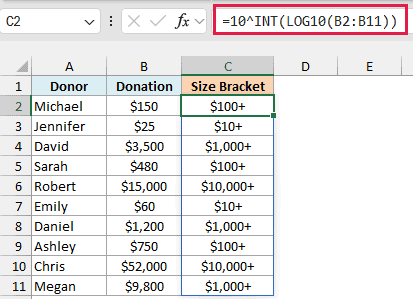
Every donation now has its bracket. Jennifer’s $25 is in the $10+ bracket, David’s $3,500 is in the $1,000+ bracket, and Chris’s $52,000 is in the $10,000+ bracket.
How this formula works:
- LOG10(B2:B11) gives the base-10 log of each donation. For David’s $3,500, that’s 3.544.
- The INT function drops the decimal part and keeps the whole number, so 3.544 becomes 3.
- 10^3 raises 10 to that power, which gives 1,000. That’s the start of the bracket the donation falls in.
The formula only returns the numbers 10, 100, 1,000, and so on. The dollar sign and the plus sign come from a custom number format, “$”#,##0″+”, which I applied to column C.
To apply it, select the cells, press Control + 1, click Custom, and type the format in the Type box.
Pro Tip: For any number of 1 or more, INT(LOG10(number)) is one less than the number of digits before the decimal point. So you can count the digits in a positive whole number with =INT(LOG10(B2))+1.
Example 5: Reverse LOG10 to Get the Original Number (Antilog)
Sometimes you have log values and need the original numbers back. This is called the antilog, or the inverse of log.
Below is a list of months with the number of website visitors each month, and I want to get the LOG10 value of each count in column C and then turn those log values back into visitor counts in column D.
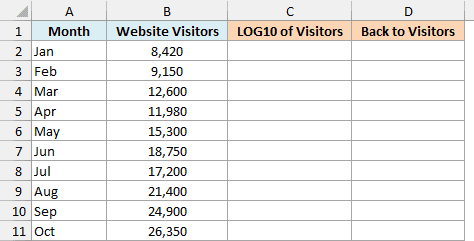
Here is the formula for the LOG10 values:
=LOG10(B2:B11)
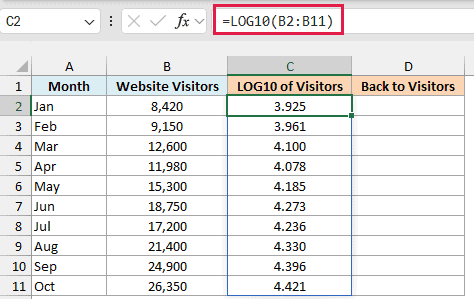
This gives the base-10 log of each month’s visitors. For example, January’s 8,420 visitors gives 3.925.
To reverse this, you raise 10 to the power of the log value. Here is the formula for that:
=10^C2#
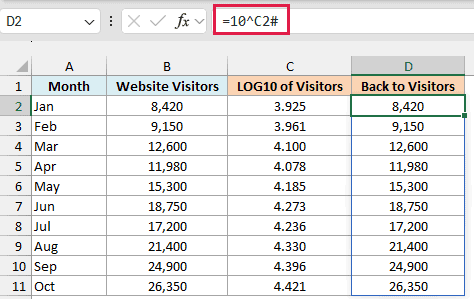
Column D now shows the same visitor counts as column B, from 8,420 in January to 26,350 in October.
The ^ is Excel’s power operator, so 10^3.925 means 10 raised to the power of 3.925. The # after C2 refers to the whole spilled range in column C, so the formula picks up all ten log values even if that range grows or shrinks.
You can also use the POWER function to do the same thing, with =POWER(10,C2#).
Because of how Excel stores decimals, the reversed values can be off by a tiny fraction (8,420 comes back as 8420.000000000007). The number format hides this, so you won’t see it in the cells.
If you need to compare these values with the original numbers, wrap the formula in ROUND, like =ROUND(10^C2#,0).
If you are using Excel 2019 or earlier, fill column C with the single-cell LOG10 formula from Example 1 first. Then enter the below formula in cell D2 and copy it down the range:
=10^C2
Example 6: Round Numbers to Significant Digits Using LOG10
Let’s step it up with a more advanced use case.
Below is a list of stores with their yearly revenue, and I want to round each revenue to the number of significant digits in cell F1 (which is 2) and get the result in column C.
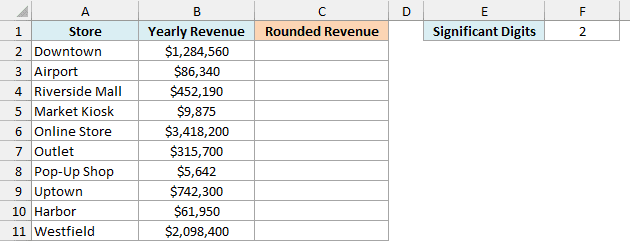
Excel doesn’t have a function to round to significant digits, but LOG10 can work out how many places the ROUND function needs for each number.
Here is the formula:
=ROUND(B2:B11,F1-1-INT(LOG10(B2:B11)))
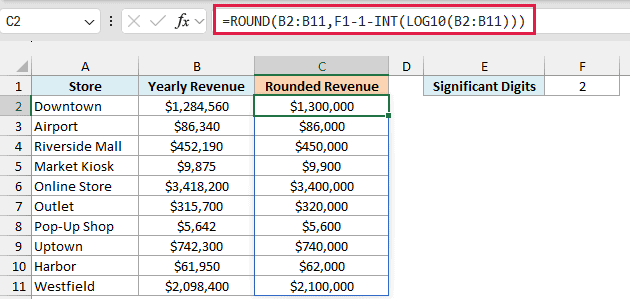
Each revenue is now rounded to 2 significant digits. Downtown’s $1,284,560 becomes $1,300,000, Market Kiosk’s $9,875 becomes $9,900, and Harbor’s $61,950 becomes $62,000.
How this formula works:
- INT(LOG10(B2:B11)) gives the number of digits minus one for each revenue. For Downtown’s $1,284,560, that’s 6.
- F1-1-6 works out to 2-1-6, which is -5.
- ROUND with -5 as the second argument rounds the number to the nearest 100,000, so $1,284,560 becomes $1,300,000.
- For Market Kiosk’s $9,875, INT(LOG10(9875)) is 3, so ROUND gets -2 and rounds to the nearest 100, giving $9,900.
Since the number of digits comes from cell F1, you can change it and every result updates. With 3 in F1, Downtown’s revenue becomes $1,280,000.
If your data has negative numbers, this formula returns #NUM! for them. To fix that, put ABS around the range inside LOG10, as in LOG10(ABS(B2:B11)), so the log is taken of each number without its minus sign.
So these are a few ways to use the LOG10 function in Excel, from a plain log of a list of numbers to size brackets and significant-digit rounding.
If you need a log with a different base, the LOG function lets you pick the base. For the natural log, use the LN function.
I hope you found this tutorial helpful.
Other Excel Articles You May Also Like:
