

The IMLOG10 function in Excel gives you the base-10 logarithm of a complex number, like 6+8i. It’s the complex-number version of the LOG10 function, so you’ll mostly see it in math, physics, and electrical engineering worksheets.
Two things tend to catch people out. The answer is also a complex number written as text, so you can’t use it in regular math or round it with the ROUND function.
And if you give IMLOG10 a plain range of cells, you get a single #VALUE! error instead of one result per cell.
In this article, I’ll show you how to use IMLOG10 with six examples, including how to take the log of a negative number and how to fix the #NUM! error.
Follow along with the example file
IMLOG10 Function Examples.xlsx
IMLOG10 Function Syntax
Here is the syntax of the IMLOG10 function:
=IMLOG10(inumber)
- inumber – The complex number you want the base-10 logarithm of. It can be text like “5+12i” or “5+12j”, a cell that holds one, or a plain number.
When you type a complex number straight into the formula, put it in double quotes. So =IMLOG10("6+8i") returns 1+0.402719196273373i.
A plain number works too, and IMLOG10 treats it as a complex number with no imaginary part. So =IMLOG10(100) returns 2, the same as LOG10.
Zero is the one value with no logarithm, so =IMLOG10(0) returns the #NUM! error. An empty cell counts as zero, so pointing IMLOG10 at a blank cell gives #NUM! as well.
The IMLOG10 function works in Excel for Microsoft 365, Excel 2024, 2021, 2019, 2016, and Excel for Mac.
When to Use the IMLOG10 Function
Use this function when you need to:
- Get the base-10 log of complex numbers in a math or engineering worksheet
- Take the log of a negative number, where LOG10 returns the #NUM! error
- Work with AC circuit values such as impedance, written in j notation
- Split a complex log into real and imaginary parts you can chart or use in regular math
Let me show you a few practical examples of how to use the IMLOG10 function.
Example 1: Get the Base-10 Log of a Column of Complex Numbers
Let’s start with a simple example.
Below is a list of complex numbers, and I want to get the base-10 log of each one in column B.
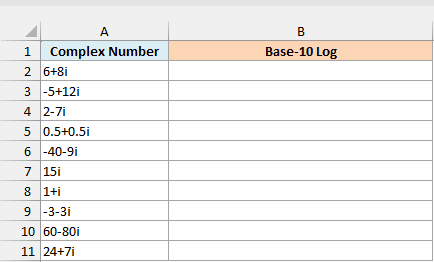
Here is the formula:
=IMLOG10(+A2:A11)
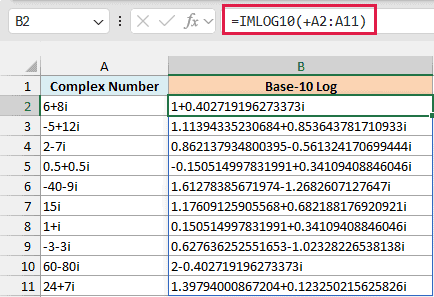
Enter this in cell B2, and it spills the results down to B11. Each result is a complex number, written as text with a real part and an imaginary part.
The plus sign in front of the range is what makes this work. If you write =IMLOG10(A2:A11), you get a single #VALUE! error, because IMLOG10 can’t take a multi-cell range reference.
The plus sign turns the range into a list of values (an array), and IMLOG10 is happy to work through an array one value at a time. The same trick works for other functions that won’t spill when you give them a range.
Important: Use just the plus sign here. A double minus (–) also creates an array, but it tries to turn each complex number into a regular number first, so every row returns #VALUE!.
To read the results, it helps to know the size of a complex number, which is its distance from zero. For 6+8i, that’s the square root of 6² + 8², which is 10 (the IMABS function returns this for you).
The real part of each result is the base-10 log of that size. So 6+8i gets a real part of 1 (the log of 10), and 60-80i, whose size is 100, gets a real part of 2.
The imaginary part comes from the direction the number points in, which is why it flips sign for 60-80i. Example 4 explains that part.
Spilling formulas like this one need Excel 365 or Excel 2021 and later, and that goes for every example in this article. In older versions, point the formula at the first cell instead of the range and copy it down.
If you are using Excel 2019 or earlier, enter the below formula in cell B2 and then copy it down the range:
=IMLOG10(A2)
Example 2: IMLOG10 vs LOG10 for Negative Numbers
Here’s something IMLOG10 can do that the LOG10 function can’t.
Below is a list of positive and negative numbers, and I want to get the base-10 log of each one, first with LOG10 in column B and then with IMLOG10 in column C.
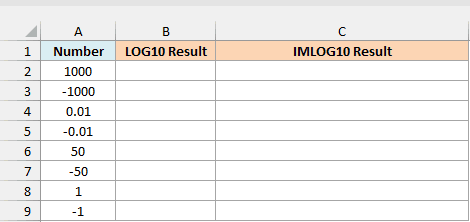
Here is the LOG10 formula:
=LOG10(A2:A9)
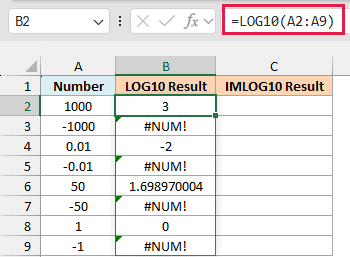
LOG10 returns the #NUM! error for every negative number. That’s because no power of 10 gives a negative result, so a negative number has no real logarithm.
Here is the IMLOG10 formula:
=IMLOG10(+A2:A9)
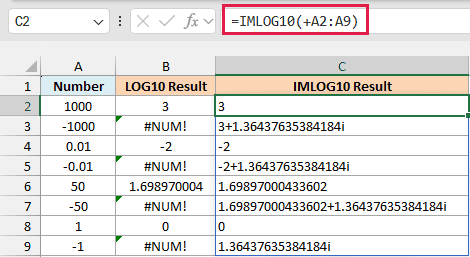
Now every number gets a result. The positive numbers get the same answer as LOG10, so 1000 gives 3 and 0.01 gives -2.
The negative numbers get a complex answer. -1000 gives 3+1.36437635384184i, which has the same real part as 1000 plus an imaginary part.
That imaginary part is the same for every negative number, because every negative number points in exactly the opposite direction from the positive ones. That direction is half a turn, which is pi in radians.
IMLOG10 divides that by the natural log of 10, so -1000, -50 and -1 all end up with 1.36437635384184i. Example 4 shows how the direction turns into the imaginary part.
Example 3: Use IMLOG10 with COMPLEX and j Notation
In AC circuits, a value like impedance has a real part (resistance) and an imaginary part (reactance), and engineers usually write it with j instead of i.
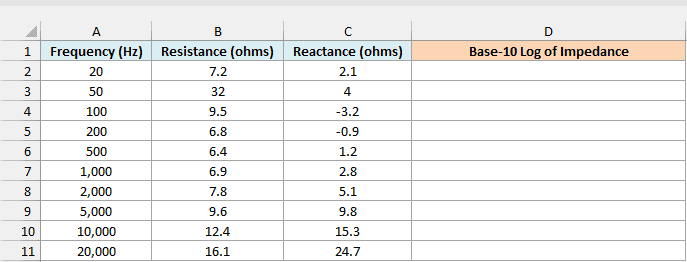
Below is a loudspeaker’s resistance and reactance measured at different frequencies, and I want the base-10 log of each impedance in column D.
Here is the formula:
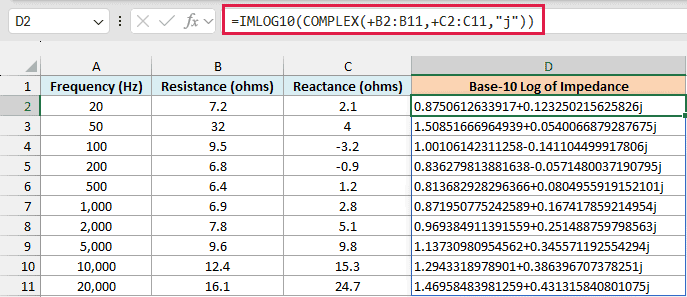
=IMLOG10(COMPLEX(+B2:B11,+C2:C11,"j"))
How this formula works:
COMPLEX(+B2:B11,+C2:C11,"j")joins each resistance and reactance into one complex number, so 7.2 and 2.1 become 7.2+2.1j.- The “j” at the end tells the COMPLEX function to use j instead of i. COMPLEX needs the plus signs for the same reason IMLOG10 does in Example 1.
- IMLOG10 then takes the base-10 log of each complex number, and it keeps the j in its answer.
The real part of each result is the log of the impedance size, and that size combines both parts. At 50 Hz, 32 ohms of resistance and 4 ohms of reactance give about 32.2 ohms (the square root of 32² + 4²).
That’s the biggest impedance in this data, so the 50 Hz row has the biggest real part, 1.50851666964939.
Example 4: Split the IMLOG10 Result into Real and Imaginary Parts
Since IMLOG10 returns its answer as text, you can’t chart it or use it in regular math. To use the two parts, you need to pull them out as numbers.
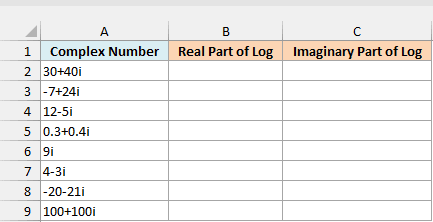
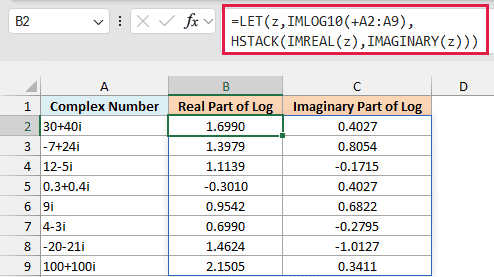
Below is a list of complex numbers, and I want the real part of each log in column B and the imaginary part in column C.
Here is the formula:
=LET(z,IMLOG10(+A2:A9),HSTACK(IMREAL(z),IMAGINARY(z)))
How this formula works:
IMLOG10(+A2:A9)gets the base-10 log of every number, and the LET function stores those results as z so they’re only calculated once.IMREAL(z)pulls out the real part of each result, andIMAGINARY(z)pulls out the imaginary part, both as regular numbers.- The HSTACK function puts the two lists side by side, so the formula spills into B2:C9. I’ve formatted both columns to show 4 decimals.
Now here’s what the two parts mean. The real part is the base-10 log of the number’s size, so 30+40i (size 50) gives 1.6990, the same as =LOG10(50).
The imaginary part comes from the number’s direction. If you plot the real part across and the imaginary part up, the angle from zero to that point (in radians) is what the IMARGUMENT function returns.
For 30+40i, =IMARGUMENT("30+40i") returns 0.9273, and 0.9273 divided by LN(10) gives 0.4027, the imaginary part in column C.
The HSTACK function needs Excel 365 or Excel 2024. If you are using Excel 2021 or earlier, enter the below formula in cell B2 and then copy it down the range:
=IMREAL(IMLOG10(A2))
Then enter the below formula in cell C2 and copy it down the range:
=IMAGINARY(IMLOG10(A2))
Example 5: Round the IMLOG10 Result to 3 Decimals
IMLOG10 gives you up to 15 digits in each part, which is a lot to read. You’d think the ROUND function could trim it, but =ROUND(IMLOG10(A2),3) returns #VALUE!, because ROUND can’t read a complex number written as text.
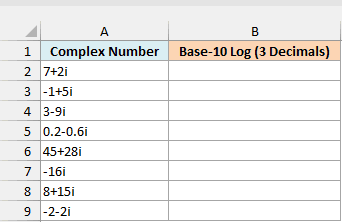
Below is a list of complex numbers, and I want the base-10 log of each one, rounded to 3 decimals, in column B.
Here is the formula:
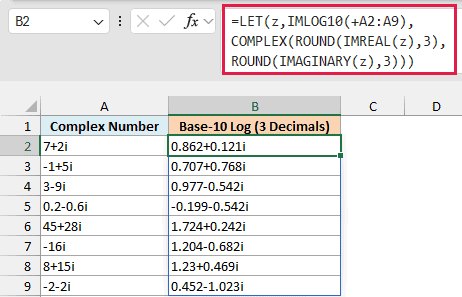
=LET(z,IMLOG10(+A2:A9),COMPLEX(ROUND(IMREAL(z),3),ROUND(IMAGINARY(z),3)))
How this formula works:
IMLOG10(+A2:A9)gets the base-10 log of each number, and LET stores the results as z.IMREAL(z)andIMAGINARY(z)split each result into its two parts, and ROUND rounds each part to 3 decimals.- COMPLEX joins the rounded parts back into one complex number.
Excel drops any trailing zero when it builds the complex number. That’s why 8+15i shows 1.23+0.469i rather than 1.230+0.469i.
If you are using Excel 2019 or earlier, enter the below formula in cell B2 and then copy it down the range:
=COMPLEX(ROUND(IMREAL(IMLOG10(A2)),3),ROUND(IMAGINARY(IMLOG10(A2)),3))
Example 6: Fix the #NUM! Error Caused by a Capital I or J
Here’s an error that’s easy to miss, because the numbers look fine at first glance.
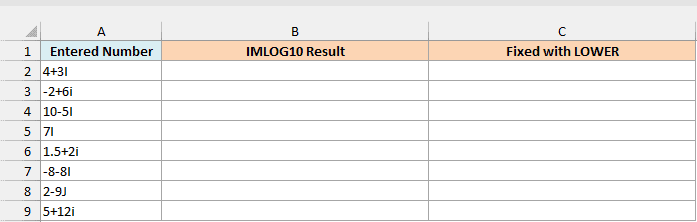
Below is a list of complex numbers where some were typed with a capital I or J, and I want the base-10 log of each one in column B.
Here is the formula:
=IMLOG10(+A2:A9)
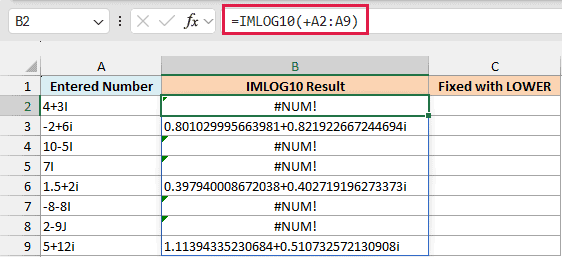
Every number typed with a capital letter returns the #NUM! error. IMLOG10 only recognizes a lowercase i or j, so to it, “4+3I” isn’t a complex number at all.
The fix is to convert the text to lowercase before IMLOG10 reads it. Here is the formula that does this, in column C:
=IMLOG10(LOWER(A2:A9))
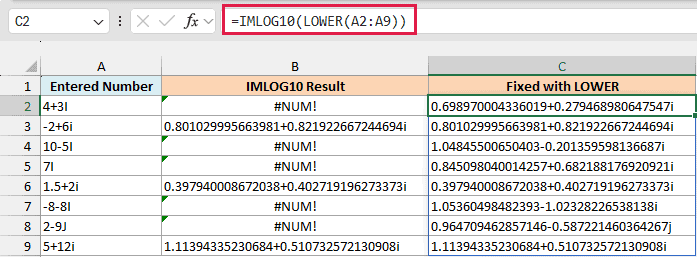
The LOWER function turns every capital I and J into a lowercase one, so all eight numbers now return a result. LOWER already hands IMLOG10 a list of values, so this formula doesn’t need the plus sign.
If you still see #NUM! after this, check for a zero or a blank cell, or a letter written before the number (like 3+i4). Spaces are fine, so “3 + 4i” works.
So that’s how you can use the IMLOG10 function in Excel. If you need a different base, Excel also has the IMLN function for the natural log and the IMLOG2 function for base 2, and they work the same way.
I hope you found this article helpful.
Other Excel Articles You May Also Like:
