

The IMSUB function in Excel subtracts one complex number from another, so 13+4i minus 5+3i gives you 8+i. It’s useful in math and engineering work, where numbers have a real part and an imaginary part.
One thing to watch for is the name. IMSUB looks like a general subtraction function, but it always returns text, so it’s the wrong tool for regular numbers like prices or budgets.
In this article, I’ll show you how to use IMSUB with five practical examples, including how to subtract whole columns with one formula and clean up long decimals in the result.
Follow along with the example file
IMSUB Function Examples.xlsx
IMSUB Function Syntax
Here is the syntax of the IMSUB function:
=IMSUB(inumber1, inumber2)
- inumber1 – The complex number you want to subtract from.
- inumber2 – The complex number you want to subtract from inumber1.
Both arguments take a complex number written as text, like “5+3i” or “5+3j”, or a cell that holds one. When you type a complex number straight into the formula, put it in double quotes, so =IMSUB("13+4i","5+3i") returns 8+i.
You can also use a plain number. IMSUB treats it as a complex number with no imaginary part, so =IMSUB("5+2i",3) returns 2+2i, and an empty cell counts as 0.
The i or j has to be lowercase. A value like “5+2I” isn’t recognized as a complex number, so IMSUB returns the #NUM! error.
If the real and imaginary parts sit in separate cells, the COMPLEX function joins them into one complex number. For example, =COMPLEX(3,4) returns 3+4i, and you can use it directly inside IMSUB.
The IMSUB function works in Excel for Microsoft 365, Excel 2024, 2021, 2019, 2016, and Excel for Mac.
When to Use the IMSUB Function
Use this function when you need to:
- Subtract one complex number from another in a math or engineering worksheet
- Find the change between two positions written as complex numbers
- Work out voltage drops or current differences in AC circuits written in j notation
- Subtract several complex numbers at once by pairing it with IMSUM
Let me show you a few practical examples of how to use the IMSUB function.
Example 1: Subtract Two Complex Numbers in Excel
Let’s start with a simple example.
Below is a practice sheet with two complex numbers in each row, and I want to subtract Number B from Number A in column D.
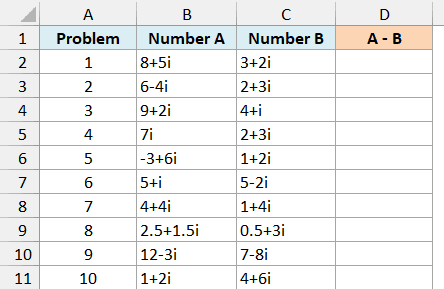
Here is the formula to enter in cell D2 and copy down:
=IMSUB(B2,C2)
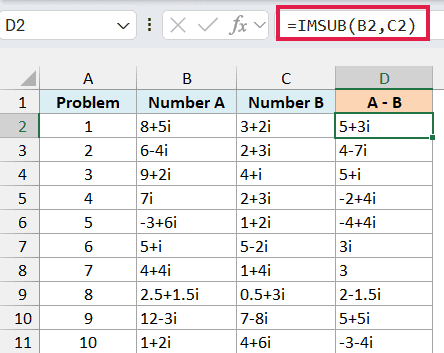
IMSUB takes the number in B2 and subtracts the number in C2, handling the real and imaginary parts separately. So 8+5i minus 3+2i gives 5+3i.
Notice how Excel writes some of the results. When a part is 1, it drops the 1 (5+i instead of 5+1i), and when a part is 0, it leaves that part out, which is why problem 6 shows 3i and problem 7 shows just 3.
I’ve kept this first example as a per-row formula so you can see how IMSUB works on one pair at a time. The next example handles the whole column with one formula.
Example 2: Subtract Two Columns with One IMSUB Formula
In Excel 365 (and Excel 2021 or later), you can subtract a whole column with a single formula, but IMSUB needs one small trick to do it.
Below is a log of warehouse robot trips with the start and end position of each robot, and I want to get the movement of each robot in column D.
Each position is a complex number, where the real part is meters east and the imaginary part is meters north.
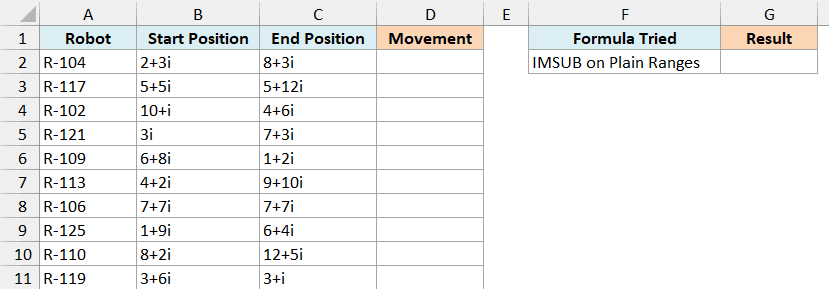
The obvious formula would be to give IMSUB both ranges. I’ve put that attempt in cell G2, and it returns a #VALUE! error:
=IMSUB(C2:C11,B2:B11)
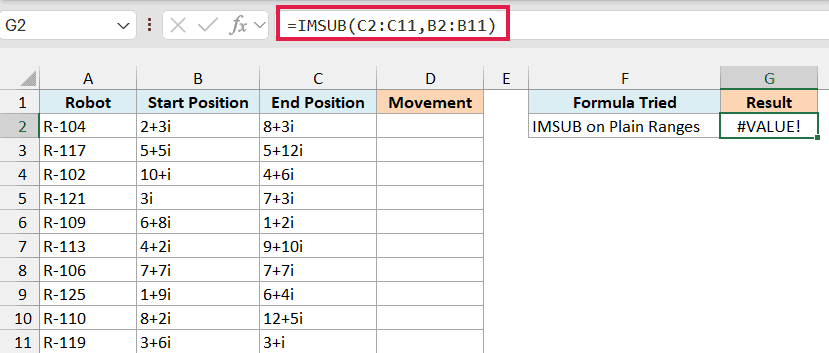
This happens because IMSUB can’t take a multi-cell range reference like C2:C11. It only works with single values, or with a list of values held in memory (called an array).
Putting a plus sign (+) in front of each range fixes this, because Excel then hands IMSUB the values as an array. Here is the formula that works:
=IMSUB(+C2:C11,+B2:B11)
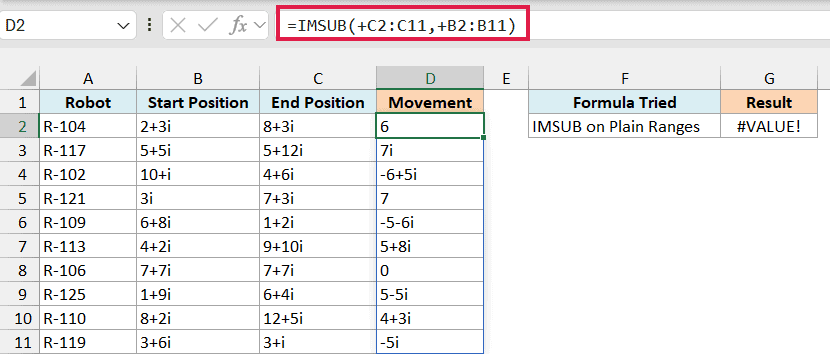
Enter this in cell D2, and it spills the results down to D11. Since End Position comes first in the formula, each result is the end minus the start, so R-104 moved 6 meters east, and R-106 shows 0 because it ended where it started.
Important: Use just the plus sign here. Adding +0 or a double minus (–) to the range also creates an array, but it tries to turn the text into numbers first, so every complex number returns #VALUE!.
The same plus-sign trick works for other functions that won’t spill when you give them a range.
If you are using Excel 2019 or earlier, enter the below formula in cell D2 and then copy it down the range:
=IMSUB(C2,B2)
Example 3: Subtract More Than Two Complex Numbers
IMSUB takes exactly two numbers. If you try to add a third one to the formula, Excel won’t accept it.
Below is a log of golf holes with the pin position and the two shots played on each hole (the drive and the second shot), and I want to find where the pin is from the ball after those shots in column E.
Everything is in yards. The pin position is measured from the tee, while each shot shows how far the ball traveled on that shot.
In every value, the real part is yards to the right (negative means left), and the imaginary part is yards down the fairway.
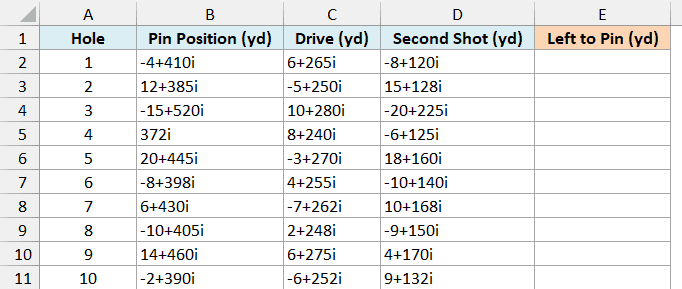
Here is the formula to enter in cell E2 and copy down:
=IMSUB(B2,IMSUM(C2:D2))
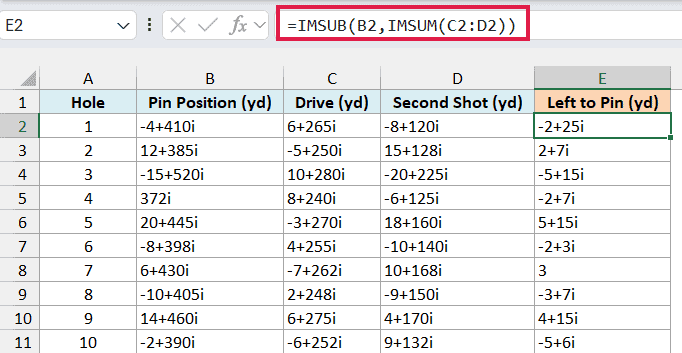
The IMSUM function adds the drive and the second shot into one complex number, which is where the ball ended up. IMSUB then subtracts that from the pin position.
On hole 1, the result -2+25i means the pin is 2 yards to the left and 25 yards ahead of the ball. On hole 7, the result is just 3, so the pin is 3 yards to the right and level with the ball.
If a hole needs a third shot, insert a column for it next to Second Shot and widen the IMSUM range to cover it. IMSUB still subtracts only one number, the total from IMSUM.
I’ve kept this as a per-row formula because IMSUM adds up everything you give it into a single result. Feeding it whole columns would add every shot on every hole together.
Example 4: Use j Notation and Round the Result
If you work with AC circuits, you’ll often see complex numbers written with j instead of i. IMSUB handles both.
Below is a list of outlet voltages in a house written in j notation, and I want to calculate the voltage drop from the panel to each outlet in column C. The panel voltage is in cell G2.
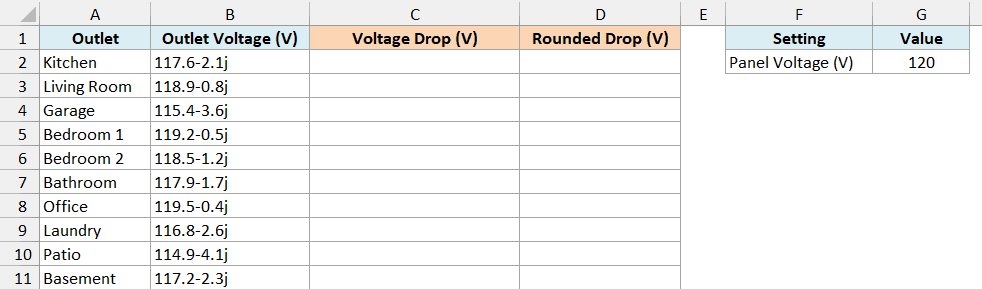
Here is the formula to enter in cell C2:
=IMSUB(G2,+B2:B11)
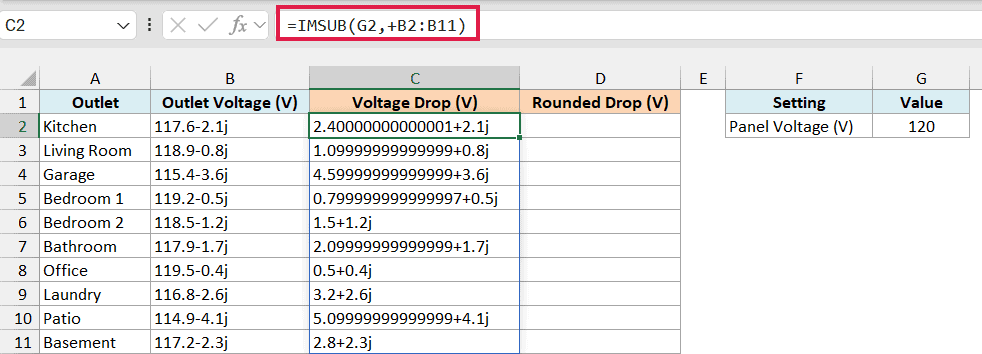
This subtracts each outlet voltage from the 120 volts in G2 and spills the drops down to C11, keeping the j in the results. G2 doesn’t need a plus sign because it’s a single cell, so only the range does.
Some of the results also have long decimals, like 2.40000000000001+2.1j for the kitchen instead of 2.4+2.1j. Excel stores decimals in binary, so 120 minus 117.6 isn’t exactly 2.4, and IMSUB writes out that tiny leftover that a regular cell would hide.
You can’t fix this with the ROUND function directly, because the result is text and ROUND returns a #VALUE! error. Instead, round the real and imaginary parts separately and join them back.
Here is the formula to enter in cell D2:
=LET(d,IMSUB(G2,+B2:B11),COMPLEX(ROUND(IMREAL(d),2),ROUND(IMAGINARY(d),2),"j"))
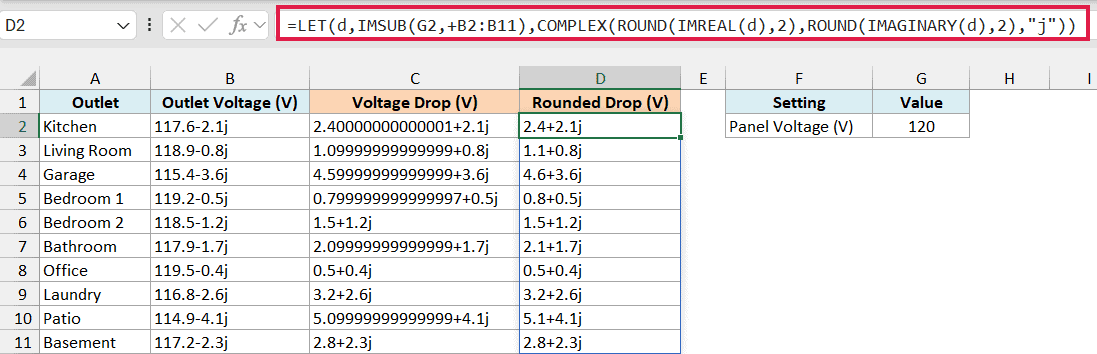
How this formula works:
- IMSUB(G2,+B2:B11) calculates the voltage drops, and the LET function stores them as d, so IMSUB runs only once.
- IMREAL(d) and IMAGINARY(d) pull out the real and imaginary parts as regular numbers.
- ROUND(…,2) rounds each part to two decimal places.
- COMPLEX(…,”j”) joins the two rounded parts back into a complex number, and the “j” keeps the results in the same notation as the outlet voltages.
Now the kitchen shows 2.4+2.1j, and every other outlet is clean too.
Important: Don’t mix i and j in the same formula. If one number uses i and the other uses j, IMSUB returns the #NUM! error, so use the same letter for both numbers.
Both formulas in this example spill, and the LET function needs Excel 2021 or later. If you are using Excel 2019 or earlier, enter the below formula in cell C2 and then copy it down the range:
=IMSUB($G$2,B2)
And for the rounded drops, enter the below formula in cell D2 and then copy it down the range:
=COMPLEX(ROUND(IMREAL(IMSUB($G$2,B2)),2),ROUND(IMAGINARY(IMSUB($G$2,B2)),2),"j")
Example 5: Why IMSUB Isn’t for Regular Subtraction
Since IMSUB has “SUB” in its name, it’s easy to assume it’s Excel’s subtraction function. It isn’t, and this example shows what goes wrong when you use it on regular numbers.
Below is a monthly budget with the amount budgeted and spent in each category, and I want to calculate how much is left in column D.
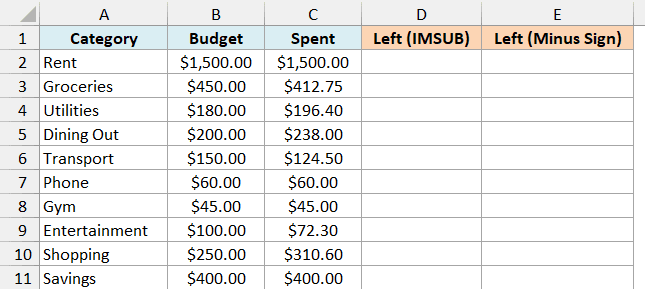
Here is the IMSUB formula to enter in cell D2:
=IMSUB(+B2:B11,+C2:C11)
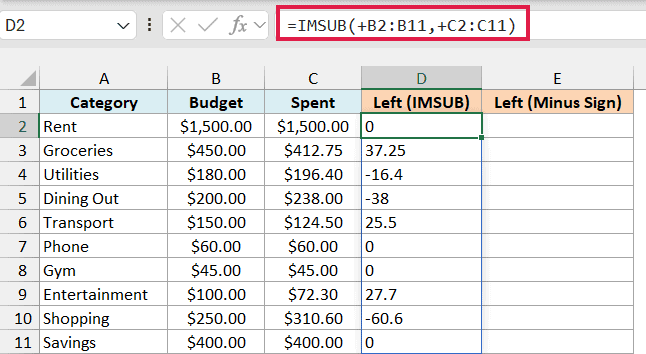
The amounts are right, but they’re all text. They sit on the left side of the cells, and the currency format on column D is ignored, so you get 37.25 instead of $37.25.
And if you try to total them, the SUM function skips text, so you get 0.
For regular numbers, subtract in Excel with the minus sign instead. Here is the formula to enter in cell E2:
=B2:B11-C2:C11
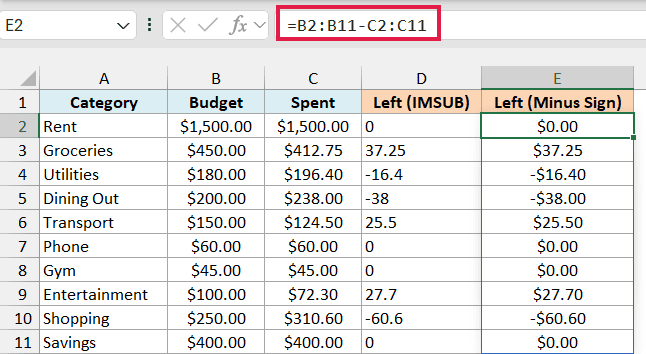
This spills actual numbers down to E11, so the currency format works and you can total them like any other numbers.
If you already have IMSUB results and need them as numbers, the IMREAL function converts them. But for everyday subtraction, the minus sign is the simpler choice.
If you are using Excel 2019 or earlier, enter the below formula in cell E2 and then copy it down the range:
=B2-C2
So these are some practical ways to use the IMSUB function in Excel to subtract complex numbers.
Just remember to put a plus sign in front of your ranges when you want one formula for a whole column. I hope you found this article helpful.
Other Excel Articles You May Also Like:
