

The IMSUM function in Excel adds complex numbers, the ones with a real part and an imaginary part, like 3+4i. You can give it two numbers, a list of numbers, or a whole range, and it returns the total as one complex number.
One thing to know before you start is that Excel stores complex numbers as text, so the regular SUM function skips them and returns 0. IMSUM is the function that actually reads them as numbers and adds them up.
In this article, I’ll show you how to use IMSUM with six practical examples, including a total with a condition, a running total, and a fix for the #NUM! error.
Follow along with the example file
IMSUM Function Examples.xlsx
IMSUM Function Syntax
Here is the syntax of the IMSUM function:
=IMSUM(inumber1, [inumber2], ...)
- inumber1 – The first complex number you want to add. This is required.
- [inumber2], … – More complex numbers you want to add. These are optional, and you can use up to 255 arguments in total.
Each argument can be a complex number written as text, a cell that holds one, or a range of cells. When you type a complex number straight into the formula, put it in double quotes, so =IMSUM("3+6i","5-2i") returns 8+4i.
A whole range counts as just one argument. So the 255 limit is about how many separate items you list, not how many numbers you can add, and =IMSUM(B2:B500) works fine.
You can also use plain numbers. IMSUM treats a plain number as a complex number with no imaginary part, and it treats an empty cell as 0, so blank rows in a range don’t break the total.
The IMSUM function works in Excel for Microsoft 365, Excel 2024, 2021, 2019, 2016, and Excel for Mac.
When to Use the IMSUM Function
Use this function when you need to:
- Add two or more complex numbers in a math or engineering worksheet
- Total a whole column of complex numbers with one formula
- Add up impedances, voltages, or currents written in j notation for AC circuits
- Total only the complex numbers that meet a condition, or keep a running total
Let me show you a few practical examples of how to use the IMSUM function.
Example 1: Add Two Complex Numbers in Excel
Let’s start with a simple example.
Below is a practice sheet with two complex numbers in each row, and I want to add Number A and Number B in column D.
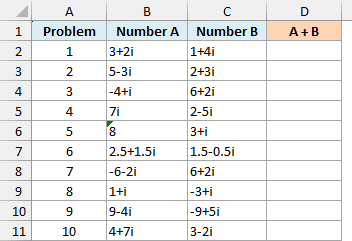
Here is the formula to enter in cell D2 and copy down:
=IMSUM(B2,C2)
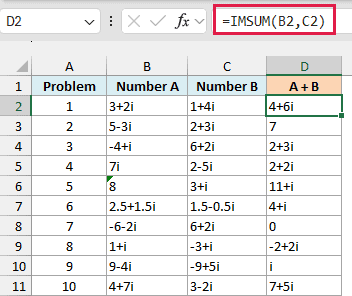
IMSUM adds the real parts together and the imaginary parts together. So for problem 1, 3+2i plus 1+4i gives 4+6i.
Notice how Excel writes some of the results. When a part is 0, it leaves that part out, which is why problem 2 shows just 7 and problem 7 shows 0.
When a part is 1, Excel drops the 1. So problem 5 shows 11+i instead of 11+1i, and problem 9 shows just i.
I’ve kept this as a per-row formula because IMSUM adds up everything you give it into one result. If you gave it both columns, you’d get a single grand total instead of one sum per row.
Example 2: Sum a Column of Complex Numbers
Now let’s add a whole list of complex numbers with one formula.
Below is a log of the legs of a hike, and I want to find the net move from the start in cell E2. Each move is a complex number, where the real part is kilometers east and the imaginary part is kilometers north.
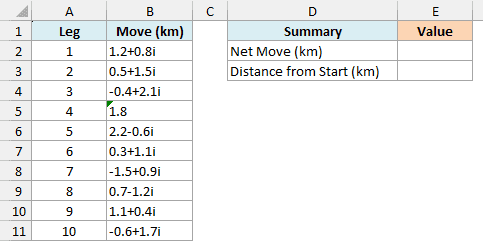
Here is the formula to enter in cell E2:
=IMSUM(B2:B11)
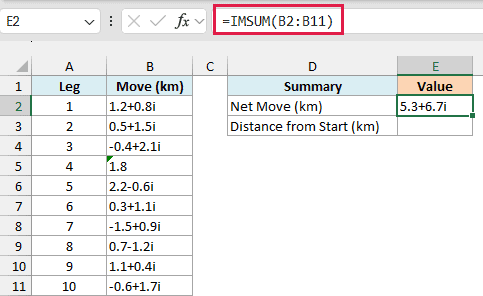
IMSUM adds all ten legs in B2:B11 and returns 5.3+6.7i. So by the end of the hike, you’re 5.3 km east and 6.7 km north of where you started.
Leg 4 is just 1.8, with no i at all. That’s a leg going straight east, and IMSUM counts it as 1.8+0i.
Now, to find how far you are from the start in a straight line, you can pass this result to the IMABS function. Here is the formula to enter in cell E3:
=IMABS(E2)
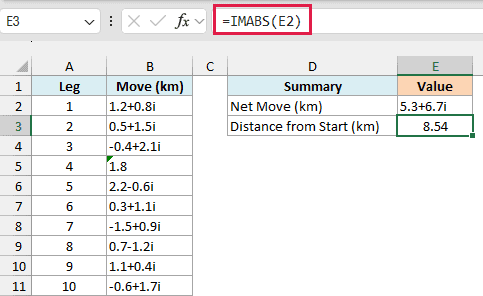
IMABS returns the length of a complex number, so this gives 8.54 km. You walked a lot more than that in total, but this is the straight-line distance from the start to where the hike ended.
Example 3: Add Plain Numbers and j Notation Values
If you work with AC circuits, you’ll usually see complex numbers written with j instead of i. IMSUM handles j, and it handles plain numbers mixed in with them.
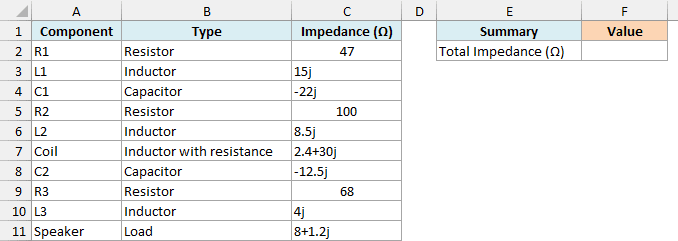
Below is a list of components connected in a series circuit, and I want to calculate the total impedance of the circuit in cell F2.
Here is the formula to enter in cell F2:
=IMSUM(C2:C11)
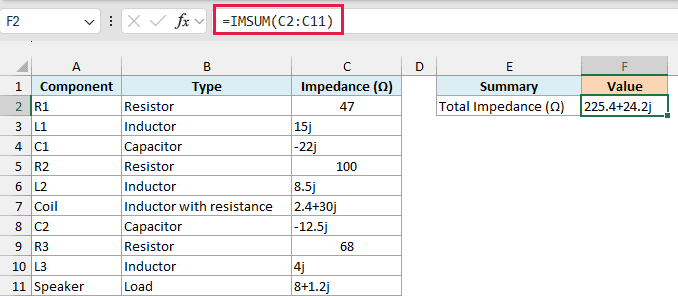
In a series circuit, the total impedance is the sum of all the component impedances, so IMSUM gives you the answer directly: 225.4+24.2j ohms.
The resistors (47, 100, and 68) are regular numbers in their cells, and IMSUM treats them as real parts. Together with the real parts of the coil (2.4) and the speaker (8), they add up to 225.4.
The inductors and capacitors only have a j part, and IMSUM adds all the j parts (including the coil’s and the speaker’s) into 24.2j.
Because the complex numbers in this list use j, the result uses j too. This works because every complex number in the range uses the same letter, and Example 6 shows what happens when they don’t.
Example 4: Sum Complex Numbers with a Condition (IMSUM + FILTER)
Sometimes you only want to add the complex numbers that meet a condition, like a SUMIF for complex numbers.
Below is an orienteering log with the move each team made between checkpoints, and I want to get the total move for the team in cell F2 (Blue) in column F.
Each move is in meters, where the real part is meters east and the imaginary part is meters north.
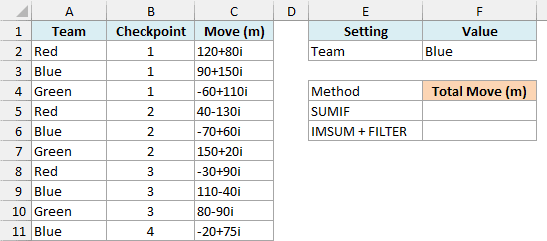
The first thing most people would try is the SUMIF function. I’ve put that attempt in cell F5:
=SUMIF(A2:A11,F2,C2:C11)
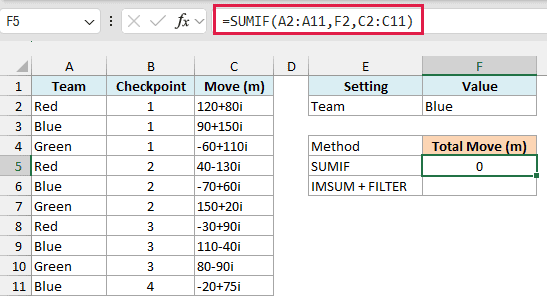
It returns 0. SUMIF finds the four Blue rows just fine, but it only adds numbers, and the moves are text, so it skips every one of them.
The fix is to let the FILTER function pick out the matching moves and then hand them to IMSUM. Here is the formula to enter in cell F6:
=IMSUM(FILTER(C2:C11,A2:A11=F2,0))
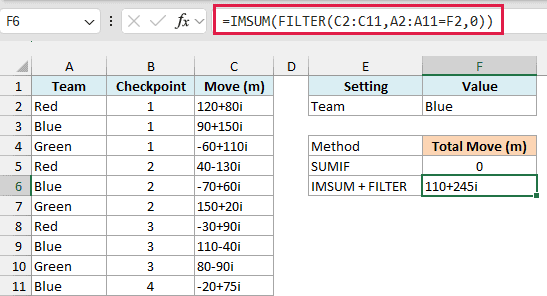
FILTER returns only the moves in rows where the team is Blue, and IMSUM adds those four moves, so the Blue team moved 110+245i in total.
Since F2 holds the team name, you can type Red or Green in F2 and the total updates on its own.
Important: Keep the 0 at the end of FILTER. If no row matches (say you type a team that isn’t in the list), FILTER has nothing to return and IMSUM gives the #VALUE! error, so the 0 makes the total 0 instead.
The FILTER function needs Excel 2021 or later. If you are using Excel 2019 or earlier, enter the below formula in cell F6 and press Control + Shift + Enter instead of just Enter:
=IMSUM(IF(A2:A11=F2,C2:C11,0))
Example 5: Running Total of Complex Numbers with SCAN
A running total shows you the total after each row, not just at the end. With complex numbers, that’s handy for tracking where something is after each move.
Below is a log of a 10-day sailing trip with the boat’s move each day, and I want to get the boat’s position after each day in column C. The real part is miles east and the imaginary part is miles north.
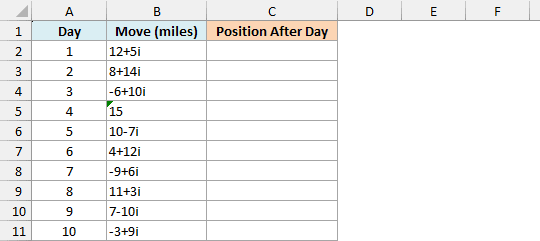
Here is the formula to enter in cell C2:
=SCAN(0,B2:B11,LAMBDA(a,v,IMSUM(a,v)))
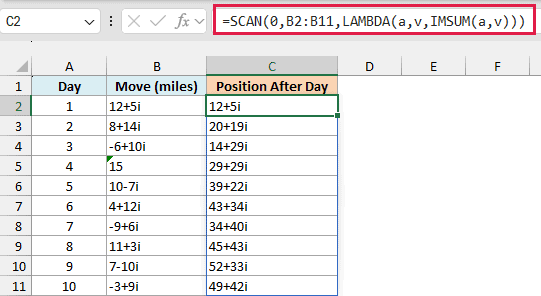
This single formula spills the position for every day down to C11. On day 1, the boat is at 12+5i, after day 2 it’s at 20+19i, and by day 10 it’s at 49+42i.
How this formula works:
- SCAN(0,B2:B11,…) goes through the moves one at a time, starting from 0 (the starting point of the trip).
- LAMBDA(a,v,…) gives a name to the two values SCAN works with: a is the running total so far, and v is the current day’s move.
- IMSUM(a,v) adds the current move to the running total. SCAN then returns that new total for the row and carries it on to the next one.
The last value, 49+42i, is the same as =IMSUM(B2:B11) would give you, because after the last day the running total is the full total.
The SCAN function works in Excel 365 and Excel 2024. If you are using Excel 2021 or earlier, enter the below formula in cell C2 and then copy it down the range:
=IMSUM($B$2:B2)
Example 6: Fix the #NUM! Error in IMSUM
When IMSUM can’t read even one of the values in a range, the whole formula fails. This often happens with numbers that come from different sources.
Below is a list of current readings taken with two meters, where Meter B writes a capital J, and I want to get the total current in column F.
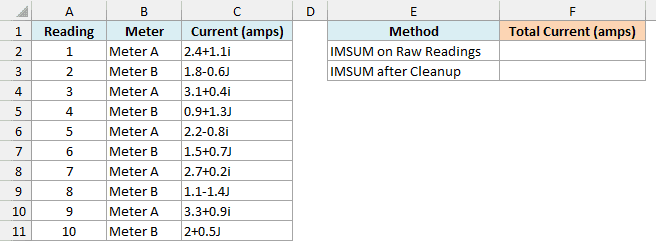
Here is what happens if you use IMSUM on the readings as they are. I’ve put this in cell F2:
=IMSUM(C2:C11)
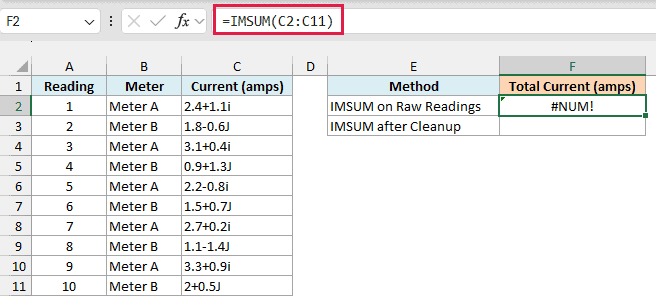
It returns the #NUM! error. IMSUM only accepts a lowercase i or j, so a value like 1.8-0.6J isn’t a complex number as far as Excel is concerned.
There’s a second problem hiding behind the first. Meter A uses i and Meter B uses j, and IMSUM won’t add an i number to a j number.
If you only fixed the capitals, you’d get the #VALUE! error instead.
So the formula needs to make every reading lowercase and use the same letter. Here is the formula to enter in cell F3:
=IMSUM(SUBSTITUTE(LOWER(C2:C11),"i","j"))
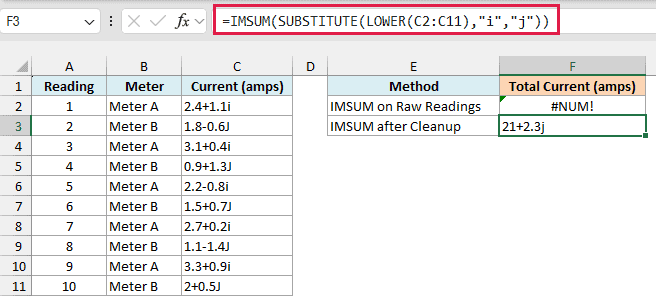
How this formula works:
- LOWER(C2:C11) turns every reading into lowercase, so 1.8-0.6J becomes 1.8-0.6j.
- SUBSTITUTE(…,”i”,”j”) replaces the i with j, so all ten readings now use j. I’ve picked j here because that’s the usual letter for electrical values.
- IMSUM(…) adds the cleaned-up readings and returns 21+2.3j amps.
The readings in column C stay exactly as they are. The cleanup only happens inside the formula.
If you are using Excel 2019 or earlier, the same formula works, but press Control + Shift + Enter instead of just Enter after you type it. Older versions need that to run LOWER and SUBSTITUTE on the whole range.
So these are some practical ways to use the IMSUM function in Excel to add complex numbers.
Just remember that complex numbers are text in Excel, so stick with IMSUM (not SUM or SUMIF) whenever you need to add them. I hope you found this article helpful.
Other Excel Articles You May Also Like:
