

The IMABS function in Excel gives you the absolute value of a complex number, which is its distance from zero. So for 3+4i, IMABS returns 5.
This comes up in math and engineering work, like finding how far a point is from another point or how big an impedance is in an AC circuit.
Excel stores complex numbers as text, and most of its complex number functions return text too. IMABS returns a regular number instead, so you can round it or use it in other calculations.
In this article, I’ll show you five practical examples, including the one small trick it needs to work on a whole column.
Follow along with the example file
IMABS Function Examples.xlsx
IMABS Function Syntax
Here is the syntax of the IMABS function:
=IMABS(inumber)
- inumber – The complex number whose absolute value you want.
The argument takes a complex number written as text, like “3+4i” or “3+4j”, or a cell that holds one. When you type a complex number straight into the formula, put it in double quotes, so =IMABS("5+12i") returns 13.
You can also give it a plain number. IMABS treats it as a complex number with no imaginary part, so =IMABS(-15) returns 15, and an empty cell returns 0.
The IMABS function works in Excel for Microsoft 365, Excel 2024, 2021, 2019, 2016, and Excel for Mac.
When to Use the IMABS Function
Use this function when you need to:
- Find the absolute value (also called the modulus or magnitude) of a complex number
- Get the straight-line distance of a point written as a complex number
- Find the distance between two points by pairing it with the IMSUB function, which subtracts one complex number from another
- Work out the size of an impedance in an AC circuit and use it to calculate current
Let me show you a few practical examples of how to use the IMABS function.
Example 1: Find the Absolute Value of a Complex Number
Let’s start with a simple example.
Below is a list of complex numbers, and I want to find the absolute value of each one in column B.
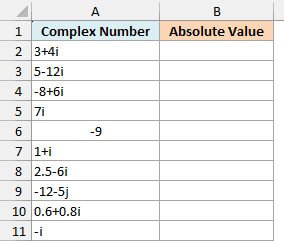
Here is the formula to enter in cell B2 and copy down:
=IMABS(A2)
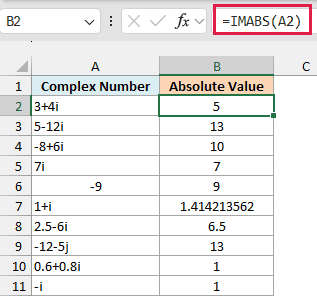
In 3+4i, 3 is the real part and 4 is the imaginary part. IMABS squares both parts, adds them up, and takes the square root, so for 3+4i that’s the square root of 9 + 16, which is 5.
Since the parts are squared, the result is never negative. That’s why -8+6i gives 10, -i gives 1, and the plain number -9 gives 9.
The j in -12-5j works just like i, so it returns 13.
The result is a regular number, so you can round it, format it, or use it in other calculations. For 1+i, you get 1.414213562, which you can tidy up with the ROUND function or by reducing the decimal places.
The ABS function can’t do this job. It works only on regular numbers, so =ABS("3+4i") returns the #VALUE! error.
I’ve kept this first example as a per-row formula so you can see how IMABS works on one number at a time. The next example handles a whole column with one formula.
Example 2: Get the Magnitude of a Whole Column With One Formula
In Excel 365 (and Excel 2021 or later), you can get the absolute value of a whole column with a single formula, but IMABS needs one small trick to do it.
Below is a scavenger hunt plan with the location of each clue measured from the starting point, and I want to find how far each clue is from the start in column C.
In each location, the real part is meters east (negative means west), and the imaginary part is meters north (negative means south).
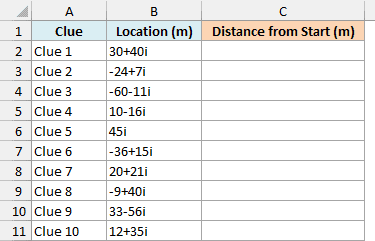
Here is the formula to enter in cell C2:
=IMABS(+B2:B11)
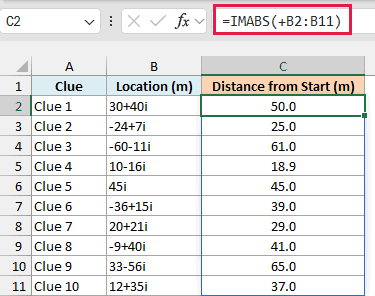
This spills the distances down to C11. Clue 1 at 30+40i is 50 meters from the start in a straight line, and Clue 5 at 45i is 45 meters due north.
IMABS can’t take a multi-cell range reference like B2:B11. The plus sign (+) in front of the range makes Excel hand it the values as a list in memory (called an array), and IMABS handles each one.
Important: Don’t leave out the plus sign. With a plain range like B2:B11, IMABS returns a single #VALUE! error instead of a list of distances.
The same plus-sign trick works for other functions that won’t spill when you give them a range.
If you are using Excel 2019 or earlier, enter the below formula in cell C2 and then copy it down the range:
=IMABS(B2)
Example 3: Find the Distance Between Two Points
In the previous example, every distance was measured from the starting point, which is 0. To measure the distance from any other point, combine IMABS with the IMSUB function.
Below is a list of devices in a house with the position of each one, and I want to find how far each device is from the Wi-Fi router in column C. The router’s position is in cell F2.
Each position is in feet from one corner of the house, with the real part going along the width and the imaginary part going along the length.
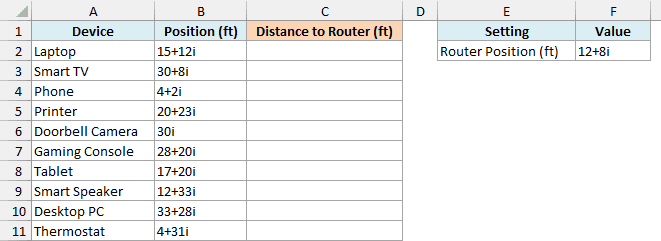
Here is the formula to enter in cell C2:
=IMABS(IMSUB(+B2:B11,F2))
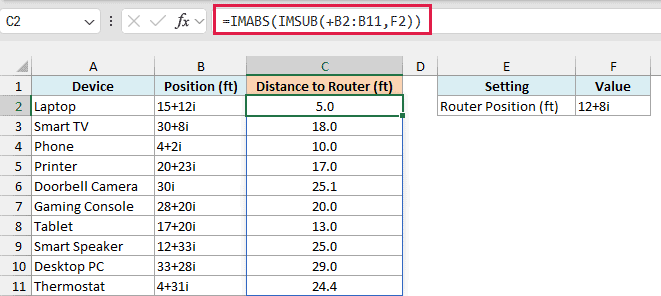
How this formula works:
- IMSUB(+B2:B11,F2) subtracts the router’s position from each device’s position. For the laptop, 15+12i minus 12+8i gives 3+4i, which is the gap between the two.
- IMABS turns each gap into a straight-line distance, so the laptop is 5 feet from the router.
F2 doesn’t need a plus sign because it’s a single cell. Only the range does.
Keep the same letter in both positions. If one uses i and the other uses j, the IMSUB function returns the #NUM! error, and so does the whole formula.
If you are using Excel 2019 or earlier, enter the below formula in cell C2 and then copy it down the range:
=IMABS(IMSUB(B2,$F$2))
Example 4: Calculate Current From Impedance
If you work with AC circuits, you’ll often see impedance (the total opposition to current) written as a complex number with j instead of i.
Below is a list of household appliances with their impedance in ohms, and I want to calculate the current each one draws in column C. The supply voltage is in cell F2.
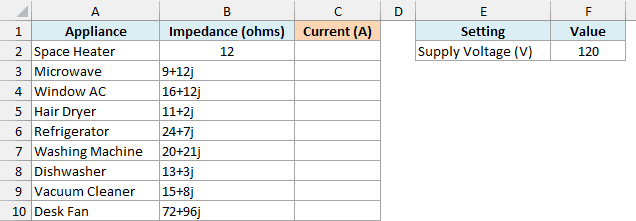
Here is the formula to enter in cell C2:
=F2/IMABS(+B2:B10)
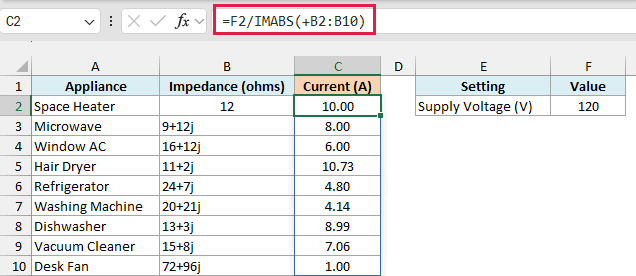
The current is the voltage divided by the size of the impedance. IMABS turns the microwave’s 9+12j into 15 ohms, so it draws 120 / 15 = 8 amps.
The space heater has a plain 12 because its impedance has no imaginary part. IMABS reads it as 12 ohms, so it draws 10 amps.
Since IMABS returns a regular number, you can divide by it straight away.
If you are using Excel 2019 or earlier, enter the below formula in cell C2 and then copy it down the range:
=$F$2/IMABS(B2)
Example 5: Fix #NUM! Errors Caused by a Capital I or J
IMABS only recognizes a lowercase i or j. If someone types a capital letter, the formula breaks.
Below is a practice sheet where students typed their answers as complex numbers, and I want to find the absolute value of each answer in column C.
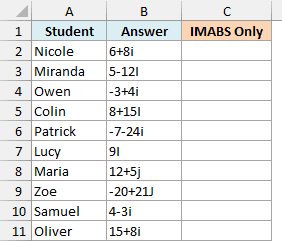
Here is the formula to enter in cell C2:
=IMABS(+B2:B11)
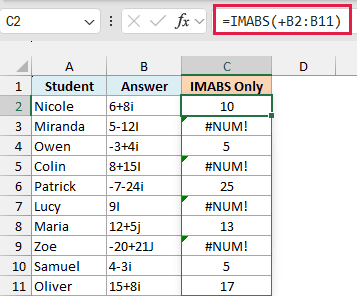
Four of the answers return the #NUM! error. Miranda, Colin, Lucy, and Zoe typed a capital I or J, and IMABS doesn’t read those as complex numbers.
You could retype those answers, but it’s easier to let the formula convert them to lowercase first. Here is the formula to enter in cell D2:
=IMABS(LOWER(B2:B11))
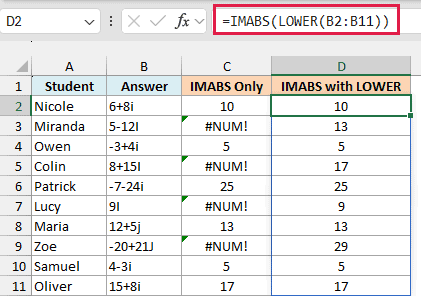
The LOWER function changes every answer to lowercase, so 5-12I becomes 5-12i, and IMABS returns 13. Answers that were already lowercase stay the same.
This formula doesn’t need a plus sign, because the LOWER function already returns a list of values (an array) rather than a range reference.
If you are using Excel 2019 or earlier, enter the below formula in cell D2 and then copy it down the range:
=IMABS(LOWER(B2))
So these are some practical ways to use the IMABS function in Excel to find the absolute value of complex numbers.
Just remember the plus sign when you want one formula for a whole column, and keep the i or j lowercase. I hope you found this article helpful.
Other Excel Articles You May Also Like:
