

The IMCONJUGATE function in Excel returns the complex conjugate of a complex number. It keeps the real part as it is and flips the sign of the imaginary part, so 6+2i becomes 6-2i.
Conjugates show up a lot in math and electrical engineering. You need them to work out power in AC circuits, and they’re also a quick way to mirror a point across the x-axis.
In this article, I’ll show you how to use IMCONJUGATE with four practical examples, including how to handle a whole column with one formula and fix the #NUM! error you get from a capital I.
Follow along with the example file
IMCONJUGATE Function Examples.xlsx
IMCONJUGATE Function Syntax
Here is the syntax of the IMCONJUGATE function:
=IMCONJUGATE(inumber)
- inumber – The complex number you want the conjugate of.
The complex number is text, like “6+2i”, or a cell that holds one. The imaginary part can be written with i or j (engineers often use j), so “3+8j” works too.
When you type the number straight into the formula, put it in double quotes, so =IMCONJUGATE("6+2i") returns 6-2i.
You can also give it a plain number. A real number has no imaginary part to flip, so =IMCONJUGATE(9) returns 9, and an empty cell returns 0.
The result is always text, even when it looks like a number. So you can’t add it up or use it in regular math directly (Example 4 shows how to get numbers out of it).
The IMCONJUGATE function works in Excel for Microsoft 365, Excel 2024, 2021, 2019, 2016, and Excel for Mac.
When to Use the IMCONJUGATE Function
Use this function when you need to:
- Find the complex conjugate of a number in a math or engineering worksheet
- Mirror points across the x-axis when they’re written as complex numbers
- Calculate complex power in AC circuits, where the formula uses the conjugate of the current
- Get the conjugates for a whole column of complex numbers with one formula
Let me show you a few practical examples of how to use the IMCONJUGATE function.
Example 1: Find the Complex Conjugate in Excel
Let’s start with a simple example.
Below is a practice list of complex numbers, and I want to get the conjugate of each one in column C.
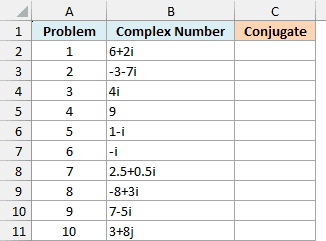
Here is the formula to enter in cell C2 and copy down:
=IMCONJUGATE(B2)
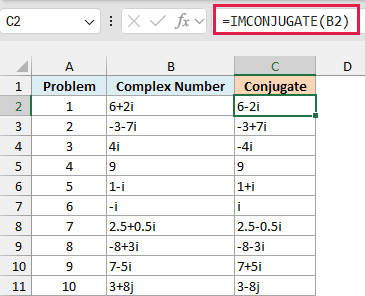
IMCONJUGATE keeps the real part of the number in B2 and flips the sign of the imaginary part. So 6+2i becomes 6-2i, and -3-7i becomes -3+7i.
A couple of results look different because one part is missing. 4i has no real part, so its conjugate is just -4i.
And 9 has no imaginary part, so there’s nothing to flip and it stays 9.
Excel also writes the results in the shortest form. When the imaginary part is 1 or -1, it shows just i or -i instead of 1i, so the conjugate of 1-i is 1+i (not 1+1i), and the conjugate of -i is i.
Problem 10 uses j instead of i, and IMCONJUGATE keeps the j in the result (3-8j).
I’ve kept this first example as a per-row formula so you can see how it works on one number at a time. The next example handles the whole column with one formula.
Example 2: Mirror Points Across the X-Axis with One Formula
Here’s where the conjugate gets a bit more visual.
If you think of a complex number as a point on a chart, the real part is the x value and the imaginary part is the y value. Flipping the sign of y mirrors the point across the x-axis, which is what the conjugate does.
Below are the points along the top edge of a leaf shape I’m drawing, and I want the matching points on the bottom edge in column C.
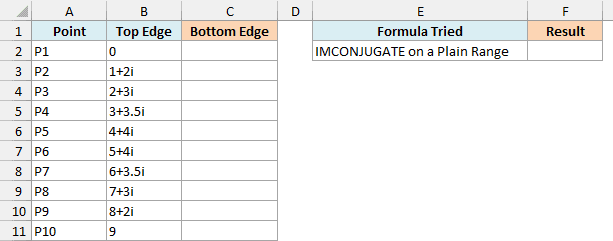
The obvious formula would be to give IMCONJUGATE the whole range. I’ve put that attempt in cell F2, and it returns a #VALUE! error:
=IMCONJUGATE(B2:B11)
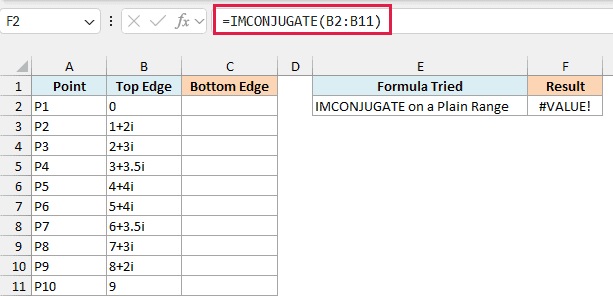
This happens because IMCONJUGATE can’t take a multi-cell range reference like B2:B11. It only works with single values, or with a list of values held in memory (called an array).
Putting a plus sign (+) in front of the range fixes this, because Excel then hands IMCONJUGATE the values as an array. Here is the formula that works:
=IMCONJUGATE(+B2:B11)
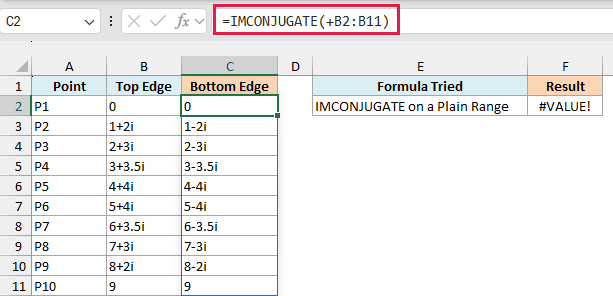
Enter this in cell C2, and it spills the mirrored points down to C11. P2 at 1+2i becomes 1-2i, which is the same distance below the x-axis instead of above it.
P1 and P10 (0 and 9) sit right on the x-axis, so their mirror image is the same point.
Important: Use just the plus sign here. Adding +0 or a double minus (–) to the range also creates an array, but it tries to turn the text into numbers first, so every complex number returns #VALUE!.
The same plus-sign trick works for other functions that won’t spill when you give them a range.
If you are using Excel 2019 or earlier, enter the below formula in cell C2 and then copy it down the range:
=IMCONJUGATE(B2)
Example 3: Fix the #NUM! Error from a Capital I or J
Now let’s look at a problem you’ll run into when other people type in complex numbers.
Below is a list of complex numbers that students typed into a shared practice sheet, and I want the conjugate of each one in column C.
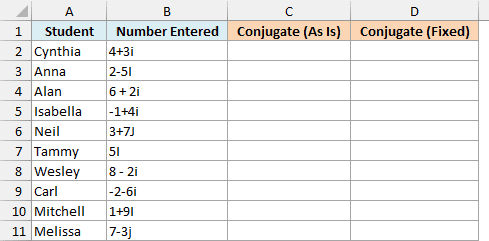
Here is the formula to enter in cell C2:
=IMCONJUGATE(+B2:B11)
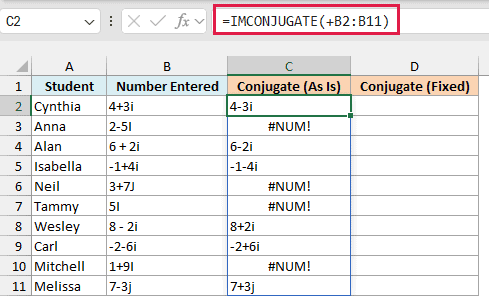
Most rows work, but Anna, Neil, Tammy, and Mitchell get a #NUM! error. Each of them typed a capital I or J (like 2-5I), and IMCONJUGATE only recognizes a lowercase i or j.
Alan’s 6 + 2i and Wesley’s 8 – 2i have spaces around the sign, and those still work. So the capital letter is the only problem here.
To fix it, convert the numbers to lowercase before IMCONJUGATE reads them. Here is the formula to enter in cell D2:
=IMCONJUGATE(LOWER(B2:B11))
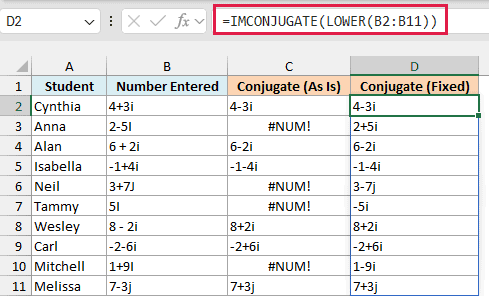
The LOWER function turns every capital I and J into i and j, so all ten rows now return a conjugate. Anna’s 2-5I gives 2+5i, and Neil’s 3+7J gives 3-7j.
This formula doesn’t need the plus sign. The LOWER function already returns its results as an array, so IMCONJUGATE spills them without any help.
If you are using Excel 2019 or earlier, enter the below formula in cell D2 and then copy it down the range:
=IMCONJUGATE(LOWER(B2))
Example 4: Calculate Appliance Power with IMCONJUGATE
Let’s end with a practical use from electrical work.
In an AC circuit, the current is written as a complex number. The j part is the share of the current that motors draw out of step with the voltage, and heating appliances have none.
The power an appliance draws is then called complex power. You get it by multiplying the voltage by the conjugate of the current, and this is where IMCONJUGATE comes in.
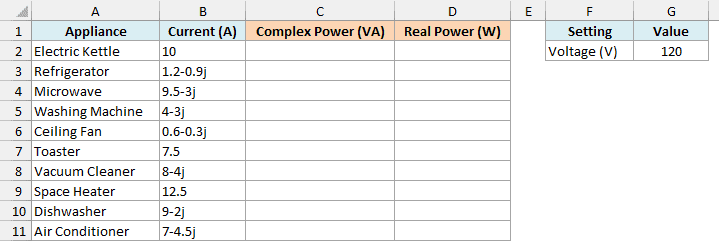
Below is a list of household appliances with the current each one draws on a 120-volt circuit, and I want the complex power in column C. The voltage is in cell G2.
Here is the formula to enter in cell C2 and copy down:
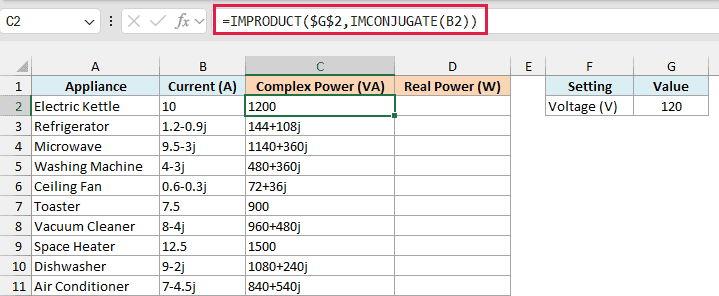
=IMPRODUCT($G$2,IMCONJUGATE(B2))
How this formula works:
- IMCONJUGATE(B2) flips the sign of the imaginary part of the current, so the refrigerator’s 1.2-0.9j becomes 1.2+0.9j.
- IMPRODUCT($G$2,…) uses the IMPRODUCT function, which multiplies complex numbers, to multiply that by the 120 volts in G2. The dollar signs keep the formula pointing at G2 as you copy it down.
The real part of the result is the power the appliance actually uses, in watts. The j part is reactive power, which motors (like the one in a refrigerator) pull back and forth without using it up.
The conjugate is what makes that j part positive for motor appliances, which is the standard way to show it. Without IMCONJUGATE, the refrigerator would show 144-108j instead of 144+108j.
The kettle, toaster, and space heater draw a current with no j part, because they turn all of their power into heat. So their complex power is a plain number, like 1500 for the space heater.
I’ve kept this as a per-row formula because the IMPRODUCT function multiplies everything you give it into a single result. Feeding it the whole column would multiply all ten currents together.
The complex power is text, though, so you can’t total it or use it in regular math. To get the watts as real numbers, pull out the real part with the IMREAL function.
Here is the formula to enter in cell D2:
=IMREAL(+C2:C11)
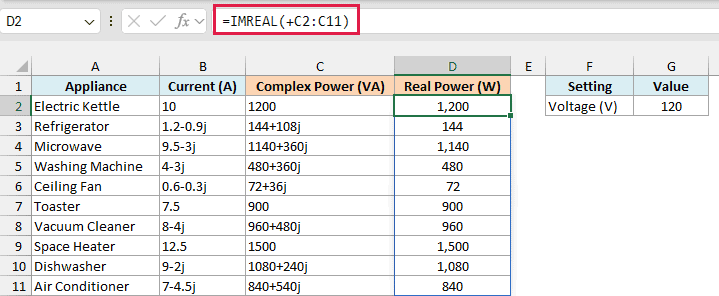
This spills the watts down to D11 as regular numbers, so the refrigerator shows 144 and the space heater shows 1,500. The IMREAL function needs the plus sign in front of the range for the same reason IMCONJUGATE does.
Since these are real numbers, you can total them with the SUM function or format them like any other number.
If you are using Excel 2019 or earlier, enter the below formula in cell D2 and then copy it down the range:
=IMREAL(C2)
So these are some practical ways to use the IMCONJUGATE function in Excel to find the complex conjugate of a number.
If you need to divide complex numbers, you don’t need IMCONJUGATE for that. Dividing by hand means multiplying both numbers by the conjugate of the bottom one, but the IMDIV function does the division directly.
I hope you found this article helpful.
Other Excel Articles You May Also Like:
