

The IMPRODUCT function in Excel multiplies complex numbers and returns the result as a complex number, like 27+11i. You need it when your numbers have a real part and an imaginary part, which is common in math and electrical work.
The regular multiplication sign (*) doesn’t work here, because Excel stores a complex number like “3+4i” as text. IMPRODUCT reads that text and does the math for you.
IMPRODUCT also accepts ranges, but it doesn’t pair cells up row by row. If you give it two columns, it multiplies every cell in both into one result, so I’ll show you how to get a separate answer for each row instead.
In this article, I’ll show you how to use IMPRODUCT with six practical examples, including how to rotate points on a plan and how to deal with long decimals in the result.
Follow along with the example file
IMPRODUCT Function Examples.xlsx
IMPRODUCT Function Syntax
Here is the syntax of the IMPRODUCT function:
=IMPRODUCT(inumber1, [inumber2], ...)
- inumber1 – The first complex number you want to multiply. This one is required.
- [inumber2], … – Optional. More complex numbers to multiply with the first one. You can give IMPRODUCT up to 255 numbers in total.
Each argument can be a complex number written as text, such as “3+4i” or “3+4j”, a cell that holds one, or a range of cells. When you type a complex number straight into the formula, wrap it in double quotes, so =IMPRODUCT("3+4i","5-3i") returns 27+11i.
You can also use a plain number as an argument. IMPRODUCT treats it as a complex number with no imaginary part, so =IMPRODUCT("1+2i",30) multiplies both parts by 30 and returns 30+60i.
The i or j has to be lowercase. If you type “2+3I”, IMPRODUCT doesn’t recognize it as a complex number and returns the #NUM! error.
The IMPRODUCT function works in Excel for Microsoft 365, Excel 2024, 2021, 2019, 2016, and Excel for Mac.
When to Use the IMPRODUCT Function
Use this function when you need to:
- Multiply two or more complex numbers in a math or engineering worksheet
- Calculate voltage from current and impedance in AC circuits written in j notation
- Rotate points on a plan or grid by 90 degrees or by any angle
- Square a complex number or multiply it by its conjugate
Let me show you a few practical examples of how to use the IMPRODUCT function.
Example 1: Multiply Two Complex Numbers in Excel
Let’s start with a simple example.
Below is a practice set with two complex numbers in each row, and I want to get their product in column D.
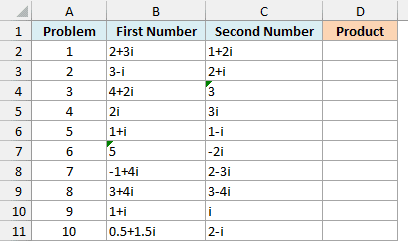
Here is the formula to enter in cell D2 and copy down:
=IMPRODUCT(B2,C2)
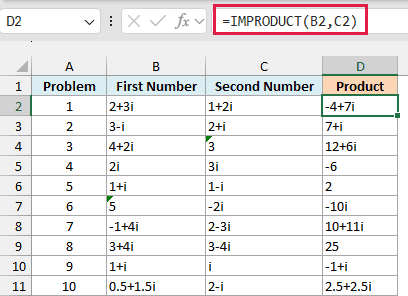
IMPRODUCT multiplies the number in B2 by the number in C2, so 2+3i times 1+2i gives -4+7i.
You’ll notice that Excel keeps the results short. A part that equals 0 is left out, so problem 4 shows just -6 (because i times i is -1) and problem 6 shows -10i.
And a 1 in front of the i is dropped, which is why problem 9 shows -1+i instead of -1+1i.
Problems 5 and 8 multiply a number by its conjugate (the same number with the sign of the imaginary part flipped). The imaginary parts cancel out, so you get plain real numbers, 2 and 25.
I’ve kept this example as a per-row formula so you can follow one multiplication at a time. Example 3 shows how to get a product for every row with a single formula, instead of copying it down.
Example 2: Multiply a Range of Complex Numbers (and Skip Blanks)
IMPRODUCT can also multiply a whole list of complex numbers at once. This is where a blank cell can quietly break your result.
Below is a list of complex numbers where one cell (B6) is still empty, and I want to multiply all the numbers together in column E.
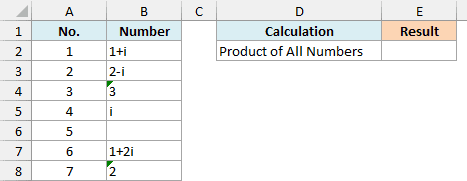
Here is the formula to enter in cell E2:
=IMPRODUCT(B2:B8)
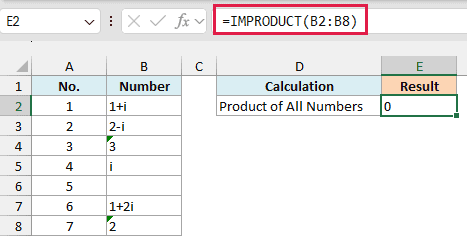
It returns 0, which isn’t the answer you want. IMPRODUCT counts the empty cell B6 as 0, and anything multiplied by 0 is 0.
To multiply only the cells that have a number, remove the blanks first. Here is the formula to enter in cell E3:
=IMPRODUCT(FILTER(B2:B8,B2:B8<>""))
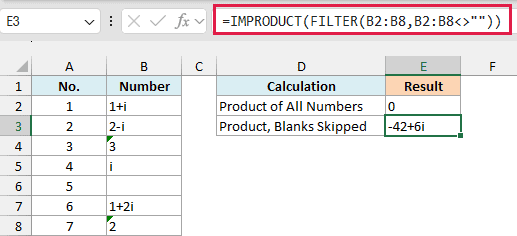
The FILTER function keeps only the cells in B2:B8 that aren’t empty, and IMPRODUCT multiplies those six numbers to get -42+6i.
Important: Don’t include the header in the range. A text cell that isn’t a complex number, like “Number” in B1, makes IMPRODUCT return the #NUM! error.
The FILTER function needs Excel 2021 or later. If you are using Excel 2019 or earlier, enter the below formula in cell E3, listing only the ranges that have numbers:
=IMPRODUCT(B2:B5,B7:B8)
Example 3: Multiply Each Row With One Formula (Voltage From Current)
If you work with AC circuits, you’ve probably seen complex numbers written with j instead of i. IMPRODUCT handles both, and this example also shows how to multiply two columns row by row.
Below is a list of household devices with the current and impedance measured for each one, and I want to calculate the voltage in column D.
Voltage is current multiplied by impedance (Ohm’s law), and impedance is the AC version of resistance.
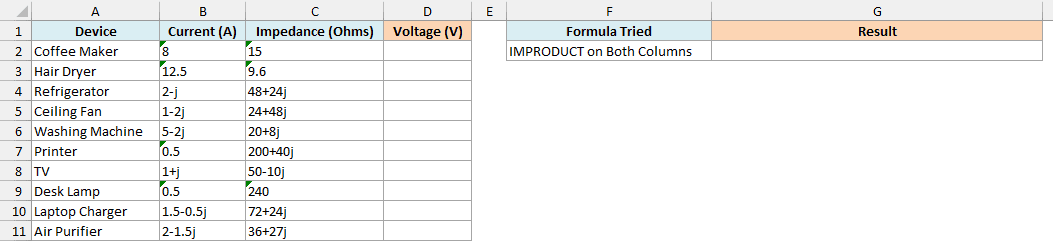
Since IMPRODUCT accepts ranges, the obvious formula would be to give it both columns, and I’ve entered that in cell G2:
=IMPRODUCT(B2:B11,C2:C11)
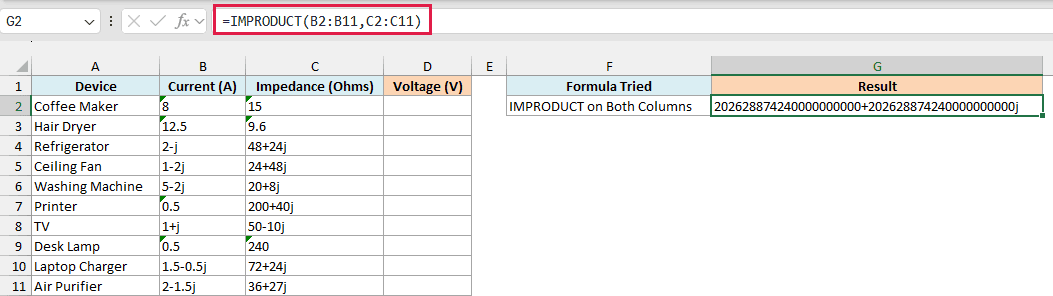
It returns one huge number, because IMPRODUCT multiplies all 20 values in both ranges together. It doesn’t pair up the cells row by row.
To get a separate result for each device, you need to hand IMPRODUCT one row at a time. Here is the formula to enter in cell D2:
=BYROW(B2:C11,LAMBDA(r,IMPRODUCT(r)))
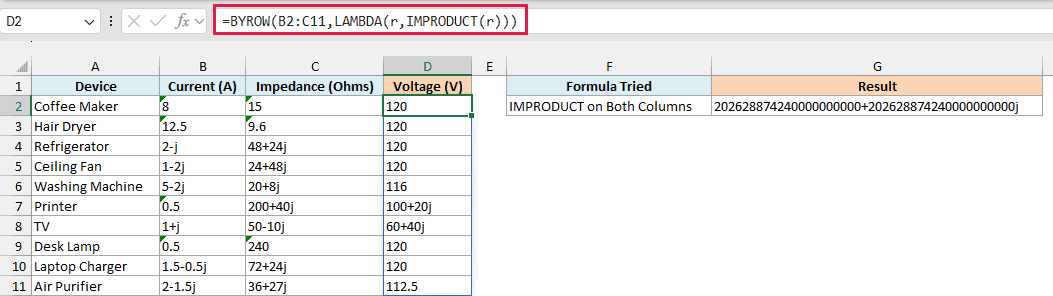
How this formula works:
- BYROW(B2:C11, …) uses the BYROW function to go through the data one row at a time.
- LAMBDA(r,IMPRODUCT(r)) names the current row r, and IMPRODUCT multiplies the current and impedance in that row.
- BYROW then spills one result per row down to D11.
For the coffee maker, 8 times 15 gives 120 volts. For the TV, 1+j times 50-10j gives 60+40j, so the j stays in the result.
Important: Don’t mix i and j in the same formula. If one number uses j and another uses i, IMPRODUCT returns the #VALUE! error, so pick one letter and use it for every complex number.
This matters when you build a number with the COMPLEX function, because it uses i unless you tell it otherwise. So use COMPLEX(1,1,"j") when the rest of your numbers use j.
The BYROW and LAMBDA functions are available in Excel 365 and Excel 2024. If you are using Excel 2021 or earlier, enter the below formula in cell D2 and then copy it down the range:
=IMPRODUCT(B2,C2)
Example 4: Rotate Points 90 Degrees by Multiplying by i
Multiplying by i has a neat use. It rotates a point 90 degrees counterclockwise around zero, which makes it an easy way to turn a layout on a grid.
Below is a room layout with the position of each piece of furniture in feet, and I want to find each new position after rotating the layout 90 degrees in column C.
Each position is measured from the bottom-left corner of the floor plan. The real part is the distance to the right in feet, and the imaginary part is the distance up.
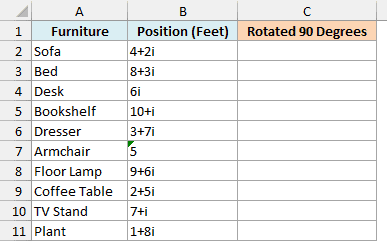
Here is the formula to enter in cell C2:
=BYROW(B2:B11,LAMBDA(p,IMPRODUCT(p,"i")))
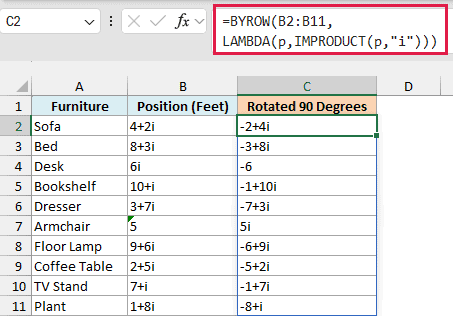
BYROW takes each position one at a time, and IMPRODUCT multiplies it by “i”. The results spill down to C11.
So the sofa at 4+2i moves to -2+4i. The 4 feet to the right become 4 feet up, and the 2 feet up become 2 feet to the left of the corner, which is why the real part is now negative.
The armchair at 5 shows the same idea in its simplest form. A point straight to the right of the corner ends up straight above it, at 5i.
If you want to rotate clockwise instead, multiply by “-i”. That moves the sofa from 4+2i to 2-4i.
If you are using Excel 2021 or earlier, enter the below formula in cell C2 and then copy it down the range:
=IMPRODUCT(B2,"i")
Example 5: Rotate by Any Angle and Round the Result
Multiplying by i only covers 90 degrees. To rotate by any other angle, you multiply by a rotation factor, which is a complex number built from the cosine and sine of that angle.
Below are the corner points of an L-shaped patio in feet, and I want to rotate the patio by the angle in cell G2 and get the new corner points in column C.
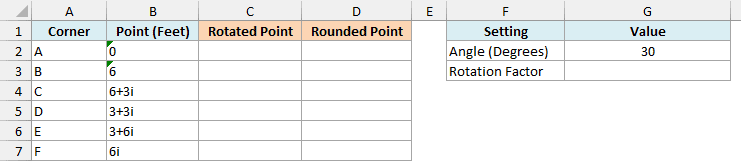
First, build the rotation factor. Here is the formula to enter in cell G3:
=COMPLEX(COS(RADIANS(G2)),SIN(RADIANS(G2)))
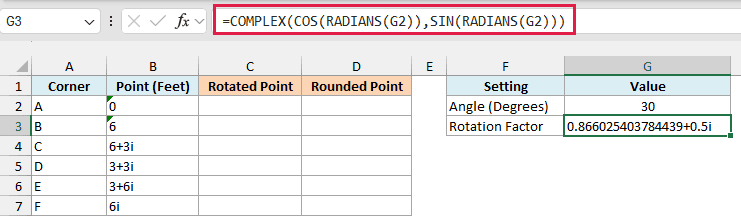
The COS and SIN functions work in radians, so the RADIANS function converts the 30 degrees first. COMPLEX then joins the cosine and sine into one complex number, 0.866025403784439+0.5i.
Now multiply every corner point by that factor. Here is the formula to enter in cell C2:
=BYROW(B2:B7,LAMBDA(p,IMPRODUCT(p,G3)))
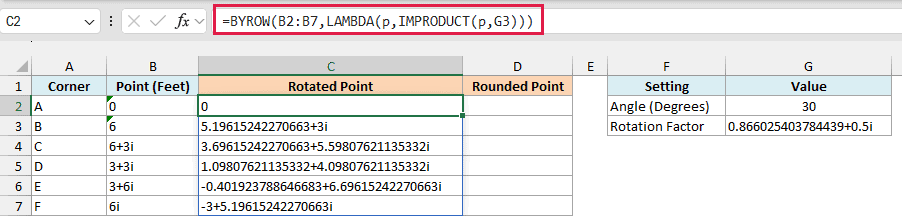
This rotates each corner by 30 degrees around corner A, which stays at 0. So corner B at 6 moves to 5.19615242270663+3i.
The results are correct, but they’re hard to read. You can’t shorten them with cell formatting, because IMPRODUCT returns text and number formats don’t apply to text.
The ROUND function doesn’t work on them either, since it returns a #VALUE! error on a complex number. Instead, round the real and imaginary parts separately and join them back together.
Here is the formula to enter in cell D2:
=BYROW(C2:C7,LAMBDA(z,COMPLEX(ROUND(IMREAL(z),2),ROUND(IMAGINARY(z),2))))
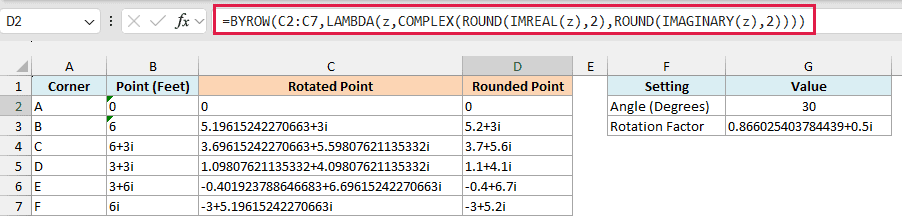
How this formula works:
- IMREAL(z) and IMAGINARY(z) pull out the real part and the imaginary part of each rotated point as regular numbers.
- ROUND(…,2) rounds each part to two decimal places.
- COMPLEX(…) joins the two rounded parts back into one complex number, so corner B becomes 5.2+3i.
Excel drops trailing zeros here, so you see 5.2 rather than 5.20.
Rounding also helps when a part should be 0 but isn’t quite. If you rotate 4 by exactly 90 degrees with COS and SIN, you get 2.45029690981724E-16+4i, because Excel’s cosine of 90 degrees comes out as a tiny number instead of exactly 0.
That E-16 means 0.000000000000000245, which is practically zero. Rounding both parts turns the result into a clean 4i.
If you are using Excel 2021 or earlier, enter the below formula in cell C2 and then copy it down the range:
=IMPRODUCT(B2,$G$3)
And for the rounded version, enter the below formula in cell D2 and then copy it down the range:
=COMPLEX(ROUND(IMREAL(C2),2),ROUND(IMAGINARY(C2),2))
Example 6: Why IMPRODUCT Isn’t for Regular Multiplication
Since IMPRODUCT has “PRODUCT” in its name, it’s easy to assume it multiplies any numbers. It does give you the right values, but as text you can’t format or add up.
Below is a dog walker’s weekly log with the number of walks for each client and the price per walk, and I want to calculate the earnings in column D.
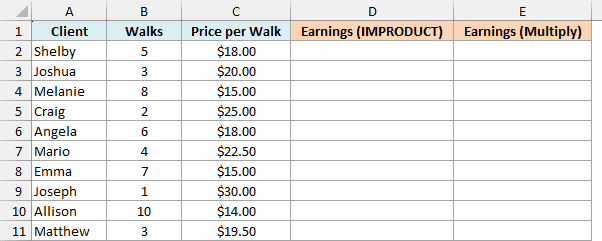
Here is the IMPRODUCT formula to enter in cell D2 and copy down:
=IMPRODUCT(B2,C2)
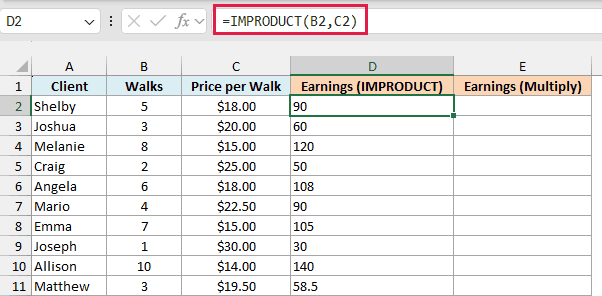
The values are right, but they don’t look like money. Column D is formatted as currency, yet Shelby shows 90 instead of $90.00, and the numbers sit on the left of the cells.
That’s because IMPRODUCT always returns text, even when there’s no imaginary part. Text ignores number formats, and if you try to total the column, the SUM function skips it and returns 0.
For regular numbers, use the multiplication operator (*) instead. Here is the formula to enter in cell E2:
=B2:B11*C2:C11
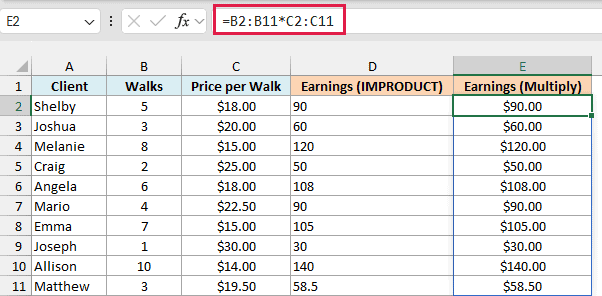
This spills actual numbers down to E11, so the currency format works and Shelby shows $90.00.
If you are using Excel 2019 or earlier, enter the below formula in cell E2 and then copy it down the range:
=B2*C2
So these are some practical ways to use the IMPRODUCT function in Excel to multiply complex numbers.
When you need a result for each row, wrap IMPRODUCT in BYROW, and when the decimals get long, round the two parts separately. I hope you found this article helpful.
Other Excel Articles You May Also Like:
