

The IMPOWER function in Excel raises a complex number to a power, so you can square it, cube it, or take its root. You need it for numbers like 3+4i, which have a real part and an imaginary part.
The regular caret (^) and the POWER function don’t work here, because Excel reads “3+4i” as text, not a number. IMPOWER does the math and returns the answer as text in the same x+yi form.
One catch is that some results come back with a tiny leftover. For example, i squared should be -1, but IMPOWER returns -1+1.22514845490862E-16i.
That happens because IMPOWER works out powers using angles, which leave a tiny rounding speck. I’ll show you how to clean it up.
In this article, I’ll show you how to use IMPOWER with five practical examples, including cube roots, negative powers, and a way to raise a whole column to a power with one formula.
Follow along with the example file
IMPOWER Function Examples.xlsx
IMPOWER Function Syntax
Here is the syntax of the IMPOWER function:
=IMPOWER(inumber, number)
- inumber – The complex number you want to raise to a power.
- number – The power you want to raise it to.
The complex number has to be written as text, such as “3+4i” or “3+4j”, or come from a cell that holds one. When you type it straight into the formula, wrap it in double quotes, so =IMPOWER("1+2i",2) returns -3+4i.
The power can be a whole number, a fraction, or a negative number. A fraction like 1/3 gives you a root, and a negative power like -1 gives you the reciprocal (1 divided by the number).
If the power isn’t a number, for example the word “two” or TRUE, IMPOWER returns the #VALUE! error.
The IMPOWER function works in Excel for Microsoft 365, Excel 2024, 2021, 2019, 2016, and Excel for Mac.
When to Use the IMPOWER Function
Use this function when you need to:
- Square or cube complex numbers in a math or engineering worksheet
- Find the square root or cube root of a complex number
- Get the reciprocal of a complex number, such as converting impedance to admittance
- Work through powers of i and other patterns from algebra class
Let me show you a few practical examples of how to use the IMPOWER function.
Example 1: Raise a Complex Number to a Power
Let’s start with a simple example.
Below is a set of practice problems with a complex number and a power in each row, and I want to get the result in column D.
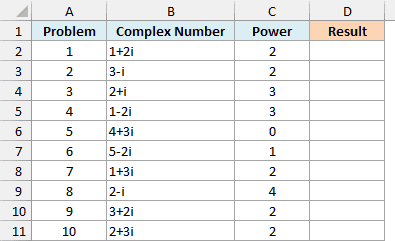
Here is the formula to enter in cell D2 and copy down:
=IMPOWER(B2,C2)
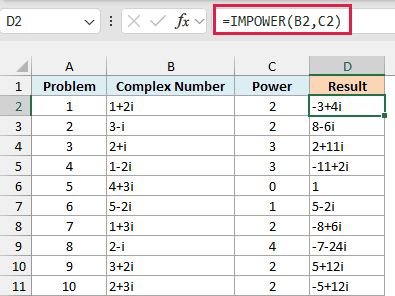
IMPOWER raises the number in column B to the power in column C. So 1+2i squared gives -3+4i, and 2+i cubed gives 2+11i.
Problem 5 shows that any number raised to the power of 0 returns 1, just like with regular numbers. And problem 6 shows that a power of 1 gives you the same number back.
You’ll also notice that Excel keeps the results short. When a part equals 0, it’s left out, which is why problem 5 shows just 1 instead of 1+0i.
I’ve kept this example as a per-row formula so you can follow one problem at a time. The next example raises a whole column to a power with a single formula.
Example 2: Square a Whole Column of Complex Numbers
Now let’s work with a whole column at once. This is where IMPOWER behaves differently from most Excel functions.
Below is a list of homework questions with a complex number in each one, and I want to get the square of each number in column C.
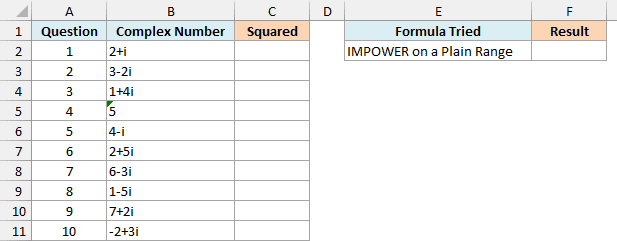
The obvious formula would be to give IMPOWER the whole range, and I’ve entered that in cell F2:
=IMPOWER(B2:B11,2)
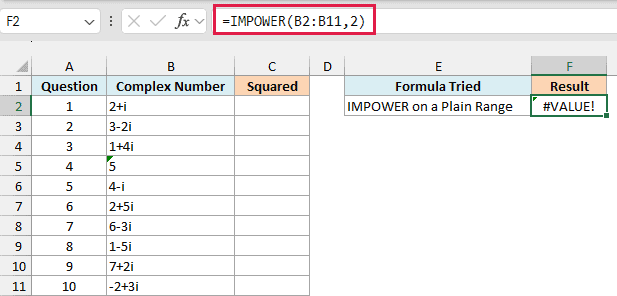
It returns a #VALUE! error, because IMPOWER doesn’t accept a multi-cell range like B2:B11. It only works with single values, or with a set of values held in memory (called an array).
Putting a plus sign (+) in front of the range fixes this, because Excel then passes the values to IMPOWER as an array. Here is the formula to enter in cell C2:
=IMPOWER(+B2:B11,2)
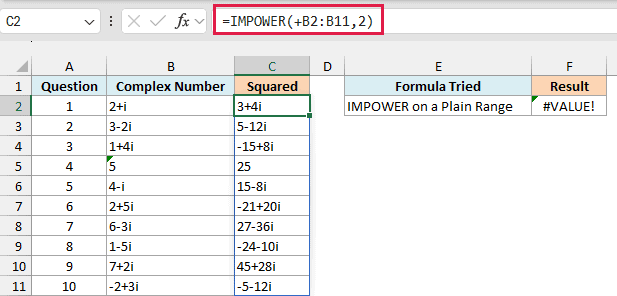
This squares every number and spills the results down to C11. So 2+i squared gives 3+4i, and the plain number 5 squared gives 25.
Important: Use just the plus sign here. A double minus (–) or +0 also creates an array, but they try to turn the text into numbers first, so every complex number returns #VALUE!.
The same plus-sign trick works for other functions that won’t spill when you give them a range. It also works on the power argument, so if your powers sit in a column of their own, put a plus sign in front of that range too.
If you are using Excel 2019 or earlier, enter the below formula in cell C2 and then copy it down the range:
=IMPOWER(B2,2)
Example 3: Clean Up Tiny Leftover Decimals (Powers of i)
You may remember from math class that the powers of i follow a pattern: i, -1, -i, 1, and then it repeats. Let’s see what IMPOWER does with it.
Below is a list of powers from 1 to 8, and I want to show i raised to each of these powers in column B.
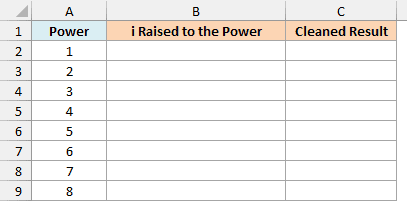
Here is the formula to enter in cell B2:
=IMPOWER("i",+A2:A9)
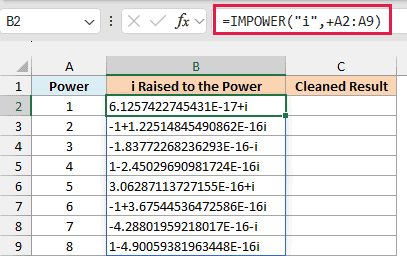
The pattern is there, but every result has a strange extra bit. For example, i squared shows -1+1.22514845490862E-16i instead of just -1.
That E-16 part means the number is multiplied by 10 to the power of -16, so it has 15 zeros after the decimal point before the first digit. In other words, it’s practically 0.
It’s a rounding leftover, and it shows up because IMPOWER works out powers using angles (the polar form of the number), which a computer can’t store perfectly.
The math is still right, but it looks messy and can confuse anyone reading your sheet. You also can’t round it with the ROUND function, because IMPOWER returns text and ROUND gives a #VALUE! error on it.
Instead, round the real and imaginary parts separately and join them back together. Here is the formula to enter in cell C2:
=LET(r,IMPOWER("i",+A2:A9),COMPLEX(ROUND(IMREAL(r),10),ROUND(IMAGINARY(r),10)))
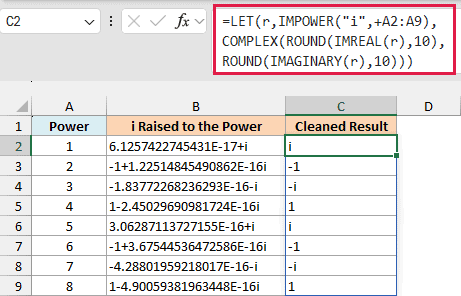
How this formula works:
- LET(r, IMPOWER(…), …) uses the LET function to store the IMPOWER results under the name r, so the formula doesn’t have to calculate them twice.
- IMREAL(r) and IMAGINARY(r) pull out the real part and the imaginary part of each result as regular numbers.
- ROUND(…,10) rounds each part to 10 decimal places. That wipes out leftovers like E-16 and still keeps more decimals than most results need (you can change the 10 if you need more).
- COMPLEX(…) uses the COMPLEX function to join the two cleaned parts back into a complex number.
Now the column shows the clean pattern: i, -1, -i, 1, repeating every four powers.
This cleanup works for any IMPOWER result, not just powers of i. For example, =IMPOWER("2+3i",3) (the example on Microsoft’s IMPOWER help page) returns -46+9.00000000000001i, and the same rounding turns it into -46+9i.
Pro Tip: For a small whole power, you can also multiply the number by itself with the IMPRODUCT function. For example, =IMPRODUCT("2+3i","2+3i","2+3i") returns exactly -46+9i, with no leftover.
If you are using Excel 2019 or earlier, enter the below formula in cell C2 and then copy it down the range:
=COMPLEX(ROUND(IMREAL(IMPOWER("i",A2)),10),ROUND(IMAGINARY(IMPOWER("i",A2)),10))
Example 4: Find the Cube Root of a Complex Number
A fractional power gives you a root. A power of 1/2 is the square root, and a power of 1/3 is the cube root.
Below is a list of complex numbers, and I want to get the cube root of each number in column B.
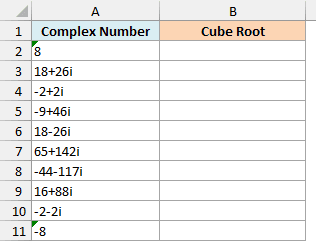
Here is the formula to enter in cell B2:
=IMPOWER(+A2:A11,1/3)
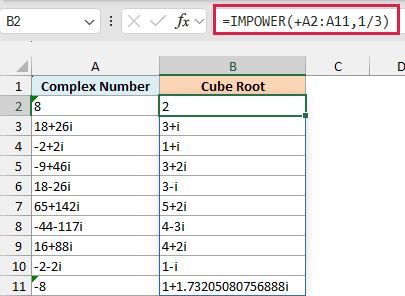
This spills the cube roots down to B11. So the cube root of 18+26i is 3+i, and you can check it by raising 3+i to the power of 3 with IMPOWER.
Now look at the last row. The cube root of -8 comes back as 1+1.73205080756888i, not -2 as you might expect.
That’s because every number has three cube roots, and IMPOWER always returns the main one (called the principal root). For -8, the three cube roots are -2, 1+1.732i, and 1-1.732i, and the principal one is 1+1.732i.
Important: If you only need the real cube root of a regular negative number, use the POWER function instead. =POWER(-8,1/3) returns -2.
For square roots, you can use a power of 0.5 or the IMSQRT function, which is built just for that. Both return the same principal root, so =IMPOWER("3+4i",0.5) and =IMSQRT("3+4i") both give 2+i.
If you are using Excel 2019 or earlier, enter the below formula in cell B2 and then copy it down the range:
=IMPOWER(A2,1/3)
Example 5: Use a Negative Power to Convert Impedance to Admittance
A negative power gives you the reciprocal of a number. A power of -1 means 1 divided by the number.
If you work with AC circuits, you use this to convert impedance (how much a device resists current) into admittance (how easily current flows), which is 1 divided by the impedance. These numbers are usually written with j instead of i, and IMPOWER handles both.
Below is a list of household devices with the impedance of each one in ohms, and I want to calculate the admittance in column C.
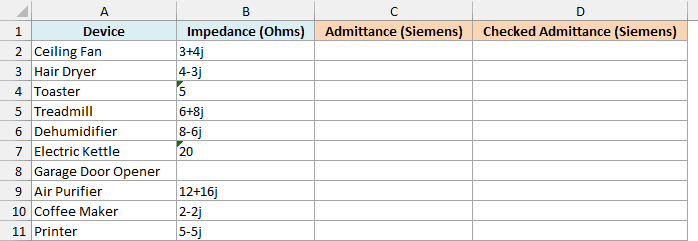
Here is the formula to enter in cell C2:
=IMPOWER(+B2:B11,-1)
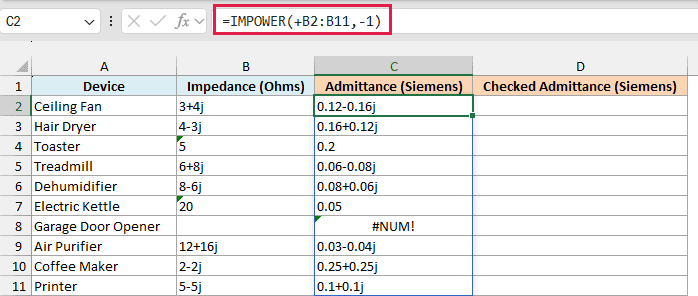
This gives you the admittance in siemens for every device and keeps the j in the results. For the ceiling fan, 3+4j raised to the power of -1 gives 0.12-0.16j.
Now look at the garage door opener, which shows #NUM!. Its impedance wasn’t recorded, so the cell is blank.
IMPOWER treats a blank cell as 0, and 0 raised to a negative power would mean dividing by 0. So instead of a result, you get the #NUM! error.
To show a clear message instead of the error, check for blank cells before raising to the power. Here is the formula to enter in cell D2:
=IF(B2:B11="","Not measured",IMPOWER(+B2:B11,-1))
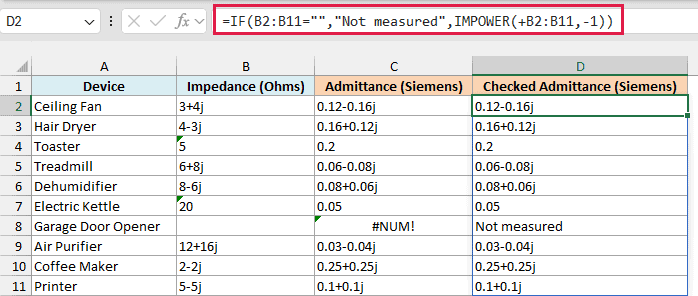
The IF function checks each impedance first. If the cell is blank, you get “Not measured”, and every other row gets the admittance from IMPOWER.
If you are using Excel 2019 or earlier, enter the below formula in cell C2 and then copy it down the range:
=IMPOWER(B2,-1)
And for the checked version, enter the below formula in cell D2 and then copy it down the range:
=IF(B2="","Not measured",IMPOWER(B2,-1))
So these are some practical ways to use the IMPOWER function in Excel to raise complex numbers to a power.
When you need a whole column, put a plus sign in front of the range, and when a result shows a tiny E-16 leftover, round the two parts separately. I hope you found this article helpful.
Other Excel Articles You May Also Like:
