

The COMPLEX function in Excel takes a real part and an imaginary part and joins them into one complex number, like 7+2i. It comes in handy when the two parts sit in separate cells and you need them as one value.
Excel’s other complex number functions, such as IMSUM and IMABS, read complex numbers in exactly this form. Just keep in mind that the result is text, so to add two of them you use IMSUM, not a plus sign or the SUM function.
In this article, I’ll show you how to use COMPLEX with six examples, including how to fill a whole column with one formula (it needs a small trick) and how to find the complex roots of a quadratic equation.
Follow along with the example file
COMPLEX Function Examples.xlsx
COMPLEX Function Syntax
Here is the syntax of the COMPLEX function:
=COMPLEX(real_num, i_num, [suffix])
- real_num – The real part of the complex number.
- i_num – The imaginary part of the complex number (the number that goes in front of the i).
- [suffix] – Optional. The letter used for the imaginary unit, either “i” or “j”. If you leave it out, COMPLEX uses “i”.
Both parts can be numbers typed into the formula or references to cells that hold numbers. For example, =COMPLEX(4,-3) returns 4-3i.
The suffix has to be a lowercase i or j. Electrical engineers usually write j instead of i, and when you type it into the formula, it goes in double quotes, so =COMPLEX(4,-3,"j") returns 4-3j.
You can also point the suffix to a cell that holds the letter. In that case, type just the letter in the cell, without quotes.
The COMPLEX function works in Excel for Microsoft 365, Excel 2024, 2021, 2019, 2016, and Excel for Mac. The single formulas that fill a whole column need Excel 365 or Excel 2021 and later.
When to Use the COMPLEX Function
Use this function when you need to:
- Combine real and imaginary parts stored in separate columns into complex numbers
- Prepare inputs for Excel’s complex number functions, such as IMSUM, IMPRODUCT, and IMABS
- Write impedance values in j notation for AC circuit calculations
- Convert values given as a magnitude and an angle into complex form
- Show the complex roots of quadratic equations
Let me show you a few practical examples of how to use the COMPLEX function.
Example 1: Create a Complex Number in Excel
Let’s start with a simple example.
Below is an answer key for a math worksheet with the real and imaginary part of each answer, and I want to write each answer as a complex number in column D.
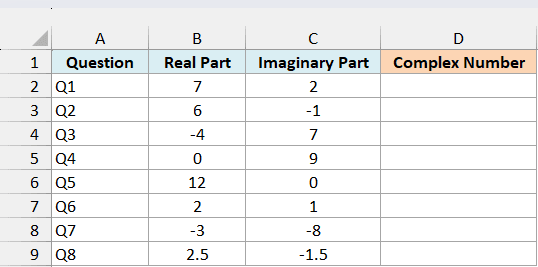
Here is the formula to enter in cell D2 and copy down:
=COMPLEX(B2,C2)
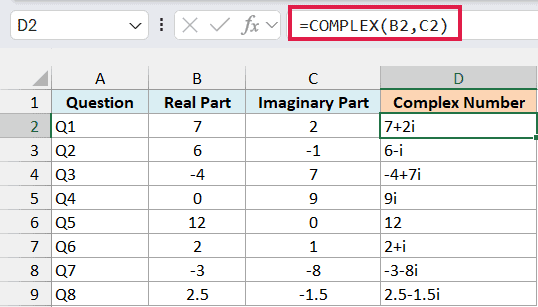
COMPLEX takes the real part from column B and the imaginary part from column C and joins them, so 7 and 2 become 7+2i. When the imaginary part is negative, it writes a minus sign instead, so Q7 shows -3-8i.
Notice how Excel shortens some of the results. When the imaginary part is 1 or -1, it drops the 1 (2+i and 6-i), and when a part is 0, it leaves that part out, so Q4 shows 9i and Q5 shows just 12.
You could also join the parts with the & operator, but you’d get results like 6+-1i for Q2. COMPLEX takes care of the signs, the 1s, and the zeros for you.
I’ve kept this first example as a per-row formula so you can see how COMPLEX works on one pair at a time. The next example fills a whole column with one formula.
Example 2: Convert Whole Columns with One COMPLEX Formula
In Excel 365 (and Excel 2021 or later), you can create all the complex numbers with a single formula, but COMPLEX needs a small trick to do it.
Below are the corner points of a shape from a geometry class, with the x and y coordinates of each point, and I want each point as a complex number in column D.
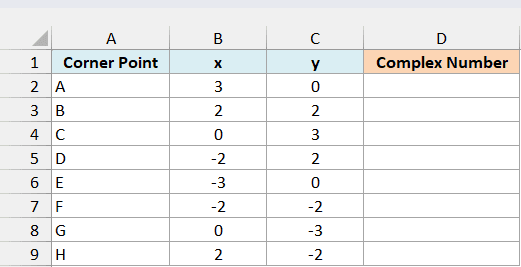
Here is the formula to enter in cell D2:
=COMPLEX(+B2:B9,+C2:C9)
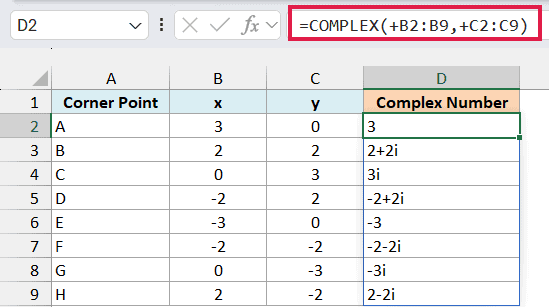
This spills the results down to D9, with one complex number for each corner point. The x coordinate becomes the real part and the y coordinate becomes the imaginary part, so point B at (2, 2) becomes 2+2i.
The plus sign in front of each range is the important part. Without it, COMPLEX returns a single #VALUE! error instead of eight results.
Here’s what that looks like. I’ve entered the same formula without the plus signs in cell F2:
=COMPLEX(B2:B9,C2:C9)
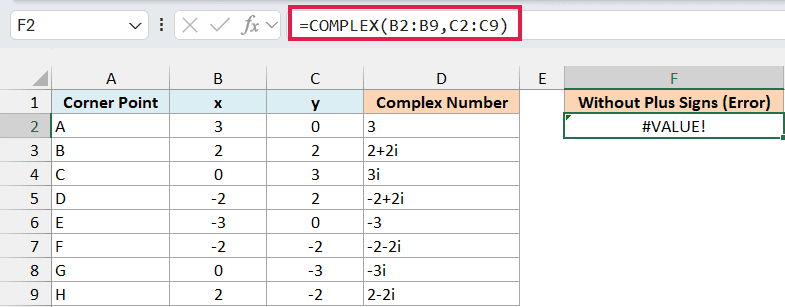
This happens because COMPLEX can’t take a multi-cell range reference like B2:B9. It only works with single values, or with a list of values held in memory (called an array).
Putting a plus sign in front of a range makes Excel hand COMPLEX its values as an array, so it returns one result for each row.
The IMSUB function, which subtracts one complex number from another, has the same quirk. It also returns #VALUE! with plain ranges and spills once you add the plus signs.
Since the coordinates here are numbers, a double minus (--B2:B9) or multiplying by 1 (B2:B9*1) would also work. The plus sign is just the shortest way to do it.
If you are using Excel 2019 or earlier, enter the below formula in cell D2 and then copy it down the range:
=COMPLEX(B2,C2)
Example 3: Use the j Suffix for Electrical Calculations
If you work with AC circuits, you’ve probably seen complex numbers written with j instead of i. COMPLEX can write them that way too.
Below is a list of circuit components with the resistance and reactance of each one in ohms, and I want the impedance of each component in j notation in column D.
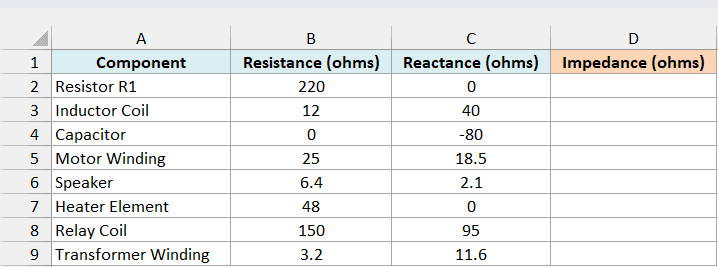
Here is the formula to enter in cell D2:
=COMPLEX(+B2:B9,+C2:C9,"j")
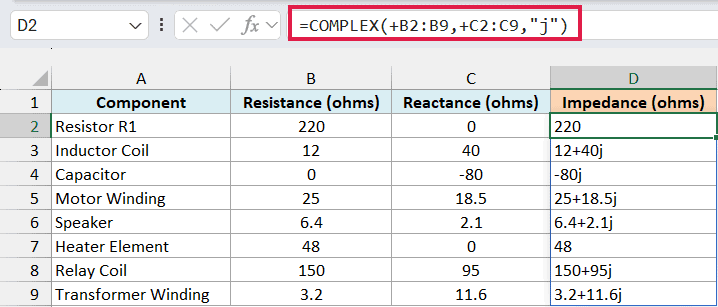
The resistance becomes the real part, the reactance becomes the imaginary part, and the “j” at the end tells COMPLEX which letter to use. So the inductor coil, with 12 ohms of resistance and 40 ohms of reactance, has an impedance of 12+40j.
The capacitor’s reactance is negative, so it shows as -80j. The resistor and the heater element have no reactance, so they show only the real part (220 and 48).
Important: Once you pick j, stick with it. If you later combine a j number with an i number in another complex number function, Excel returns an error (IMSUM returns #VALUE! and IMSUB returns #NUM!).
If you are using Excel 2019 or earlier, enter the below formula in cell D2 and then copy it down the range:
=COMPLEX(B2,C2,"j")
Example 4: Fix #VALUE! Errors in the COMPLEX Function
Let’s look at the inputs that make COMPLEX fail, and a couple that work when you might not expect them to.
Below are a few test cases with a real part, an imaginary part, and a suffix in each row, and I want to see what COMPLEX returns for each one in column E.
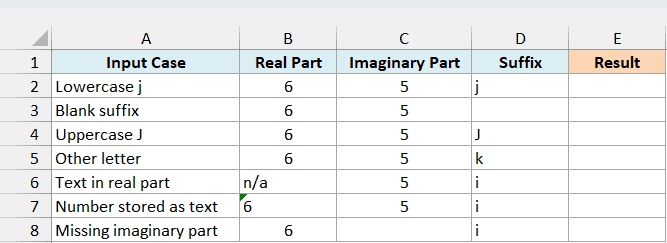
Here is the formula to enter in cell E2 and copy down:
=COMPLEX(B2,C2,D2)
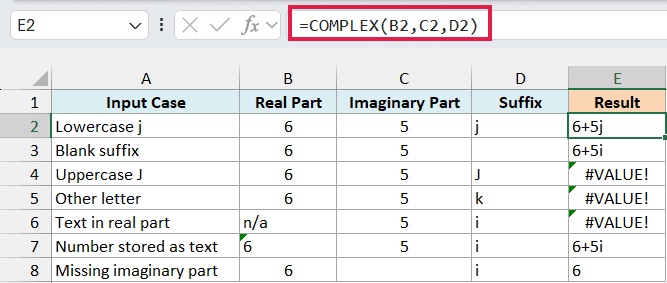
The first two cases work. A lowercase j gives 6+5j, and when the suffix cell is blank, COMPLEX falls back to i and returns 6+5i.
The Uppercase J and Other letter cases return #VALUE!, because the suffix has to be a lowercase i or j. So if you type suffixes into cells, check the case.
The Text in real part case also returns #VALUE!, because n/a isn’t a number. COMPLEX needs both parts to be numbers.
The Number stored as text case works, even though its 6 is text (you can see it sits on the left side of the cell). COMPLEX converts a number stored as text into a real number, so you don’t have to fix it first.
Important: A blank part doesn’t give an error. In the Missing imaginary part case, COMPLEX treats the empty cell as 0 and returns just 6, so a missing value can quietly look like a valid result.
I’ve kept the =COMPLEX(B2,C2,D2) formula in this example as a per-row formula on purpose. In a single spilled formula that uses +D2:D8 for the suffixes, the blank suffix cell becomes 0, so the Blank suffix case would return #VALUE! instead of 6+5i.
Example 5: Convert Magnitude and Angle to Complex Form
Now let’s look at a case where you don’t have the real and imaginary parts yet, so you need to calculate them first.
Below is a list of forces from a physics problem, with the magnitude of each force in newtons and its angle in degrees, and I want each force as a complex number in column D.
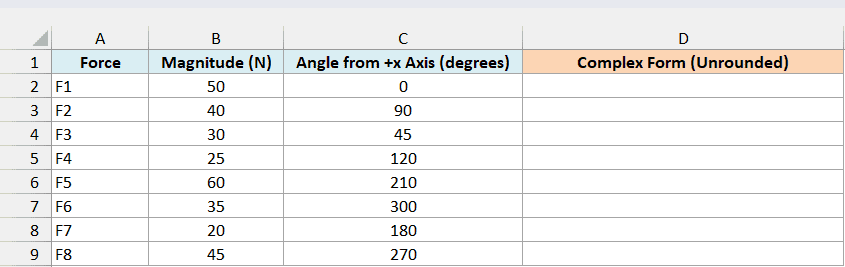
The angles are measured counterclockwise from the positive x-axis. To get the real part, you multiply the magnitude by the cosine of the angle, and for the imaginary part, you multiply it by the sine.
Excel’s COS and SIN functions work in radians, so the RADIANS function converts the degrees first.
Here is the formula to enter in cell D2:
=COMPLEX(B2:B9*COS(RADIANS(C2:C9)),B2:B9*SIN(RADIANS(C2:C9)))
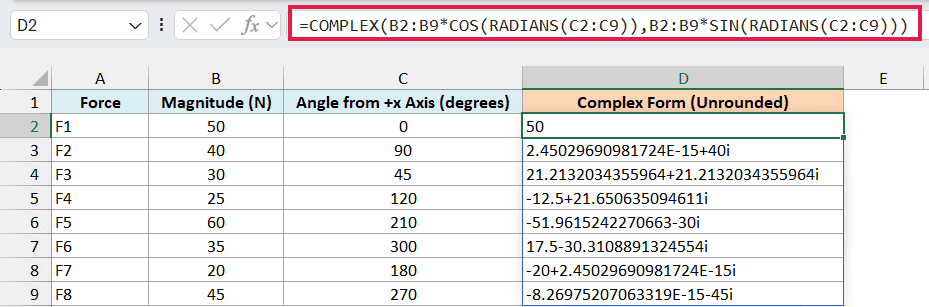
This formula doesn’t need plus signs, because the multiplication already turns the ranges into arrays. It spills the results down to D9.
The results are correct, but they’re hard to read. Force F3 (30 newtons at 45 degrees, in row 4) shows 21.2132034355964+21.2132034355964i in cell D4.
Some results also have strange leftovers. Force F2 in row 3 points straight up at 90 degrees, so it should be just 40i, but cell D3 shows 2.45029690981724E-15+40i.
That happens because Excel can’t store the exact value of pi. So the cosine of 90 degrees comes out as a tiny number very close to 0, instead of exactly 0.
COMPLEX writes out every digit it gets, so that tiny leftover shows up in the text.
To clean this up, round each part before COMPLEX joins them. Here is the formula to enter in cell E2:
=COMPLEX(ROUND(B2:B9*COS(RADIANS(C2:C9)),2),ROUND(B2:B9*SIN(RADIANS(C2:C9)),2))
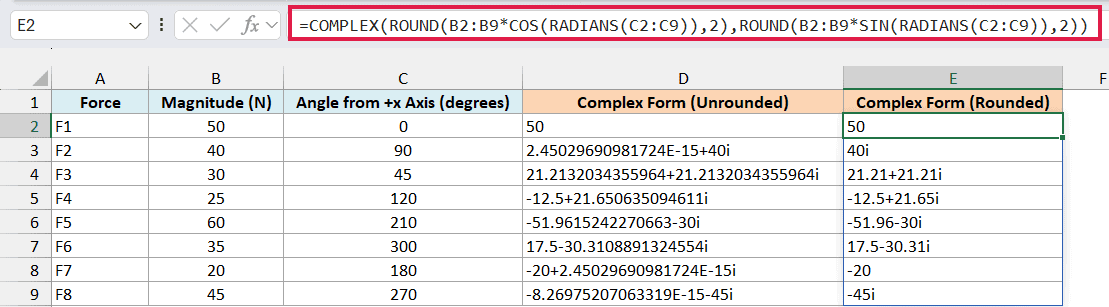
Now force F2 shows 40i in cell E3, force F7 shows -20 in E8, and force F3 shows 21.21+21.21i in E4. The ROUND function rounds each part to two decimal places while it’s still a number.
The order matters here. Once COMPLEX turns the parts into text, ROUND can’t work on the result anymore and returns a #VALUE! error.
If you are using Excel 2019 or earlier, enter the below formula in cell E2 and then copy it down the range:
=COMPLEX(ROUND(B2*COS(RADIANS(C2)),2),ROUND(B2*SIN(RADIANS(C2)),2))
Example 6: Find Complex Roots of a Quadratic Equation
Here’s one for the math students.
Below are some quadratic equations with their a, b, and c values, and I want both roots of each equation in columns E and F.
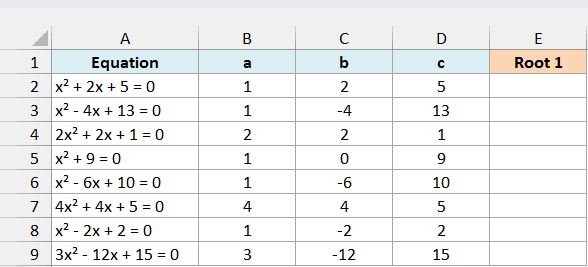
Each equation is in the form ax² + bx + c = 0. For all of them, b² – 4ac is negative, so the roots are complex numbers instead of real ones.
The quadratic formula gives these roots as -b/(2a) plus or minus i times √(4ac – b²)/(2a). The first part is the real part of each root, and the second part is the imaginary part.
Here is the formula for the first root, to enter in cell E2:
=COMPLEX(-C2:C9/(2*B2:B9),SQRT(4*B2:B9*D2:D9-C2:C9^2)/(2*B2:B9))
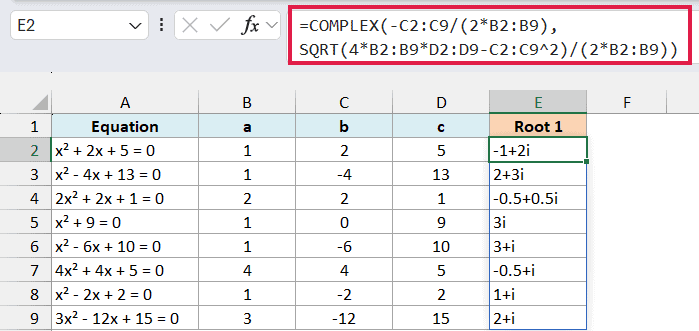
How this formula works:
-C2:C9/(2*B2:B9)calculates -b/(2a) for each equation, which is the real part of the root.SQRT(4*B2:B9*D2:D9-C2:C9^2)/(2*B2:B9)calculates the imaginary part. Since b² – 4ac is negative, 4ac – b² is positive, so SQRT can take its square root.- COMPLEX joins the two parts, and the formula spills the roots down to E9.
For the first equation, x² + 2x + 5 = 0, the first root is -1+2i.
The second root uses the same parts, with a minus sign in front of the imaginary part. Here is the formula to enter in cell F2:
=COMPLEX(-C2:C9/(2*B2:B9),-SQRT(4*B2:B9*D2:D9-C2:C9^2)/(2*B2:B9))
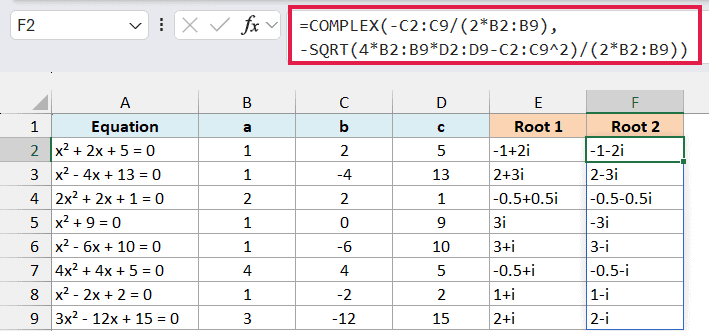
So the first equation’s second root is -1-2i.
The equation x² + 9 = 0 has no x term, so b is 0. That makes the real part, -b/(2a), equal to 0, so its roots are just 3i and -3i.
Important: These formulas only work when b² – 4ac is negative. For an equation with real roots, 4ac – b² is negative, and SQRT returns the #NUM! error.
If you are using Excel 2019 or earlier, enter the below formula in cell E2 and then copy it down the range:
=COMPLEX(-C2/(2*B2),SQRT(4*B2*D2-C2^2)/(2*B2))
And for the second root, enter the below formula in cell F2 and then copy it down the range:
=COMPLEX(-C2/(2*B2),-SQRT(4*B2*D2-C2^2)/(2*B2))
So these are some practical ways to use the COMPLEX function in Excel to build complex numbers from their parts.
Just remember to put a plus sign in front of your ranges when you want one formula for a whole column, and round the parts before COMPLEX joins them. I hope you found this article helpful.
Other Excel Articles You May Also Like:
