

The IMCOS function in Excel returns the cosine of a complex number, so =IMCOS("1+i") gives you 0.833730025131149-0.988897705762865i. You’ll mostly need it in math and engineering work, where a number has a real part and an imaginary part.
There are two things that catch people out with IMCOS. The result is always text, even when it looks like a regular number, so you can’t total or round it the way you would a normal number.
And the function won’t take a range directly, so =IMCOS(A2:A11) returns one #VALUE! error instead of a list of results.
In this article, I’ll show you how to use IMCOS with five examples, from a simple list of complex numbers to cleaning up values that IMCOS can’t read.
Follow along with the example file
IMCOS Function Examples.xlsx
IMCOS Function Syntax
Here is the syntax of the IMCOS function:
=IMCOS(inumber)
- inumber – The complex number you want the cosine of.
The inumber argument takes a complex number written as text, like “3+4i” or “3+4j”, or a cell that holds one. When you type it straight into the formula, put it in double quotes, because =IMCOS(1+i) without the quotes returns the #NAME? error.
The letter at the end has to be a lowercase i or j, and IMCOS gives you back the same letter you used. A capital letter, like in “1+I”, isn’t recognized as a complex number, so IMCOS returns the #NUM! error.
An empty cell counts as 0, so IMCOS returns 1 (the cosine of 0) for a blank cell instead of an error. And if you give it TRUE or FALSE, it returns the #VALUE! error.
The IMCOS function works in Excel for Microsoft 365, Excel 2024, 2021, 2019, 2016, and Excel for Mac.
When to Use the IMCOS Function
Use this function when you need to:
- Find the cosine of complex numbers in a math or engineering worksheet
- Check textbook or homework answers that involve the cosine of a complex number
- Work with complex numbers written in j notation, which is common in electrical engineering
- Get the cosine of a whole column of complex numbers with a single formula
Let me show you a few practical examples of how to use the IMCOS function.
Example 1: Find the Cosine of a Complex Number
Let’s start with a simple example.
Below is a practice set of complex numbers, and I want to get the cosine of each one in column C.
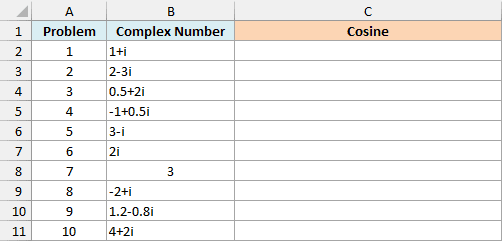
Here is the formula to enter in cell C2 and copy down:
=IMCOS(B2)
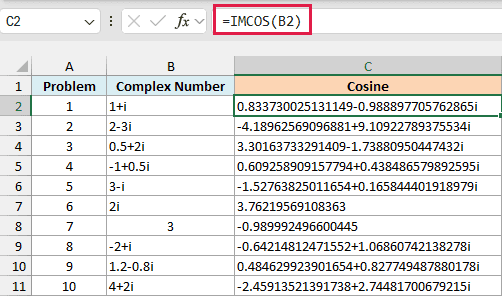
IMCOS takes the complex number in B2 and returns its cosine, which is also a complex number. So 1+i gives 0.833730025131149-0.988897705762865i, with a real part and an imaginary part just like the input.
Now look at problems 6 and 7. The cosine of 2i is 3.76219569108363, a result with no i at all, because the cosine of a purely imaginary number is always a real number.
Problem 7 is a regular number (3) rather than a complex number written as text. IMCOS treats it as a complex number with no imaginary part.
It also reads the number as an angle in radians, so it returns -0.989992496600445, the same as the COS function.
All the results sit on the left side of their cells, and that’s because IMCOS always returns text. You can still use them in other complex-number functions, but not in regular math, and Example 3 shows what that means in practice.
I’ve kept this first example as a per-row formula so you can see one input and its result at a time. The next example handles a whole column with one formula.
Example 2: Cosine of Complex Numbers Stored in Two Columns
Sometimes your complex numbers aren’t written as “a+bi” at all. The real part is in one column and the imaginary part is in another, which is common when the numbers come from another calculation or an export.
Below is a list of inputs with the real and imaginary parts in separate columns, and I want the cosine of each complex number in column D.
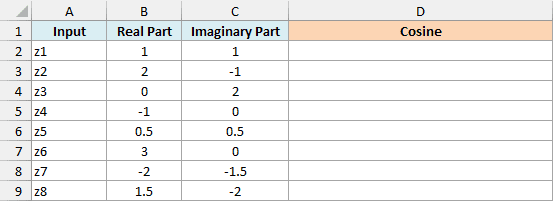
Here is the formula to enter in cell D2:
=IMCOS(COMPLEX(+B2:B9,+C2:C9))
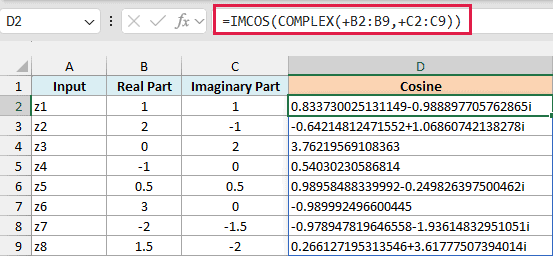
This one formula spills the results down to D9.
How this formula works:
- COMPLEX(+B2:B9,+C2:C9) joins each real part with its imaginary part, so the first row becomes 1+i.
- IMCOS then returns the cosine of each of those complex numbers.
The plus signs in front of the ranges are what make this work. Without them, =IMCOS(COMPLEX(B2:B9,C2:C9)) returns a single #VALUE! error.
That’s because the COMPLEX function, like IMCOS, expects one value in each argument and doesn’t accept a multi-cell range.
The plus sign makes Excel hand over the values as an array, which both functions do accept. I’ve explained this trick in more detail in the IMSUB function tutorial.
IMCOS itself doesn’t need a plus sign here, since the COMPLEX function already gives it an array.
This spilling formula needs Excel 365 or Excel 2021 and later. If you are using Excel 2019 or earlier, enter the below formula in cell D2 and then copy it down the range:
=IMCOS(COMPLEX(B2,C2))
Example 3: IMCOS vs COS for Angles in Degrees
Since IMCOS accepts regular numbers too, you might wonder if it can replace the COS function for everyday angles. It can calculate the same values, but it’s not the right tool, and this example shows why.
Below is a list of angles in degrees, and I want to get the cosine of each angle with IMCOS in column B and with COS in column C.
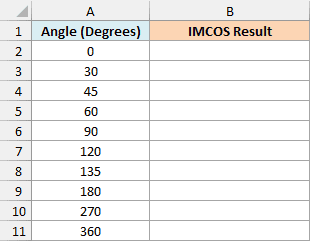
Here is the IMCOS formula to enter in cell B2:
=IMCOS(RADIANS(A2:A11))
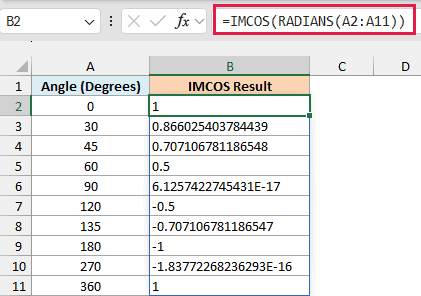
IMCOS reads numbers as radians, so the RADIANS function first converts each angle from degrees to radians. The RADIANS function returns an array, so IMCOS spills the results without needing a plus sign.
The values are correct (60 degrees gives 0.5), but they’re all text and sit on the left side of the cells. So if you try to total them with the SUM function, you get 0, because it skips text.
If you are using Excel 2019 or earlier, enter the below formula in cell B2 and then copy it down the range:
=IMCOS(RADIANS(A2))
Here is the COS formula to enter in cell C2:
=COS(RADIANS(A2:A11))
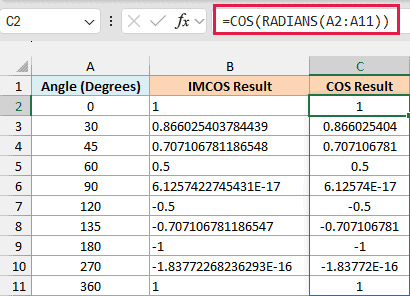
COS returns actual numbers rather than text, so you can format them, round them, and use them in other calculations. For regular angles, the COS function is the one to use, and IMCOS is only worth it when the number has an imaginary part.
If you are using Excel 2019 or earlier, enter the below formula in cell C2 and then copy it down the range:
=COS(RADIANS(A2))
You’ll notice that 90 degrees gives a tiny number instead of 0 in both columns, and 270 degrees does the same. Column B shows 6.1257422745431E-17, and column C shows the same value as 6.12574E-17.
Excel can’t store pi exactly, so the converted angle is a hair off and the cosine lands a tiny bit away from zero.
For COS, the ROUND function cleans this up, for example =ROUND(COS(RADIANS(A2:A11)),10). For IMCOS results, use the rounding approach from Example 4.
Example 4: Round the IMCOS Result and Keep the j Notation
If you work with AC circuits, you’ll often see complex numbers written with j instead of i. IMCOS handles both, and it keeps whichever letter you use.
Below is a list of complex numbers in j notation, and I want the cosine of each one in column B and a rounded version in column D.
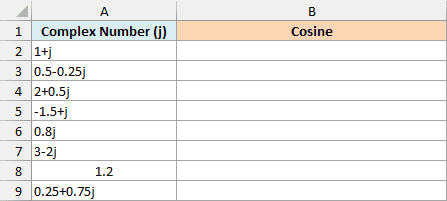
Here is the formula to enter in cell B2:
=IMCOS(+A2:A9)
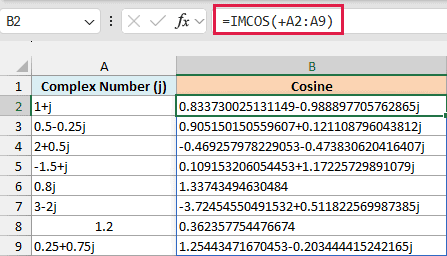
The plus sign lets IMCOS take the whole range, so the results spill down to B9, and every result with an imaginary part keeps the j. The catch is that they are long, like 0.833730025131149-0.988897705762865j for the first row.
You can’t shorten these with the ROUND function directly. The result is text, so ROUND returns the #VALUE! error, and you have to round the real and imaginary parts separately and then join them back.
Here is the formula to enter in cell D2:
=LET(c,IMCOS(+A2:A9),COMPLEX(ROUND(IMREAL(c),4),ROUND(IMAGINARY(c),4),"j"))
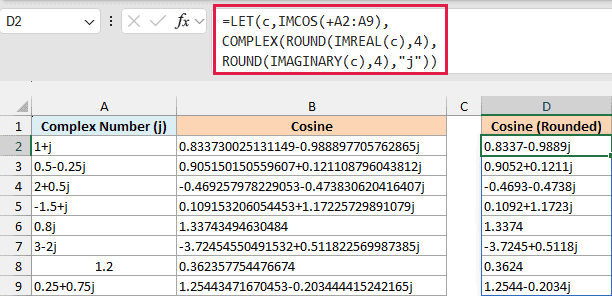
How this formula works:
- IMCOS(+A2:A9) calculates the cosines, and the LET function stores them as c, so the formula only has to calculate them once.
- IMREAL(c) and IMAGINARY(c) pull out the real and imaginary parts as regular numbers.
- ROUND(…,4) rounds each part to four decimal places.
- COMPLEX(…,”j”) joins the rounded parts back into a complex number with a j.
Now the first row shows 0.8337-0.9889j, and 0.8j (a purely imaginary number) shows just 1.3374.
Important: Don’t leave out the “j” at the end of COMPLEX. The COMPLEX function uses i by default, and if you later combine those i results with your j numbers in a function like IMSUM, you get the #VALUE! error.
Both formulas here spill, and the LET function needs Excel 2021 or later. If you are using Excel 2019 or earlier, enter the below formula in cell B2 and then copy it down the range:
=IMCOS(A2)
And for the rounded results, enter the below formula in cell D2 and then copy it down the range:
=COMPLEX(ROUND(IMREAL(IMCOS(A2)),4),ROUND(IMAGINARY(IMCOS(A2)),4),"j")
Example 5: Fix the IMCOS #NUM! Error in Copied Values
When you copy complex numbers from a PDF or a web page, they often come with extra spaces or a capital I. IMCOS is strict about how a complex number is written, so some of those values return the #NUM! error.
Below is a list of complex numbers copied from a textbook PDF, and I want to get the cosine of each one in column B and the cosine of each cleaned-up value in column C.
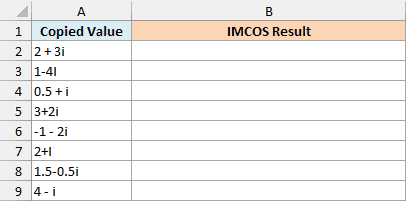
Here is the formula to enter in cell B2:
=IMCOS(+A2:A9)
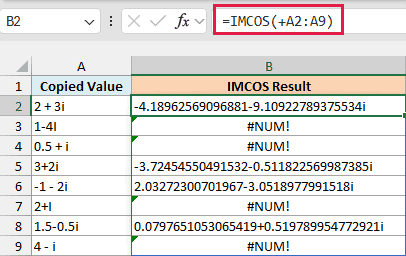
Four of the results are #NUM! errors, and there are two different reasons for them:
- 1-4I and 2+I use a capital I, and IMCOS only reads a lowercase i or j.
- 0.5 + i and 4 – i have a space between the sign and a lone i. Spaces elsewhere are fine (2 + 3i and -1 – 2i work), but a space right before a lone i breaks it.
Here is the formula to enter in cell C2 that fixes both problems:
=IMCOS(LOWER(SUBSTITUTE(A2:A9," ","")))
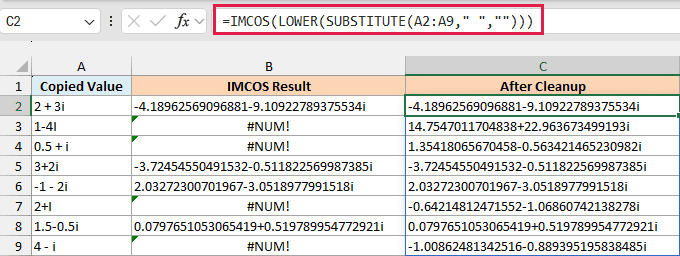
How this formula works:
- SUBSTITUTE(A2:A9,” “,””) removes every space, so 0.5 + i becomes 0.5+i.
- The LOWER function turns any capital I (or J) into a lowercase one.
- IMCOS then returns the cosine of each cleaned-up value.
Now every row has a result. The SUBSTITUTE function returns an array, so this formula spills without a plus sign in front of the range.
If you are using Excel 2019 or earlier, enter the below formula in cell C2 and then copy it down the range:
=IMCOS(LOWER(SUBSTITUTE(A2," ","")))
So these are some practical ways to use the IMCOS function in Excel. Just remember to put a plus sign in front of a range when you want one formula for a whole column, and use COS for regular angles.
If you need the sine of a complex number, the IMSIN function works the same way, and the IMCOSH function gives you the hyperbolic cosine. I hope you found this article helpful.
Other Excel Articles You May Also Like:
