

The SIN function in Excel returns the sine of an angle, which is always a number between -1 and 1. It comes in handy whenever a calculation starts from an angle, such as finding a missing side of a right triangle.
SIN wants the angle in radians, not degrees, and that trips up a lot of people. In this article, I’ll show you how to handle both, along with a few practical examples like the height a hiking trail climbs and the distance between two cities.
Follow along with the example file
SIN Function Examples.xlsx
SIN Function Syntax
Here is the syntax of the SIN function:
=SIN(number)
- number is the angle, in radians, that you want the sine of. It can be a number, a cell reference, a calculation, or a range of angles.
If the cell you point SIN to has text like “abc”, the function returns a #VALUE! error.
An empty cell is read as 0, and the sine of 0 is 0, so you get 0 instead of an error. If a row shows 0 when you didn’t expect it, check whether its angle cell is blank.
The SIN function works in all Excel versions, including Microsoft 365, 2024, 2021, 2019, 2016, Mac, and the web.
When to Use the SIN Function
Use this function when you need to:
- Get the sine of an angle for a math, physics, or engineering calculation.
- Find how high a slope rises when you know its length and its angle.
- Work out an angle from two sides of a right triangle, together with the ASIN function.
- Calculate the distance between two places from their latitude and longitude.
Let me show you a few practical examples of how to use the SIN function.
Example 1: Find the Sine of Angles in Radians
Let’s start with a simple example where the angles are already in radians.
Below is a list of angles in radians, and I want the sine of each one in column B.
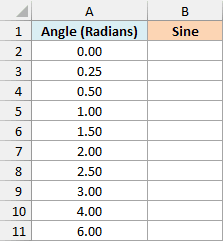
Here is the formula to enter in cell B2:
=SIN(A2:A11)
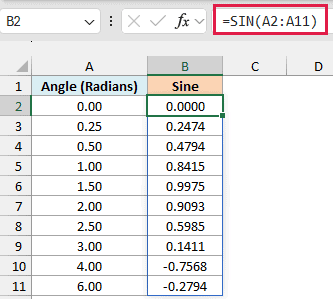
Notice that every result sits between -1 and 1, however big the angle gets. Between π (about 3.14) and 2π (about 6.28), the sine is negative, so 4 radians gives -0.7568.
If you need π itself in a formula, use the PI function. For example, =SIN(PI()/2) returns 1.
You only enter the formula in cell B2. Since A2:A11 is a range, the results spill down to B11 on their own.
If any cell in B3:B11 already has something in it, you’ll get a #SPILL! error instead of results. Clear those cells, and the results show up.
Spilling formulas need Excel for Microsoft 365 or Excel 2021 and later. If you are using Excel 2019 or earlier, enter the below formula in cell B2 and then copy it down to B11:
=SIN(A2)
You can do the same with the other spilling formulas in this article. Use the first row’s cells instead of the whole range, and copy the formula down.
Example 2: Use SIN With Angles in Degrees
Most of the time, your angles will be in degrees, and this is where SIN catches people out.
Below is a list of angles in degrees, and I want the sine of each one in column B.
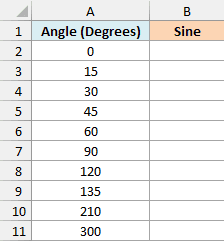
Important: SIN reads every number as radians, even when you meant degrees. So =SIN(A4) on the 30 in cell A4 returns -0.9880 instead of 0.5, and there’s no error to warn you.
To get the right answer, convert the angles to radians first with the RADIANS function. Here is the formula to enter in cell B2:
=SIN(RADIANS(A2:A11))
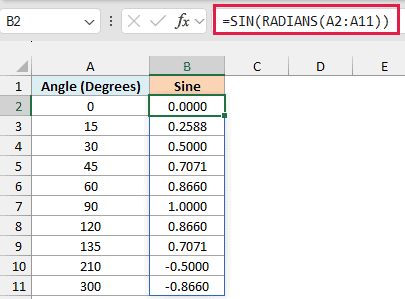
The RADIANS function turns each angle in A2:A11 into radians, and SIN then returns its sine. Now 30 degrees gives 0.5000 and 90 degrees gives 1.0000, the same values you’d find in a trig table.
You may also see the conversion done by multiplying the degrees by PI()/180, since 180 degrees is the same as π radians. It gives the same results, but the RADIANS function is easier to read, so the rest of this article uses it.
Example 3: Find the Elevation Gain From a Slope’s Length and Angle
Now let’s use SIN for something practical.
When you walk up a slope, the path you walk, the height you climb, and the flat ground form a right triangle. The sine of the slope angle is the height divided by the path length, so the length times the sine gives the height.
Below is a list of hiking trail sections with the distance walked along each slope and its average slope angle, and I want the elevation gained in column D.
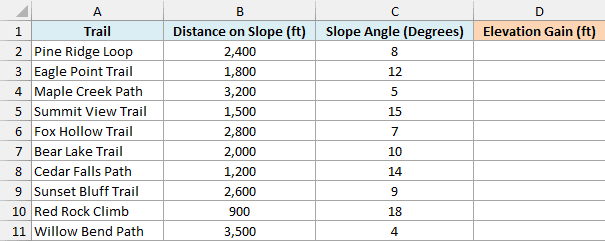
Here is the formula to enter in cell D2:
=B2:B11*SIN(RADIANS(C2:C11))
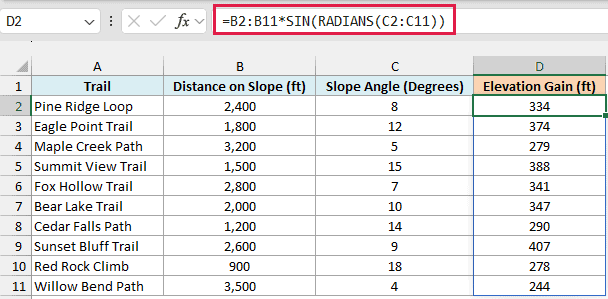
The formula converts each slope angle to radians, gets its sine, and multiplies it by the distance walked. So Pine Ridge Loop, 2,400 feet at 8 degrees, gains about 334 feet.
The angle makes a big difference. Red Rock Climb is the shortest section at 900 feet, but its 18-degree slope gains 278 feet, about the same as the 3,200-foot Maple Creek Path.
This works because the distance is measured along the slope. If you only have the flat distance from a map, that’s the side next to the angle, not the slope itself, so you’d use the TAN function instead.
Example 4: Inverse Sine in Excel (Find the Angle With ASIN)
Sometimes you know the sides and want the angle instead. That’s the job of the ASIN function, which is the inverse of SIN (you’ll also see it called arcsine or sin⁻¹).
Below is a list of playground slides with the height of each platform and the length of the slide, and I want the angle of each slide in column D.
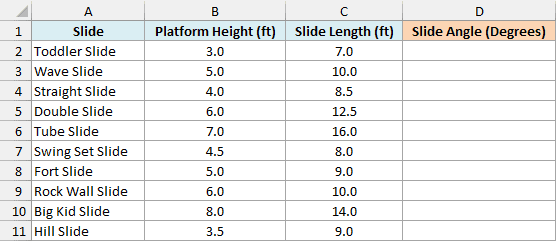
Here is the formula to enter in cell D2:
=DEGREES(ASIN(B2:B11/C2:C11))
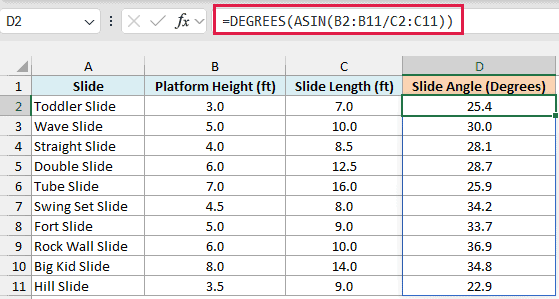
How this formula works:
- The slide, the platform height, and the ground form a right triangle, with the slide as the longest side.
B2:B11/C2:C11divides each platform height by its slide length. That ratio is the sine of the slide’s angle.- The ASIN function turns that sine back into an angle in radians, and the DEGREES function converts it to degrees.
So the Wave Slide, with a 5-foot platform and a 10-foot slide, comes out at 30.0 degrees. The Rock Wall Slide is the steepest at 36.9 degrees.
ASIN only accepts values from -1 to 1, since a sine can’t go outside that range. If a platform height were ever bigger than its slide length (usually a typo), that row would show a #NUM! error.
Example 5: Why SIN of 180 Degrees Isn’t Exactly Zero
In math, the sine of 180 degrees is exactly 0. In Excel, it isn’t quite, and that can break a formula that checks for zero.
Below is a list of angles in degrees that are all multiples of 90 (including two negative ones), so the sine should always be 0, 1, or -1, and I want the sine of each one in column B.
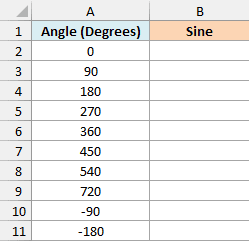
Here is the formula to enter in cell B2:
=SIN(RADIANS(A2:A11))
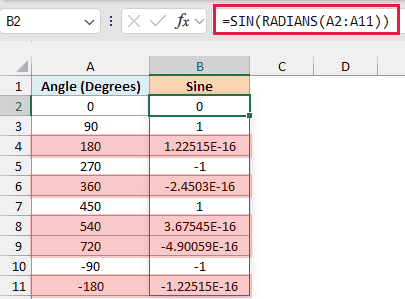
Look at the 180-degree row, where SIN returns 1.22515E-16 instead of 0. That’s scientific notation for 0.000000000000000122515.
You’ll see similar tiny numbers at 360, 540, 720, and -180 degrees.
This happens because Excel can’t store π exactly. So RADIANS(180) is a tiny bit off from the real π, and the sine of that angle is a tiny bit off from 0.
Most of the time you won’t notice, because a number format like 0.0000 shows these values as 0.0000. But a check like =B4=0 returns FALSE, so an IF formula that looks for a zero sine would go the wrong way.
To clean these up, round the result. Here is the formula to enter in cell C2:
=ROUND(SIN(RADIANS(A2:A11)),10)
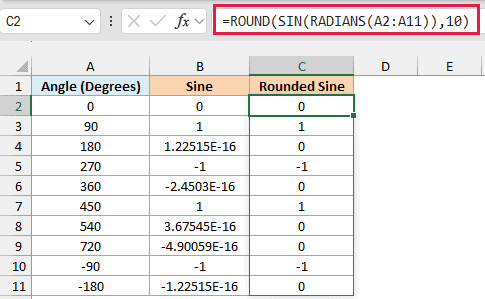
The ROUND function rounds each sine to 10 decimal places, so the tiny leftovers become a true 0, while 1 and -1 stay as they are. Ten decimal places is far more precision than a real calculation needs, so it doesn’t change any genuine result.
Example 6: Calculate the Distance Between Two Cities With SIN
Let’s step it up with a more advanced use case.
If you have the latitude and longitude of two places, a formula built on SIN and COS gives you the shortest distance between them over the Earth’s surface, the way a plane would fly.
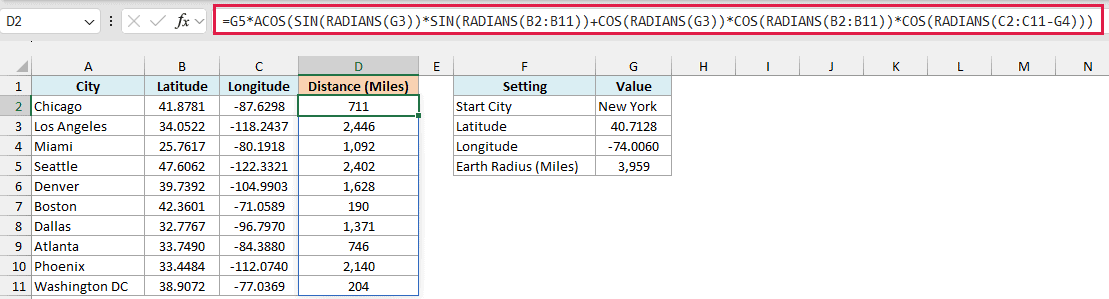
Below is a list of US cities with their latitude and longitude, and I want the distance of each city from New York in column D, using New York’s latitude in G3, its longitude in G4, and the Earth’s radius in G5.
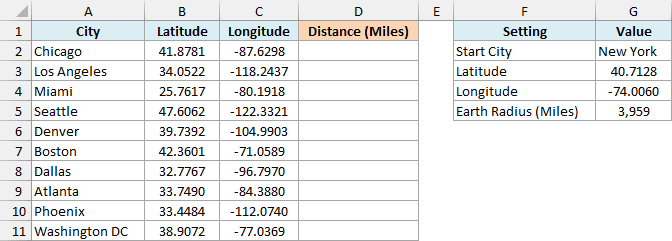
Here is the formula to enter in cell D2:
=G5*ACOS(SIN(RADIANS(G3))*SIN(RADIANS(B2:B11))+COS(RADIANS(G3))*COS(RADIANS(B2:B11))*COS(RADIANS(C2:C11-G4)))
How this formula works:
- This is the spherical law of cosines, a standard formula for the distance between two points on a globe. Every latitude and longitude goes through the RADIANS function first.
SIN(RADIANS(G3))*SIN(RADIANS(B2:B11))multiplies the sine of New York’s latitude by the sine of each city’s latitude.COS(RADIANS(G3))*COS(RADIANS(B2:B11))*COS(RADIANS(C2:C11-G4))does the same with cosines, and also brings in how far apart the two places are from east to west.- Adding the two parts gives the cosine of the angle between the two cities, measured from the center of the Earth. The ACOS function turns that into the angle itself.
- Multiplying the angle by the Earth’s radius in G5 (3,959 miles) turns it into a distance in miles.
So Boston is about 190 miles from New York, Chicago is about 711 miles, and Los Angeles is about 2,446 miles.
Driving distances will be longer, since roads rarely take the shortest path. The formula also treats the Earth as a perfect sphere, which can put the result off by a fraction of a percent.
Pro Tip: To get the distances in kilometers, change G5 to 6371, which is the Earth’s radius in kilometers. All ten distances update right away.
If you are using Excel 2019 or earlier, enter the below formula in cell D2 and then copy it down to D11. The dollar signs make G3, G4, and G5 absolute references, so they stay fixed as you copy:
=$G$5*ACOS(SIN(RADIANS($G$3))*SIN(RADIANS(B2))+COS(RADIANS($G$3))*COS(RADIANS(B2))*COS(RADIANS(C2-$G$4)))
So these are a few ways you can use the SIN function in Excel. If a result ever looks off, the first thing to check is whether the angle was in degrees and never went through the RADIANS function.
SIN has two close siblings, the COS function and the TAN function, and both expect radians in the same way.
I hope you found this tutorial useful.
Other Excel Articles You May Also Like:
