

The PI function in Excel returns the value of pi, so you never have to type it out yourself. You’ll use it in any formula that works with something round, like the area of a circle or the volume of a ball.
It’s also handy when you need to turn degrees into radians, which Excel’s SIN, COS, and TAN functions expect.
One thing that trips people up is the π symbol, which is just a text character when you type it into a cell. So a formula like =2*π returns a #NAME? error, and for calculations you need the PI function.
Below, I’ll cover six practical examples, starting with the area of a circle and ending with converting angles for a ladder calculation.
Follow along with the example file
PI Function Examples.xlsx
PI Function Syntax
Here is the syntax of the PI function:
=PI()
PI takes no arguments, but the empty pair of parentheses is still required. If you type =PI without them, you get an error instead of the value of pi (in Microsoft 365, it’s the #CALC! error).
If you put a value inside the parentheses, like =PI(2), Excel won’t accept the formula at all and shows an error message when you press Enter.
PI returns 3.14159265358979, which is pi accurate to 15 digits. How many of those digits you see depends on the column width and number format, but Excel always uses the full value in calculations.
The PI function works in all Excel versions, including 365, 2024, 2021, 2019, 2016, Mac, and the web.
When to Use the PI Function
Use the PI function when you need to:
- Calculate the area or circumference of a circle.
- Work out the volume of round things, like balls, tanks, cans, or pools.
- Compare prices or quantities of round items by their size.
- Convert angles from degrees to radians before using SIN, COS, or TAN.
Now let’s look at some examples.
Example 1: Calculate the Area of a Circle in Excel
Let’s start with the formula most people remember from school, the area of a circle, which is pi times the radius squared.
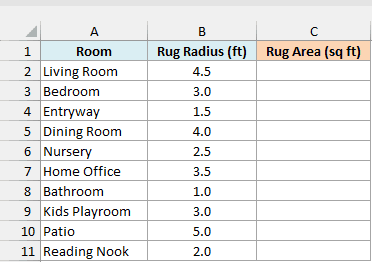
Below is a list of round rugs with the radius of each one in feet, and I want to get the area of each rug in square feet in column C.
Here is the formula:
=PI()*B2:B11^2
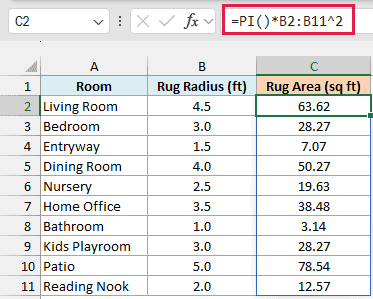
In the above formula, B2:B11^2 squares every radius, and PI() multiplies each squared radius by pi. So the Living Room rug with a 4.5 ft radius has an area of 63.62 sq ft.
You don’t need parentheses around B2:B11^2, because Excel always does the power (^) before the multiplication. So only the radius gets squared, not pi.
You may be tempted to type 3.14 instead of PI(), but the results drift a little. With 3.14, the Living Room rug comes out as 63.59 instead of 63.62, and the gap grows as the circles get bigger.
You enter this formula once in cell C2, and in Excel 365 and 2021 or later it spills the results down to C11. If any of those cells already has something in it, you’ll get a #SPILL! error until you clear it.
If you are using Excel 2019 or earlier, enter the below formula in cell C2 and then copy it down the range:
=PI()*B2^2
The same goes for the other examples in this article. Replace each range with its first cell (B2:B11 becomes B2), enter the formula in the first result cell, and copy it down.
Example 2: Find the Circumference of a Circle From the Diameter
Now let’s measure the distance around a circle, which is the circumference.
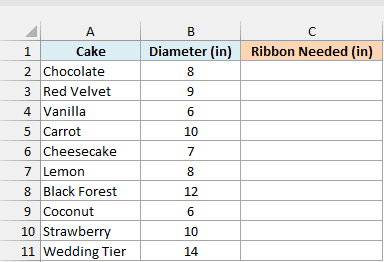
Below is a list of cakes with the diameter of each one in inches, and I want to know how much ribbon it takes to go once around each cake in column C.
Here is the formula:
=PI()*B2:B11
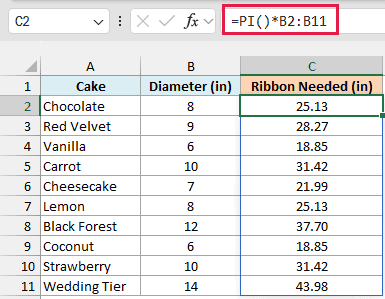
The circumference of a circle is pi times its diameter, so this formula simply multiplies each diameter by pi. The 8-inch Chocolate cake needs 25.13 inches of ribbon, and the 14-inch Wedding Tier needs 43.98 inches.
Pro Tip: If you have the radius instead of the diameter, use =2*PI()*B2:B11. The diameter is twice the radius, so both formulas give the same circumference.
Example 3: Compare Pizza Prices per Square Inch
Now let’s use the area of a circle to compare prices.
Below is a pizza menu with the diameter and price of each size, and I want to find out which size gives the most pizza for the money by getting the price per square inch in column D.
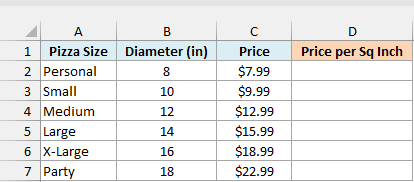
Here is the formula:
=C2:C7/(PI()*(B2:B7/2)^2)
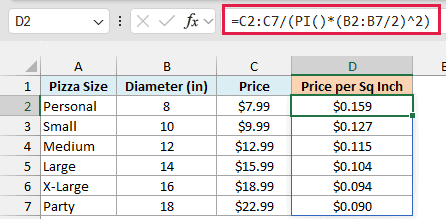
How this formula works:
- B2:B7/2 turns each diameter into a radius, since pizzas are sold by diameter.
- PI()*(B2:B7/2)^2 gets the area of each pizza in square inches.
- C2:C7 divided by that area gives the price of one square inch of pizza.
The results show that bigger pizzas are the better deal. The Personal pizza costs about 16 cents per square inch, while the Party pizza costs only about 9 cents.
That happens because the area grows with the square of the size. An 18-inch pizza looks only a little bigger than a 14-inch one, but it has about 65% more pizza.
Example 4: Find the Volume of a Sphere (Sports Balls)
Let’s step it up and work in three dimensions.
Below is a list of sports balls with the diameter of each one in inches, and I want to get the volume of each ball in cubic inches in column C.
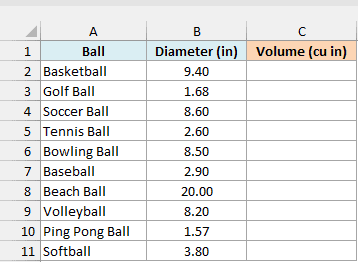
Here is the formula:
=4/3*PI()*(B2:B11/2)^3
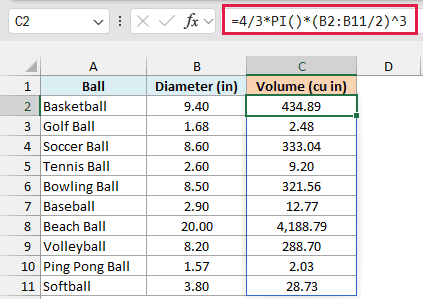
The volume of a sphere is four-thirds times pi times the radius cubed. The formula first halves each diameter to get the radius, cubes it, and then multiplies it by 4/3 and pi.
So a basketball with a 9.4-inch diameter holds 434.89 cubic inches of air, and the 20-inch beach ball holds 4,188.79 cubic inches.
Important: Keep the parentheses around B2:B11/2. Without them, Excel cubes the 2 first and divides each diameter by 8, which gives you a completely wrong volume.
Example 5: Calculate How Much Water a Round Pool Holds
This next one combines the area of a circle with a depth to get the volume of a cylinder.
Below is a list of customers of a pool-filling service with the diameter and water depth of each pool in feet, and I want the gallons each pool needs in column D, using the gallons per cubic foot in G1.
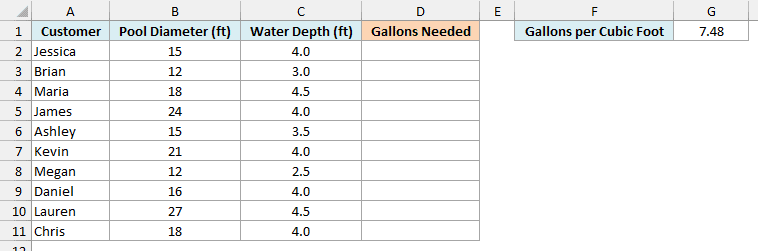
Here is the formula:
=PI()*(B2:B11/2)^2*C2:C11*G1
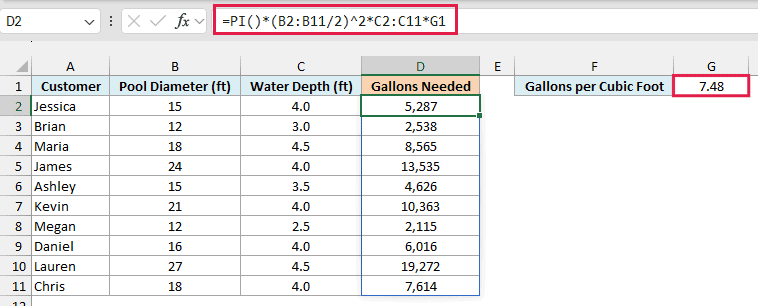
How this formula works:
- PI()*(B2:B11/2)^2 gets the area of the bottom of each pool in square feet.
- Multiplying by the water depth in C2:C11 gives the volume of water in cubic feet.
- Multiplying by G1 converts cubic feet to gallons, since one cubic foot holds about 7.48 gallons.
So Jessica’s 15 ft pool filled 4 ft deep needs 5,287 gallons, and Lauren’s 27 ft pool at 4.5 ft deep needs 19,272 gallons.
I’ve kept the 7.48 in its own labeled cell instead of typing it into the formula, so anyone reading the sheet can see where the number comes from.
If you are using Excel 2019 or earlier, enter the below formula in cell D2 and then copy it down the range. The dollar signs in $G$1 keep the reference fixed, so every row still uses the 7.48 in G1.
=PI()*(B2/2)^2*C2*$G$1
Example 6: Convert Degrees to Radians With PI
For the last example, let’s use PI to work with angles.
Below is a list of jobs with the length of the ladder used for each and the angle it makes with the ground in degrees, and I want to find out how high up the wall each ladder reaches in column D.
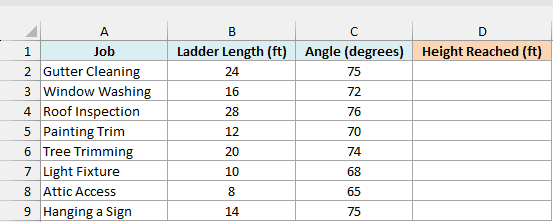
Here is the formula:
=B2:B9*SIN(C2:C9*PI()/180)
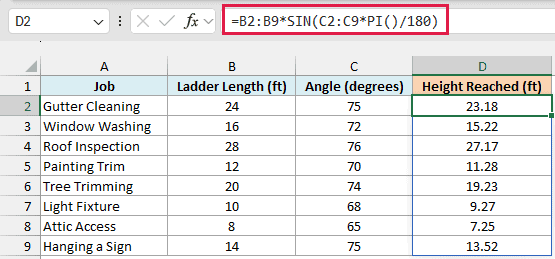
The height a ladder reaches is its length multiplied by the sine of its angle. But Excel’s SIN function expects the angle in radians, not degrees.
Since 180 degrees equals pi radians, multiplying the angle by PI()/180 converts it to radians. So the 24 ft ladder used for Gutter Cleaning, at 75 degrees, reaches 23.18 ft up the wall.
If you skip the conversion and use SIN(C2:C9) directly, Excel treats 75 as 75 radians. The same ladder then comes out at -9.31 ft, which makes no sense, and nothing warns you about it.
Pro Tip: Excel also has a RADIANS function that does the same conversion, so =B2:B9*SIN(RADIANS(C2:C9)) gives identical results. To go the other way, from radians to degrees, multiply by 180/PI() or use the DEGREES function.
So these are six practical ways to use the PI function in Excel. I hope you found this tutorial useful.
Other Excel Articles You May Also Like:
