

The ASIN function in Excel gives you the angle whose sine is a given number. It’s the inverse of the SIN function, so you’ll also see it called arcsine, inverse sine, or sin⁻¹.
You’ll reach for it when you know two sides of a right triangle and want an angle, like how steep a ladder or a ramp is.
ASIN gives its answer in radians, so you usually need one more step to get degrees. I’ll show you how to do that too, along with a few practical examples.
Follow along with the example file
ASIN Function Examples.xlsx
ASIN Function Syntax
Here is the syntax of the ASIN function:
=ASIN(number)
- number is the sine of the angle you want. It has to be a value from -1 to 1, and it can be a number, a cell reference, a calculation, or a range of values.
If the number is bigger than 1 or smaller than -1, ASIN returns a #NUM! error, because no angle has a sine outside that range. Example 5 shows how to deal with this.
If the cell you point ASIN to has text like “abc”, you get a #VALUE! error. A number stored as text, such as “0.5”, still works, since Excel converts it to a number first.
An empty cell is read as 0, and ASIN of 0 is 0. So a blank row gives you an angle of 0 instead of an error, which is easy to miss in a long list.
The ASIN function works in all Excel versions, including Microsoft 365, 2024, 2021, 2019, 2016, Mac, and the web.
When to Use the ASIN Function
Use this function when you need to:
- Find the angle that goes with a sine value.
- Work out how steep something is (a ladder, a ramp, a slope) from its height and its length, which are two sides of a right triangle.
- Calculate the distance between two places from their latitude and longitude.
Let me show you a few practical examples of how to use the ASIN function.
Example 1: Find the Inverse Sine in Excel (in Radians)
Let’s start with a simple example.
Below is a list of sine values from -1 to 1, and I want the angle for each one, in radians, in column B.
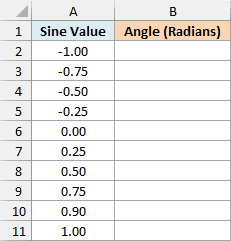
Here is the formula to enter in cell B2:
=ASIN(A2:A11)
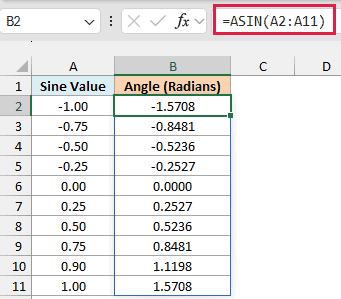
The formula returns the angle for every sine value in A2:A11. For example, 0.5 gives 0.5236 radians, and 1 gives 1.5708 radians, which is π/2.
ASIN always returns an angle between -1.5708 and 1.5708 radians. That’s the same as -90 to 90 degrees, so -1 gives -1.5708 and 0 gives 0.
You only enter the formula in cell B2. Since A2:A11 is a range, the results spill down to B11 on their own.
If any cell in B3:B11 already has something in it, you’ll get a #SPILL! error instead of results. Clear those cells, and the results show up.
Spilling formulas need Excel for Microsoft 365 or Excel 2021 and later. If you are using Excel 2019 or earlier, enter the below formula in cell B2 and then copy it down to B11:
=ASIN(A2)
The same works for the other spilling formulas in this article. Use the first row’s cells instead of the whole range, and copy the formula down.
Example 2: Get the Arcsine in Degrees
Radians are fine for math, but most of us think about angles in degrees. Since ASIN only gives radians, you need to convert the result.
Below is a list of sine values, and I want the matching angle in degrees in column B.
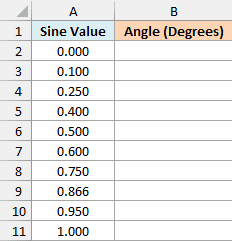
Here is the formula to enter in cell B2:
=DEGREES(ASIN(A2:A11))
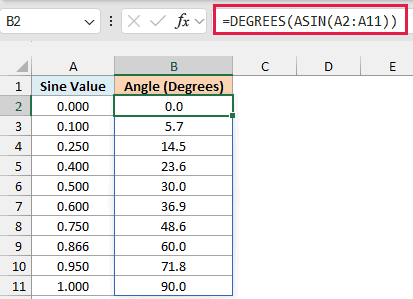
ASIN first returns each angle in radians, and the DEGREES function then converts it to degrees. So 0.5 now gives 30.0 and 1 gives 90.0, the values you’d get from the sin⁻¹ key on a calculator.
You may also see people multiply the ASIN result by 180/PI() instead, since 180 degrees is the same as π radians. That gives exactly the same results, but DEGREES is easier to read, so I’ll use it in the rest of this article.
Example 3: Find a Ladder’s Angle From Its Height and Length
Now let’s use ASIN on a real problem.
When you lean a ladder against a wall, the ladder, the wall, and the ground form a right triangle. The sine of an angle is the side opposite it divided by the longest side, so here it’s the height the ladder reaches divided by the ladder’s length.
Below is a list of jobs around a house with the length of each ladder and how high it reaches on the wall, and I want the angle each ladder makes with the ground in column D.
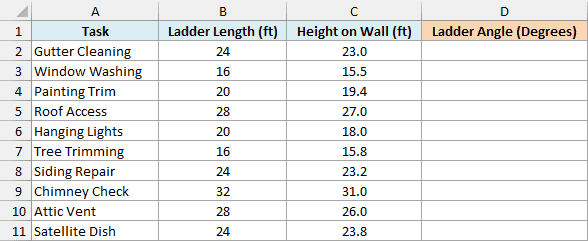
Here is the formula to enter in cell D2:
=DEGREES(ASIN(C2:C11/B2:B11))
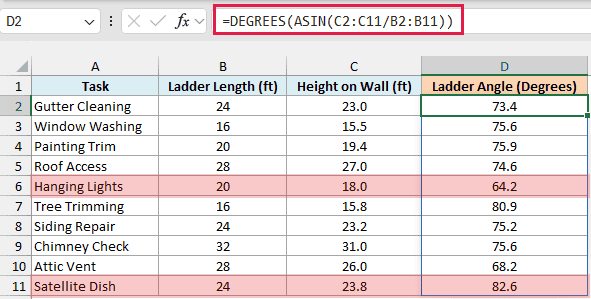
C2:C11/B2:B11 divides each height by its ladder length, which gives the sine of the angle. ASIN turns that sine into an angle in radians, and DEGREES converts it to degrees.
So the 24-foot ladder for Gutter Cleaning, reaching 23 feet up the wall, sits at 73.4 degrees.
Ladder safety guides usually recommend about 75 degrees (often called the 4-to-1 rule), so most of these ladders are close. Hanging Lights at 64.2 degrees is too shallow, and Satellite Dish at 82.6 degrees is too steep.
Note that the order of the division matters. The side opposite the angle (the height) goes on top and the longest side (the ladder) goes at the bottom, or the ratio would be bigger than 1 and you’d get #NUM!.
Example 4: Why ASIN Only Returns Angles From -90 to 90 Degrees
Now let’s look at a limit of ASIN that’s easy to miss. If you take the sine of an angle and then run ASIN on it, you don’t always get the same angle back.
Below is a list of angles from 0 to 330 degrees with the sine of each one, and I want to see the angle ASIN gives back for each sine in column C.
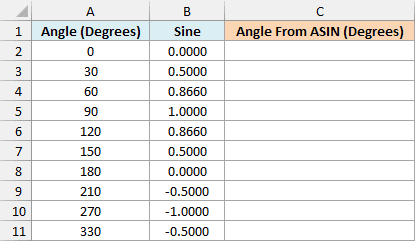
The sines in column B come from =SIN(RADIANS(A2:A11)), so you can change any angle in column A and watch both columns update.
Here is the formula to enter in cell C2:
=DEGREES(ASIN(B2:B11))
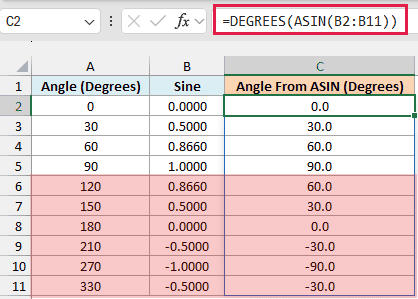
From 0 to 90 degrees, ASIN gives back the angle you started with. After that, 120 degrees comes back as 60, 150 comes back as 30, and 270 comes back as -90.
This happens because different angles can share the same sine. Both 30 and 150 degrees have a sine of 0.5, and ASIN can’t tell which one you meant, so it always picks the angle between -90 and 90 degrees.
In a right triangle, this never causes a problem, since the angle you’re looking for is always between 0 and 90 degrees. That’s why the ladder angles in Example 3 come out right.
It only matters when your angles can go past 90 degrees, such as the direction of a point around a circle. There, the sine alone isn’t enough, and you need the x and y values with the ATAN2 function to get the full angle.
Example 5: Flag #NUM! Errors in ASIN
As you saw in the syntax section, ASIN returns #NUM! for anything outside -1 to 1. With real measurements, that usually points to a typo.
Below is a list of wheelchair ramps with the rise and the length of each one, and I want the angle of each ramp in column D.
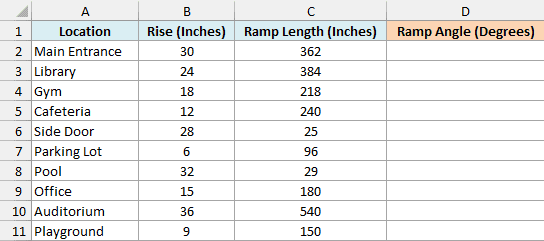
Here is the formula to enter in cell D2:
=DEGREES(ASIN(B2:B11/C2:C11))
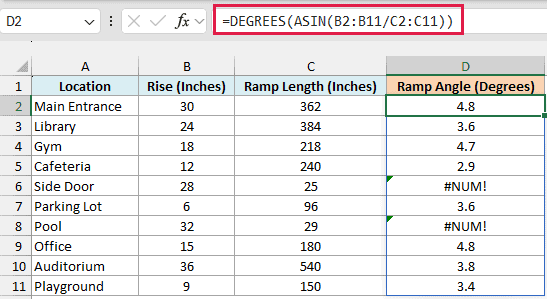
Most ramps come out between 2.9 and 4.8 degrees. But Side Door and Pool show #NUM!, because their rise is bigger than their ramp length (28 inches of rise on a 25-inch ramp isn’t possible), so the ratio is above 1.
Those two lengths were most likely typed with a digit missing. Rather than leave a bare #NUM! in the column, it’s more useful to replace it with a label that says what to do about it.
Here is the formula to enter in cell E2:
=IFERROR(DEGREES(ASIN(B2:B11/C2:C11)),"Check measurements")
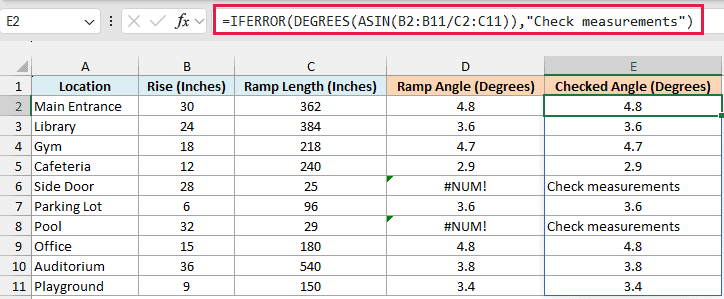
The IFERROR function returns the angle when the calculation works and the text “Check measurements” when it doesn’t. So every good ramp keeps its angle, and the two bad rows tell you exactly what to do.
IFERROR also catches a blank ramp length (which gives a #DIV/0! error) and a length typed as text (#VALUE!). Both of those need fixing too, so the same label works for them.
Not every #NUM! means a typo, though. When a ratio comes from a calculation, a value that should be exactly 1 can land a hair above it.
For example, (0.1+0.2)/0.3 shows 1 in a cell, but Excel stores it as 1.0000000000000002. Pass that to ASIN and you get #NUM!, even though nothing was typed wrong.
Pro Tip: When a calculated ratio could land a hair above 1, round it with the ROUND function before ASIN sees it. =ASIN(ROUND((0.1+0.2)/0.3,10)) returns 1.5708 (90 degrees) instead of #NUM!.
Example 6: Calculate Flight Distances With the Haversine Formula
Let’s step it up with a more advanced use case.
The haversine formula gives you the shortest distance between two places on the Earth’s surface from their latitude and longitude. The ASIN function sits right at the heart of it.
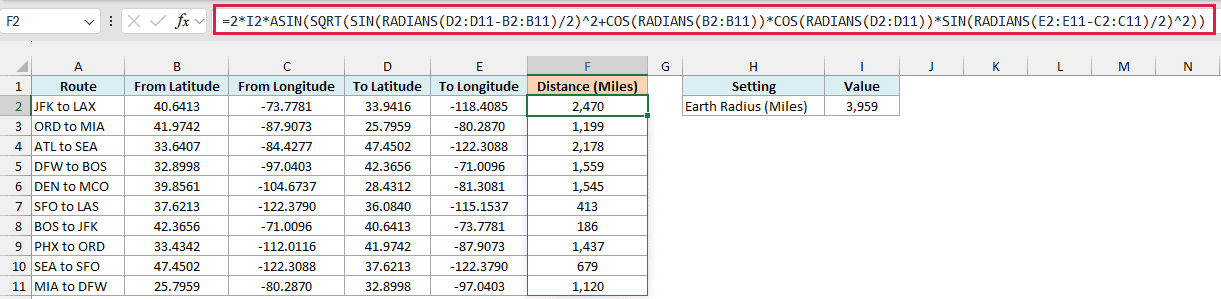
Below is a list of flight routes with the latitude and longitude of the airport at each end, and I want the distance of each route in column F, using the Earth’s radius in I2.
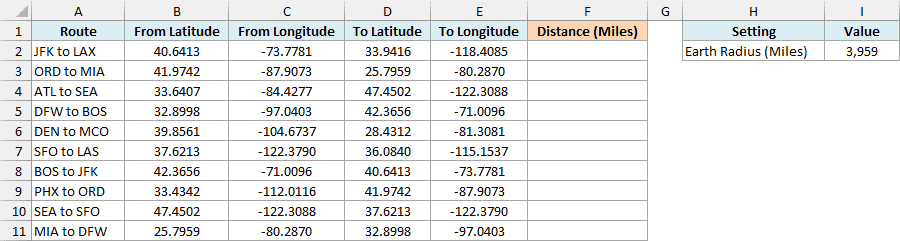
Here is the formula to enter in cell F2:
=2*I2*ASIN(SQRT(SIN(RADIANS(D2:D11-B2:B11)/2)^2+COS(RADIANS(B2:B11))*COS(RADIANS(D2:D11))*SIN(RADIANS(E2:E11-C2:C11)/2)^2))
How this formula works:
SIN(RADIANS(D2:D11-B2:B11)/2)^2takes the difference between the two latitudes, converts it to radians, and squares the sine of half of it. This is the north-south part of the distance.COS(RADIANS(B2:B11))*COS(RADIANS(D2:D11))*SIN(RADIANS(E2:E11-C2:C11)/2)^2does the same with the difference in longitude. Multiplying by the cosines of both latitudes accounts for longitude lines getting closer together away from the equator.- SQRT takes the square root of the two parts added together, and ASIN turns that into an angle. That angle is half of the angle between the two airports, measured from the center of the Earth.
2*I2doubles that angle and multiplies it by the Earth’s radius in I2 (3,959 miles), which turns it into a distance in miles.
So JFK to LAX comes out at about 2,470 miles, and the short hop from BOS to JFK is about 186 miles.
This is the straight path over the Earth’s surface, so actual flight paths are a bit longer. The formula also treats the Earth as a perfect sphere, which can put the result off by a fraction of a percent.
Pro Tip: To get the distances in kilometers, change I2 to 6371, which is the Earth’s radius in kilometers. All ten distances update right away.
If you are using Excel 2019 or earlier, enter the below formula in cell F2 and then copy it down to F11. It’s slightly different from the copy-down version in Example 1, because the Earth’s radius in I2 needs to be locked:
=2*$I$2*ASIN(SQRT(SIN(RADIANS(D2-B2)/2)^2+COS(RADIANS(B2))*COS(RADIANS(D2))*SIN(RADIANS(E2-C2)/2)^2))
The dollar signs make I2 an absolute reference, so it stays fixed as you copy the formula down.
So these are a few ways you can use the ASIN function in Excel.
If a result looks like a small decimal when you expected degrees, wrap it in the DEGREES function. And if you see #NUM!, check that the value you’re passing is between -1 and 1.
ASIN has two close siblings, ACOS (inverse cosine) and ATAN (inverse tangent), which also give their angles in radians. To go the other way, from an angle to its sine, use SIN.
I hope you found this tutorial useful.
Other Excel Articles You May Also Like:
