

The ACOT function in Excel returns an angle when you know its cotangent. This is also called the inverse cotangent, or arccotangent.
The result is in radians, so it may not look like the angle you expect in degrees. In this tutorial, I’ll show you how to use ACOT, convert its results to degrees, and handle negative values and missing inputs.
Follow along with the example file
ACOT Function Examples.xlsx
ACOT Function Syntax
Here is the syntax of the ACOT function:
=ACOT(number)
- number is the cotangent value for which you want an angle. This argument is required. You can enter a number directly or refer to a cell containing it.
The input is a ratio, not an angle in degrees or radians. Positive numbers, negative numbers, and zero are all valid inputs.
ACOT is available in Excel 2013 and later, including Microsoft 365, current Mac versions, and Excel for the web. The formulas that fill several rows automatically in this tutorial require Microsoft 365, Excel 2024, Excel 2021, or Excel for the web.
When to Use the ACOT Function
Use ACOT when you need to:
- Find an angle from a known cotangent value in a trigonometry worksheet.
- Calculate a ramp’s angle from its horizontal run and vertical rise.
- Check which angle Excel returns when you reverse a cotangent calculation.
Let me show you how these work, starting with a list of cotangent values.
Example 1: Find Angles from Cotangent Values
Let’s start with positive values, negative values, and zero.
Below is a list of cotangent values, and I want to get the corresponding angles in radians in column B.
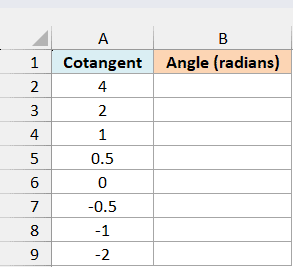
Enter the following formula in cell B2:
=ACOT(A2:A9)
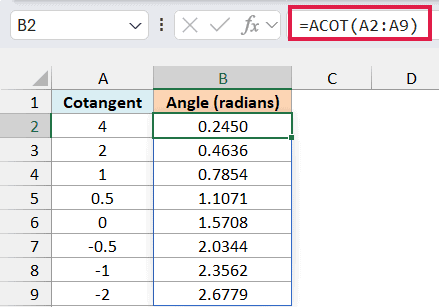
ACOT calculates one angle for each value in the range. The results spill down from B2, so you only enter the formula once.
For a cotangent of 1, the result is about 0.7854 radians, which is 45 degrees. Zero returns about 1.5708 radians, or 90 degrees.
A cotangent of -1 returns about 2.3562 radians, or 135 degrees.
ACOT returns the principal angle, which is the angle between 0 and pi radians. Pi is approximately 3.1416 radians, equivalent to 180 degrees.
This range is why a negative cotangent gives an angle above 90 degrees rather than a negative angle.
The workbook displays four decimal places to make the results easy to read. Excel retains the extra precision for later calculations.
Keep the cells below B2 empty before entering the formula. If something blocks the results, Excel shows a #SPILL! error.
A value such as the text unknown causes #VALUE!; replace it with the intended numeric cotangent.
In Excel 2013, 2016, or 2019, enter the following formula in B2 and copy it down to B9:
=ACOT(A2)
Example 2: Calculate a Ramp Angle in Degrees
Now let’s calculate an angle from measurements.
Below are six ramps with their horizontal run and vertical rise in meters, and I want to calculate each ramp’s angle above horizontal in column D.
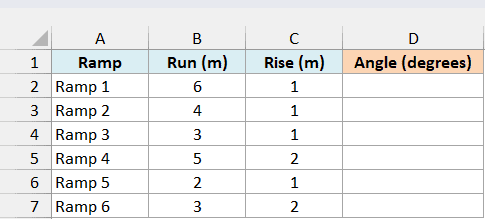
For this angle, the cotangent is the horizontal run divided by the vertical rise. Both measurements are positive in this example.
Enter the following formula in cell D2:
=DEGREES(ACOT(B2:B7/C2:C7))
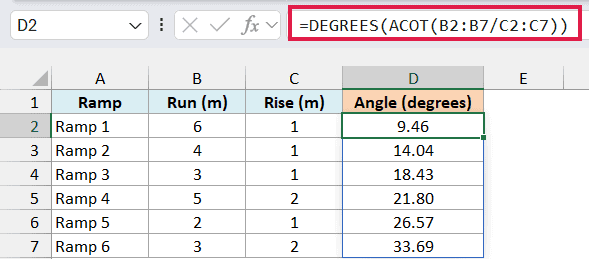
Here, Excel divides each run by its corresponding rise and passes those ratios to ACOT. The DEGREES function then converts the angles from radians to degrees.
Ramp 1 has a run of 6 meters and a rise of 1 meter, giving a cotangent of 6 and an angle of approximately 9.46 degrees. The formula returns all six angles in one go.
Changing a cell’s number format doesn’t convert radians to degrees. You need the DEGREES function for that conversion.
Important: This run/rise calculation needs a nonzero rise. A horizontal ramp has a rise of zero, which would cause #DIV/0!.
For a horizontal ramp, use the ATAN function with rise divided by run, then convert the result to degrees. With a positive run and zero rise, it returns 0 degrees.
In Excel 2013, 2016, or 2019, enter the following formula in D2 and copy it down to D7:
=DEGREES(ACOT(B2/C2))
Example 3: Reverse the COT Function
You might expect reversing the COT function to give you the angle you started with. It does for some angles, but ACOT’s principal-angle range matters here.
Below are angles in degrees, and I want to convert them to cotangents and back to angles in column B to compare the results.
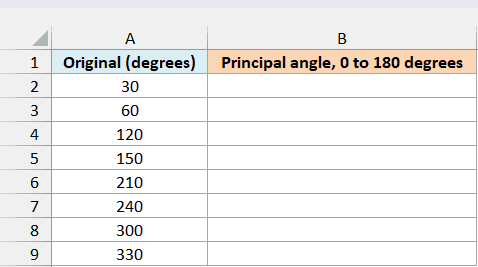
Enter the following formula in cell B2:
=DEGREES(ACOT(COT(RADIANS(A2:A9))))
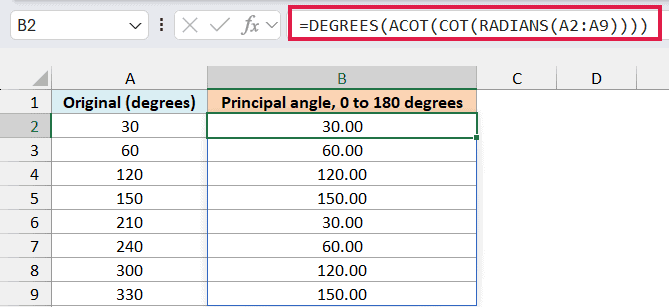
How this formula works:
- The RADIANS function converts the original angles from degrees to radians, which the COT function expects.
- The COT function calculates each angle’s cotangent.
- ACOT returns the principal angle for each cotangent.
- The DEGREES function converts those results back to degrees so you can compare the two columns.
The first four angles come back as expected. But 210 degrees comes back as 30 degrees, and 300 degrees comes back as 120 degrees.
Cotangent repeats every 180 degrees, so angles such as 30 and 210 degrees have the same cotangent. ACOT cannot tell which one you started with; it returns the angle within its principal range.
Important: Keep the original angle if you need to preserve rotations beyond 180 degrees. Reversing the COT function with ACOT cannot recover that information from the cotangent alone.
This example uses angles where cotangent is defined. Avoid testing it with 0 degrees or other multiples of 180 degrees, where cotangent is undefined.
In Excel 2013, 2016, or 2019, enter the following formula in B2 and copy it down to B9:
=DEGREES(ACOT(COT(RADIANS(A2))))
Example 4: Leave Missing Inputs Blank
A blank input needs a little care. If you pass an empty cell to ACOT, Excel treats it as zero and returns about 1.5708 radians.
Below is a trigonometry exercise list with some cotangent values still missing, and I want to show angles in column C only where an input is available.
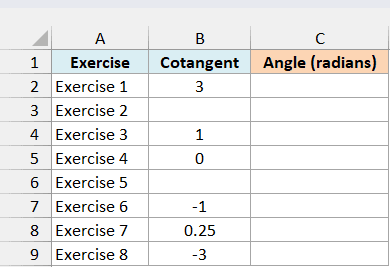
Enter the following formula in cell C2:
=IF(B2:B9="","",ACOT(B2:B9))
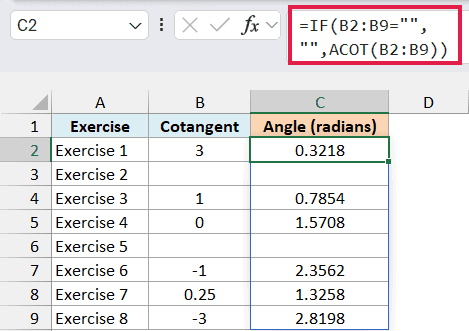
The IF function checks whether each input is empty. If it is, the formula returns an empty string, shown as a blank; otherwise, it calculates the angle with ACOT.
Exercises 2 and 5 stay blank because their inputs are missing. Exercise 4 contains a real zero, so it correctly returns 1.5708 radians.
Testing for an empty input lets us keep that distinction.
The blank-looking results still contain formula output, so they aren’t truly empty cells. This check also handles inputs that contain a formula returning an empty string.
This formula doesn’t hide invalid entries. If someone enters nonnumeric text, the result still shows #VALUE!, so you can correct the input.
In Excel 2013, 2016, or 2019, enter the following formula in C2 and copy it down to C9:
=IF(B2="","",ACOT(B2))
In this tutorial, I covered how to find angles with ACOT, convert the results to degrees, and leave missing inputs blank. The main thing to remember is that ACOT returns a principal angle, so it won’t always restore the original angle when you reverse the COT function.
Other Excel Articles You May Also Like:
