

The SEC function in Excel returns the secant of an angle, which is 1 divided by its cosine. You can use it in trigonometry calculations, including finding a sloping length when you know its horizontal span and angle.
SEC expects the angle in radians. If your measurements are in degrees, you need to convert them first, or you’ll get a result for a different angle.
In this tutorial, I’ll show you both types of input, a length calculation, and why the result at 90 degrees needs special care.
Follow along with the example file
SEC Function Examples.xlsx
SEC Function Syntax
Here is the syntax of the SEC function:
=SEC(number)
- number is the required angle in radians. You can supply a number, a cell reference, or a range of angles in Excel versions that support spilling.
A radian is another unit for measuring angles. A half turn is 180 degrees, or approximately 3.14159 radians, so the unit of your input matters.
The argument must be a number or something Excel can interpret as a number. Text such as a word instead of an angle produces #VALUE!.
The angle’s absolute value must be below 134,217,728 radians (2^27). SEC returns #NUM! at or beyond that limit, so keep your input within this range.
SEC is available in Excel 2013 and later. The spilling formulas below work in Microsoft 365, Excel 2024, and Excel 2021; scalar alternatives are included for Excel 2013 through 2019.
When to Use the SEC Function
Use the SEC function when you need to:
- Calculate secants for angles in a trigonometry worksheet.
- Convert a horizontal span into a sloping length using the angle above horizontal.
- Examine how secant changes as an angle approaches 90 degrees.
Let’s work through the examples in the downloadable workbook.
Example 1: Calculate Secants From Radians
Let’s start with angles that are already in the right unit.
Below is a list of angles in radians, and I want to calculate their secants in column B.
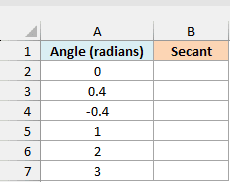
On the Radian Inputs sheet, enter this formula in cell B2:
=SEC(A2:A7)
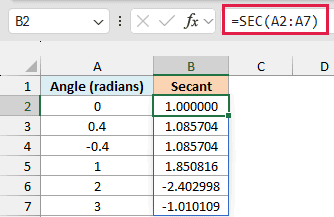
The formula calculates one secant for each angle in A2:A7 and spills the six answers into B2:B7. You only enter the formula once.
For 0 radians, the result is 1 because the cosine of zero is 1. The inputs 0.4 and -0.4 both return approximately 1.085704 because cosine, and therefore secant, has the same value for opposite angles.
The negative results for 2 and 3 radians are valid too. Secant is negative wherever cosine is negative.
If another value occupies a cell where an answer needs to appear, Excel returns a #SPILL! error. Clear the obstructing output cells so the formula has room to return all six results.
If you are using Excel 2013 through 2019, enter the below formula in B2 and copy it down through B7:
=SEC(A2)
Example 2: Use Angles in Degrees
Measurements in degrees need one extra step inside the formula.
Below is a list of degree measurements, and I want their secants in column B.
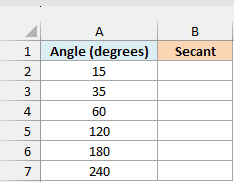
On the Degree Inputs sheet, enter this formula in B2:
=SEC(RADIANS(A2:A7))
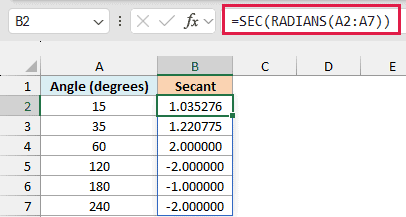
The RADIANS function converts each degree measurement to radians. SEC then calculates the secant of each converted angle and spills the results down column B.
For example, 60 degrees gives 2 because its cosine is 0.5, and 1 divided by 0.5 is 2. At 120 degrees, the cosine is -0.5, so the secant is -2.
Important: Passing a degree measurement directly to SEC does not perform a conversion. Excel treats that number as radians, so make sure you use the RADIANS function when your source angles are in degrees.
If you are using Excel 2013 through 2019, enter the below formula in B2 and copy it down through B7:
=SEC(RADIANS(A2))
Example 3: Find an Inclined Track’s Length
Now let’s use secant to calculate a length.
Below are horizontal spans and incline angles for straight track segments, and I want to calculate the length along each track in column D.
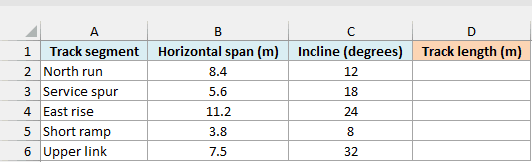
The incline angle is measured above horizontal. Each track forms the hypotenuse of a right triangle, while its horizontal span is the side adjacent to that angle.
On the Inclined Track sheet, enter this formula in D2:
=B2:B6*SEC(RADIANS(C2:C6))
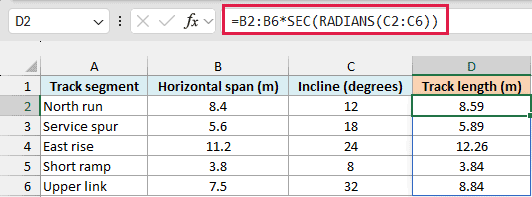
Secant is the hypotenuse divided by the adjacent side. Multiplying the horizontal span by secant therefore gives the length along the track.
In the formula, the RADIANS function converts the angles in column C, and SEC returns the multiplier for each track. Excel then multiplies those values by the corresponding horizontal spans in column B.
For the North run, a horizontal span of 8.4 meters at 12 degrees gives a track length of approximately 8.59 meters. The result is slightly longer than the horizontal span, as you’d expect for a slope.
The workbook displays these lengths to two decimal places while retaining the underlying precision. This calculation assumes a straight segment with a constant incline between 0 and 90 degrees, excluding 90 degrees.
If you are using Excel 2013 through 2019, enter the below formula in D2 and copy it down through D6:
=B2*SEC(RADIANS(C2))
Example 4: Understand the Result at 90 Degrees
The next example shows a result you shouldn’t interpret as a valid mathematical answer.
Below are angles close to 90 degrees, and I want to see the values Excel returns for their secants in column B.
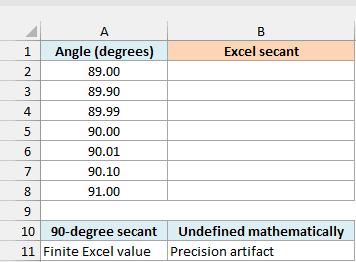
On the Near 90 Degrees sheet, enter this formula in B2:
=SEC(RADIANS(A2:A8))
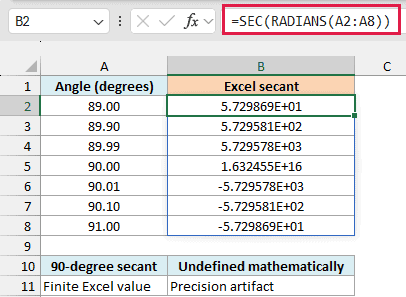
At 89 degrees, the secant is about 57.3. As the angle gets closer to 90 degrees from below, the cosine approaches zero and its reciprocal becomes much larger.
At exactly 90 degrees, the mathematical cosine is zero, so the secant is undefined. However, Excel uses finite precision for its angle conversion and trigonometric calculation, which can leave a tiny nonzero cosine instead of exact zero.
In this workbook, Excel returns approximately 1.63 × 10¹⁶ for 90 degrees. The scientific number format displays it as 1.632455E+16; the E+16 means multiply by 10 to the power of 16.
Important: That huge finite number does not make secant at 90 degrees mathematically valid. Treat exact angles such as 90 and 270 degrees as undefined in your calculations, even when Excel returns a number.
Just above 90 degrees, the cosine becomes negative, so the secant changes to a large negative value. The rows on either side of 90 degrees let you see that change without confusing it with the undefined value at 90 itself.
If you are using Excel 2013 through 2019, enter the below formula in B2 and copy it down through B8:
=SEC(RADIANS(A2))
So these are four ways to work with SEC in Excel, from converting angle units to calculating a sloping length. Keep the input units clear, and check whether the angle has a defined secant before using the result elsewhere.
Other Excel Articles You May Also Like:
