

The SECH function in Excel returns the hyperbolic secant of a number. It gives you the reciprocal of the hyperbolic cosine, with a result of 1 at zero and smaller values as the input moves away from zero.
You’ll usually encounter it in a mathematical formula or a model that needs a symmetric curve. Below, I’ll show you how to calculate it for a list, handle degree-based inputs, read very small results, and build a simple weighting model.
Follow along with the example file
SECH Function Examples.xlsx
SECH Function Syntax
Here is the syntax of the SECH function:
=SECH(number)
- number (required): The numeric value to evaluate. You can enter a number, refer to a cell, or supply a range for several calculations.
If your input is an angle expressed in degrees, convert it to radians first. If it is already the dimensionless input from a mathematical model, use that value directly.
SECH is available in Excel 2013 and later, including Microsoft 365, Mac, and the web. The spilling examples below use Microsoft 365, Excel 2024, Excel 2021, or Excel for the web.
When to Use the SECH Function
Use this function when you need to:
- Evaluate hyperbolic secant values in a mathematical calculation.
- Work through a formula that explicitly supplies its input in degrees.
- Calculate a smooth weight that decreases with distance from a chosen center.
Let’s start with the basic calculation, then use it inside a model.
Example 1: Calculate SECH for a List
A short list makes the function’s behavior easy to see.
Below are positive, negative, and zero inputs, and we want their hyperbolic secant values in column B.
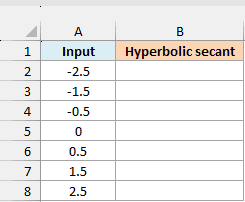
On the Basic SECH sheet, enter this formula in B2:
=SECH(A2:A8)
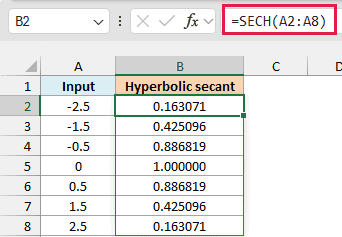
The formula calculates one result for each input and spills the answers into B2:B8. You only enter it once, in B2.
Both -1.5 and 1.5 return approximately 0.425096. Changing the sign doesn’t change the result, so SECH cannot tell you whether an original input was positive or negative.
Zero returns 1, the highest possible result. Moving farther from zero makes the result smaller: both -2.5 and 2.5 return approximately 0.163071.
A blank input cell is treated as zero, so its result is also 1. Text that cannot be interpreted as a number returns a #VALUE! error; check the source data before treating either result as a valid measurement.
If Excel shows #SPILL!, check whether something already occupies the destination cells. These formulas belong in ordinary worksheet cells, outside an Excel Table, with room for the results below the starting cell.
An unwanted @ operator can also reduce a range calculation to a single value. The formula shown above has no @ because we want a result for every input.
If you are using Excel 2019, 2016, or 2013, enter the following formula in B2 and copy it down to B8:
=SECH(A2)
Example 2: Use Explicit Degree Inputs
Sometimes a mathematical exercise supplies its input in degrees.
Below are degree values, and we want to convert each one before calculating its hyperbolic secant in column B.
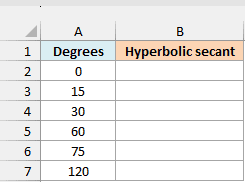
On the Degree Inputs sheet, enter this formula in B2:
=SECH(RADIANS(A2:A7))
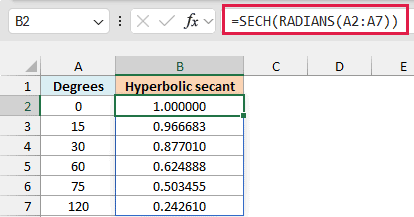
The RADIANS function converts each degree value to radians. The SECH function then evaluates those converted values, with the results spilling into B2:B7.
For 30 degrees, the result is approximately 0.877010. Passing the number 30 directly would instead return approximately 1.872E-13, because it evaluates a completely different input.
Important: Convert only when the input is explicitly supplied in degrees. A dimensionless value from a model, such as distance divided by a scale, goes straight into SECH without a RADIANS conversion.
If you are using Excel 2019, 2016, or 2013, enter the following formula in B2 and copy it down to B7:
=SECH(RADIANS(A2))
Example 3: Read Very Small Results
As the input grows, the result can become too small to read in an ordinary decimal format.
Below are larger inputs, and we want their hyperbolic secant values in column B, displayed in scientific notation.
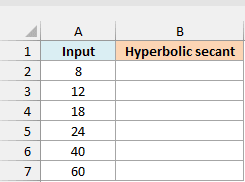
On the Small Results sheet, enter this formula in B2:
=SECH(A2:A7)
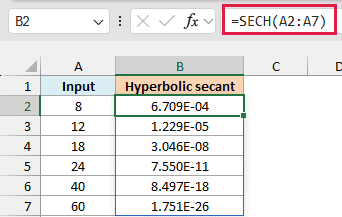
The workbook already uses scientific notation for these results. For an input of 18, it displays 3.046E-08, which means approximately 0.00000003046.
A six-decimal display would show that same result as 0.000000. The stored value is still positive; the cell format simply doesn’t show enough decimal places.
For 60, the result is about 1.751E-26. Scientific notation keeps it readable without filling the cell with leading zeros, and changing the format doesn’t change the value used in later calculations.
At much larger magnitudes, numerical limits matter too. In the tested Microsoft 365 build, an input of 710 returned a stored zero, which a different number format cannot recover.
Microsoft’s documentation specifies an absolute input below 2^27 and describes #NUM! outside that limit. The tested build returned zero at 2^27, so don’t use that documented error as a reliable input-validation check across Excel versions.
If you are using Excel 2019, 2016, or 2013, enter the following formula in B2 and copy it down to B7:
=SECH(A2)
Example 4: Weight Values Around a Center
Now let’s use SECH as part of a simple mathematical model.
Suppose you want positions near a chosen center to receive more weight than positions farther away. For this example, we’ll choose a hyperbolic-secant weighting rule; it is an illustrative rule, not a physical law or a probability distribution.
Below are positions measured in millimeters, and we want a weight for each position in column B.
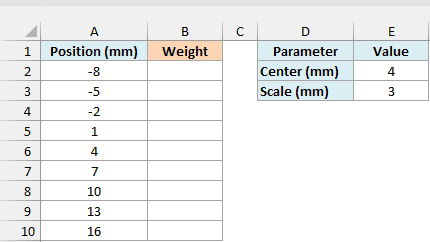
On the Distance Weights sheet, E2 holds the center of 4 mm and E3 holds the scale of 3 mm. The scale controls how quickly the weight falls as you move away from the center.
Enter this formula in B2:
=SECH((A2:A10-$E$2)/$E$3)
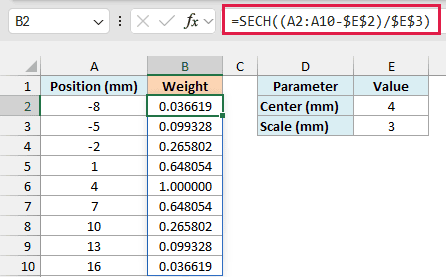
How this formula works:
- Subtracting $E$2 measures each position relative to the center.
- Dividing by $E$3 expresses that distance in units of the chosen scale. Both measurements use millimeters, so the input to SECH has no units.
- The SECH function converts each scaled distance into a weight. The dollar signs keep the parameter references fixed if you copy the formula.
At the center, 4 mm, the weight is 1. Positions 1 mm and 7 mm are equally far from that center, so both receive approximately 0.648054.
Increasing the scale gives more weight to distant positions. Decreasing it makes the weights fall more quickly; keep the scale positive, because zero would cause a #DIV/0! error.
These weights do not add up to 1. If your next calculation requires normalized weights or a weighted average, that is a separate calculation.
If you are using Excel 2019, 2016, or 2013, enter the following formula in B2 and copy it down to B10:
=SECH((A2-$E$2)/$E$3)
We’ve used SECH on individual inputs and inside a centered weighting rule. When adapting the examples, keep the input units clear and use a number format that shows small results accurately.
Other Excel Articles You May Also Like:
