

The COSH function in Excel gives you the hyperbolic cosine of a number. Despite the similar name, it behaves nothing like the regular COS function, since its result never drops below 1 and grows very quickly as the number moves away from 0.
You’ll mostly see it in math, physics, and engineering, where the curve of a hanging cable or an arch is described with hyperbolic cosine.
In this tutorial, I’ll start with a simple list of numbers and build up to working out the height of a real arch.
Follow along with the example file
COSH Function Examples.xlsx
COSH Function Syntax
Here is the syntax of the COSH function:
=COSH(number)
- number is the required value whose hyperbolic cosine you want. It can be positive, negative, or zero, but numbers beyond about 709.78 (in either direction) return a #NUM! error, as you’ll see in Example 3.
You can type the number directly, refer to a cell that holds it, or give COSH a whole range to get one result for each value.
The COSH function works in all Excel versions, including 365, 2024, 2021, 2019, 2016, and Mac. The range formulas below need a dynamic-array version, such as 365, 2024, or 2021.
When to Use the COSH Function
Use this function when you need to:
- Calculate the hyperbolic cosine for a set of numbers in math, physics, or engineering work.
- Work with curves that follow a hyperbolic cosine shape, such as a hanging cable or a catenary arch.
- Use a textbook or reference formula that includes cosh.
Let me show you a few examples of how to use this function.
Example 1: Calculate Hyperbolic Cosine for a List of Numbers
Let’s start with a simple example.
Below is a list of numbers, including two negative ones, and I want to get the hyperbolic cosine of each number in column B.
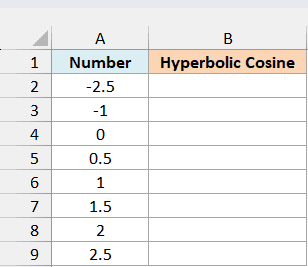
Enter the following formula in cell B2:
=COSH(A2:A9)
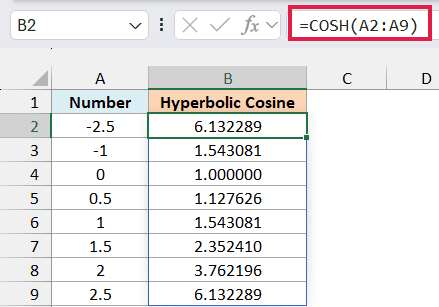
The formula calculates one result for each number in A2:A9 and spills the results down to B9. You only enter it once, in B2.
Notice that 0 returns 1, which is the smallest value COSH can return. Every other number gives a result greater than 1, and the result gets bigger the further the number is from 0.
Now compare the negative numbers at the top with their positive versions. -1 returns the same 1.543081 as 1, and -2.5 returns the same 6.132289 as 2.5.
Both of these come from how hyperbolic cosine is defined. It’s the average of e raised to the number and e raised to the negative of the number, where e is the constant (about 2.718) that the EXP function uses.
Changing the sign of the number only swaps those two parts, so the average stays the same. And at 0, both parts are 1, so the result is 1.
If any cell in B3:B9 already has something in it, the formula returns a #SPILL! error. Clear those cells, and the results show up.
If you are using Excel 2019 or 2016, enter the below formula in cell B2 and then copy it down to B9:
=COSH(A2)
Example 2: COSH vs COS in Excel
Since the names are so close, it’s easy to assume COSH is a variation of COS. Let’s put the two side by side.
Below are the numbers 0 to 6, and I want the COSH result in column B and the regular COS result in column C.
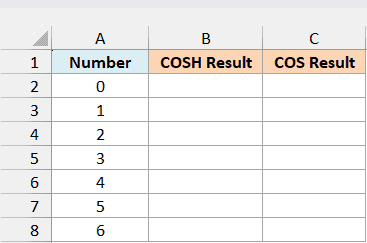
Enter the following COSH formula in cell B2:
=COSH(A2:A8)
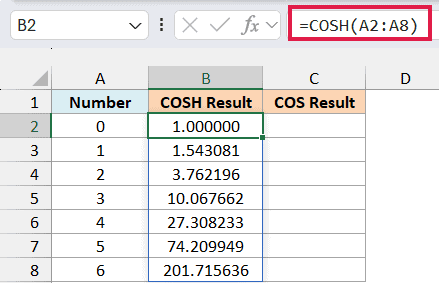
The COSH results start at 1 and climb fast. By the time the number reaches 6, the result is already above 201.
Now enter this COS formula in cell C2:
=COS(A2:A8)
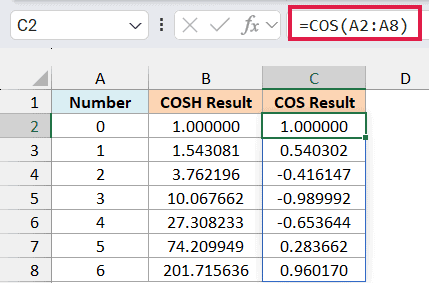
The COS function treats each number as an angle in radians, so its results move up and down between -1 and 1. COSH never goes below 1 and keeps growing.
Important: COSH does not give you the cosine of an angle. If your calculation needs the cosine of an angle, use the COS function, or you’ll get a completely different number.
If you are using Excel 2019 or 2016, enter the below formula in cell B2 and then copy it down to B8:
=COSH(A2)
Then enter the below formula in cell C2 and copy it down to C8:
=COS(A2)
Example 3: COSH With Blank Cells, Text, and Very Large Numbers
Now let’s see how COSH handles inputs that aren’t regular numbers.
Below are a few input cases, including an empty cell, some text, and two very large numbers, and I want to see the COSH result for each one in column C.
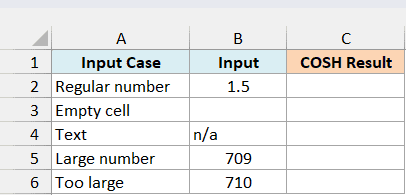
Enter the following formula in cell C2:
=COSH(B2:B6)
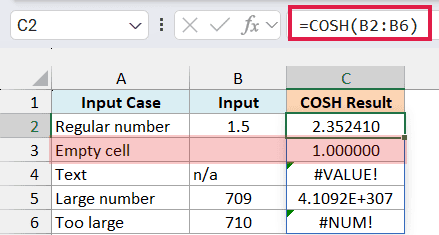
The regular number 1.5 works as expected and returns 2.352410.
Important: An empty cell returns 1, not an error. COSH treats a blank cell as 0, and the hyperbolic cosine of 0 is 1, so a missing value can look like a real result.
The text n/a returns #VALUE! because COSH can’t read it as a number. Replace it with a number when the value is available.
The input 709 still works, but the result is so large that Excel shows it in scientific notation as 4.1092E+307.
The input 710 returns #NUM! because its hyperbolic cosine is too large for Excel to calculate. Any number greater than about 709.78, or less than about -709.78, gives the same error.
If you are using Excel 2019 or 2016, enter the below formula in cell C2 and then copy it down to C6:
=COSH(B2)
Example 4: Calculate the Height of the Gateway Arch Using COSH
Let’s finish with a real-world use of COSH.
The Gateway Arch in St. Louis is shaped like a catenary, the curve a hanging chain makes, turned upside down. Its legs are much thicker at the base than at the top, so the curve is slightly adjusted, but it’s still described with hyperbolic cosine.
The National Park Service publishes the equation behind the arch. Written as a height above the ground, the centerline of the arch’s legs follows h = fc - A*(cosh(C*x/L) - 1), with all distances in feet.
Here is what each part means:
his the height of the centerline at a given pointxis the horizontal distance of that point from the centerfcis the height of the centerline at the topLis half the width of the centerline at the baseAis a scale factor andCis a shape factor, and together they decide how the curve bends
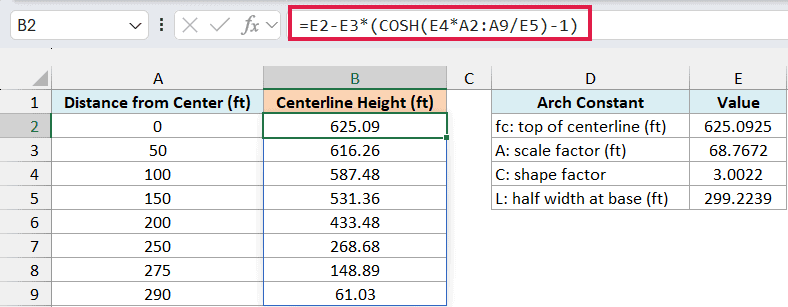
Below I have distances from the center in column A and the four arch constants in D2:E5, and I want to calculate the centerline height at each distance in column B.
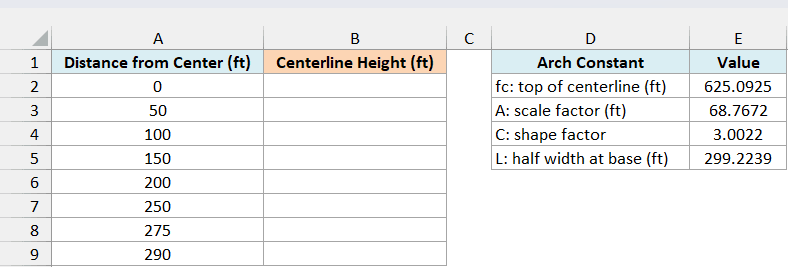
Enter the following formula in cell B2:
=E2-E3*(COSH(E4*A2:A9/E5)-1)
How this formula works:
E4*A2:A9/E5multiplies each distance by C and divides it by L.- COSH returns the hyperbolic cosine of each of those values. It’s 1 at the center and gets bigger toward the legs.
- Subtracting 1 and multiplying by A (in E3) gives how far the curve has dropped from the top at that distance.
- Subtracting that drop from fc (in E2) gives the height.
At the center, the height is 625.09 feet. At 290 feet from the center, close to the base, it’s down to 61.03 feet.
The arch itself is 630 feet tall. The 625.09 at the center is a little lower because this equation traces the centerline of the legs, not the outer edge.
If you are using Excel 2019 or 2016, enter the below formula in cell B2 and then copy it down to B9:
=$E$2-$E$3*(COSH($E$4*A2/$E$5)-1)
So these are a few ways you can use the COSH function in Excel. Just remember that it returns the hyperbolic cosine (not the cosine of an angle), its result is always 1 or more, and a blank cell quietly returns 1.
If you ever need to go the other way, the ACOSH function takes a hyperbolic cosine and returns the number behind it. It never returns a negative number, so a starting value of -2.5 comes back as 2.5.
I hope you found this tutorial useful.
Other Excel Articles You May Also Like:
