

The CSCH function in Excel returns the hyperbolic cosecant of a number. That’s the same as dividing 1 by the number’s hyperbolic sine.
If a math formula calls for csch(x), you can calculate it directly in Excel with CSCH. Below, I’ll show you how it works with positive and negative inputs, why the results get large near zero, and how to handle zero itself.
Follow along with the example file
CSCH Function Examples.xlsx
CSCH Function Syntax
Here is the syntax of the CSCH function:
=CSCH(number)
- number: The required numeric input. You can enter a number directly, refer to a cell, or supply a range in Excel versions that support spilling.
Microsoft describes the input as an angle in radians. If your source is an angle measured in degrees, convert it to radians first.
If you’re evaluating a mathematical expression such as csch(x), use the value of x specified by that expression.
CSCH works in Excel 365, 2024, 2021, 2019, and 2016, as well as current Excel for Mac. The spilling formulas below need Excel 365, 2024, or 2021.
When to Use the CSCH Function
Use CSCH when you need to:
- Evaluate a mathematical expression that contains hyperbolic cosecant.
- Calculate a series of csch(x) values for a table or chart.
- Check a calculation written as 1 divided by the hyperbolic sine of x.
Let’s work through these using the four sheets in the example file.
Example 1: Calculate CSCH for Positive and Negative Inputs
Let’s start by comparing positive and negative inputs.
On the Signed Inputs sheet, I have a list of positive and negative numbers and want their hyperbolic cosecants in column B.
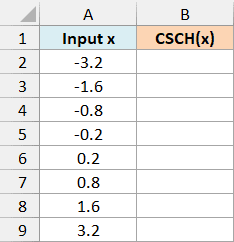
Enter this formula in cell B2:
=CSCH(A2:A9)
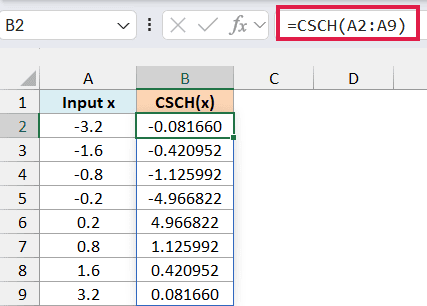
The formula calculates CSCH for each input and spills the eight results down column B. Keep the cells below B2 empty so Excel has room to display them.
For an input of 0.8, the result is approximately 1.125992, while -0.8 returns approximately -1.125992. The sign changes, but the magnitude stays the same.
You may also notice that the result gets smaller as a positive input gets larger. For example, CSCH(3.2) is approximately 0.081660.
In Excel 2019 or 2016, enter the following formula in B2 and fill it down to B9 instead:
=CSCH(A2)
The remaining examples use the same range approach. In those older versions, use a single-row reference and fill down to the last input row.
Example 2: Calculate Values Close to Zero
A small input can produce a surprisingly large result.
On the Near Zero sheet, I have six small positive and negative inputs and want their CSCH results in column B.
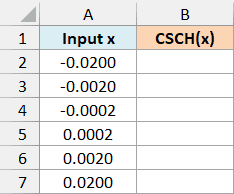
Enter this formula in cell B2:
=CSCH(A2:A7)
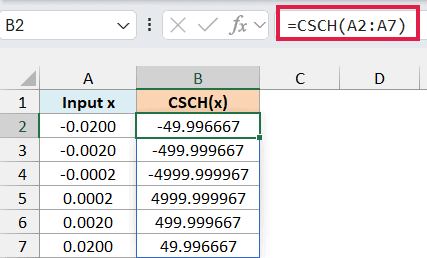
The input 0.02 returns approximately 49.996667. Reducing the input to 0.0002 increases the result to approximately 4999.999967.
This happens because the hyperbolic sine approaches zero as its input approaches zero. Dividing 1 by that small value produces a large result.
Negative inputs produce negative results with the same magnitudes.
The input cells show four decimal places so you can see the difference between 0.0002 and zero.
Number formatting changes what you see, not the underlying value Excel calculates with. An input displayed as 0.00 may still contain a small nonzero number.
Exactly zero is different. CSCH is undefined there, as we’ll see in Example 4.
Example 3: Check CSCH Against 1 / SINH
You can also calculate hyperbolic cosecant by dividing 1 by the result of the SINH function, which calculates the hyperbolic sine.
On the Reciprocal Check sheet, I have six positive inputs and will first calculate CSCH in column B.
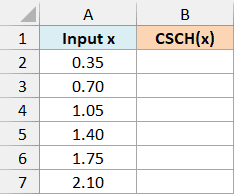
Enter this formula in cell B2:
=CSCH(A2:A7)
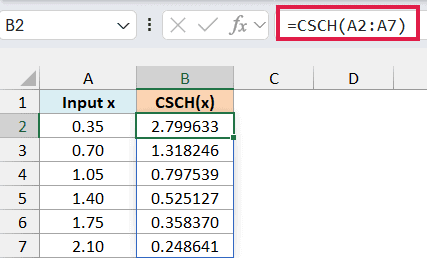
For the first input, 0.35, CSCH returns approximately 2.799633.
Now use column C, labeled 1 / SINH(x), to calculate the same values another way. Enter this formula in C2:
=1/SINH(A2:A7)
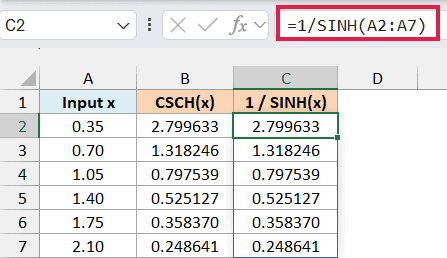
The SINH function calculates the hyperbolic sine of each input. Dividing 1 by those results gives the hyperbolic cosecants, which match column B in this example.
Use CSCH when you want the direct calculation. The longer version is useful when you’re checking an expression written in terms of the SINH function.
Don’t confuse CSCH with the CSC function, which calculates the ordinary trigonometric cosecant using the SIN function. CSCH uses the hyperbolic sine, so the two functions give different results for the same input.
Example 4: Handle Zero Inputs in CSCH
Now let’s check what happens when the input is exactly zero.
On the Zero Inputs sheet, I have a list that includes two zeros and want to see how CSCH handles them in column B.
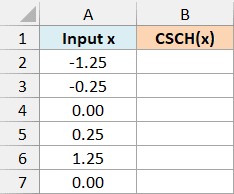
Enter this formula in cell B2:
=CSCH(A2:A7)
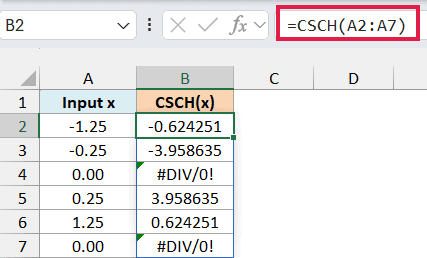
The zero inputs return #DIV/0!. Since SINH(0) is 0, calculating its reciprocal requires division by zero.
The other rows still return their CSCH results.
To label those undefined results with the IF function, use column C, labeled Zero Check. Enter this formula in C2:
=IF(A2:A7=0,"Undefined",CSCH(A2:A7))
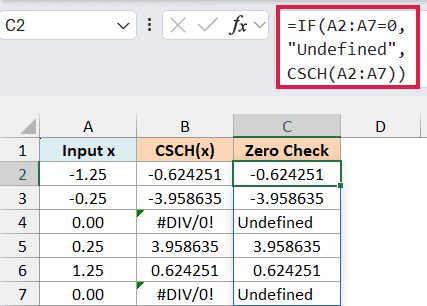
Here’s how the formula works:
- A2:A7=0 checks each input for zero.
- “Undefined” is the label returned for a zero input.
- CSCH(A2:A7) calculates the result for each nonzero input.
This labels the mathematical problem instead of replacing it with a misleading numeric 0. The word Undefined is text, so take that into account if you use the results in another calculation.
This is specifically a zero check, not a check for every possible input problem. A blank referenced cell also compares equal to zero and receives the label.
Nonnumeric text such as “bad” still produces #VALUE!, so check your source data if that error appears.
CSCH makes the hyperbolic cosecant calculation straightforward. The main thing to watch is the input: values close to zero produce large results, while exactly zero has no defined result.
Other Excel Articles You May Also Like:
