

The TANH function in Excel returns the hyperbolic tangent of a number. Whatever number you give it, the result always lands between -1 and 1, and it gets closer to those limits as the number moves away from 0.
That makes it useful for anything that grows quickly at first and then levels off, like the speed of a falling object. It’s also one of the most common activation functions in neural networks.
One thing that trips people up is the name. TANH sounds like the TAN function, but it doesn’t work with angles, so there’s no degrees-to-radians conversion involved.
Below, I’ll walk you through five examples: a simple list of numbers, a skydiver’s speed, a discount that levels off, a comparison with the sigmoid function, and a few inputs that give results you might not expect.
Follow along with the example file
TANH Function Examples.xlsx
TANH Function Syntax
Here is the syntax of the TANH function:
=TANH(number)
- number – the value whose hyperbolic tangent you want. It can be any real number (positive, negative, or 0), a cell reference, or, in Microsoft 365 and Excel 2021 or later, a range that returns one result for each cell.
The number can be as big or as small as you like, and its size never causes an error. A positive number returns a positive result, a negative number returns a negative result, and 0 returns 0.
The TANH function works in all Excel versions, including Microsoft 365, 2024, 2021, 2019, 2016, and Mac.
When to Use the TANH Function
Use this function when you need to:
- Find the hyperbolic tangent of a number as part of a math, physics, or engineering calculation.
- Model something that grows quickly at first and then levels off, like the speed of a falling object.
- Build a smooth limit, such as a discount that rises with the order size but never goes past a maximum.
- Squeeze any value into a range between -1 and 1, for example as an activation function in a neural network.
Let me show you a few practical examples of how to use the TANH function.
Example 1: Calculate TANH for a List of Numbers
Let’s start with a simple example.
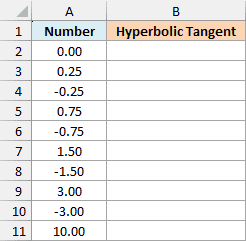
Below is a list of positive and negative numbers, and I want the hyperbolic tangent of each one in column B.
Here is the formula:
=TANH(A2:A11)
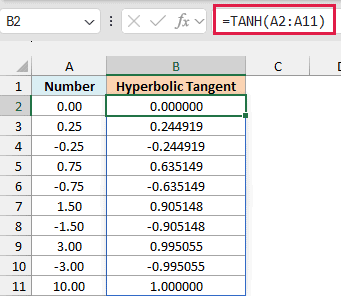
You enter this formula once in cell B2, and the results spill down to B11. TANH calculates one result for every number in A2:A11.
The results come in matching pairs. 0.25 returns 0.244919 and -0.25 returns -0.244919, so flipping the sign of the number only flips the sign of the result.
Notice how fast the results run up against the limits. 1.5 already returns 0.905148, 3 returns 0.995055, and 10 shows 1.000000.
That last one isn’t exactly 1. The real value is 0.9999999959, which rounds to 1.000000 at six decimal places.
Make sure the cells below B2 are empty before you enter the formula. If anything is in the way, Excel shows a #SPILL! error instead of the results.
If you are using Excel 2019 or earlier, enter the below formula in cell B2 and then copy it down the range:
=TANH(A2)
The same copy-down approach works for the range formulas in Examples 4 and 5. Examples 2 and 3 point to input cells, so they get their own older-version formulas.
Example 2: Calculate a Skydiver’s Speed With TANH
Here’s a real-world place where TANH shows up. When a skydiver jumps, air resistance stops them from speeding up forever, and their speed levels off at what’s called the terminal speed (or terminal velocity).
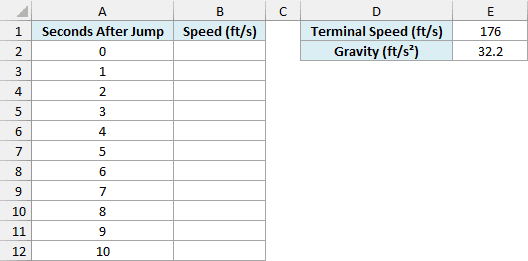
Below is the time in seconds after a jump, and I want the skydiver’s speed at each second in column B, using the terminal speed in E1 and gravity in E2.
Here is the formula:
=E1*TANH(E2*A2:A12/E1)
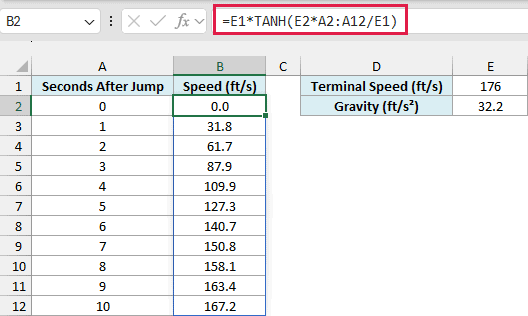
How this formula works:
- E2*A2:A12 is gravity times the seconds, which is how fast the skydiver would be going if there were no air resistance at all.
- Dividing that by E1 compares it with the terminal speed, and TANH turns the comparison into a fraction between 0 and 1.
- Multiplying by E1 turns that fraction back into a speed in feet per second.
After 3 seconds, the skydiver is at 87.9 ft/s, which is about half the terminal speed. After 10 seconds, the speed is 167.2 ft/s, about 95% of it, and it keeps creeping closer to 176 without ever passing it.
The 176 ft/s in E1 is about 120 mph, a typical terminal speed for a skydiver falling belly-down. Change it to try a different speed, and the formula updates the whole column.
Just keep both inputs in the same units (feet and seconds here). If you put the terminal speed in mph but leave gravity in ft/s², the speeds come out wrong.
If you are using Excel 2019 or earlier, enter the below formula in cell B2 and then copy it down the range. The dollar signs keep it pointing at E1 and E2 as you copy:
=$E$1*TANH($E$2*A2/$E$1)
Example 3: Create a Discount That Levels Off at a Maximum
Now let’s use TANH for something more everyday. Say you want to give bigger discounts on bigger orders, but you never want the discount to go above a set maximum.
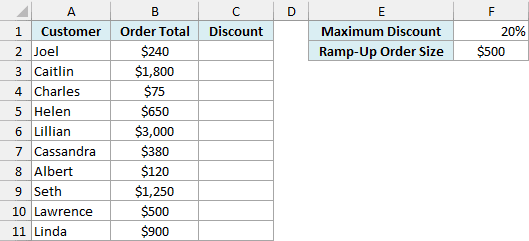
Below is a list of customers with their order totals, and I want a discount in column C that grows with the order total but never goes past the maximum discount in F1, using the ramp-up order size in F2.
Here is the formula:
=F1*TANH(B2:B11/F2)
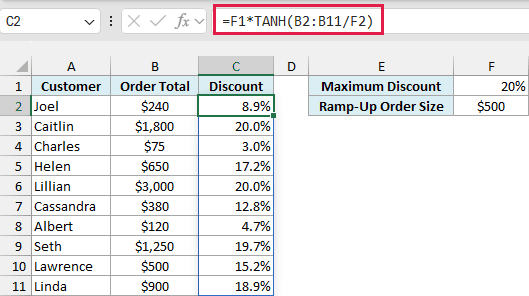
Here, B2:B11/F2 compares each order total with the $500 ramp-up order size in F2. That’s the order total where the discount reaches about three-quarters of the maximum, so it controls how quickly the discount climbs.
TANH turns the comparison into a fraction between 0 and 1, and multiplying by the 20% in F1 turns that fraction into the discount.
Small orders get a small discount. Charles’s $75 order gets 3.0%, while Lawrence’s $500 order gets 15.2%, which is about 76% of the maximum (because the TANH of 1 is 0.761594).
Big orders get close to 20% but never go past it. Caitlin’s $1,800 order shows 20.0%, but the actual value is 19.97%.
Unlike a hard cap with the MIN function, there’s no sudden point where the discount stops growing. It just grows more and more slowly as the order total goes up.
If you are using Excel 2019 or earlier, enter the below formula in cell C2 and then copy it down the range. The dollar signs keep it pointing at F1 and F2 as you copy:
=$F$1*TANH(B2/$F$2)
Pro Tip: Use a smaller number in F2 to get close to the maximum on smaller orders, or a larger one to make the discount climb more slowly.
Example 4: TANH vs Sigmoid Activation Function
If you work with neural networks, you’ll see TANH used as an activation function. It takes the number a neuron calculates (its input) and squeezes it into an output between -1 and 1.
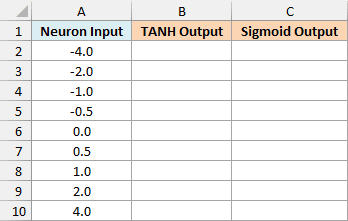
The other common choice is the sigmoid function, so let’s compare the two. Below is a list of neuron inputs, and I want the TANH output in column B and the sigmoid output in column C.
Here is the TANH formula:
=TANH(A2:A10)
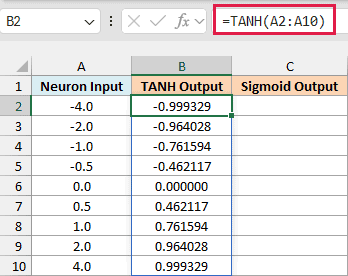
TANH returns 0 for an input of 0, and the outputs are balanced around it, from -0.999329 for -4 to 0.999329 for 4. That’s what people mean when they say TANH is zero-centered.
Excel doesn’t have a sigmoid function, so here is the sigmoid formula built with the EXP function:
=1/(1+EXP(-A2:A10))
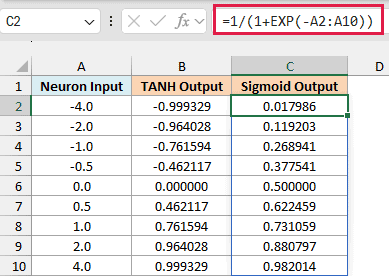
The sigmoid returns 0.5 for an input of 0 and stays between 0 and 1, so all its outputs are positive.
TANH also climbs faster near 0: going from 0 to 1 moves TANH from 0 to 0.761594, but the sigmoid only from 0.5 to 0.731059.
The two are closely related, though. TANH of any number equals 2 times the sigmoid of twice that number, minus 1, so =2/(1+EXP(-2*A2:A10))-1 gives the same results as TANH.
Example 5: Why TANH Returns 1, 0, or #VALUE!
Lastly, let’s look at a few inputs where the TANH result might look wrong at first.
Below are some inputs that commonly cause confusion, and I want to see what TANH returns for each one in column C.
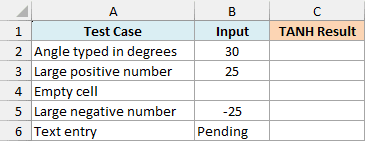
Here is the formula:
=TANH(B2:B6)
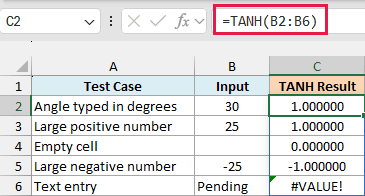
The 30 in the first row was meant as 30 degrees, but TANH reads it as the plain number 30 and returns 1.000000. If you wanted the tangent of a 30-degree angle, that’s the TAN function, and =TAN(RADIANS(30)) returns 0.577350.
Important: TANH doesn’t take angles, so don’t convert degrees with the RADIANS function before using it. RADIANS(30) turns 30 into the plain number 0.523599, so =TANH(RADIANS(30)) only returns the hyperbolic tangent of that number (0.480473), not anything about a 30-degree angle.
The 25 and -25 return exactly 1 and -1. At 18 and above (or -18 and below), the result is so close to the limit that Excel stores it as exactly 1 (or -1).
You may also see the hyperbolic tangent written as the SINH function divided by the COSH function. That gives the same results on ordinary numbers.
But for a very large input like 800, the SINH and COSH results are too big for Excel, so they return #NUM!, while TANH simply returns 1.
The empty cell returns 0 and not an error, because Excel treats an empty cell as 0. That can look like a real result, so make sure every input cell has a value.
The text Pending returns #VALUE! because TANH can’t calculate anything from a word. Replace it with the actual number once you have it.
So these are a few examples of how to use the TANH function in Excel. Remember that the result always stays between -1 and 1.
And if you ever need to go the other way, the ATANH function reverses TANH and gives you back the original number, as long as TANH hasn’t already rounded the result to exactly 1 or -1.
Other Excel Articles You May Also Like:
