

The SIGN function in Excel tells you whether a number is positive, negative, or zero. It returns 1 for a positive number, -1 for a negative number, and 0 for zero.
On its own, that can look almost too simple to be useful.
But once you have that 1, 0, or -1, you can feed it into other formulas to compare values, turn numbers into labels, and even fix a double-counting problem in a SUM.
Follow along with the example file
SIGN Function Examples.xlsx
SIGN Function Syntax
Here is the syntax of the SIGN function:
=SIGN(number)
- number – The number you want the sign of. It can be a typed number, a cell reference, a calculation such as C2-B2, or a whole range.
SIGN only cares about which side of zero the number is on, not how big it is. So =SIGN(-0.00001) returns -1, exactly like =SIGN(-5000) would, and you only get 0 when the value is exactly zero.
If the argument points to an empty cell, SIGN treats the blank as zero and returns 0. That means a missing value looks the same as a real zero in the results, so make sure the cells you check actually have numbers in them.
A number typed as text still works, so =SIGN("-5") returns -1. But actual words, like “N/A” or a name, give you a #VALUE! error.
The SIGN function works in all Excel versions, including 365, 2024, 2021, 2019, 2016, Mac, and the web.
When to Use the SIGN Function
Use this function when you need to:
- Check whether numbers are positive, negative, or zero, like gains and losses.
- Find out whether a value went up, went down, or stayed the same.
- Turn a comparison into labels such as Win, Tie, or Loss.
- Spot the point where a running result switches from profit to loss (or the other way).
- Make sure a row is counted only once when you add up values that meet one condition or another.
Let me show you five practical examples of how to use the SIGN function.
Example 1: Check If a Number Is Positive, Negative, or Zero
Let’s start with a simple example.
Below is the weekly weight change for ten gym members, and I want to show in column C whether each person lost weight, gained weight, or stayed the same (as -1, 1, or 0).
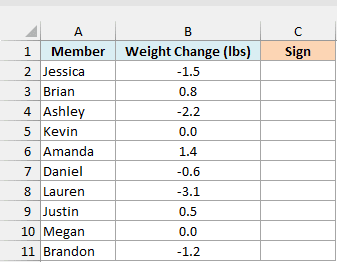
Here is the formula:
=SIGN(B2:B11)
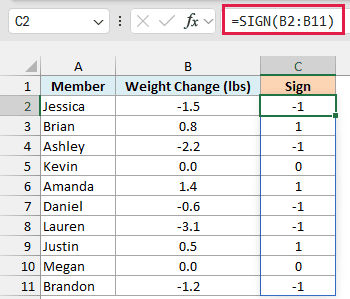
In the above formula, SIGN looks at each weight change in B2:B11 and returns -1 for a loss, 1 for a gain, and 0 when there was no change.
So Jessica (-1.5 lbs) gets -1, Brian (0.8 lbs) gets 1, and Kevin and Megan (0.0 lbs) get 0.
You enter this formula once in cell C2, and in Excel 365 and 2021 or later it spills the results down to C11. If any of those cells already has something in it, you’ll get a #SPILL! error until you clear it.
If you are using Excel 2019 or earlier, enter the below formula in cell C2 and then copy it down the range:
=SIGN(B2)
Example 2: Find If a Value Went Up or Down
Here’s another everyday situation, where you want to compare two numbers.
Below are the scores ten students got in two tests, and I want to show in column D whether each student’s score went up, went down, or stayed the same in Test 2.
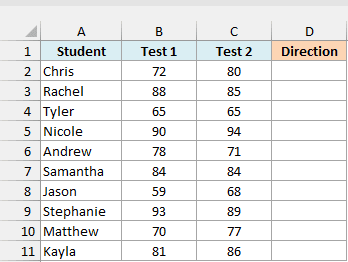
Here is the formula:
=SIGN(C2:C11-B2:B11)
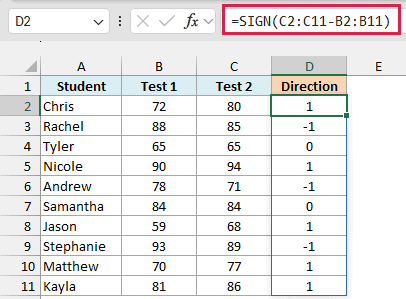
Here, the formula first subtracts each Test 1 score from the Test 2 score. A student who did better gets a positive difference, and a student who did worse gets a negative one.
SIGN then turns each difference into 1 (went up), -1 (went down), or 0 (same score). Chris went from 72 to 80 and gets 1, Rachel dropped from 88 to 85 and gets -1, and Tyler scored 65 both times and gets 0.
The order of the subtraction matters here, so subtract the old value from the new one, and 1 will mean the score went up. If you flip it to =SIGN(B2:B11-C2:C11), every 1 becomes -1 and the other way around.
If you are using Excel 2019 or earlier, enter the below formula in cell D2 and then copy it down the range:
=SIGN(C2-B2)
Example 3: Use SIGN with CHOOSE to Get Win, Tie, or Loss
Now let’s look at something more interesting, where we turn the 1, 0, and -1 into words.
Below are the goals a soccer team scored and gave away in its last ten games, and I want the result of each game (Win, Tie, or Loss) in column D and the team’s total points in G1.
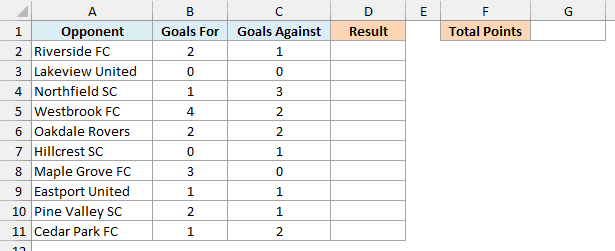
Here is the formula for the game results:
=CHOOSE(SIGN(B2:B11-C2:C11)+2,"Loss","Tie","Win")
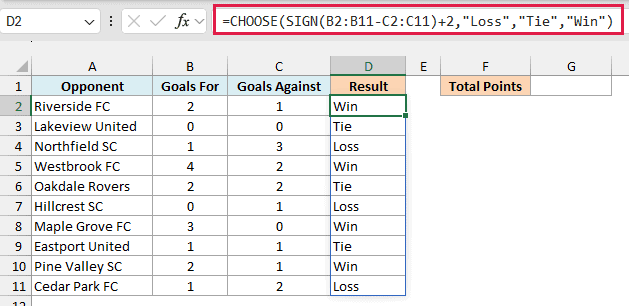
How this formula works:
- B2:B11-C2:C11 subtracts the goals given away from the goals scored. A positive number means the team scored more.
- SIGN(…) turns each difference into 1 (won), 0 (tied), or -1 (lost).
- +2 shifts those values to 3, 2, and 1, because the CHOOSE function needs a position number that starts at 1.
- CHOOSE then picks the matching word. Position 1 is “Loss”, 2 is “Tie”, and 3 is “Win”.
So the 2-1 game against Riverside FC is a Win, the 0-0 game against Lakeview United is a Tie, and the 1-3 game against Northfield SC is a Loss.
Now, let’s use the same idea to get the total points. In most soccer leagues, a win gets 3 points, a tie gets 1 point, and a loss gets 0.
Here is the formula for the total points:
=SUM(CHOOSE(SIGN(B2:B11-C2:C11)+2,0,1,3))
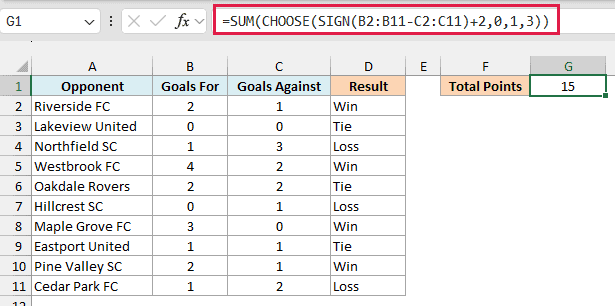
This works just like the first formula, except CHOOSE now returns points instead of words. It gives 0 for a loss, 1 for a tie, and 3 for a win, and the SUM function adds them up.
The team won 4 games and tied 3, so it gets 15 points (4 x 3 + 3 x 1). If your league gives a different number of points, just change the 0, 1, and 3 in the formula.
If you are using Excel 2019 or earlier, enter the below formula in cell D2 and then copy it down the range:
=CHOOSE(SIGN(B2-C2)+2,"Loss","Tie","Win")
For the total points in those versions, enter the below formula in cell G1 and press Ctrl+Shift+Enter instead of Enter, so Excel treats it as an array formula:
=SUM(CHOOSE(SIGN(B2:B11-C2:C11)+2,0,1,3))
Example 4: Spot When a Number Switches Between Positive and Negative
This next one compares the sign of each value with the one before it.
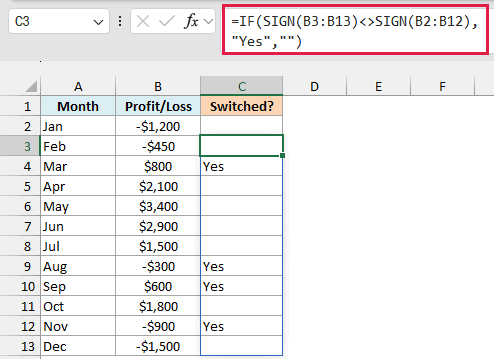
Below is the monthly profit or loss of a food truck, and I want to mark the months where the business switched from a loss to a profit (or from a profit to a loss) with a “Yes” in column C.
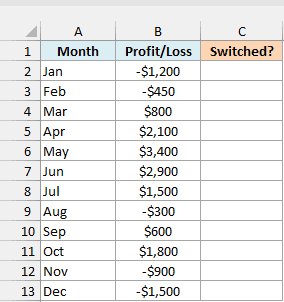
January has no month before it to compare with, so the formula goes in cell C3 (February):
=IF(SIGN(B3:B13)<>SIGN(B2:B12),"Yes","")
How this formula works:
- SIGN(B3:B13) gets the sign of each month from February to December.
- SIGN(B2:B12) gets the sign of the month before each of those, from January to November.
- <> checks whether the two signs are different, which means the business crossed from one side of zero to the other.
- IF returns “Yes” when they’re different and leaves the cell empty when they’re not.
So March gets a “Yes”, because the business went from a $450 loss in February to an $800 profit. August, September, and November get a “Yes” too.
None of these months is exactly $0, but if one was, SIGN would give it a 0, which is different from both 1 and -1.
So a month that goes from a loss to exactly $0 would also get a “Yes”, since it’s no longer a loss.
If you are using Excel 2019 or earlier, enter the below formula in cell C3 and then copy it down the range:
=IF(SIGN(B3)<>SIGN(B2),"Yes","")
Example 5: Sum Values That Meet One Condition or Another
Let’s finish with an advanced use, where SIGN stops a SUM formula from counting the same row twice.
Below is a list of bakery orders, and I want the total sales of every order that’s either a Cake (in F1) or was placed Online (in F2). The total goes in F3.
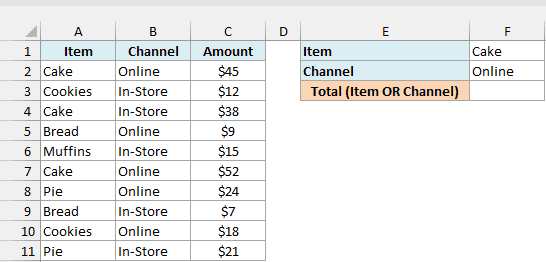
Here is the formula:
=SUM(SIGN((A2:A11=F1)+(B2:B11=F2))*C2:C11)
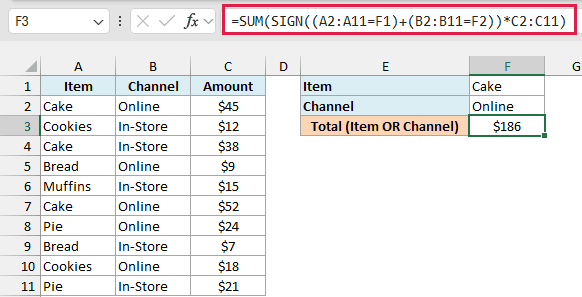
How this formula works:
- (A2:A11=F1) checks each order for Cake and gives TRUE or FALSE. (B2:B11=F2) does the same check for Online.
- Adding the two checks turns TRUE into 1 and FALSE into 0. So each order gets 0 (matches neither), 1 (matches one), or 2 (a cake ordered online, which matches both).
- SIGN(…) turns that 2 into a 1, so an order that matches both conditions is still counted only once.
- C2:C11 gets multiplied by those 1s and 0s, so only the matching orders keep their amounts, and SUM adds them up to $186.
Without SIGN, the two cake orders placed online ($45 and $52) would be counted twice. The formula =SUM(((A2:A11=F1)+(B2:B11=F2))*C2:C11) returns $283 instead of the correct $186.
You can’t do this with the SUMIFS function, because it only adds up rows that meet all the conditions (AND logic). Here we want rows that meet any one of them (OR logic).
In Excel 2019 or earlier, the SUM version only works if you enter it with Ctrl+Shift+Enter. So if you are using one of those versions, enter the below formula in cell F3 instead, which works with a normal Enter:
=SUMPRODUCT(SIGN((A2:A11=F1)+(B2:B11=F2))*C2:C11)
The SUMPRODUCT function can work with whole ranges without needing Ctrl+Shift+Enter, and it returns the same $186.
So these are five ways you can use the SIGN function in Excel.
And if all you need is to remove the minus sign from a number, the ABS function is the simpler choice. You’ll often see =A2*SIGN(A2) used for this, but =ABS(A2) gives the same result.
I hope you found this article helpful.
Other Excel Articles You May Also Like:
