

The PRODUCT function multiplies numbers together and gives you the result. You can hand it numbers, cell references, or whole ranges, and it multiplies everything in one go.
It does the same job as the asterisk (*) operator, with one useful difference. PRODUCT skips empty cells and text, while a formula like =A2*B2*C2 returns 0 or a #VALUE! error when it hits one.
In this tutorial, I’ll show you how to use PRODUCT for everyday multiplication, how it handles blanks, and how to use it for compound growth, stacked discounts, and row-by-row results.
Follow along with the example file
PRODUCT Function Examples.xlsx
PRODUCT Function Syntax
Here is the syntax of the PRODUCT function:
=PRODUCT(number1, [number2], ...)
- number1 – The first number, cell, or range you want to multiply. This one is required.
- [number2], … – Any more numbers, cells, or ranges to multiply. These are optional, and you can use up to 255 arguments in total.
When you give PRODUCT a range, it only multiplies the numbers in it and skips everything else, including TRUE/FALSE values.
If a range has no numbers at all (every cell is empty or has text), PRODUCT returns 0, not 1. So anything you multiply by that result also becomes 0.
An error inside a range is not skipped. If one of the cells has an error like #DIV/0!, PRODUCT returns that same error, so you need to fix the error in the source cell first.
The PRODUCT function works in all Excel versions, including Microsoft 365, Excel 2024, 2021, 2019, 2016, Excel for Mac, and Excel on the web.
When to Use the PRODUCT Function
Use this function when you need to:
- Multiply several numbers in a row, like length x width x price
- Multiply values where some of the factors may be blank or missing
- Combine yearly growth rates into one total growth figure
- Apply several discounts or markdowns one after another
- Count possible combinations, like how many outfits you can make from what you packed
Let me show you a few practical examples of how to use the PRODUCT function in Excel.
Example 1: Multiply Cells in a Row With PRODUCT
Let’s start with a simple example.
Below is a list of rooms with the length, width, and flooring price per square foot for each one, and I want to calculate the flooring cost for each room in column E.
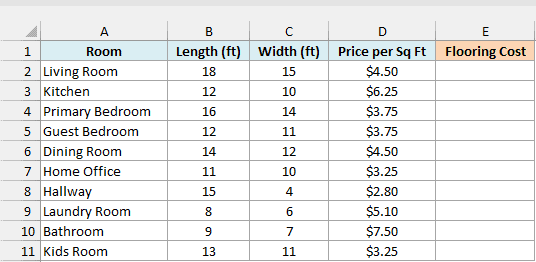
Here is the formula:
=PRODUCT(B2:D2)
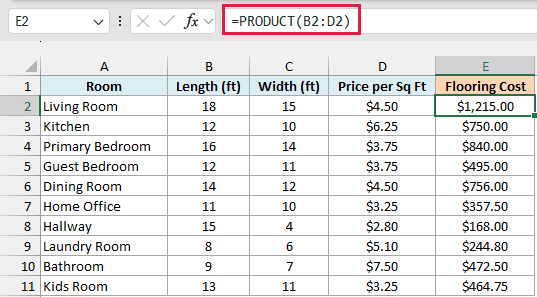
I entered this formula in cell E2 and then copied it down to E11. For the living room, PRODUCT multiplies 18 x 15 x $4.50, which gives a flooring cost of $1,215.00.
Since B2:D2 is a range, you don’t have to list each cell. If you ever add another factor in the next column, you just extend the range.
You may wonder why I didn’t use =PRODUCT(B2:D11) once to get all ten results. PRODUCT always returns a single number, so that formula multiplies all 30 values together into one huge result instead of giving you one cost per room.
If what you need is the total flooring cost for all rooms in one cell, that’s a job for the SUMPRODUCT function. =SUMPRODUCT(B2:B11,C2:C11,D2:D11) multiplies each row and adds up the results, which gives $5,763.55 here.
Example 2: Excel Multiply Formula With Separate Cells
PRODUCT doesn’t need its numbers to sit next to each other in a range.
Below is a list of employees with the overtime hours they worked and their hourly rate, along with the overtime multiplier in cell G2, and I want to calculate the overtime pay for each employee in column D.
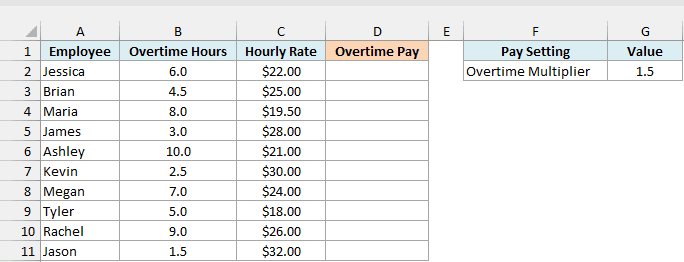
Here is the formula:
=PRODUCT(B2,C2,$G$2)
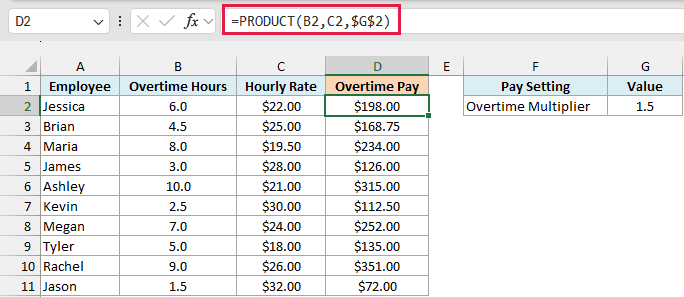
Here, each cell is a separate argument, separated by commas. For Jessica, PRODUCT multiplies 6 hours x $22.00 x 1.5, which gives $198.00.
The dollar signs in $G$2 make it an absolute reference. When you copy the formula down, B2 and C2 change to B3 and C3, but $G$2 keeps pointing at the multiplier.
Keeping the multiplier in its own cell means you can change it once (say, to 2 for holiday overtime), and every row updates.
Since none of these cells are blank, the formula =B2*C2*$G$2 gives the same results here. The next example shows where the two stop matching.
Example 3: PRODUCT vs the Asterisk With Blank and Text Cells
This is where PRODUCT behaves differently from the regular multiplication operator.
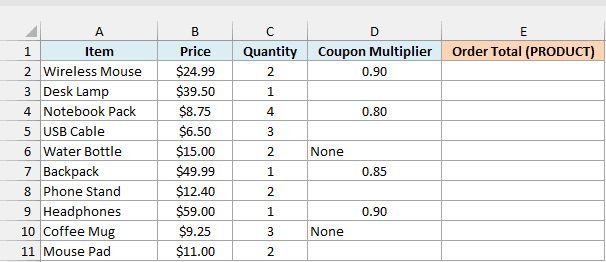
Below is a list of online orders with the price, quantity, and a coupon multiplier for each item (0.90 means 10% off), and I want the order total in column E. Orders without a coupon have an empty cell or the word None.
Here is the formula:
=PRODUCT(B2:D2)
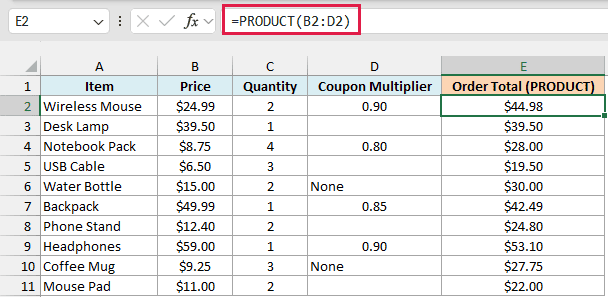
For orders with a coupon, PRODUCT multiplies all three values. The wireless mouse comes to $24.99 x 2 x 0.90, which is $44.98.
For orders without a coupon, PRODUCT skips the empty cell or the word None and multiplies the price by the quantity. So the desk lamp gives $39.50 and the water bottle gives $30.00.
Now here is the same calculation with the asterisk operator in column F:
=B2*C2*D2
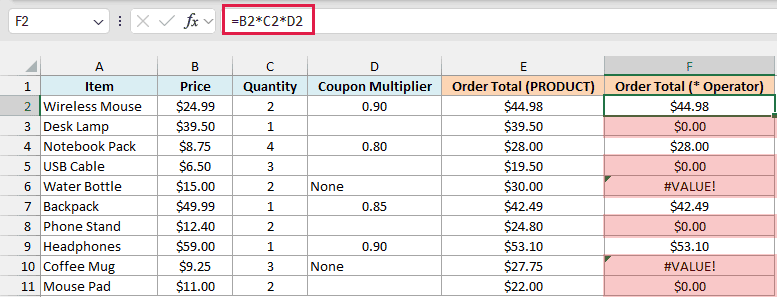
Column F shows why the asterisk is the wrong choice here. An empty cell counts as 0, so every order with an empty coupon cell gets a total of $0.00.
The text None is even worse. Excel can’t multiply a word, so the water bottle and coffee mug orders return a #VALUE! error.
Important: PRODUCT skips every blank, even one that’s blank by mistake. If someone forgets to enter a quantity, PRODUCT still returns a total (just the price times the coupon), so make sure the columns that must have a value are filled in.
If you want the formula to catch a missing quantity for you, you can check that cell with the ISBLANK function before multiplying.
Example 4: Calculate Compound Growth From Yearly Returns
Now let’s use PRODUCT for something you can’t do with a simple sum.
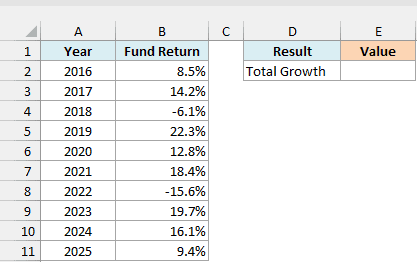
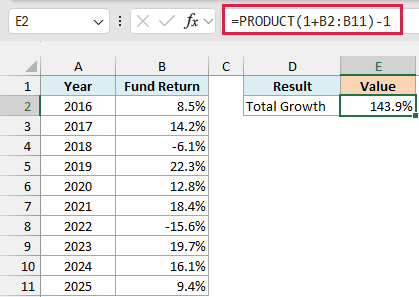
Below is a list of yearly returns for an investment fund from 2016 to 2025, and I want to calculate the total growth over all ten years in cell E2.
Here is the formula:
=PRODUCT(1+B2:B11)-1
How this formula works:
- 1+B2:B11 turns each return into a growth factor. A return of 8.5% becomes 1.085, and a loss of 6.1% becomes 0.939.
- PRODUCT(…) multiplies all ten growth factors together, which gives about 2.439. That means the money grew to about 2.4 times what it started at.
- -1 removes the starting amount, which leaves only the growth, 143.9%.
So $10,000 invested at the start of 2016 would be worth about $24,386 at the end of 2025.
You can’t get this by adding the returns. They add up to 99.7%, but each year’s return is earned on a balance that already includes the earlier gains (or losses), so the real growth is much higher.
If you are using Excel 2019 or earlier, the above formula only works when you enter it with Control + Shift + Enter instead of just Enter.
In those versions, you can also use the FVSCHEDULE function, which grows a starting amount through a list of rates the same way. Enter the below formula in cell E2 and press a regular Enter:
=FVSCHEDULE(1,B2:B11)-1
Example 5: Conditional Product (PRODUCT IF) for Stacked Markdowns
Excel doesn’t have a PRODUCTIF function, but you can get the same result by combining PRODUCT with the FILTER function.
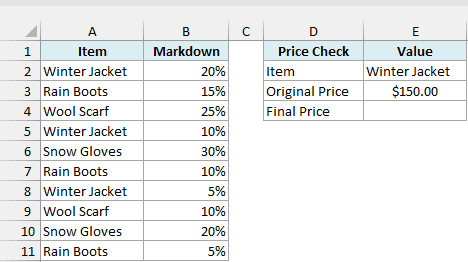
Below is a list of store markdowns where some items were marked down more than once, and I want to calculate the final price of one item in cell E4. The item name is in E2 and its original price is in E3.
Here is the formula:
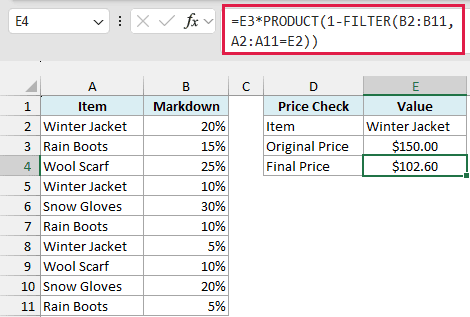
=E3*PRODUCT(1-FILTER(B2:B11,A2:A11=E2))
How this formula works:
- FILTER(B2:B11,A2:A11=E2) pulls out only the markdowns for the Winter Jacket, which are 20%, 10%, and 5%.
- 1-FILTER(…) turns each markdown into the share of the price that’s left: 0.80, 0.90, and 0.95.
- PRODUCT(…) multiplies those together, and multiplying by E3 applies the result to the $150.00 original price, which gives $102.60.
Notice that the final price isn’t $150.00 minus 35%, which would be $97.50. Each markdown is taken off the price that’s already been reduced, which is why you need to multiply the factors instead of adding up the percentages.
If you type an item that has no markdowns in E2, FILTER finds nothing and the formula returns a #CALC! error.
To get the original price back instead, type ,0 right after A2:A11=E2 inside FILTER. That tells FILTER to return 0 when nothing matches, so the formula gives back the full original price.
FILTER is available in Excel 365 and Excel 2021 or later. If you are using Excel 2019 or earlier, enter the below formula in cell E4 and press Control + Shift + Enter:
=E3*PRODUCT(IF(A2:A11=E2,1-B2:B11))
This works because IF returns FALSE for every row that isn’t a Winter Jacket, and PRODUCT skips those FALSE values. One catch is that for an item with no markdowns at all, this version returns $0.00 instead of an error.
Example 6: Multiply Each Row With One Formula (BYROW)
Let’s step it up and get a result for every row with a single formula.
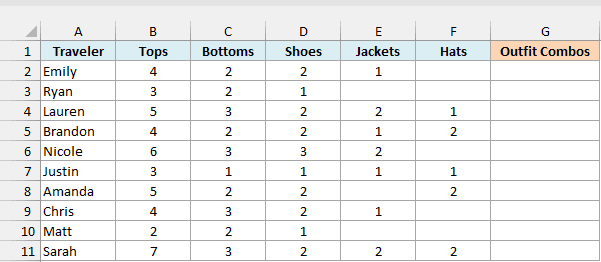
Below is a list of travelers with the number of tops, bottoms, shoes, jackets, and hats each one packed, and I want to count the possible outfits for each one in column G. A few travelers skipped jackets or hats, so those cells are empty.
Here is the formula:
=BYROW(B2:F11,LAMBDA(r,PRODUCT(r)))
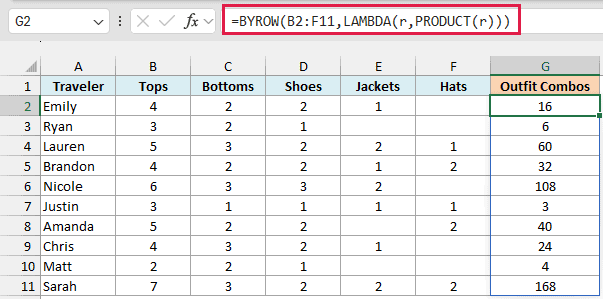
I entered this formula only in cell G2, and it spills the results down to G11.
How this formula works:
- BYROW(B2:F11,…) goes through the table one row at a time and hands each row to the LAMBDA.
- LAMBDA(r,PRODUCT(r)) names that row r and runs PRODUCT on it, so each traveler gets their own result.
Emily packed 4 tops, 2 bottoms, 2 pairs of shoes, and 1 jacket, so she can make 4 x 2 x 2 x 1 = 16 outfits. Her hats cell is empty, and PRODUCT simply skips it.
That blank skipping is why PRODUCT sits inside BYROW here. The shorter spilling formula =B2:B11*C2:C11*D2:D11*E2:E11*F2:F11 treats every empty cell as 0, so it returns 0 outfits for Emily and for everyone else who left a cell empty.
BYROW and LAMBDA are available in Excel 365 and Excel 2024 (learn more in my LAMBDA function tutorial). If you are using an older version, enter the below formula in cell G2 and then copy it down to G11:
=PRODUCT(B2:F2)
So these are some practical ways to use the PRODUCT function in Excel. The main thing that sets it apart from the asterisk is how it skips blanks and text, so keep that in mind whenever an empty cell really means missing data.
I hope you found this Excel tutorial useful.
Other Excel Articles You May Also Like:
