

The ISBLANK function in Excel checks whether a cell is empty. It returns TRUE if the cell is empty and FALSE if it holds anything, which lets your formulas handle missing data.
One catch is that a cell with a formula returning empty text (“”) looks blank, but ISBLANK still returns FALSE for it.
In this article, I’ll show you how to use ISBLANK with seven examples, including filling in a fallback value, highlighting rows with a missing value, and getting the last non-blank value in a column.
Follow along with the example file
ISBLANK Function Examples.xlsx
ISBLANK Function Syntax
Here is the syntax of the ISBLANK function:
=ISBLANK(value)
- value – The cell (or range of cells) you want to check.
ISBLANK returns TRUE only when value points to a cell with nothing in it. Even a single space or a 0 counts as something, so a cell holding either of those returns FALSE.
When value is a range, like B2:B11, Excel 365, 2024, and 2021 return one TRUE or FALSE for each cell in that range. The results spill into the cells below the formula.
The ISBLANK function works in all Excel versions, including 365, 2024, 2021, 2019, 2016, Mac, and the web.
When to Use the ISBLANK Function
Use this function when you need to:
- Find which entries in a list are still missing
- Show a fallback value when a cell is empty
- Skip a calculation until its input is filled in
- Highlight rows that have a missing value
- Find the last filled cell in a column
Let me show you a few practical examples of how to use ISBLANK in Excel.
Example 1: Check If a Cell Is Blank
Let’s start with the simplest use, checking which cells in a list are empty.
Below is a bake sale sign-up sheet with the item each volunteer is bringing, and I want a TRUE or FALSE in column C that shows whether each volunteer’s item is missing.
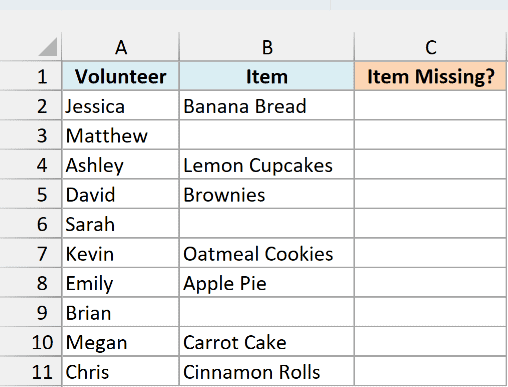
Here is the formula:
=ISBLANK(B2:B11)
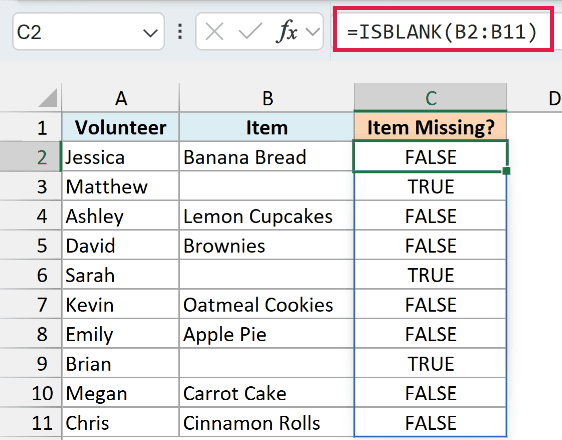
This formula checks every cell in B2:B11 and returns TRUE for an empty cell and FALSE for a filled one. Since I gave it the whole range, the one formula in C2 spills its results all the way down to C11.
So Matthew, Sarah, and Brian are the three volunteers who still need to pick an item.
If you are using Excel 2019 or earlier, enter the below formula in cell C2 and then copy it down the range:
=ISBLANK(B2)
The same idea works for the other spilling formulas in this article. Point the formula at the first row instead of the whole range, then copy it down.
Example 2: Use IF and ISBLANK to Fill In a Fallback Value
ISBLANK gets really useful inside the IF function, where you can decide what to show when a cell is empty.
Below is a list of first names and nicknames, and I want a badge name in column C that uses the nickname when there is one and the first name when there isn’t.
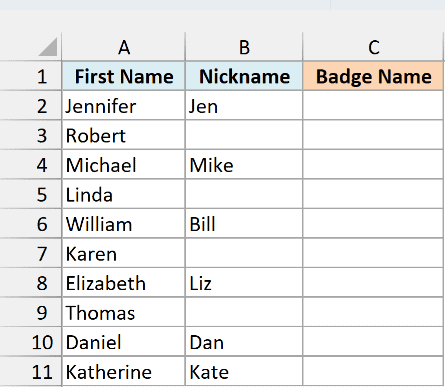
Here is the formula:
=IF(ISBLANK(B2:B11),A2:A11,B2:B11)
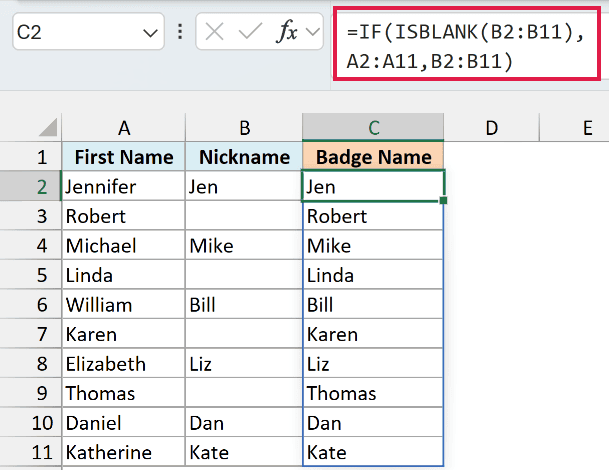
In the above formula, ISBLANK checks each nickname cell. When the nickname is empty (TRUE), the IF function returns the first name from column A, and when it’s filled (FALSE), IF returns the nickname from column B.
That’s why Robert, Linda, Karen, and Thomas get their first names on their badges, while everyone else gets their nickname.
Example 3: Skip a Calculation When an Input Is Missing
Next, let’s fix a common problem where an empty cell turns a cost into $0.00.
Below is a party supplies list with the price per pack and the number of packs ordered, and I want the cost in column D, but only for the items where Packs Ordered is filled in.
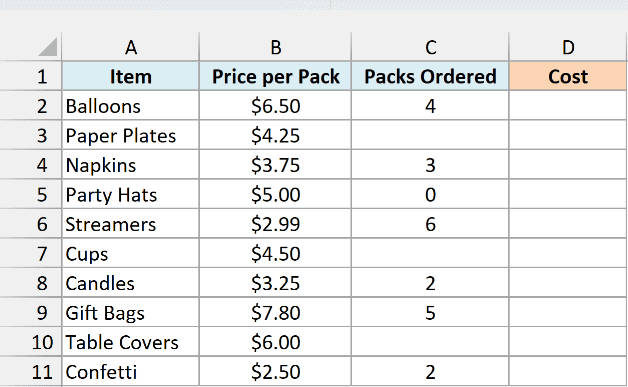
If you simply multiply the two columns, Excel treats an empty Packs Ordered cell as 0. So the cost shows as zero, as if you had decided to order nothing.
Here is the formula that leaves the cost empty instead:
=IF(ISBLANK(C2:C11),"",B2:B11*C2:C11)
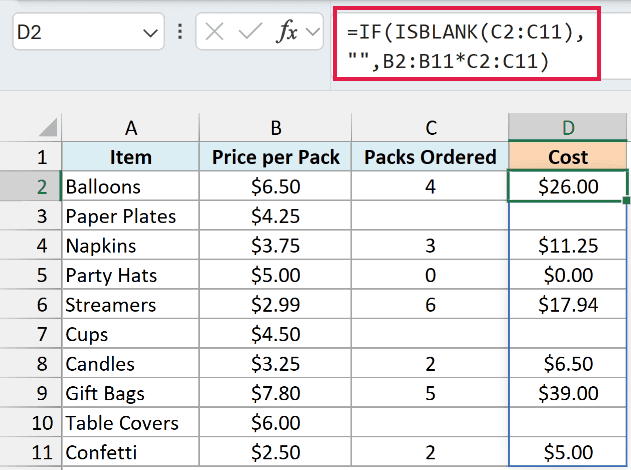
When a Packs Ordered cell is empty, the formula returns empty text (“”), so the Cost cell stays empty. Otherwise, it multiplies the price by the number of packs.
Notice that Party Hats shows $0.00. That’s because its Packs Ordered cell holds a 0, and a 0 is a value, so ISBLANK returns FALSE and the formula does the math.
Example 4: Mark a Row Incomplete If Any Field Is Empty
So far, each check looked at one cell per row. Now let’s check several cells at once.
Below is a summer camp checklist with three documents for each camper, and I want a status in column E that says Incomplete if any of the three is missing.
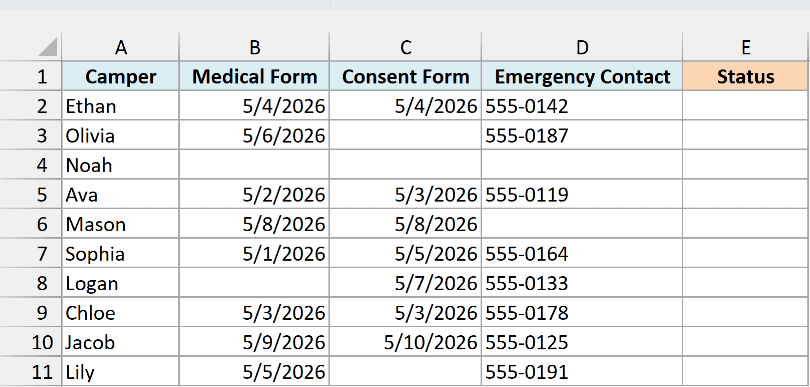
Here is the formula, which you enter in cell E2 and then copy down to E11:
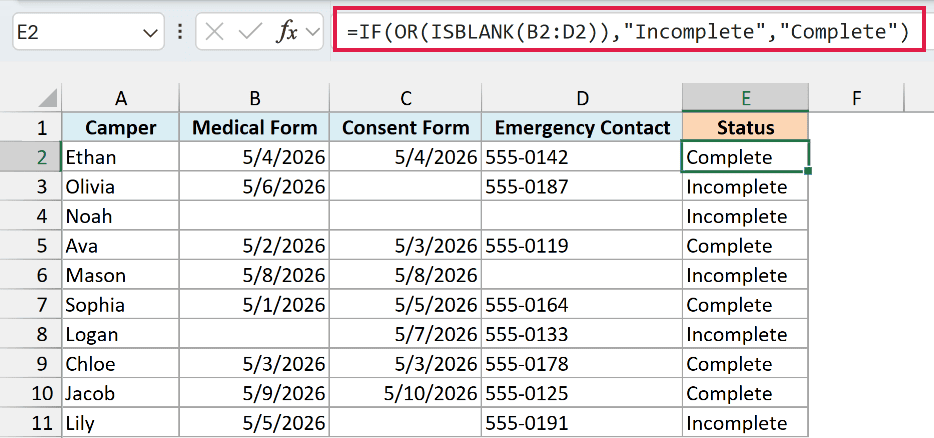
=IF(OR(ISBLANK(B2:D2)),"Incomplete","Complete")
How this formula works:
- ISBLANK(B2:D2) checks the three cells in the row and returns three TRUE or FALSE values, one for each cell.
- OR returns TRUE if any one of those values is TRUE, which means at least one document is missing.
- IF turns that into Incomplete when OR returns TRUE, and Complete when it returns FALSE.
So Noah, who has nothing filled in, and Mason, who is only missing an emergency contact, both get Incomplete. One empty cell is enough.
Here we keep this as a per-row formula because the OR function returns a single answer for everything you give it. If you point it at B2:D11, you get one Incomplete for the whole table instead of a status for each camper.
If you are using Excel 2019 or earlier, you can also use the below formula, which gives each cell its own ISBLANK. Enter it in cell E2 and copy it down:
=IF(OR(ISBLANK(B2),ISBLANK(C2),ISBLANK(D2)),"Incomplete","Complete")
Example 5: Highlight a Row If a Cell Is Blank
ISBLANK also works inside conditional formatting, which is great when you want missing entries to stand out.
Below is a delivery log with tracking numbers, customers, and delivery dates, and I want to highlight the whole row for every package that doesn’t have a delivery date yet.
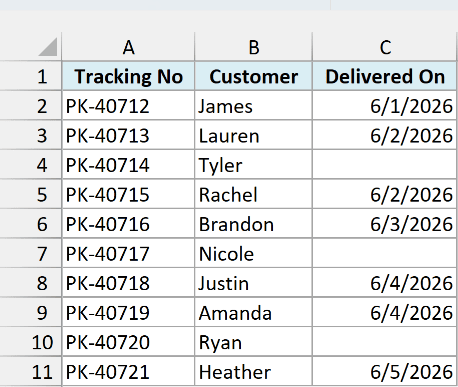
Here is the formula we’ll use in the conditional formatting rule:
=ISBLANK($C2)
Here are the steps:
- Select the cells A2:C11.
- Click the Home tab.
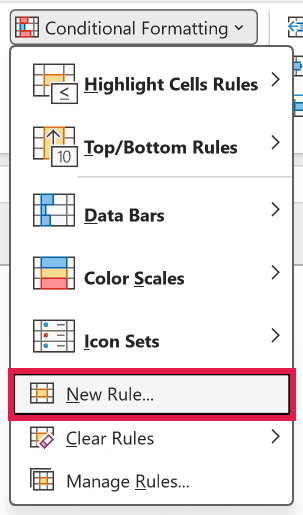
- In the Styles group, click on Conditional Formatting.
- Click on New Rule.
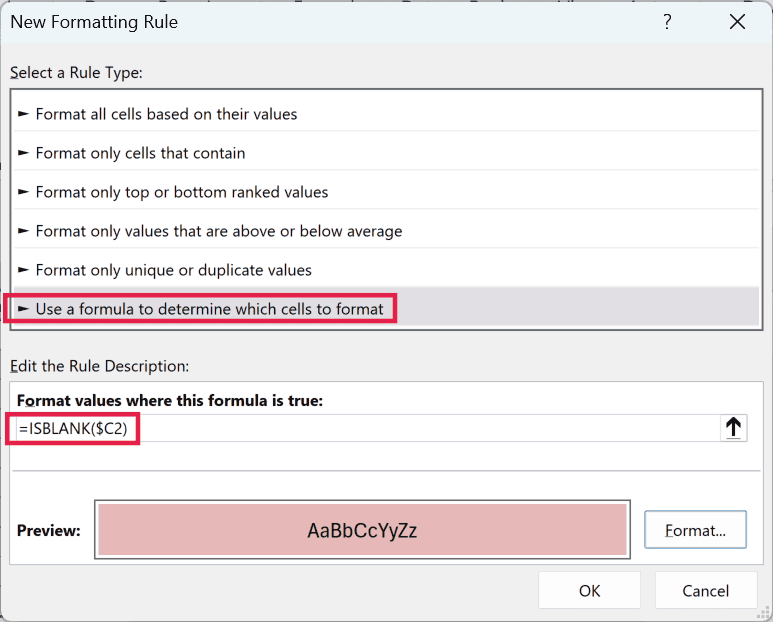
- In the New Formatting Rule dialog box, select “Use a formula to determine which cells to format”.
- In the “Format values where this formula is true” field, enter the formula =ISBLANK($C2).
- Click the Format button.
- In the Fill tab, select a light red color.
- Click OK to close the Format Cells dialog box.
- Click OK to apply the rule.
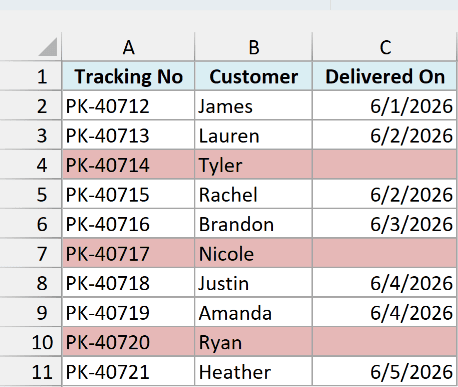
The rows for Tyler, Nicole, and Ryan are now highlighted, since those packages don’t have a delivery date yet.
The dollar sign in $C2 locks the column, which is what makes the whole row light up. Every cell in the row (A, B, and C) checks the date in column C, while the row number still moves down one row at a time.
And once you enter a delivery date for one of these packages, its highlight goes away on its own.
Example 6: Why ISBLANK Returns FALSE for Cells That Look Empty
Now let’s look at the catch I mentioned at the start.
Below is a school supplies list where a formula in column C shows Reorder when the stock drops below 10 and returns empty text otherwise, and I want to check which Reorder Note cells are blank in column D.
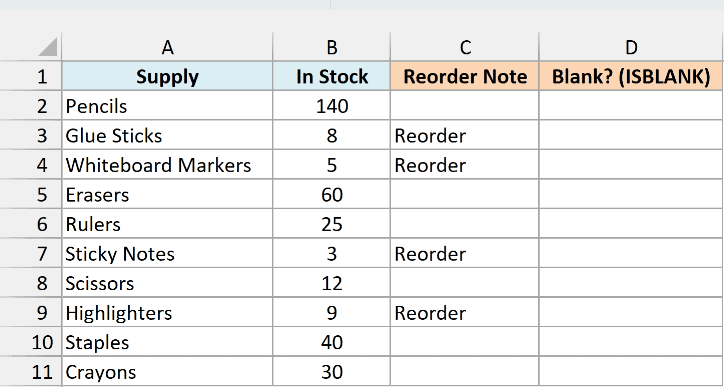
Here is the formula:
=ISBLANK(C2:C11)
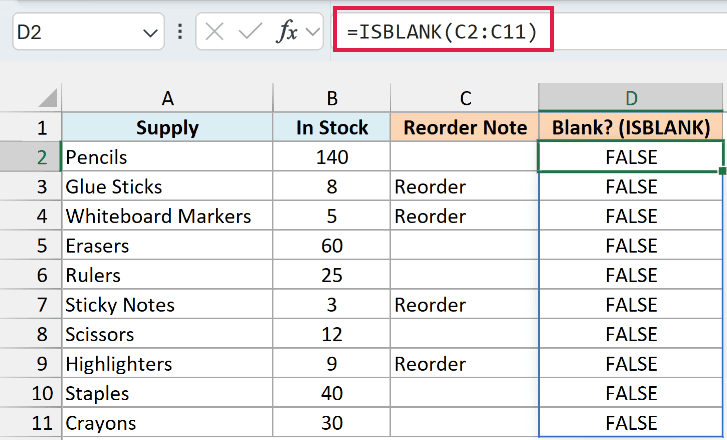
Every result is FALSE, even for Pencils and Erasers, where the note looks empty.
That’s because those cells aren’t really empty. They hold a formula, and that formula returns empty text (“”), which ISBLANK counts as something.
To check whether a cell looks empty, compare it with empty text instead. Here is the formula for column E:
=C2:C11=""
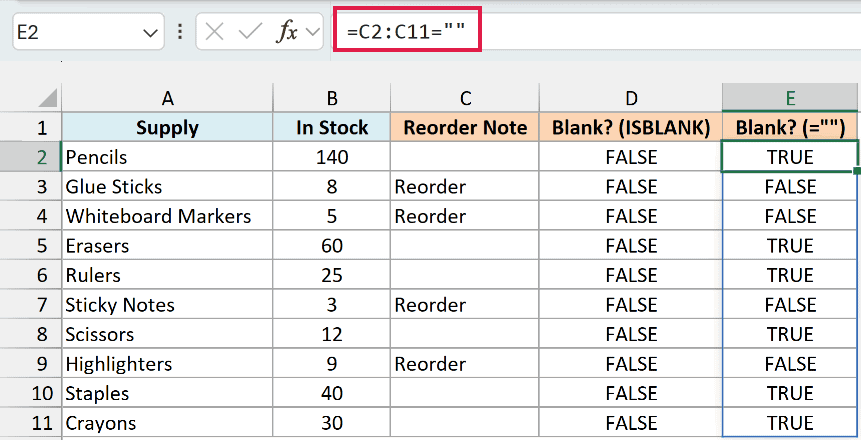
This returns TRUE for every cell that shows nothing, whether it’s truly empty or holds a formula that returns “”. So the four items that need a reorder get FALSE, and the rest get TRUE.
Important: When the cells you’re checking are filled by formulas, use the =”” check rather than ISBLANK. Otherwise, every cell that only looks empty will come back as FALSE.
Example 7: Get the Last Non-Blank Value in a Column
Let’s finish with something a bit more advanced.
Below is a weekly weigh-in log with a few weeks missing, and I want the most recent weight in cell D2.
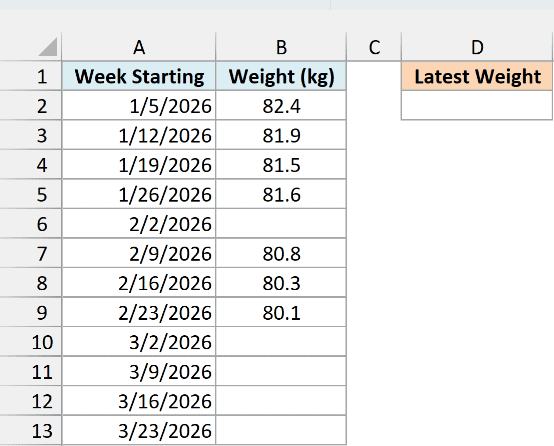
Here is the formula:
=XLOOKUP(TRUE,NOT(ISBLANK(B2:B13)),B2:B13,"No weigh-ins",0,-1)
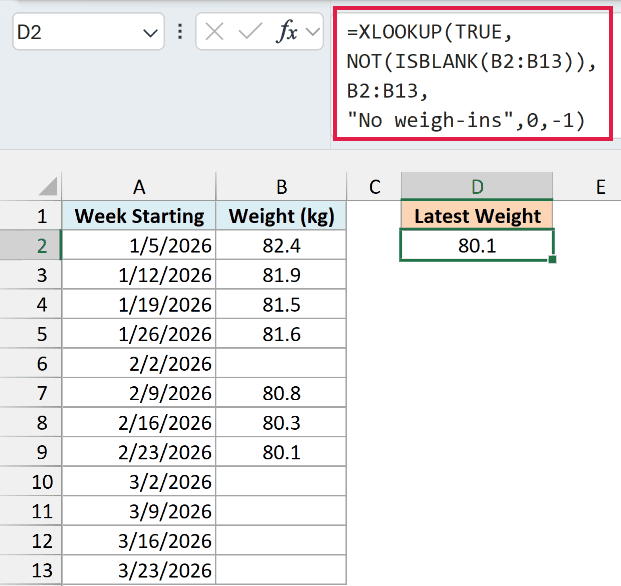
This returns 80.1, the weight from the week of 2/23/2026.
How this formula works:
- ISBLANK(B2:B13) returns TRUE for each empty weight cell and FALSE for each filled one.
- NOT flips those values, so every filled cell becomes TRUE.
- XLOOKUP looks for TRUE in that list. The 0 asks for an exact match, and the -1 tells it to search from the bottom up, so the first TRUE it finds is the last filled cell.
- It then returns the matching weight from B2:B13. If every cell were empty, you’d see “No weigh-ins” instead of an error.
The empty week in the middle (2/2/2026) doesn’t affect the result, since the formula only cares about the last filled cell. And when you add a new weight in one of the empty rows below, the result updates automatically.
The XLOOKUP function is available in Excel 365, 2024, and 2021. If you are using Excel 2019 or earlier, enter the below formula in cell D2 instead:
=LOOKUP(2,1/NOT(ISBLANK(B2:B13)),B2:B13)
This older formula returns the same 80.1, but if the whole column is empty, it shows a #N/A error instead of a message.
So these are seven practical ways to use the ISBLANK function in Excel, from a simple TRUE or FALSE check to highlighting rows and finding the last filled value.
I hope you found this Excel tutorial useful.
Other Excel Articles You May Also Like:
