

If you have a list with some gaps in it and you want to know how many cells actually have something in them, you cannot always trust a quick eyeball count.
And this is because some cells that look empty are not truly empty, like a cell with just a space or a formula that returns nothing.
Most of the time a single function gets you the right number. In this article, I’ll show you a few ways to count non-blank cells in Excel, and how to handle the tricky cases where a cell only looks empty.
A Quick Word on the Sample Data
Before we get to the methods, let me show you the data we’ll work with, because the “blank” cells here are not all the same.
I have a list of survey responses in column B. Some people answered, some left it blank, and a couple of cells are not what they seem.
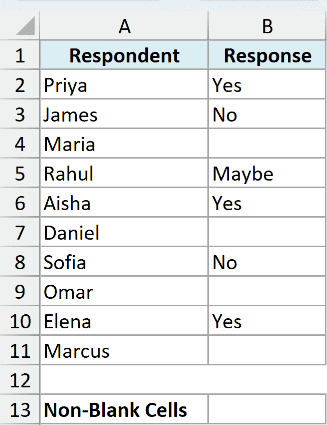
Here is what the range B2:B11 contains:
- Six cells with typed answers (Yes, No, Maybe, and so on)
- One cell that has only a space in it (B9)
- One cell with a formula that returns an empty string “” (B7)
- Two cells that are genuinely empty (B4 and B11)
The space and the empty-string formula are the troublemakers. They look blank, but Excel does not always treat them as blank. That difference is exactly why the methods below can give you different answers.
Method 1: Using the COUNTA Function (Recommended)
The simplest way to count non-blank cells is the COUNTA function. It counts every cell in a range that is not truly empty, no matter what is inside it.
Let me show you how it works.
Here is the formula:
=COUNTA(B2:B11)
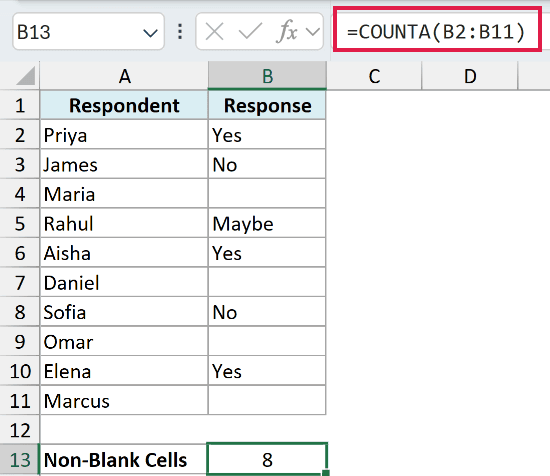
This returns 8 for our data.
How does this formula work?
COUNTA looks at all 10 cells and counts the ones that contain something. The six typed answers are counted, which gets us to six.
It also counts the cell with just a space (B9), because a space is a real character. And it counts the formula in B7 that returns “”, because Microsoft treats a formula result as a value even when that value is an empty string.
That brings the total to 8. Only the two genuinely empty cells, B4 and B11, are left out.
So here is the caveat to keep in mind. COUNTA counts cells that look blank but are not. If you have spaces or empty-string formulas in your range, COUNTA will include them. For most everyday lists that is fine, which is why I recommend it as the default. If you need to leave those out, use Method 3.
Method 2: Using the COUNTIF Function
Here’s another way to do the same thing. The COUNTIF function can count non-blank cells when you give it the “not equal to empty” criteria.
This is handy when you are already using COUNTIF elsewhere in your sheet and want to stay consistent.
We’re still working with that same survey list in B2:B11, the six typed answers, the lone space in B9, the empty-string formula in B7, and the two truly empty cells. The aim is to count how many of those ten cells are not blank.
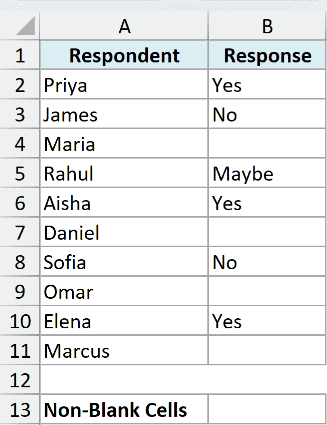
Here is the formula:
=COUNTIF(B2:B11,"<>")
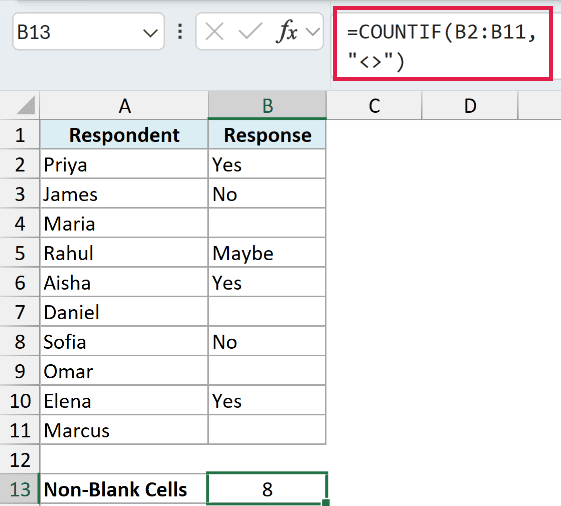
This also returns 8 for our data.
How does this formula work?
The "<>" part means “not equal to nothing”, so COUNTIF counts every cell that is not empty.
In practice this behaves just like COUNTA for our range. It counts the six typed answers, the space in B9, and the empty-string formula in B7, giving us 8 again.
So if COUNTA and COUNTIF give the same answer here, why have both? Mostly preference. Use whichever fits the rest of your formulas. Just know that, like COUNTA, this approach still counts spaces and empty-string formulas as non-blank.
Method 3: Using SUMPRODUCT to Ignore Empty-String Formulas
Now let’s look at the method that handles the tricky case. If your range has formulas that return “”, and you do not want those counted, SUMPRODUCT is the way to go.
This one checks the actual value of each cell, not just whether the cell holds something.
Same survey responses in B2:B11 here, but this time the cell that matters most is B7, the formula returning an empty string “”. We want a count of the non-blank cells that leaves that one out.
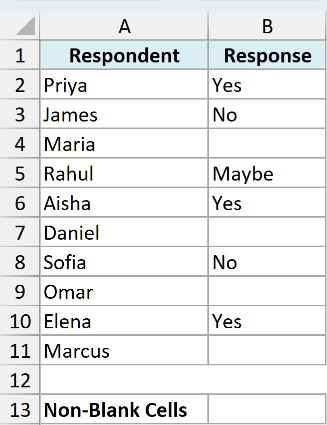
Here is the formula:
=SUMPRODUCT(--(B2:B11<>""))
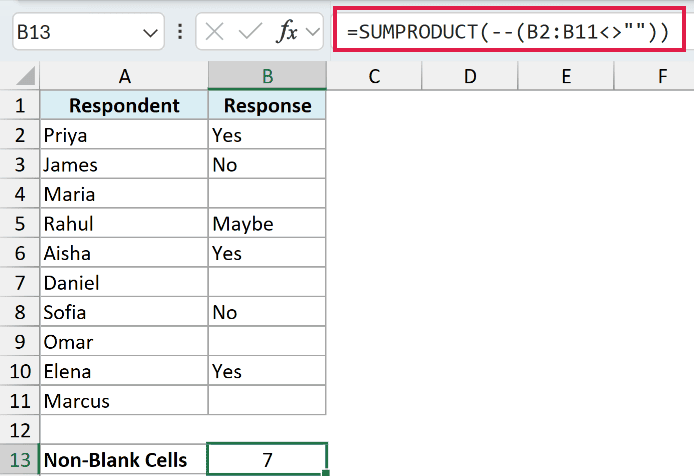
This returns 7 for our data, which is one less than COUNTA gave us.
How does this formula work?
The B2:B11<>"" part checks each cell and asks “is the value something other than an empty string?” That gives a list of TRUE and FALSE results.
The double minus sign (--) turns those into 1s and 0s. SUMPRODUCT then adds up the 1s to give you the final count.
Here is where it differs from COUNTA. The formula in B7 returns “”, so its value IS an empty string. SUMPRODUCT marks it FALSE and skips it. The space in B9 is not an empty string, so it still gets counted.
That is why we get 7 instead of 8. The empty-string formula cell is the one cell where COUNTA and SUMPRODUCT disagree. If you want a count that ignores formulas displaying nothing, this is your formula.
Method 4: Using the Status Bar (No Formula)
If you just want a quick number and don’t need it saved in a cell, you don’t need a formula at all. Excel shows a count at the bottom of the window whenever you select a range.
The data is the same survey list sitting in B2:B11, with its mix of typed answers, a space, an empty-string formula, and a couple of empty cells. All we want here is a fast count of the non-blank ones without writing anything.
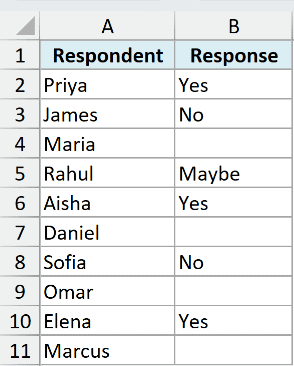
Here are the steps to see the count in the status bar:
- Select the range you want to check, for example B2:B11.
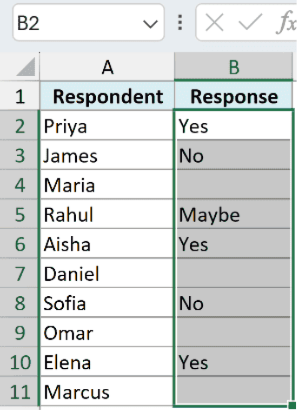
- Look at the status bar at the bottom right of the Excel window and read the Count value.

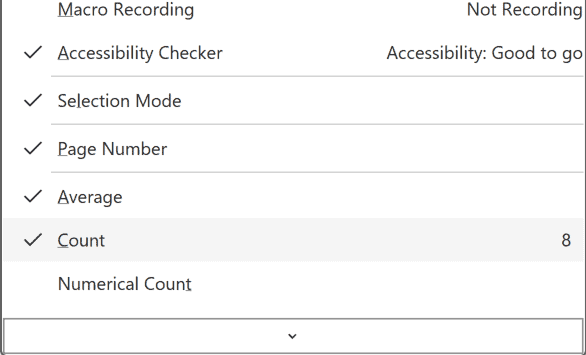
The Count here works just like COUNTA, so for our data it shows 8. It counts non-blank cells, which includes the space and the empty-string formula.
If you don’t see Count in the status bar, here is how to switch it on:
- Right-click anywhere on the status bar and click Count in the menu so a checkmark appears next to it.
Pro Tip: The status bar count is great for a quick check, but it does not save anywhere. If you need the number in a cell or in a report, use one of the formula methods above.
Picking the Right Count Function
You’ll often see COUNT, COUNTA, and COUNTBLANK mentioned together, and it’s easy to grab the wrong one. Here is the short version so you can pick correctly.
- COUNTA counts cells that have anything in them: text, numbers, dates, errors, even spaces. This is the one for counting non-blank cells.
- COUNT counts only cells with numbers. So
=COUNT(B2:B11)returns 0 for our survey list because every answer is text. Use it when you specifically want a count of numeric values. - COUNTBLANK does the opposite of COUNTA. It counts the empty cells. For our data
=COUNTBLANK(B2:B11)returns 3, because it counts the two genuinely empty cells plus the formula in B7 that returns “”.
Notice that COUNTBLANK treats the empty-string formula as blank, while COUNTA treats it as filled. That is the same nuance from Method 3, just seen from the other side.
Things to Keep in Mind
- A cell with only a space is not blank. COUNTA, COUNTIF, and the status bar will all count it. If your data has stray spaces, clean them up first with Find and Replace so your count reflects the real answers.
- Formulas that return “” are the usual surprise. COUNTA and COUNTIF count them as filled, but SUMPRODUCT and COUNTBLANK treat them as empty. Decide whether a “blank from a formula” should count, then pick your method to match.
- COUNT and COUNTA are not the same thing. COUNT is numbers only, COUNTA is anything. If your list is text and you get a 0, you probably reached for COUNT by mistake.
- The status bar Count does not save. It is perfect for a one-off check, but use a formula when you need the number to stay in your sheet or update automatically.
In this article, I showed you how to count cells that are not blank in Excel using COUNTA, COUNTIF, SUMPRODUCT, and the status bar, along with how each one handles cells that only look empty.
I hope you found this article helpful.
Other Excel Articles You May Also Like:

Simple and easy!