

The ISFORMULA function checks whether a cell has a formula in it. It returns TRUE if the cell holds a formula, and FALSE if it holds a typed value, text, or nothing at all.
This comes in handy because a number typed over a formula looks exactly like a calculated one. ISFORMULA helps you catch those cells before they cause wrong totals.
Follow along with the example file
ISFORMULA Function Examples.xlsx
ISFORMULA Function Syntax
Here is the syntax of the ISFORMULA function:
=ISFORMULA(reference)
- reference – The cell or range you want to check. It can be a cell reference, a range reference, or a defined name.
The reference has to point to a cell. If you put a value straight into the function instead, like =ISFORMULA(5) or =ISFORMULA("B4"), Excel won’t let you enter the formula.
A defined name works only when it refers to a cell. A name that holds a constant, such as a TaxRate name set to 0.08, gives a #VALUE! error.
The ISFORMULA function works in Excel 2013 and later versions, including Microsoft 365, Excel 2024, 2021, 2019, 2016, and Excel for Mac.
When to Use the ISFORMULA Function
Use this function when you need to:
- Spot cells where someone typed a number over a formula
- Label each cell in a column as a formula or a typed value
- Count how many cells in a column are missing their formula
- List the rows that need their formula put back
- Highlight typed values with conditional formatting
Let me show you a few practical examples of how to use ISFORMULA.
Example 1: Check If Cells Contain a Formula
Let’s start with the most common use.
Below is an office supply order where the Line Total should be the quantity times the unit price, and I want to check which Line Total cells have a formula, with a TRUE or FALSE for each row in column E.
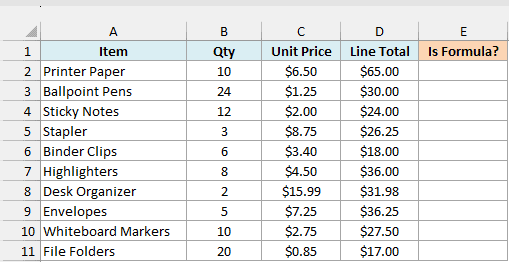
Here is the formula:
=ISFORMULA(D2:D11)
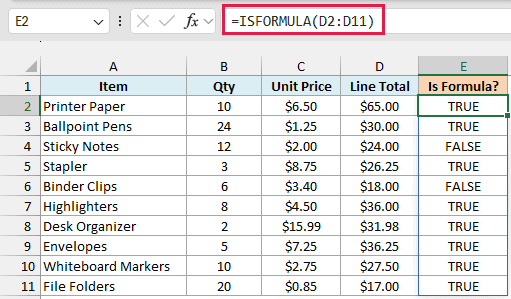
This one formula checks every cell in D2:D11 and spills a TRUE or FALSE for each row. Sticky Notes and Binder Clips show FALSE, which means those totals were typed in.
Notice that you couldn’t tell this by looking at the totals. The Sticky Notes total of $24.00 is exactly what the formula would give, but the Binder Clips total of $18.00 is wrong, since 6 times $3.40 is $20.40.
ISFORMULA also updates on its own. If someone types over another Line Total later, its result flips to FALSE as soon as they press Enter.
If you are using Excel 2019 or earlier, enter the below formula in cell E2 and then copy it down the range:
=ISFORMULA(D2)
Pro Tip: To show the formulas themselves instead of their results, press Control + the grave accent key (the key just above Tab). Press it again to go back to the normal view.
Example 2: What ISFORMULA Counts as a Formula
Example 1 was simple, but some kinds of cell content give results that aren’t obvious at first. So let’s look at exactly what ISFORMULA treats as a formula.
Below I have different kinds of cell content in column B, with a description of each one in column A, and I want to check which of them are formulas in column C.
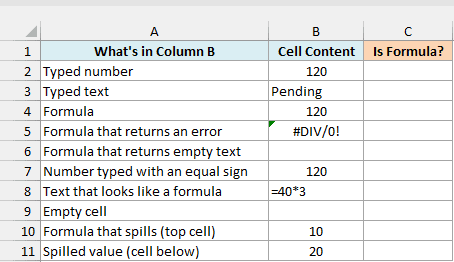
Here is the formula:
=ISFORMULA(B2:B11)
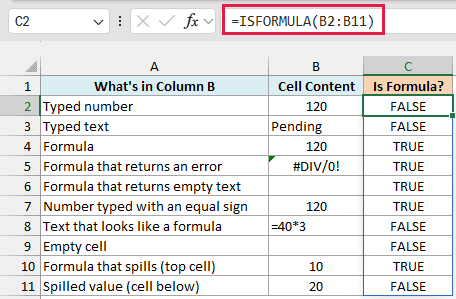
When a formula returns an error, like the #DIV/0! in B5, ISFORMULA still returns TRUE. It only cares whether there is a formula in the cell, not what that formula gives back.
B6 looks empty, but it holds an IF formula that returns empty text (“”), so it’s TRUE. The truly empty cell in B9 is FALSE.
B7 shows the number 120, but I typed it as =120. That makes it a formula, so ISFORMULA returns TRUE.
B8 goes the other way. It was typed with an apostrophe in front ('=40*3), so Excel stores it as text, and ISFORMULA returns FALSE.
Important: Only B10, the cell that holds the spilling formula, returns TRUE. B11 just shows a spilled result and returns FALSE, so a column filled by one spill formula will look like it is full of typed values.
Example 3: Label Formulas and Typed Values Using IF and ISFORMULA
TRUE and FALSE are fine for a quick check, but labels are easier to read, especially when you’re sharing the sheet with someone.
Below is a sports store price list where the Sale Price should be the regular price minus the discount, and I want to show whether each sale price is a formula or a typed value in column E.
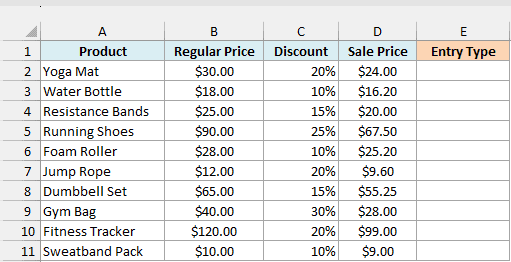
Here is the formula:
=IF(ISFORMULA(D2:D11),"Formula","Typed value")
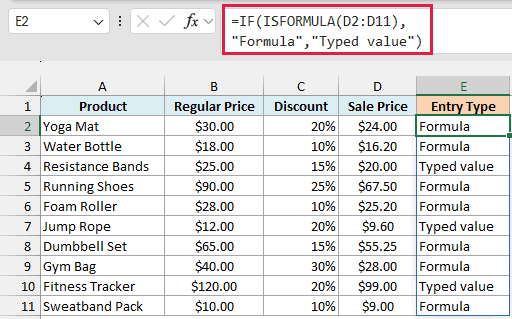
Here, ISFORMULA checks each Sale Price and returns TRUE or FALSE, and the IF function turns those into the two labels. Resistance Bands, Jump Rope, and Fitness Tracker come back as Typed value.
You can change the labels to anything that suits your sheet, such as “OK” and “Check this”.
If you are using Excel 2019 or earlier, enter the below formula in cell E2 and then copy it down the range:
=IF(ISFORMULA(D2),"Formula","Typed value")
Example 4: Count Cells With Formulas and Typed Values
On a big sheet, you may just want to know how many cells need attention, without scanning a long column of TRUE and FALSE.
Below is a bookstore sales list where Revenue should be the copies sold times the price, and I want to count how many Revenue cells are formulas and how many are typed values, with the counts in F2 and G2.
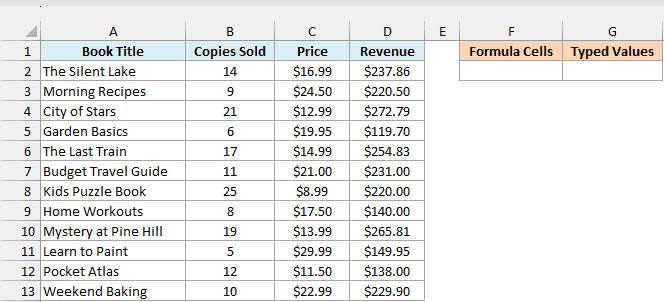
Here is the formula to count the formula cells:
=SUMPRODUCT(--ISFORMULA(D2:D13))
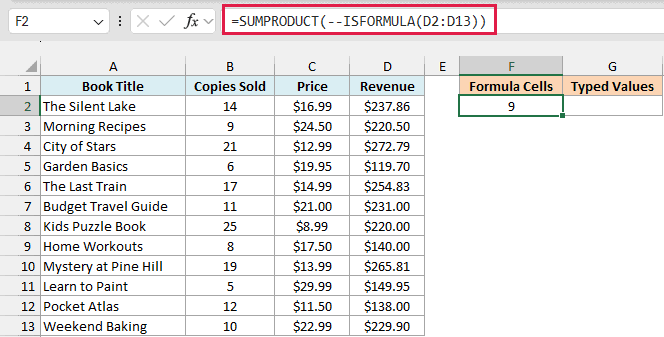
How this formula works:
- ISFORMULA(D2:D13) returns a TRUE or FALSE for each of the 12 Revenue cells.
- The double minus (–) turns each TRUE into 1 and each FALSE into 0.
- The SUMPRODUCT function adds up those 1s and 0s, which gives 9.
In Excel 365 or Excel 2021 and later, the SUM function works in place of SUMPRODUCT here too. I’ve used SUMPRODUCT because it also works in Excel 2019 and earlier without pressing Control + Shift + Enter.
And here is the formula to count the typed values:
=SUMPRODUCT(--NOT(ISFORMULA(D2:D13)))
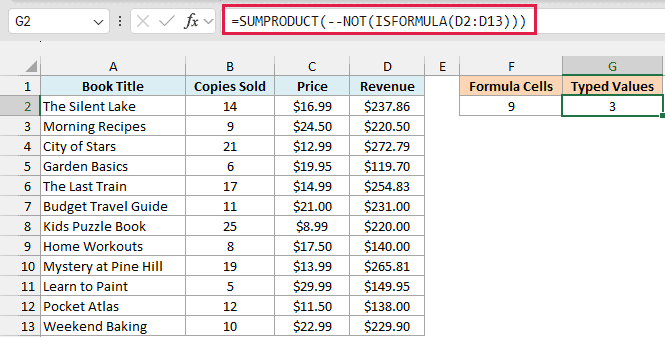
The NOT function flips each TRUE to FALSE and each FALSE to TRUE, so this counts the cells that don’t have a formula. Here it returns 3.
This formula would also count an empty Revenue cell, since an empty cell has no formula. That’s usually what you want, because a deleted formula breaks the column just like a typed value does.
Example 5: List the Rows Where a Formula Was Typed Over
Counting tells you how many cells need fixing. This one tells you exactly which rows they are.
Below is a list of vacation rental bookings where the Total should be the nights times the rate per night, and I want to list the guests whose totals were typed in, starting in F2.
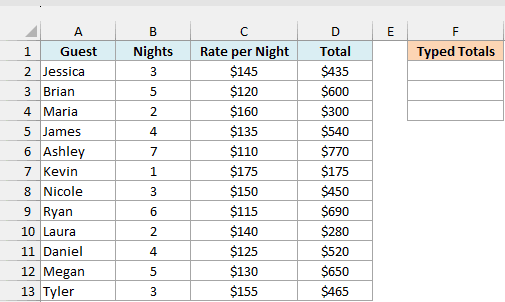
Here is the formula:
=FILTER(A2:A13,NOT(ISFORMULA(D2:D13)),"None")
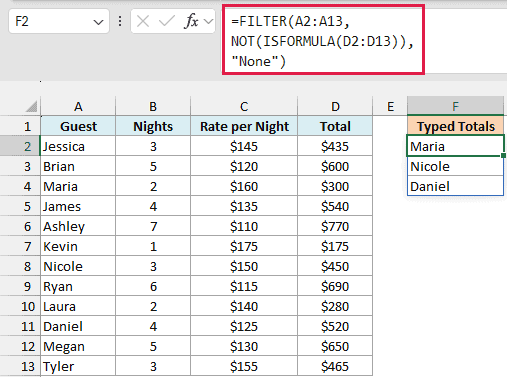
NOT(ISFORMULA(D2:D13)) returns TRUE for every Total that isn’t a formula, and the FILTER function keeps only the guest names in those rows. That gives Maria, Nicole, and Daniel.
Nicole’s total of $450 happens to be right, while Maria’s and Daniel’s should be $320 and $500. All three are still worth fixing, because a typed total won’t update if the nights or the rate change.
The “None” at the end is what FILTER shows when every total is a formula. Without it, you’d get a #CALC! error instead.
The FILTER function works only in Excel 365 or Excel 2021 and later. In older versions, use the labels from Example 3 and filter the column to show the Typed value rows.
Example 6: Use ISFORMULA in Conditional Formatting to Highlight Typed Values
You can also use ISFORMULA in conditional formatting, so the typed values stand out right inside the column.
Below is a freelance invoice log where the Amount should be the hours times the hourly rate, and I want to highlight every Amount that was typed in.
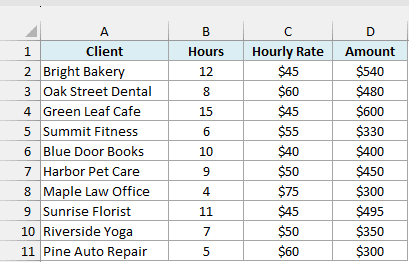
Here is the formula we’ll use in the conditional formatting rule:
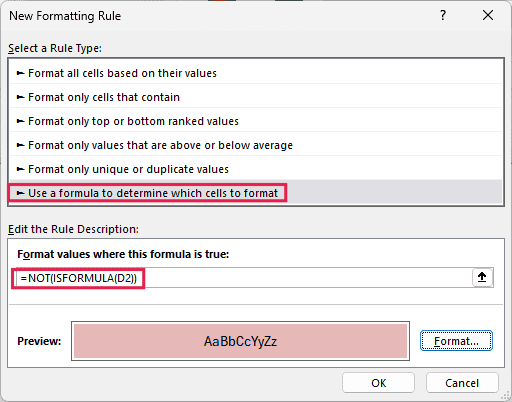
=NOT(ISFORMULA(D2))
The rule uses D2 without dollar signs, so as Excel applies it down D2:D11, each cell checks itself.
Here are the steps:
- Select the cells D2:D11.
- Click the Home tab.
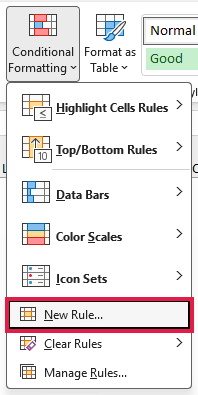
- In the Styles group, click on Conditional Formatting.
- Click on New Rule.
- In the New Formatting Rule dialog box, select “Use a formula to determine which cells to format”.
- In the “Format values where this formula is true” field, enter the formula =NOT(ISFORMULA(D2)).
- Click the Format button.
- In the Fill tab, select a light red color.
- Click OK to close the Format Cells dialog box.
- Click OK to apply the rule.
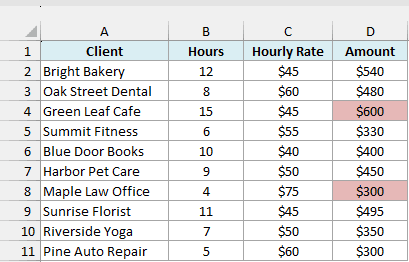
The amounts for Green Leaf Cafe and Maple Law Office are now highlighted, since those cells hold typed numbers instead of the formula.
Pine Auto Repair also shows $300, the same as Maple Law Office, but it isn’t highlighted because its amount comes from the formula.
If you’d rather highlight every formula cell instead, here is how to highlight cells with formulas in Excel.
So these are some practical ways to use the ISFORMULA function in Excel. It does one simple job, but it’s a handy way to catch typed-over numbers before they quietly throw off your totals.
And if you want to see the formula itself rather than TRUE or FALSE, the FORMULATEXT function returns it as text.
I hope you found this Excel tutorial useful.
Other Excel Articles You May Also Like:
