

The TYPE function tells you what kind of value is in a cell. Instead of a word, it gives you a number code, like 1 for a number, 2 for text, and 16 for an error.
That’s handy when a formula isn’t behaving and you want to know what Excel actually sees in a cell. A number that was entered as text, for example, looks fine but gets a different code.
One thing catches people out. If you give TYPE a whole range, you don’t get a code for each cell, you get a single 64, so I’ll also show you how to get around that.
Follow along with the example file
TYPE Function Examples.xlsx
TYPE Function Syntax
Here is the syntax of the TYPE function:
=TYPE(value)
- value – The value you want to check. This can be a cell reference, a value you type in, a calculation, or an array.
TYPE returns one of these codes:
- 1 – A number. Dates and times also return 1, because Excel stores them as numbers.
- 2 – Text.
- 4 – A logical value (TRUE or FALSE).
- 16 – An error, such as #N/A, #VALUE!, or #DIV/0!.
- 64 – An array. This includes a range of more than one cell.
- 128 – Compound data, such as a LAMBDA that hasn’t been given its input yet.
When you give TYPE a calculation or a cell with a formula, it checks the result of that formula. So =TYPE(2+A2) returns 16 when A2 has text, because adding a number to text gives a #VALUE! error.
Since it only sees the result, TYPE can’t tell you whether a cell has a formula in it. A formula that returns text gets a 2, just like text you typed in.
The TYPE function works in all Excel versions, including 365, 2024, 2021, 2019, 2016, Mac, and the web.
When to Use the TYPE Function
Use this function when you need to:
- Find out what kind of value each cell holds, like spotting numbers that were entered as text.
- Show a readable label (Number, Text, TRUE/FALSE, or Error) next to each value.
- Check an imported column to see how many numbers, text entries, TRUE/FALSE values, and errors it has.
Let me show you a few practical examples of how to use this function.
Example 1: Check the Type of Value in Each Cell
Let’s start with a simple example.
Below is the record of an online order, and I want to get the type code of each value in column C.
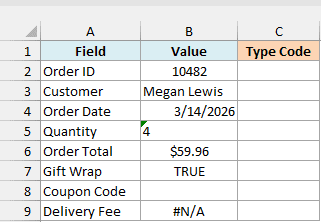
Here is the formula:
=TYPE(B2)
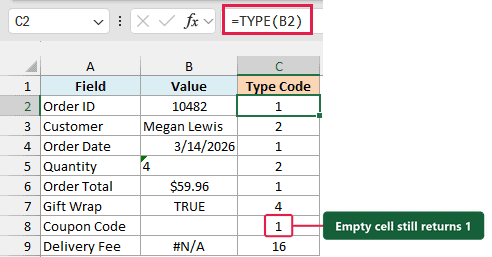
Enter this formula in cell C2 and copy it down to C9. TYPE checks the value in column B and returns its code, so the customer name gets 2, Gift Wrap (TRUE) gets 4, and the #N/A in Delivery Fee gets 16.
The Order Date returns 1, the same as the Order ID and the Order Total. Excel stores a date as a number, so TYPE sees it as one.
The Quantity looks like the number 4, but TYPE returns 2 because it was entered as text. You can also tell from the way it sits on the left of the cell, which is where Excel puts text.
A number stored as text is easy to miss, and it can break a SUM or a lookup that uses that cell. If you find some, here’s how to convert text to numbers in Excel.
Important: The empty Coupon Code cell also returns 1, the same as a number. So a 1 doesn’t always mean there’s a number in the cell, and if blanks matter, check for them separately (for example with =B8="").
I’ve used one formula per row here on purpose, and Example 3 covers what happens when you give TYPE a whole range.
Example 2: Show the Type as a Label Instead of a Code
Codes like 4 and 16 aren’t easy to read at a glance, so let’s turn them into words.
Below is the answer key for a quiz, and I want to show whether each answer is a number, text, or TRUE/FALSE in column C.
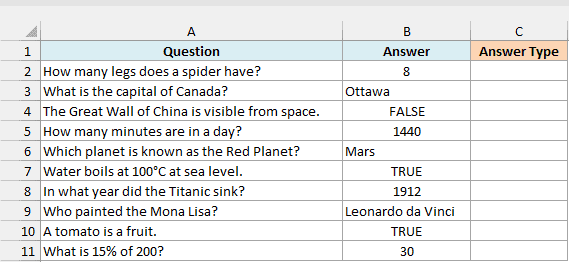
Here is the formula:
=SWITCH(TYPE(B2),1,"Number",2,"Text",4,"TRUE/FALSE",16,"Error")
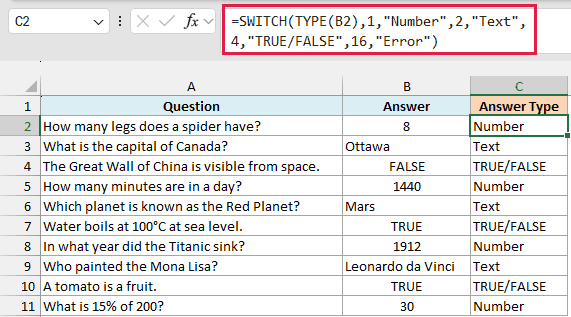
Enter it in cell C2 and copy it down to C11.
How this formula works:
- TYPE(B2) returns the code for the answer in B2.
- SWITCH compares that code with 1, 2, 4, and 16 in turn, and returns the label that comes right after the one that matches.
So 8 and 1912 show “Number”, Ottawa and Mars show “Text”, and the true-or-false questions show “TRUE/FALSE”.
None of the answers here is an error, but the 16,”Error” pair is there so the formula still gives a sensible label if a #N/A or #VALUE! ever ends up in the list.
The SWITCH function is available in Excel 2019 and later. If you are using Excel 2016 or earlier, enter the below formula in cell C2 and then copy it down the range:
=IF(TYPE(B2)=1,"Number",IF(TYPE(B2)=2,"Text",IF(TYPE(B2)=4,"TRUE/FALSE","Error")))
Example 3: Get the Type of Every Cell in a Range (Using MAP)
Copying a formula down works fine, but in Excel 365 and 2024 you can get all the codes with one formula.
Below is a list of monthly expenses copied from a banking app, and I want to get the type code of each amount in column C.
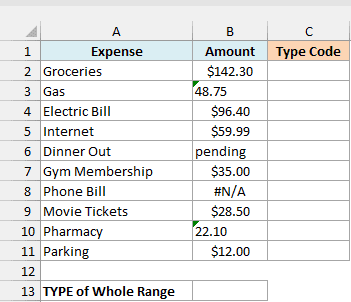
You might expect TYPE to return a code for every cell if you give it the whole range. Here is what it actually returns in cell B13:
=TYPE(B2:B11)
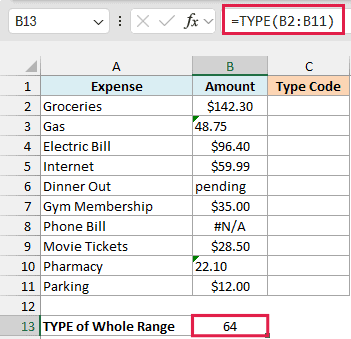
Instead of ten codes, you get a single 64. TYPE treats a range of more than one cell as an array, and 64 is the code for an array, so the result doesn’t spill.
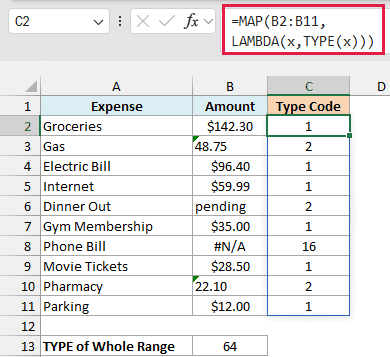
To get one code per cell, you need TYPE to look at the cells one at a time. Here is the formula that does that:
=MAP(B2:B11,LAMBDA(x,TYPE(x)))
How this formula works:
- MAP(B2:B11,…) goes through the cells in B2:B11 one by one.
- LAMBDA(x,TYPE(x)) runs TYPE on each single cell, which MAP passes in as x.
- MAP collects the ten codes, and they spill down from C2 to C11.
The Gas and Pharmacy amounts get a 2 because they came in from the app as text, and so does “pending”. The Phone Bill has a #N/A, so it gets 16.
MAP and LAMBDA are only in Excel 365 and Excel 2024. If you are using Excel 2021 or earlier, enter the below formula in cell C2 and then copy it down the range:
=TYPE(B2)
Example 4: Count How Many Values of Each Type a Column Has
Let’s finish by turning the type codes into a quick summary.
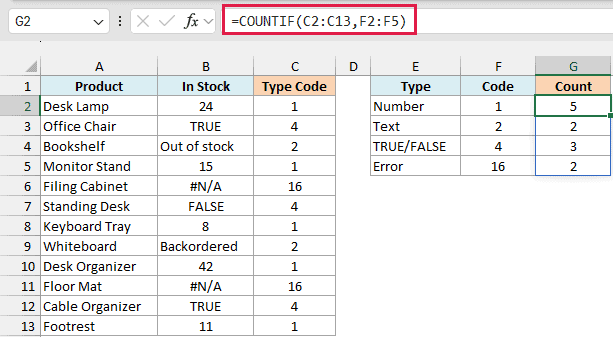
Below is an office furniture stock list from different suppliers, and I want to count how many In Stock values of each type there are, with the counts in column G. Column C already has the type codes, using the MAP formula from Example 3.
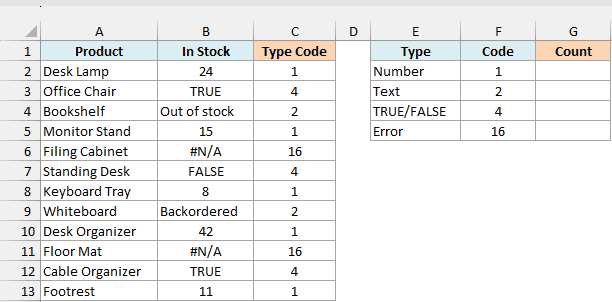
Here is the formula:
=COUNTIF(C2:C13,F2:F5)
How this formula works:
- COUNTIF(C2:C13,…) counts how many cells in the Type Code column match a code.
- F2:F5 has four codes, so COUNTIF runs once for each code and the four counts spill down from G2 to G5.
The result shows 5 numbers, 2 text entries, 3 TRUE/FALSE values, and 2 errors. So only 5 of the 12 products have an actual stock number, which is good to know before you add up or sort that column.
And remember from Example 1 that a blank cell also gets the code 1, so an empty In Stock cell would be counted as a number.
Important: You might see TYPE used straight on a range to count, like =SUMPRODUCT(--(TYPE(B2:B13)=16)). That always returns 0, because TYPE returns one 64 for the whole range, which is why this example counts from the Type Code column.
If you are using Excel 2021 or earlier, MAP isn’t available, so enter the below formula in cell C2 and then copy it down to C13 to get the type codes:
=TYPE(B2)
The COUNTIF function spills like this in Excel 365, 2024, and 2021. If you are using Excel 2019 or earlier, enter the below formula in cell G2 and then copy it down to G5:
=COUNTIF($C$2:$C$13,F2)
So these are four ways to use the TYPE function in Excel, from checking a single cell to getting codes for a whole column and counting them.
If you only need to check for one kind of value, the ISNUMBER or ISTEXT function is a simpler way to get a TRUE or FALSE.
I hope you found this article helpful.
Other Excel Articles You May Also Like:
