

The CELL function in Excel gives you information about a cell instead of the value in it. It can tell you a cell’s address, its number format, whether it’s locked, or the name of the file and sheet it sits in.
That makes it handy for checking a sheet before you share it, or for showing the sheet name or file path right inside a cell.
One thing to know upfront is that CELL works on one cell at a time. If you point it at a range, it doesn’t return a result for each cell, it only reports on the first one.
In this article, I’ll show you six practical examples of the CELL function, from checking what kind of entry a cell holds to getting the sheet name and jumping to a lookup result.
Follow along with the example file
CELL Function Examples.xlsx
CELL Function Syntax
Here is the syntax of the CELL function:
=CELL(info_type,[reference])
- info_type – A text value in double quotes that tells CELL what information you want, such as “address”, “format”, or “filename”.
- reference – (Optional) The cell you want the information about.
Here are all the info_type values you can use, and what CELL returns for each one:
| info_type | What CELL returns |
|---|---|
| “address” | The cell address as text, such as $B$6 |
| “row” | The row number of the cell |
| “col” | The column number of the cell |
| “contents” | The value in the cell (not its formula) |
| “type” | b if the cell is blank, l if it holds text, v for anything else |
| “format” | A code for the cell’s number format, such as G or C2 |
| “protect” | 1 if the cell is locked, 0 if it isn’t |
| “filename” | The file path, workbook name, and sheet name |
| “color” | 1 if the format shows negative numbers in color, otherwise 0 |
| “parentheses” | 1 if the format uses parentheses for positive or all values, otherwise 0 |
| “prefix” | The text alignment prefix: ‘ for left, ” for right, ^ for centered, \ for fill |
| “width” | The column width (rounded), plus TRUE or FALSE for whether it’s the default width |
Note that “color” does not give you a cell’s fill color. It only checks whether the number format shows negative numbers in a color, like red.
The reference argument is optional, but you should always give it. If you leave it out, CELL reports on whichever cell was selected when the sheet last recalculated, so the result can change every time the sheet recalculates.
That moving result is mostly useful for one trick, which is to highlight the active row and column with conditional formatting.
The CELL function works in all Excel versions, including 365, 2024, 2021, 2019, 2016, and Mac. Excel for the web doesn’t support the “filename”, “format”, “protect”, “color”, “parentheses”, “prefix”, and “width” info types.
When to Use the CELL Function
Use this function when you need to:
- Check whether a cell holds a number, text, or nothing
- See which cells are locked before you protect a sheet
- Find cells with the wrong number format
- Show the file path, workbook name, or sheet name in a cell
- Get the address of a lookup result, or jump straight to it with a link
Let me show you a few practical examples of how to use the CELL function in Excel.
Example 1: Check If a Cell Has a Number, Text, or Nothing
Let’s start with a simple example.
Below is a book club log with the number of pages each member read this week, and I want to see what kind of entry each Pages Read cell holds in column C.
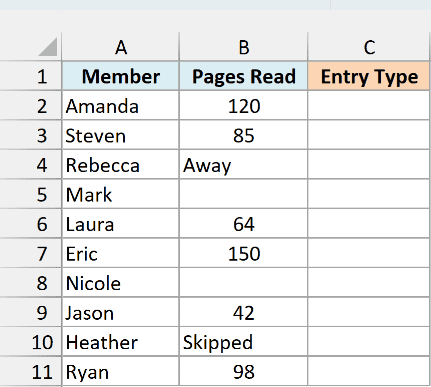
Here is the formula, which you enter in cell C2 and then copy down to C11:
=CELL("type",B2)
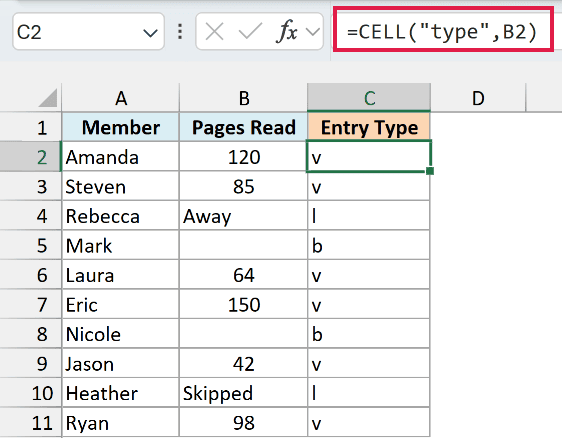
The “type” info_type returns a single letter. You get l (for label) when the cell has text, b when it’s blank, and v (for value) when it has a number or any other non-text value.
So Rebecca and Heather get an l because they typed Away and Skipped instead of a page count, while Mark and Nicole get a b because they didn’t enter anything.
Important: CELL doesn’t spill. If you enter =CELL(“type”,B2:B11) in C2, you get just one result, for B2, so copy the single-cell formula down instead (Example 3 shows a one-formula option for Excel 365 and 2024).
If you only need a TRUE or FALSE for one of these checks, the IS functions like ISNUMBER, ISTEXT, and ISBLANK do it directly. CELL is useful when you want all three answers from one formula.
Example 2: Check Which Cells Are Locked Before You Protect a Sheet
Now let’s check something you can’t see just by looking at a cell, which is whether it’s locked.
Every cell in Excel is locked by default, but the lock does nothing until you protect the sheet. So before you protect a template, you need to unlock the cells people should be able to type in.
Below is a weekly timesheet template where each employee types in their own hours, and I want to check in column C which Hours cells I forgot to unlock.
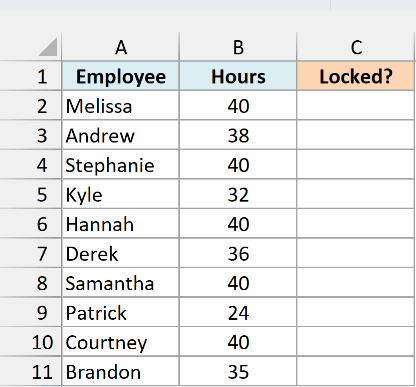
Enter this formula in cell C2 and copy it down to C11:
=CELL("protect",B2)
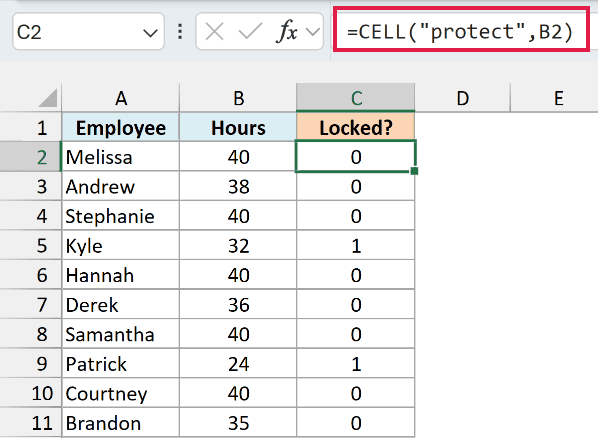
The “protect” info_type returns 1 when a cell is locked and 0 when it’s unlocked.
Here, Kyle’s and Patrick’s Hours cells return 1. So I missed unlocking those two, and once the sheet is protected, they wouldn’t be able to type in their hours.
To fix it, select B5 and B9 and unlock the cells before you protect the sheet. Press F9 after that, and the formula shows 0 for every Hours cell.
Example 3: Find Cells With the Wrong Number Format
This next one is handy when several people have typed numbers into the same sheet.
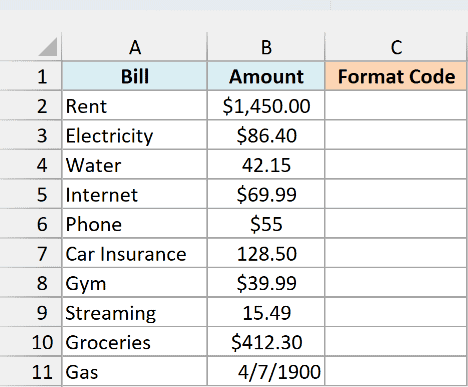
Below is a list of monthly bills where the amounts were entered by different people, and I want the number format code of each amount in column C so I can spot the ones that aren’t formatted as currency.
Here is the formula for cell C2, which you then copy down the column:
=CELL("format",B2)
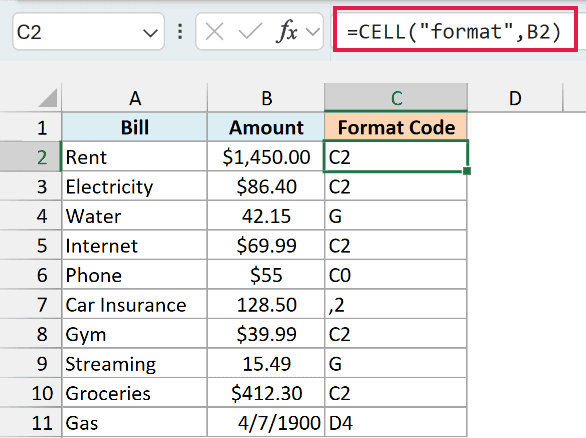
The “format” info_type returns a short code for the number format. C2 means currency with two decimal places, and C0 means currency with no decimals, so those bills are fine.
The others need a look. Water and Streaming return G (the General format), and Car Insurance returns ,2 (a number with a thousands separator and two decimals).
Gas returns D4, which is a date format. That’s why 98.75 shows up as 4/7/1900 instead of an amount.
If you use Excel 365 or Excel 2024, you can get the codes for the whole column with one formula by running CELL through the MAP function.
Here is the formula, which you enter in cell D2:
=MAP(B2:B11,LAMBDA(c,CELL("format",c)))
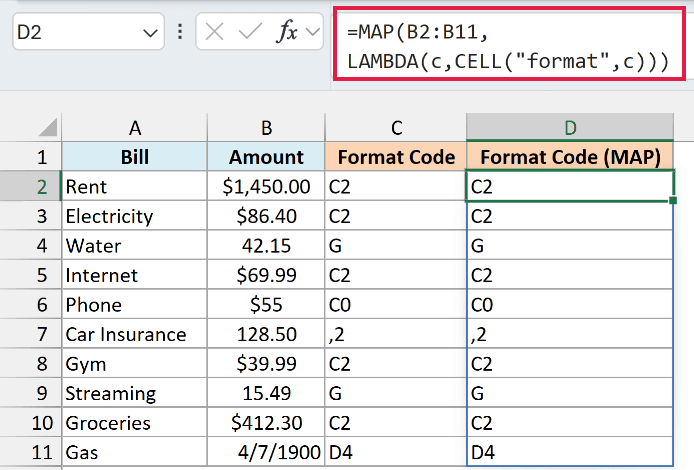
The MAP function hands the cells of B2:B11 to CELL one at a time, so you get a format code for each cell. The ten results spill down from D2 and match column C.
One thing to keep in mind with both formulas: if you change a cell’s number format later, the code doesn’t update right away, because changing a format doesn’t make Excel recalculate. Press F9 to recalculate the sheet, and the new code shows up.
Example 4: Get the File Path, Workbook Name, and Sheet Name
This is probably the most popular use of the CELL function.
Below I have a sheet where I want to show the file path, the workbook name, and the sheet name in column B.

Here is the formula to enter in cell B1:
=CELL("filename",A1)
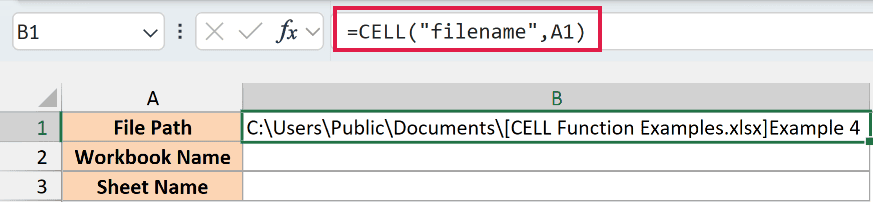
This returns everything in one text string: the folder path first, then the workbook name in square brackets, and then the sheet name right after the closing bracket.
For example, with the file saved as CELL Function Examples.xlsx in the C:\Users\Public\Documents folder, you get C:\Users\Public\Documents\[CELL Function Examples.xlsx]Example 4.
If you try this in a new workbook that you haven’t saved yet, “filename” has no file path to report, so you get an empty result. Save the file once, and the path shows up.
Important: The A1 only tells CELL which sheet you’re asking about, so any cell on the sheet works, but don’t leave it out. Without it, a formula on one sheet can show the name of another sheet that was active when Excel last recalculated.
Now let’s split that string into the parts you need. To get just the workbook name, enter this formula in cell B2:
=TEXTBEFORE(TEXTAFTER(CELL("filename",A1),"["),"]")
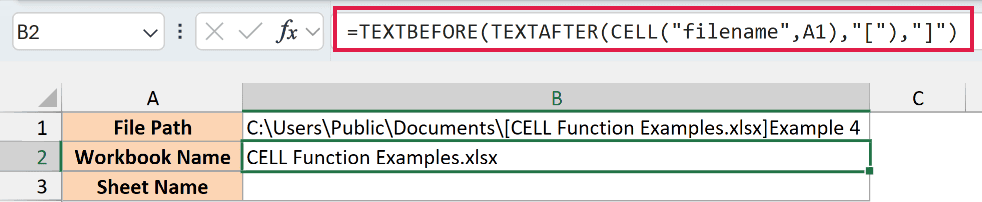
The TEXTAFTER function keeps everything after the opening square bracket, and the TEXTBEFORE function then keeps everything before the closing bracket. That leaves only the workbook name, CELL Function Examples.xlsx.
And to get the sheet name, enter this formula in cell B3:
=TEXTAFTER(CELL("filename",A1),"]")
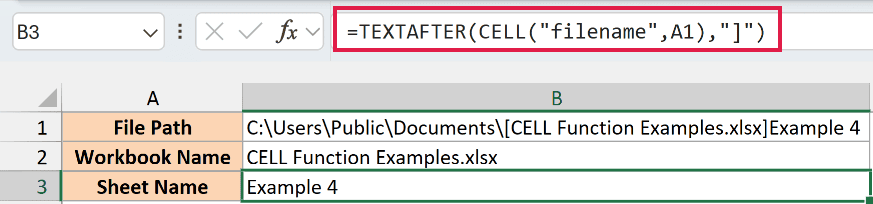
Since the sheet name is everything after the closing square bracket, this returns Example 4. This is handy when you want a report title or a label to show the name of the sheet it’s on.
The TEXTAFTER and TEXTBEFORE functions are only available in Excel 365 and Excel 2024. If you are using Excel 2021 or earlier, enter the below formula in cell B2 to get the workbook name:
=MID(CELL("filename",A1),FIND("[",CELL("filename",A1))+1,FIND("]",CELL("filename",A1))-FIND("[",CELL("filename",A1))-1)
And enter the below formula in cell B3 to get the sheet name:
=MID(CELL("filename",A1),FIND("]",CELL("filename",A1))+1,31)
The 31 works because a sheet name in Excel can’t be longer than 31 characters. If you need more ways to do this, here is my guide on how to get the sheet name in Excel.
Example 5: Get the Cell Address of the Highest Value
Now let’s use CELL to find where a value lives, not just what it is.
Below is a list of students with the number of fundraiser tickets each one sold, and I want the address of the cell with the most tickets in cell E1.
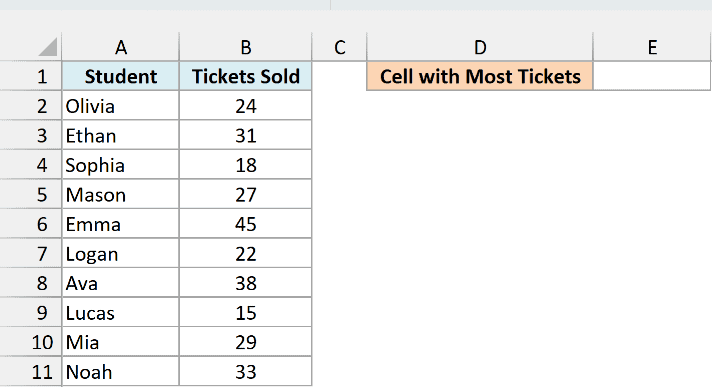
Here is the formula:
=CELL("address",XLOOKUP(MAX(B2:B11),B2:B11,B2:B11))
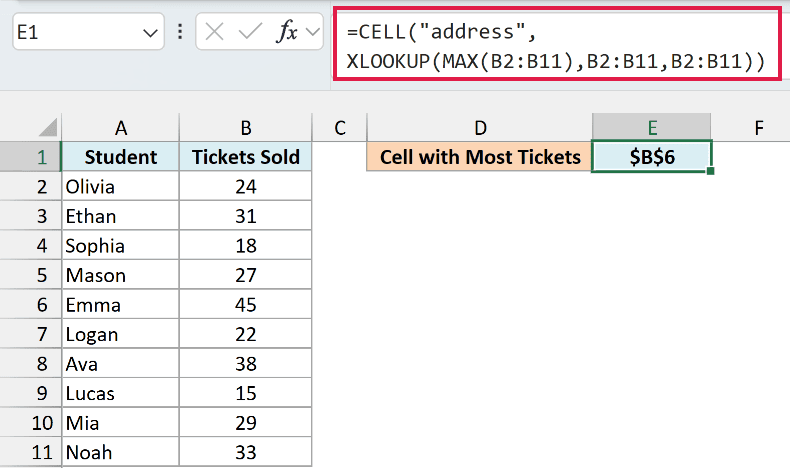
How this formula works:
- MAX(B2:B11) finds the highest number of tickets sold, which is 45.
- The XLOOKUP function looks for 45 in B2:B11 and returns the matching cell from the same range, which is B6.
- CELL(“address”, …) then gives the address of that cell as text, which is $B$6.
This works because the XLOOKUP function returns a reference to the cell, not just the value in it. The VLOOKUP function only returns a value, so Excel won’t even accept a formula like =CELL(“address”,VLOOKUP(…)).
If two students had tied for the most tickets, XLOOKUP would stop at the first match, so you’d get the address of the one higher up in the list.
XLOOKUP is available in Excel 365, 2024, and 2021. If you are using Excel 2019 or earlier, enter the below formula in cell E1 instead:
=CELL("address",INDEX(B2:B11,MATCH(MAX(B2:B11),B2:B11,0)))
Example 6: Create a Link That Jumps to a Lookup Result
Let’s step it up and use CELL to build a link that takes you straight to a cell.
Below is an office supply list with the stock count for each item, and I want a link in cell E2 that jumps to the stock count of the item typed in E1.
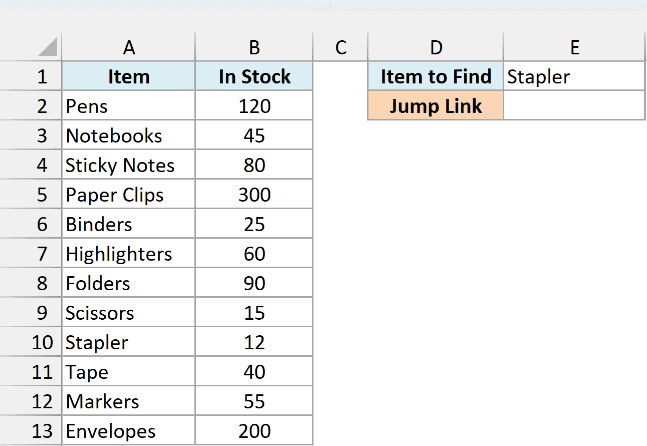
Here is the formula:
=HYPERLINK("#"&CELL("address",XLOOKUP(E1,A2:A13,B2:B13)),"Go to "&E1)
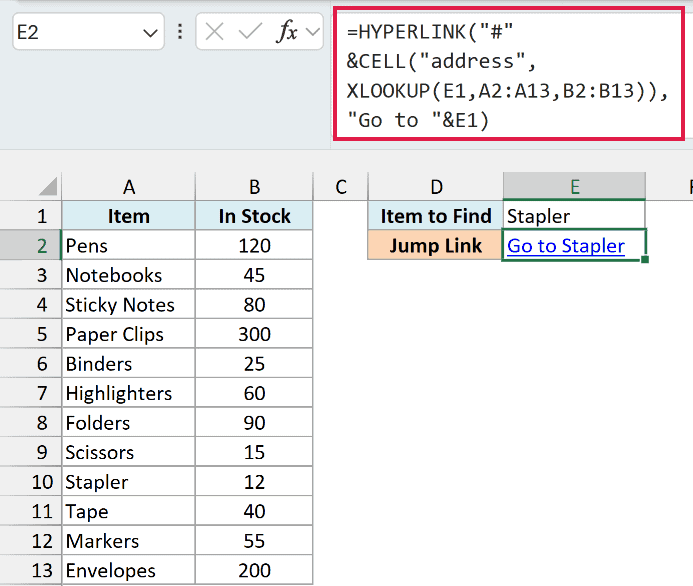
How this formula works:
- The XLOOKUP function finds Stapler in A2:A13 and returns the matching cell from B2:B13, which is B10.
- CELL turns that cell into the address text $B$10.
- The “#” in front tells the HYPERLINK function that the link goes to a place inside this workbook, so the link points to #$B$10.
- “Go to “&E1 builds the text you click, which is Go to Stapler.
Click the link, and Excel selects B10 for you. Type a different item in E1, and the link updates to point at that item’s stock count.
This is most useful in long lists, where scrolling to find one row takes a while.
If you are using Excel 2019 or earlier, enter the below formula in cell E2 instead:
=HYPERLINK("#"&CELL("address",INDEX(B2:B13,MATCH(E1,A2:A13,0))),"Go to "&E1)
So these are six practical ways to use the CELL function in Excel, whether you’re checking a sheet before you share it, showing its file and sheet name, or finding where a value lives.
I hope you found this Excel tutorial useful.
Other Excel Articles You May Also Like:
