

The CODE function in Excel gives you the code number of the first character in a text string. For example, =CODE("A") returns 65, and a regular space returns 32.
That’s really useful when something in a cell looks fine but doesn’t behave the way it should, because CODE tells you exactly which character is sitting there, even one you can’t see. It can also turn letters into numbers you can do math with.
In this article, I’ll show you how the CODE function works, with six practical examples.
Follow along with the example file
CODE Function Examples.xlsx
CODE Function Syntax
Here is the syntax of the CODE function:
=CODE(text)
- text – The text whose first character you want the code for. It can be text in double quotes, a cell reference, or a range of cells.
CODE only looks at the first character and ignores the rest. So =CODE("Apple") returns 65, the same as =CODE("A").
If the text is empty (a blank cell or “”), CODE returns the #VALUE! error, because there is no first character to read.
Numbers are read as text too, so =CODE(2026) returns 50, which is the code for the digit 2.
A date works the same way, because Excel stores dates as numbers. So you get the code of the first digit of its serial number, not the first character you see in the cell.
On a Mac, Excel uses the Mac character set, so some codes above 127 can be different from the ones you see in this article.
The CODE function works in all Excel versions, including Microsoft 365, Excel 2024, 2021, 2019, 2016, and Excel for Mac.
When to Use the CODE Function
Use this function when you need to:
- Find out which hidden character (a space, a non-breaking space, or a line break) is sitting in a cell
- Spot a look-alike character, such as a dash that isn’t a regular hyphen
- Get the code of a symbol so you can insert it with the CHAR function or an Alt code
- Turn a letter into a number, such as a seat row letter into a row number
- Move to the next letter in a sequence, together with the CHAR function
Let me show you a few practical examples of how to use the CODE function.
Example 1: Get the Code of the First Character in Excel
Let’s start with a simple example.
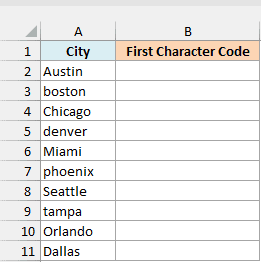
Below is a list of city names typed into an order form, some starting with a capital letter and some not, and I want the code of the first character of each city in column B.
Here is the formula:
=CODE(A2:A11)
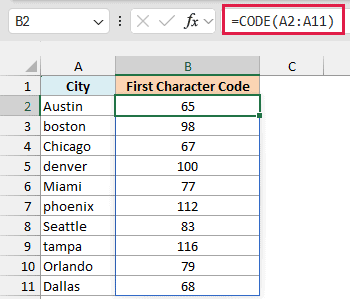
CODE reads only the first letter of each city and returns its code, so Austin gives 65 (for A) and boston gives 98 (for b).
Since I gave it the whole range A2:A11, the results spill down to B11 from the one formula in B2.
Notice that capital and small letters get different codes. Capital A to Z are 65 to 90, and small a to z are 97 to 122, so a small letter is always 32 more than its capital.
If you are using Excel 2019 or earlier, enter the below formula in cell B2 and then copy it down the range:
=CODE(A2)
Examples 2 to 5 also use spilling formulas, and the older-version fix is the same for each of them. Refer to the first cell of the range instead of the whole range, and then copy the formula down.
Example 2: Find the Character Code of a Symbol
Now let’s use CODE on symbols, which is where it gets a little more interesting.
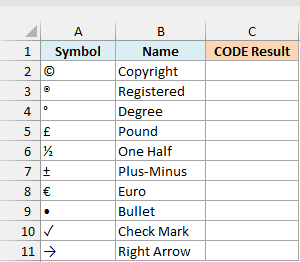
Below is a list of common symbols with their names, and I want the code of each symbol in column C.
Here is the formula:
=CODE(A2:A11)
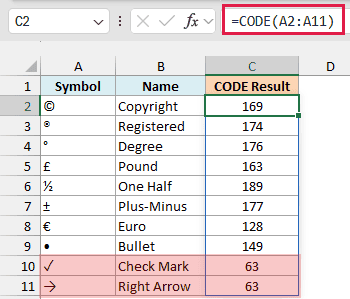
For most of these symbols, you get a code you can use. The copyright sign (©) is 169, the degree sign (°) is 176, and the one-half sign (½) is 189.
You can also use these numbers to type a symbol on a Windows keyboard. Hold the Alt key and type 0 followed by the code on the number pad, so Alt + 0176 types the degree sign (°).
But the check mark and the right arrow both return 63. That’s the code for a question mark, and it’s how CODE tells you it doesn’t know the character.
This happens because CODE only works with the characters in the older Windows character set (called ANSI), which has codes up to 255. Anything outside that set, like ✓, →, or an emoji, comes back as 63 instead of its real code.
For these characters, use the UNICODE function, which knows every character. Here is the formula for column D:
=UNICODE(A2:A11)
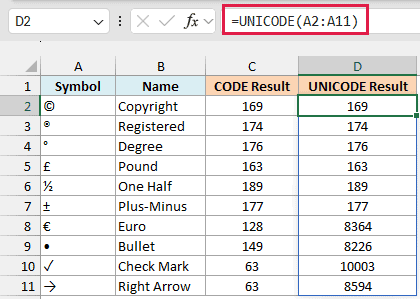
UNICODE gives the check mark 10003 and the right arrow 8594. It needs Excel 2013 or later.
Also notice the euro sign (€) and the bullet (•). CODE gives 128 and 149, while UNICODE gives 8364 and 8226.
Important: Use a CODE number with the CHAR function, and a UNICODE number with the UNICHAR function. =CHAR(128) gives you €, but =UNICHAR(128) returns an invisible control character instead.
Example 3: Convert a Letter to a Number With CODE
Here’s a practical one where CODE turns letters into numbers.
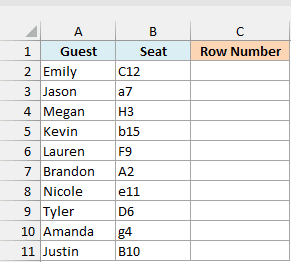
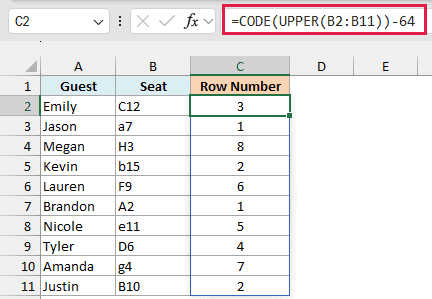
Below is a list of guests with their theater seats, where the letter is the row and the number is the seat, and I want the row number in column C.
Here is the formula:
=CODE(UPPER(B2:B11))-64
How this formula works:
- The UPPER function makes every seat label uppercase, so a7 becomes A7. Without it, a small a would give 97 instead of 65.
- CODE returns the code of the row letter. For C12, that’s 67.
- Subtracting 64 turns the code into the letter’s position in the alphabet. A is 65, so A becomes 1, B becomes 2, C becomes 3, and so on.
You don’t need the LEFT function here to pull out the letter. CODE only reads the first character anyway, so =CODE("C12") already returns 67.
This works for rows with a single letter. A two-letter row like AA would need a different approach.
Example 4: Get the Next Letter Using CODE and CHAR
Now let’s pair CODE with its opposite, the CHAR function, which takes a code number and returns the character.
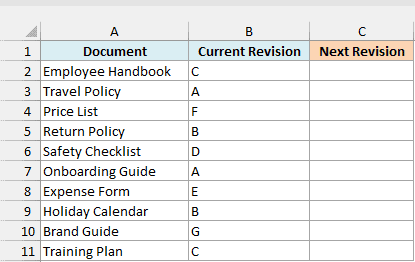
Below is a list of company documents with their current revision letter, and I want the next revision letter in column C.
Here is the formula:
=CHAR(CODE(B2:B11)+1)
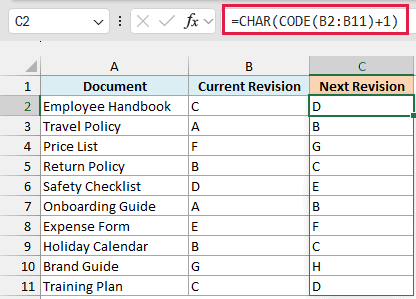
CODE turns each revision letter into its code (C is 67). Adding 1 gives the code of the next letter (68), and CHAR turns 68 back into the letter D.
This works for the letters A to Y. If a revision is already at Z, the formula returns an opening square bracket ([), because 91 is the code right after Z.
Example 5: Find Hidden Characters in a Cell With CODE
Now let’s use CODE to solve a real cleanup problem.
Below is a list of office supplies pasted in from different files, where some names have an invisible character at the end, and I want the code of the last character of each name in column B.
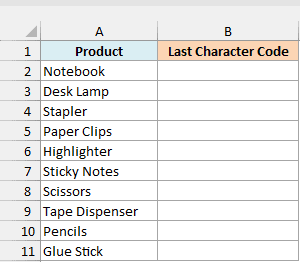
Here is the formula:
=CODE(RIGHT(A2:A11))
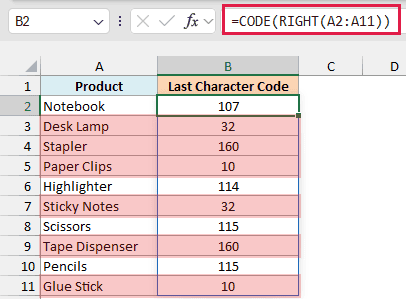
The RIGHT function without a second argument returns the last character of each name, and CODE gives you its code. A clean name ends in a letter, so you get a code like 107 (for k) or 115 (for s).
Any other number means something invisible is hiding at the end, and that’s a problem because Excel treats “Desk Lamp ” and “Desk Lamp” as two different values. So a lookup for Desk Lamp returns #N/A, even though the name looks right.
Each of these numbers points to a specific character, and each one needs a different fix:
- 32 is a regular space. The TRIM function removes it.
- 160 is a non-breaking space, which often comes with text copied from web pages. TRIM doesn’t remove it, so use
=SUBSTITUTE(A2,CHAR(160),""). - 10 is a line break. The CLEAN function removes it.
If you see 63, the hidden character isn’t one CODE knows, so check it with the UNICODE function from Example 2.
Example 6: List the Code of Every Character in a Cell
Let’s finish with a more advanced one.
Below is an order number in cell A2 that was copied from an email, and it won’t match the same order number in the order system. I want to see each of its characters with its code in columns C and D.
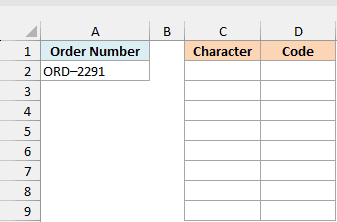
Here is the formula:
=LET(c,MID(A2,SEQUENCE(LEN(A2)),1),HSTACK(c,CODE(c)))
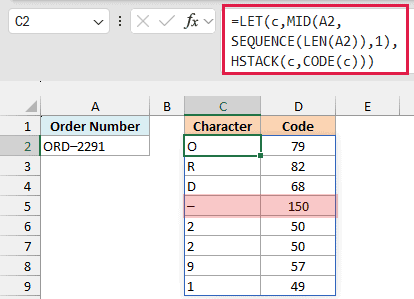
How this formula works:
- LEN(A2) counts the characters in the order number, which is 8.
- SEQUENCE(LEN(A2)) creates the numbers 1 to 8.
- The MID function, MID(A2,SEQUENCE(LEN(A2)),1), pulls out the characters one at a time, and LET stores that list as c so it only has to be written once.
- HSTACK(c,CODE(c)) puts each character next to its code, so the result spills into C2:D9.
Now look at the dash, which has the code 150 instead of 45 (the code of a regular hyphen).
It’s an en dash (–), which looks almost the same as a hyphen, so Excel treats ORD–2291 and ORD-2291 as two different values.
To fix it, replace the en dash with a regular hyphen using =SUBSTITUTE(A2,CHAR(150),"-").
This formula needs Excel 365 or Excel 2024, because of the HSTACK function. If you are using Excel 2021 or earlier, enter the below formula in cell D2 and then copy it down to D9 (one row for each of the 8 characters):
=CODE(MID($A$2,ROW(A1),1))
This gives you the codes only, without the characters next to them. If you see a #VALUE! error, you’ve copied the formula past the last character.
So these are six ways to use the CODE function in Excel. It’s a small function, but it tells you exactly which character is in a cell, even one you can’t see.
And when you need to go the other way, from a code number back to a character, use the CHAR function from Example 4.
I hope you found this article helpful.
Other Excel Articles You May Also Like:
