

The CLEAN function removes nonprinting characters from text, such as line breaks, tabs, and carriage returns. These characters usually come along when you copy or import data from another system, a web page, or a CSV file.
You often can’t see them, but they still get in the way. A lookup returns #N/A, two names that look identical don’t match, or numbers refuse to add up.
The catch is that CLEAN doesn’t remove extra spaces or the non-breaking spaces you get from web pages. So in this tutorial, I’ll show you how CLEAN works on its own and how to pair it with TRIM and SUBSTITUTE to handle the rest.
Follow along with the example file
CLEAN Function Examples.xlsx
CLEAN Function Syntax
Here is the syntax of the CLEAN function:
=CLEAN(text)
- text – The text you want to clean. This can be a text string, a cell reference, or a range of cells.
CLEAN removes the first 32 characters in the ASCII code (codes 0 to 31). These are control characters such as the tab (code 9), the line feed that creates a line break (code 10), and the carriage return (code 13).
Everything else in the text stays as it is. And if the text has none of these characters, CLEAN returns it unchanged.
CLEAN always returns text. Even if you give it a number, like =CLEAN(1250), you get “1250” as text, which matters when you clean imported numbers (Example 5).
The CLEAN function works in all Excel versions, including Microsoft 365, Excel 2024, 2021, 2019, 2016, Excel for Mac, and Excel for the web.
When to Use the CLEAN Function
Use this function when you need to:
- Remove line breaks, tabs, and other hidden characters from imported or copied data
- Put text that sits on multiple lines in a cell onto a single line
- Find out which cells have hidden characters, and how many
- Fix imported numbers that won’t add up
- Fix lookups that return #N/A because of hidden characters
Let me show you a few practical examples of how to use the CLEAN function in Excel.
Example 1: Remove Hidden Characters from Imported Text
Let’s start with a simple example.
Below is a list of community center workshops exported from a booking app, where every title came in with a line break at the end, and I want the clean titles in column C.

Here is the formula:
=CLEAN(A2:A11)
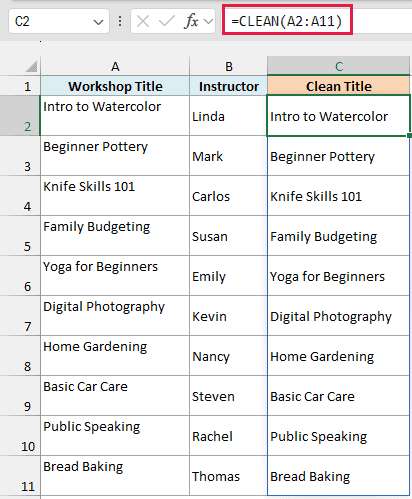
The formula goes through each title in A2:A11, removes the line break at the end, and spills the results down column C. You enter it only once, in C2.
The empty second line under each title in column A is that line break, which shows up because those cells have Wrap Text turned on. Without Wrap Text, you often won’t see it at all (Example 4 shows how to find such cells).
Spilling a range like this needs Excel 365 or Excel 2021 and later. If you are using Excel 2019 or earlier, enter the below formula in cell C2 and then copy it down the range:
=CLEAN(A2)
The same single-cell approach works for every spilling formula in this article.
Example 2: Remove Line Breaks in Excel Without Joining the Words
Line breaks are where CLEAN can surprise you.
Below is a list of customer addresses exported from an online store, where the street and the city are on two separate lines in the same cell, and I want each address on a single line in column C.
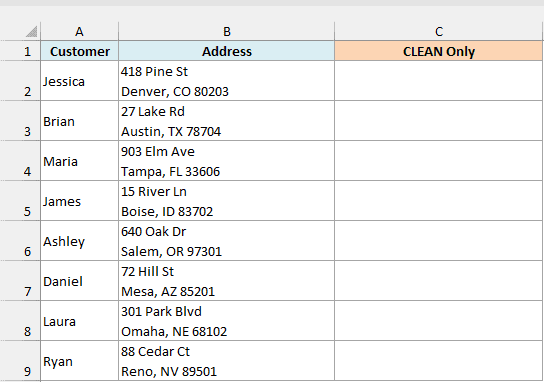
Here is the formula:
=CLEAN(B2:B9)
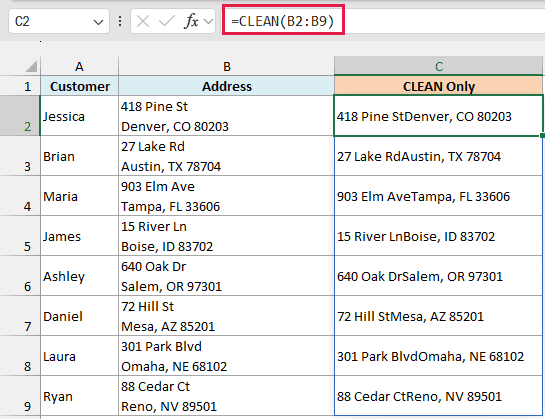
In this data, each line break is a carriage return followed by a line feed, which is common in data exported from other systems. CLEAN removes both, but it doesn’t put anything in their place.
So “418 Pine St” and “Denver, CO 80203” get joined into 418 Pine StDenver, CO 80203.
To keep the two parts apart, replace the line feed with a comma and a space first, and then let CLEAN remove the carriage return. Here is the formula that does this in column D:
=CLEAN(SUBSTITUTE(B2:B9,CHAR(10),", "))
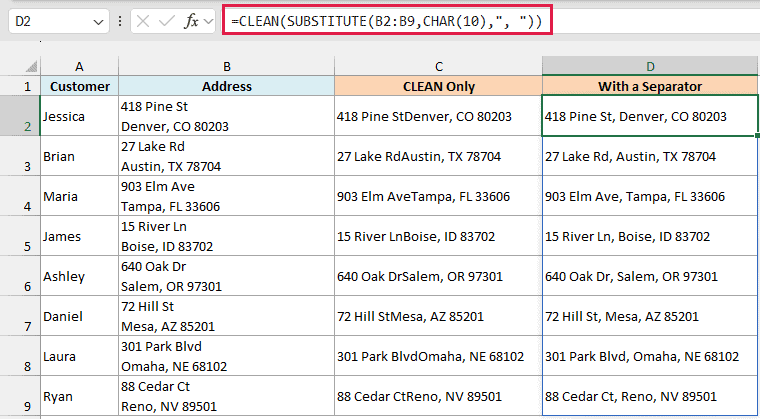
CHAR(10) is the line feed character, which is what Excel uses for a line break inside a cell (the one you get with Alt + Enter on Windows). The SUBSTITUTE function replaces each one with a comma and a space.
So you get 418 Pine St, Denver, CO 80203, with the street and the city still apart.
Example 3: Use TRIM and CLEAN Together
Here’s a combination you’ll use a lot.
Below is a list of gym members from a sign-up form export, where the names have extra spaces along with some hidden tabs, line breaks, and carriage returns, and I want the clean names in column C.
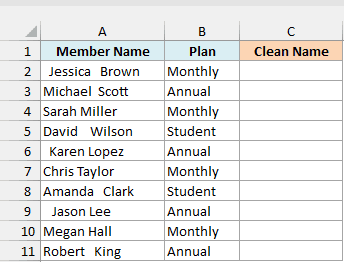
Here is the formula:
=TRIM(CLEAN(A2:A11))
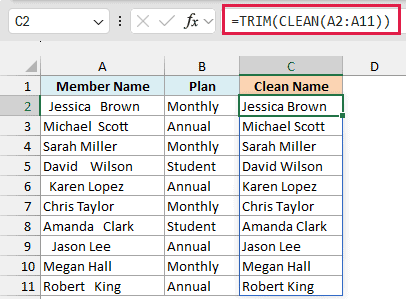
CLEAN removes the tabs, line breaks, and carriage returns, but it never touches spaces. That part is handled by the TRIM function, which removes leading and trailing spaces and cuts any run of spaces between words down to one.
Between the two of them, a name like ” Jessica Brown” comes out as Jessica Brown.
Important: Put CLEAN inside TRIM, not the other way round. With =CLEAN(TRIM(A2:A11)), TRIM keeps one of the spaces that sit before the line break in Amanda Clark’s name, and once CLEAN removes that line break, the space is left at the end.
Example 4: Find Cells With Hidden Characters
Since you usually can’t see these characters, it helps to check which cells have them before you clean anything.
Below is a list of book titles exported from a library system, and I want to see how many hidden characters each title has in column C.
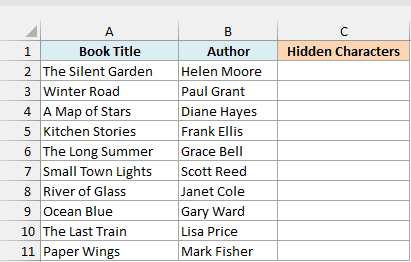
Here is the formula:
=LEN(A2:A11)-LEN(CLEAN(A2:A11))
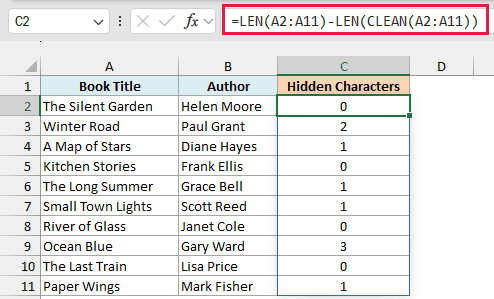
The LEN function counts every character in a cell, including the hidden ones. LEN(CLEAN(A2:A11)) counts the characters left after cleaning, so the difference between the two is the number of hidden characters in each title.
A 0 means the title is fine. Winter Road shows 2 because it ends with a carriage return and a line feed, and Ocean Blue shows 3 because it also has a tab in front of those two.
Example 5: Clean Imported Numbers So They Add Up
Hidden characters can also get stuck to numbers, and then Excel stops treating them as numbers.
Below is a list of monthly expenses from a bank export, where every amount came in with a hidden tab or carriage return, and I want the amounts as real numbers in column C.
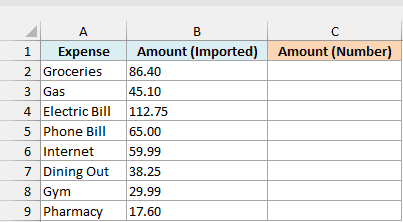
Notice that the amounts in column B are aligned to the left. That’s Excel telling you it sees them as text, so a SUM on column B would return 0.
Your first instinct might be to use the VALUE function on its own, but that returns a #VALUE! error. VALUE can’t read a number with a tab or a carriage return stuck to it.
Here is the formula:
=VALUE(CLEAN(B2:B9))
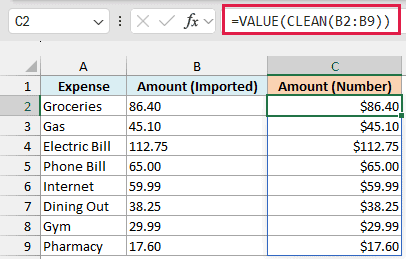
CLEAN removes the hidden characters, but what it returns is still text. VALUE then turns that text into a real number, which is why the results line up on the right.
These are real numbers now, so they work in SUM, AVERAGE, or any other calculation. (The dollar signs come from the currency format on column C.)
Example 6: Fix XLOOKUP Returning #N/A Because of Hidden Characters
Here’s a lookup problem that hidden characters often cause in imported data.
Below is a cafe menu exported from a point-of-sale system, and I want to get the price of the item code in cell E2 (C-104).
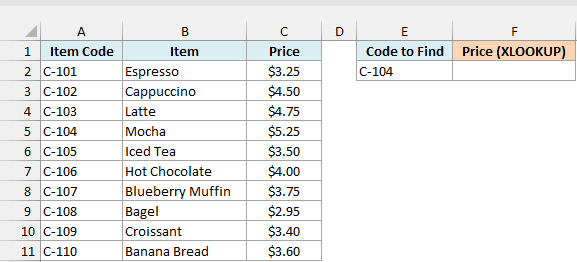
Here is a regular XLOOKUP formula in cell F2:
=XLOOKUP(E2,A2:A11,C2:C11)
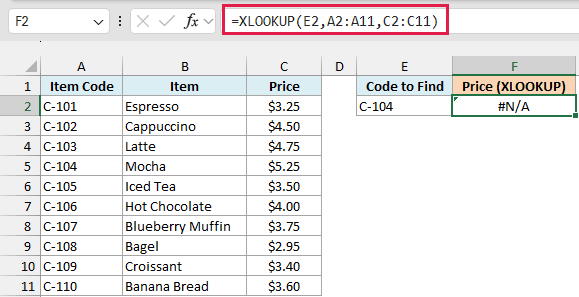
It returns #N/A, even though C-104 is right there in cell A5. That’s because every code in column A has a hidden carriage return at the end, so the cell actually holds “C-104” plus one more character, and it never matches exactly.
Here is the formula that fixes it, in cell G2:
=XLOOKUP(E2,CLEAN(A2:A11),C2:C11)
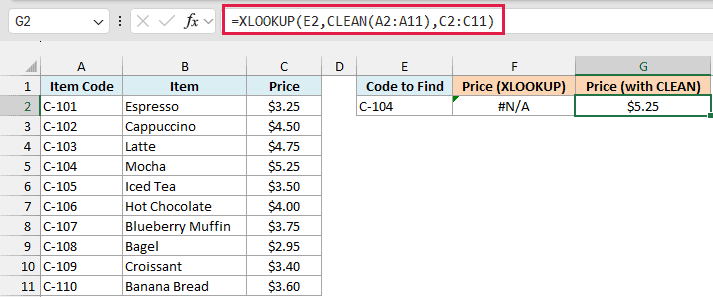
Here, CLEAN strips the carriage return from every item code before the XLOOKUP function searches them, so C-104 finds its match and the formula returns $5.25 for the Mocha.
This cleaning happens only inside the formula, and the codes in column A stay as they are. That’s handy when the data gets refreshed from the same export every week and you don’t want to clean it each time.
XLOOKUP needs Excel 365 or Excel 2021 and later. If you are using Excel 2019 or earlier, enter the below formula in cell G2 and press Control + Shift + Enter (Command + Shift + Return on a Mac) instead of just Enter:
=INDEX(C2:C11,MATCH(E2,CLEAN(A2:A11),0))
Example 7: Remove Non-Breaking Spaces That CLEAN Can’t Remove
This last one deals with text copied from a web page.
Below is a list of kitchen products copied from an online store, where the names have odd gaps between words and some hidden line breaks and tabs, and I want the clean product names in column C.
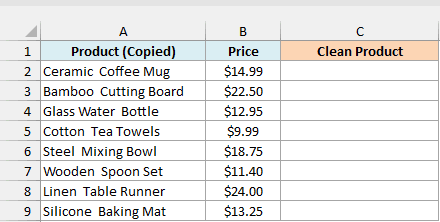
Here is the formula:
=TRIM(CLEAN(SUBSTITUTE(A2:A9,CHAR(160)," ")))
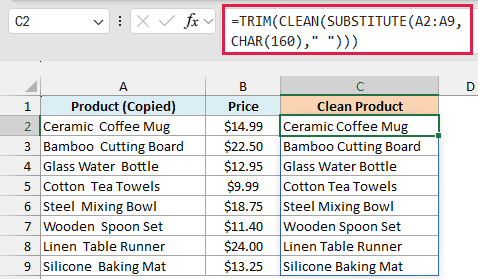
Web pages often use a non-breaking space (CHAR(160)), which looks just like a normal space. But it has code 160, which is outside the 0 to 31 range CLEAN works on, and TRIM doesn’t remove it either.
So SUBSTITUTE first turns every non-breaking space into a normal space. Then CLEAN removes the line breaks and tabs, and TRIM gets rid of the extra spaces, so “Ceramic Coffee Mug” becomes Ceramic Coffee Mug.
Pro Tip: If a cell still looks wrong after cleaning, use the CODE function to find out which character is causing it. In this example, =CODE(MID(A2,8,1)) uses MID to pick out the eighth character of A2 and returns 160, the code for a non-breaking space.
So these are some practical ways to use the CLEAN function in Excel. Use it on its own for line breaks and other hidden characters, pair it with TRIM for extra spaces, and add SUBSTITUTE when the data comes from a web page.
Other Excel Articles You May Also Like:
