

The UNICHAR function in Excel takes a Unicode number and returns the character that goes with it. For example, 10003 gives you a check mark (✓), and 9733 gives you a star (★).
This makes it easy to put symbols like checks, arrows, and bullets right into your formula results, without hunting for them in the Symbol dialog box. And unlike the older CHAR function, which stops at 255, UNICHAR goes all the way up to 1,114,111.
In this article, I’ll show you how to use the UNICHAR function with six practical examples, including check marks, trend arrows, bullet points, and a symbol chart you can build yourself.
Follow along with the example file
UNICHAR Function Examples.xlsx
UNICHAR Function Syntax
Here is the syntax of the UNICHAR function:
=UNICHAR(number)
- number – Required. The Unicode number (code point) of the character you want. It can be a number, a cell reference, or a formula that returns a number.
If number is 0, negative, or bigger than 1,114,111, UNICHAR returns the #VALUE! error. You also get #VALUE! when number points to an empty cell, because Excel reads the empty cell as 0.
A few numbers inside the valid range aren’t real characters, such as the codes from 55296 to 57343. For those, UNICHAR returns the #N/A error instead.
If number has decimals, Excel drops the decimal part, so =UNICHAR(65.9) still returns A.
The UNICHAR function works in Excel 2013 and later versions, including Excel for Microsoft 365, Excel 2024, 2021, 2019, 2016, and Excel for Mac.
When to Use the UNICHAR Function
Use this function when you need to:
- Insert symbols like ✓, ★, €, or → in a formula result
- Turn the hex code from the Symbol dialog box into the actual character
- Show a check mark or cross mark based on a condition
- Add up and down arrows to show if a number went up or down
- Create bullet points and line breaks inside a cell
- Build a quick chart of symbols so you can find the code you need
Let me show you six examples of how this works.
Example 1: Convert Unicode Numbers to Symbols
Let’s start with the simplest use, turning code numbers into symbols.
Below I have a list of symbols with their Unicode numbers in column B, and I want to get the actual symbol for each number in column C.
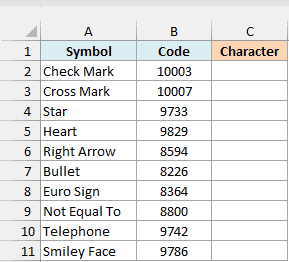
Here is the formula:
=UNICHAR(B2:B11)
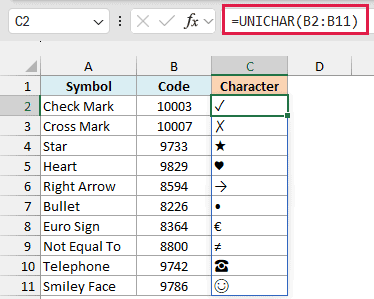
UNICHAR reads each number in B2:B11 and returns the matching character, so 10003 becomes ✓, 9733 becomes ★, and 8364 becomes €.
Since I gave UNICHAR a whole range, the results spill into C2:C11 on their own. If any cell in that range already has something in it, you’ll get a #SPILL! error until you clear it.
UNICHAR also works with emojis. For example, =UNICHAR(128522) returns 😊, although how it looks depends on your version of Excel and your font.
Important: For most codes from 128 to 159, UNICHAR and CHAR return different characters. For example, CHAR(149) gives you a bullet (•) on Windows, but UNICHAR(149) returns an invisible character, and the UNICHAR code for the bullet is 8226.
If you are using Excel 2019 or earlier, enter the below formula in cell C2 and then copy it down the range:
=UNICHAR(B2)
The same goes for the spilling formulas in Examples 2 to 5 (Example 6 has its own older-version formula). In older versions, point the formula at the first cell of each range (B2 instead of B2:B11) and copy it down.
Example 2: Use Hex Codes From the Symbol Dialog Box
Now let’s handle a situation you’ll run into when you look up a symbol in Excel.
When you pick a symbol in the Symbol dialog box (Insert tab > Symbol), Excel shows its code in hexadecimal, such as 00A9 for ©.
Below I have a list of these hex codes in column B, and I want to get the symbol for each one in column C.
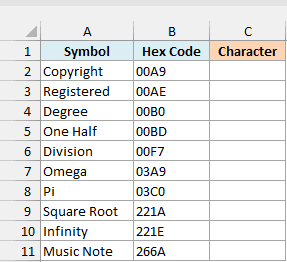
Here is the formula:
=UNICHAR(DECIMAL(B2:B11,16))
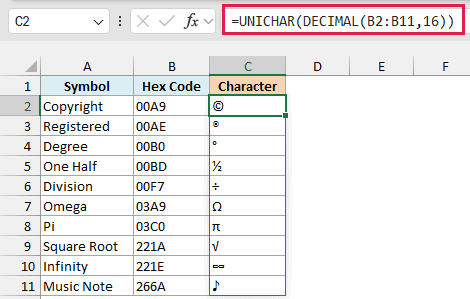
UNICHAR only understands regular decimal numbers, so the DECIMAL function first converts each hex code into one. The 16 tells DECIMAL that the codes are in base 16 (hexadecimal), so 00A9 becomes 169, and UNICHAR then turns 169 into ©.
You may have seen the HEX2DEC function used for this. It works fine on a single cell, but it returns a #VALUE! error when you give it a range like B2:B11, which is why this formula uses DECIMAL.
Important: Don’t give a hex code straight to UNICHAR. =UNICHAR(“2122”) doesn’t return ™, it treats 2122 as a decimal number and returns a completely different character, with no error to warn you.
Example 3: Show a Check Mark or Cross Mark With UNICHAR
Here’s a practical one that puts UNICHAR inside the IF function.
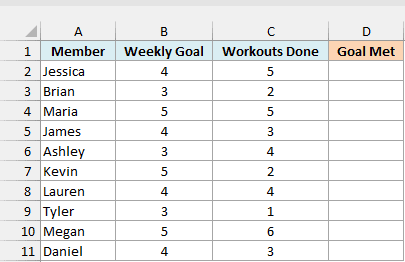
Below I have a list of gym members with their weekly workout goal and the number of workouts they did, and I want to show in column D a check mark if they met their goal and a cross mark if they didn’t.
Here is the formula:
=IF(C2:C11>=B2:B11,UNICHAR(10004),UNICHAR(10008))
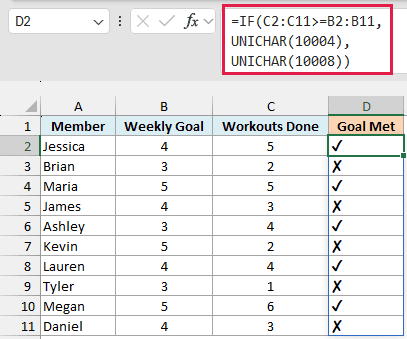
The IF function compares the workouts done in column C with the goal in column B for every member.
When the workouts are equal to or more than the goal, it returns UNICHAR(10004), which is a heavy check mark (✔). Otherwise, it returns UNICHAR(10008), which is a heavy cross mark (✘).
Since the formula uses >=, a member who exactly hits the goal (like Maria with 5 out of 5) also gets a check mark. If you prefer the lighter versions, use 10003 for ✓ and 10007 for ✗.
For other ways to add these symbols, check out this guide on how to insert a check mark in Excel.
Example 4: Add Up and Down Arrows to Show a Trend
Now let’s use UNICHAR to show whether a number went up or down.
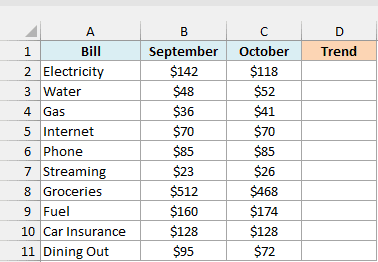
Below I have a list of household bills for September and October, and I want to show in column D an up arrow if the bill went up, a down arrow if it went down, and a flat bar if it stayed the same.
Here is the formula:
=IF(C2:C11>B2:B11,UNICHAR(9650),IF(C2:C11<B2:B11,UNICHAR(9660),UNICHAR(9644)))
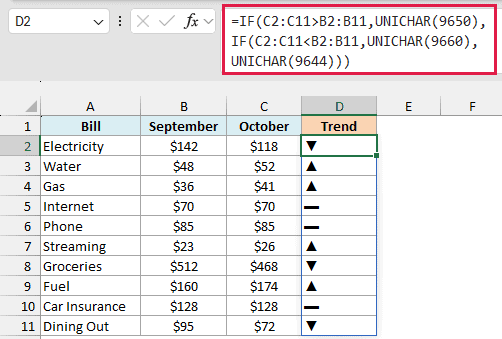
How this formula works:
- The first IF checks if the October bill in column C is higher than the September bill in column B. If it is, it returns UNICHAR(9650), the up arrow (▲).
- If not, the second IF checks if the October bill is lower. If it is, it returns UNICHAR(9660), the down arrow (▼).
- If neither is true, the two bills are the same, so the formula returns UNICHAR(9644), a flat bar (▬).
That’s why fixed bills like Internet, Phone, and Car Insurance show the flat bar, while Electricity, Groceries, and Dining Out show a down arrow.
If you want arrows that point sideways or diagonally, here is a list of arrow symbols you can insert in Excel.
Example 5: Create Bullet Points in a Cell
This next one uses UNICHAR twice, once for a bullet and once for a line break.
Below I have a list of trips with the items to pack for each one, separated by commas, and I want to show the items as a bulleted list, one item per line, in column C.
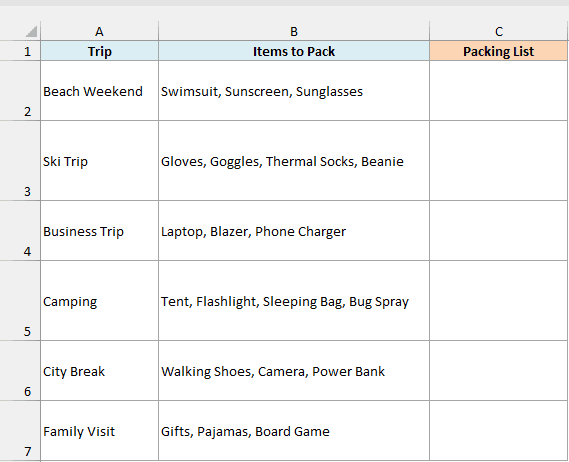
Here is the formula:
=UNICHAR(8226)&" "&SUBSTITUTE(B2:B7,", ",UNICHAR(10)&UNICHAR(8226)&" ")
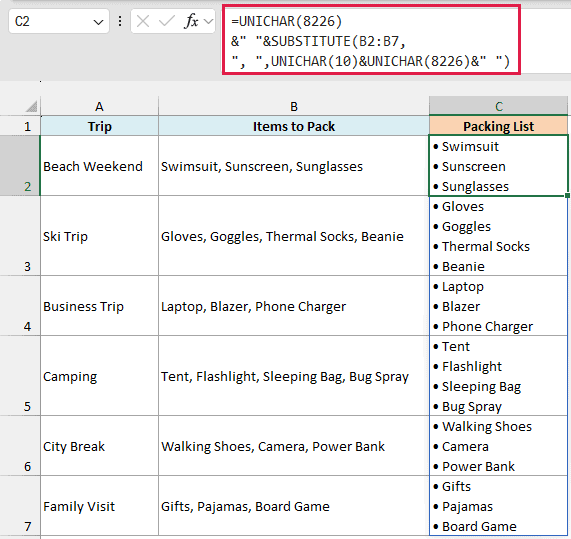
How this formula works:
- UNICHAR(8226) is the bullet character (•), and UNICHAR(10) is a line break, the same one you get when you press Alt + Enter in a cell.
- The SUBSTITUTE function replaces each comma followed by a space (“, “) in B2:B7 with a line break, a bullet, and a space. So each item starts on a new line with its own bullet.
- The UNICHAR(8226)&” ” at the start adds the bullet for the first item, since there’s no comma before it.
Important: The line breaks only show up when Wrap Text is turned on for the result cells (Home tab, Alignment group). Without it, all the items run together on one line.
This only works when the items are separated by a comma followed by one space, which is how the list here is typed. If your list uses just a comma, change “, ” in the formula to “,”.
If you want to add bullets without a formula, here are other ways to insert bullet points in Excel.
Example 6: Build a Unicode Symbol Chart
Let’s finish with something useful when you’re looking for a symbol but don’t know its number.
Below I have starting codes in column A (going up by 10) and the numbers 0 to 9 in row 1, and I want to fill the grid with the arrow symbols that go with each code.
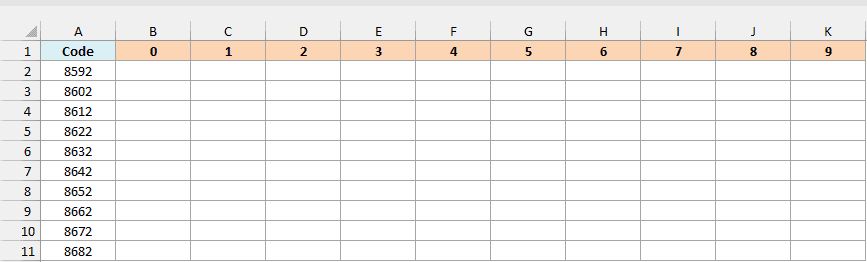
Here is the formula:
=UNICHAR(A2:A11+B1:K1)
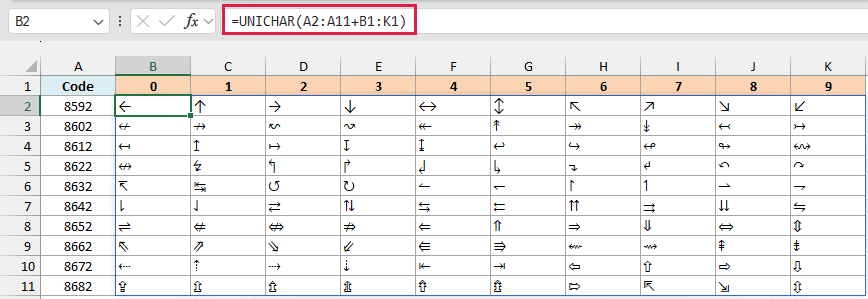
Adding a column of 10 numbers (A2:A11) to a row of 10 numbers (B1:K1) gives Excel a 10 by 10 grid of codes, from 8592 to 8691. UNICHAR turns each code into its character, so the whole grid fills with arrows from a single formula.
To get the code of any symbol in the chart, add the number in column A of its row to the number in row 1 of its column. For example, ⇒ sits in the 8652 row and the 6 column, so its code is 8658.
If you are using Excel 2019 or earlier, enter the below formula in cell B2 and then copy it across to column K and down to row 11:
=UNICHAR($A2+B$1)
To browse a different set of symbols, change the codes in column A. For example, 9728 to 9818 (going up by 10) gives you weather, chess, and card symbols.
Pro Tip: If you already have a symbol and want its number, use the UNICODE function. It does the reverse of UNICHAR, so =UNICODE(“✓”) returns 10003.
So these are six ways to use the UNICHAR function in Excel. Once you know the code of a symbol, you can use it in any formula, just like the IF formulas and bullet lists above.
I hope you found this article helpful.
Other Excel Articles You May Also Like:
