

The FORMULATEXT function shows the formula in a cell as text. So instead of seeing the result of a formula, you see the formula itself, right there in another cell.
This is useful when you want to document how a sheet works, check that a column of formulas is consistent, or catch a number someone typed over a formula. In this article, I’ll walk you through how it works and the situations where it comes in handy.
Follow along with the example file
FORMULATEXT Function Examples.xlsx
FORMULATEXT Function Syntax
Here is the syntax of the FORMULATEXT function:
=FORMULATEXT(reference)
- reference – The cell (or range of cells) whose formula you want to see. It can be on the same sheet, another sheet, or another workbook.
FORMULATEXT returns the formula exactly as it appears in the formula bar, equals sign included. The result is plain text, so it shows you the formula but doesn’t calculate anything.
The text stays linked to the cell it points to. If you edit the formula in that cell, the FORMULATEXT result updates on its own, so your formula notes never go out of date.
The FORMULATEXT function works in Excel 2013 and later versions, including Microsoft 365, Excel 2024, 2021, 2019, 2016, and Excel for Mac.
When to Use the FORMULATEXT Function
Use this function when you need to:
- Show the formula next to its result, so anyone reading the sheet can see how a number was calculated
- Check a whole column of formulas at once to make sure they all follow the same pattern
- Find cells where someone typed a number instead of using a formula
- Keep a list of the main formulas in a workbook on a separate notes sheet
- Check whether a formula uses a specific function, such as ROUND
Let me show you a few practical examples of how to use FORMULATEXT.
Example 1: Show the Formula Behind a Result
Let’s start with a simple example.
Below I have the monthly electricity bills for a year, with the average bill calculated in cell B15, and I want to show the formula behind that average in cell B16.
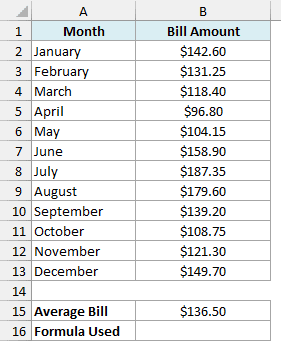
Here is the formula:
=FORMULATEXT(B15)
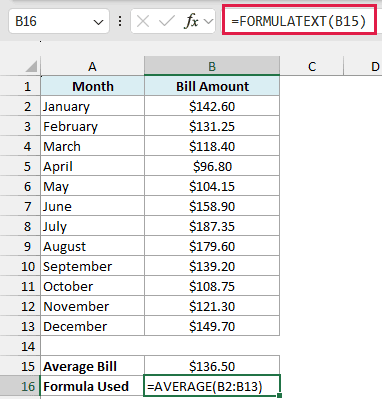
The formula looks at cell B15 and returns its formula, =AVERAGE(B2:B13), as text. Cell B15 still shows the average of $136.50, and cell B16 now tells you exactly how that number was worked out.
This is handy when you share a file with someone who’s not sure where a number came from. They don’t have to click into the cell and read the formula bar, because the formula is sitting right below the result.
Example 2: Show Formulas for a Whole Column With One Formula
Now let’s show the formulas for an entire column at once.
Below is a road trip log with the miles driven and gallons used each day, and I want to show the formula behind each Miles per Gallon value (column D) in column E.
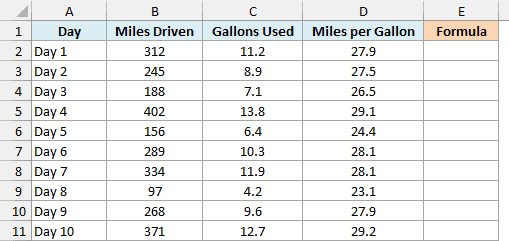
Here is the formula:
=FORMULATEXT(D2:D11)
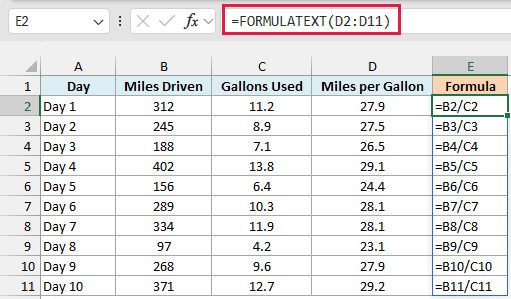
Since I gave FORMULATEXT the whole range D2:D11, it returns one formula for each cell in that range. You enter the formula once in cell E2, and the results spill down to E11 automatically.
Now you can scan column E and confirm that every row divides the miles by the gallons for that same row, from =B2/C2 down to =B11/C11. If one row pointed at the wrong cells, it would stand out right away.
If you are using Excel 2019 or earlier, enter the below formula in cell E2 and then copy it down the range:
=FORMULATEXT(D2)
In those older versions, giving FORMULATEXT a range returns only the formula from the top-left cell of that range, which is why you need one formula per row.
Pro Tip: For a quick look at every formula on a sheet, press Control + ` (the key above Tab) to turn Show Formulas on and off. FORMULATEXT is the better choice when you want the formulas to stay visible next to the results.
Example 3: Find Values That Were Typed in Instead of Calculated
This next one is useful when you’re checking a sheet someone else built.
Below is a coffee shop’s daily sales report where Total Sales should add the card and cash sales, and I want to see the formula behind each total (column D) in column E.
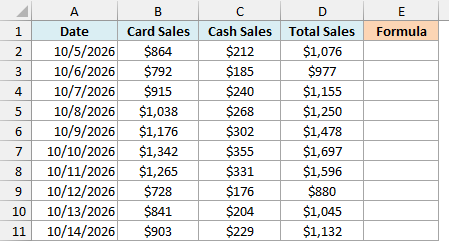
Here is the formula:
=FORMULATEXT(D2:D11)
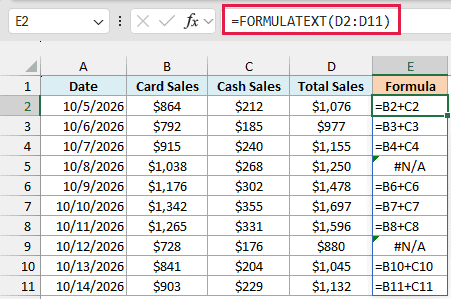
Most rows show a formula like =B2+C2, but two rows show #N/A. FORMULATEXT returns #N/A when the cell it points to doesn’t have a formula, so those two totals were typed in by hand.
And both typed totals are wrong. On 10/8/2026 the card and cash sales add up to $1,306 but the total says $1,250, and on 10/12/2026 they add up to $904 while the total says $880.
Even when a typed total happens to be right, it won’t update if someone changes the sales figures later, so it’s worth catching these cells early.
The #N/A does its job, but it doesn’t look great in a report. Here is the formula that replaces it with a clear label in column F:
=IFNA(FORMULATEXT(D2:D11),"Typed value")
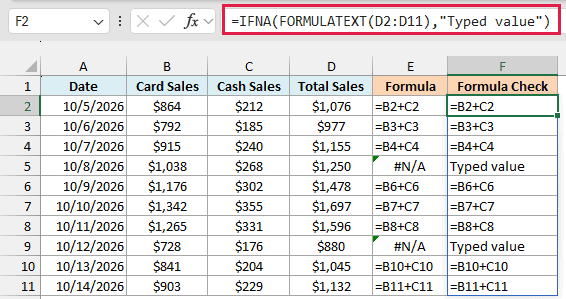
The IFNA function catches the #N/A errors and shows “Typed value” instead, while every other row still shows its formula.
Important: If the sheet is protected and the cells have hidden formulas, FORMULATEXT returns #N/A for them too, so real formulas would show up as “Typed value”. Unprotect the sheet before you run this check.
If all you need is a TRUE or FALSE for each cell, the ISFORMULA function does that job directly. FORMULATEXT is the better fit here because you get to see the actual formula in every row that has one.
Example 4: Show Formulas From Another Sheet
FORMULATEXT doesn’t have to look at the same sheet it’s on, so you can use it to keep notes about how a workbook works.
Below is a book club’s reading log on the Reading Log sheet, with a small summary in E2:E5, and I want to list the formulas behind that summary on a separate sheet called Formula Notes.
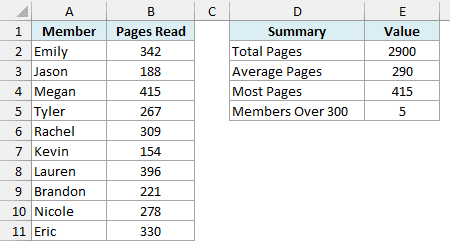
On the Formula Notes sheet, I have the same summary labels in column A, and the formulas will go in column B.
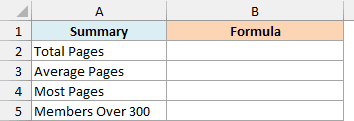
Here is the formula in cell B2 of the Formula Notes sheet:
=FORMULATEXT('Reading Log'!E2:E5)
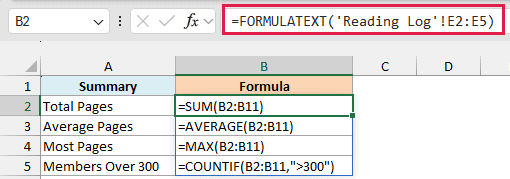
The formula points to E2:E5 on the Reading Log sheet and returns the four summary formulas, from =SUM(B2:B11) to =COUNTIF(B2:B11,">300"). Since the sheet name has a space in it, it goes inside single quotes in the reference.
Note that the formulas show up exactly as they’re written on the Reading Log sheet, without the sheet name. So =SUM(B2:B11) here still means column B of the Reading Log sheet, not column B of the Formula Notes sheet.
You can also point FORMULATEXT at a cell in another workbook. That works only while the other workbook is open, and you’ll get #N/A once it’s closed.
Example 5: Check If a Formula Uses a Specific Function
Let’s step it up with a more advanced use case, where you combine FORMULATEXT with other functions to check what’s inside each formula.
Below is a weekly pay sheet where some of the Weekly Pay formulas were wrapped in the ROUND function and others weren’t, and I want to flag the ones that use ROUND with a TRUE or FALSE in column E.
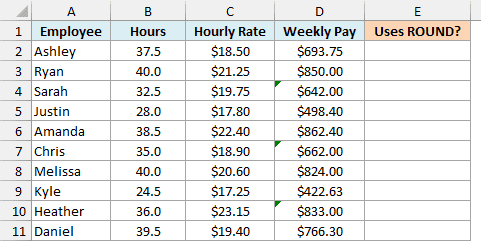
Here is the formula:
=ISNUMBER(SEARCH("ROUND(",FORMULATEXT(D2:D11)))
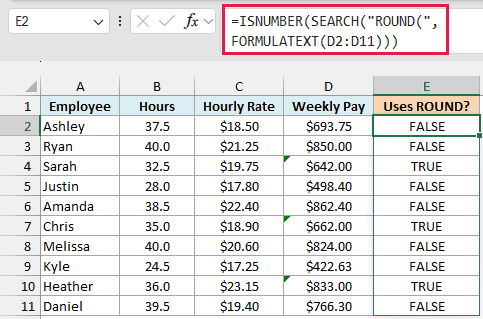
How this formula works:
- FORMULATEXT(D2:D11) returns the formula from each Weekly Pay cell as text, such as
=B2*C2or=ROUND(B4*C4,0). - SEARCH(“ROUND(“,…) uses the SEARCH function to look for the text ROUND( in each formula. It returns the position where it finds it, or a #VALUE! error when it doesn’t.
- ISNUMBER turns those results into TRUE (a position was found) or FALSE (an error), so you get a clean TRUE or FALSE for each row.
The result shows TRUE for Sarah, Chris, and Heather. Their pay is rounded to whole dollars, which is why their totals don’t have any cents.
You can’t always tell this by looking at the numbers. Ryan’s pay is $850.00 and Melissa’s is $824.00, which look rounded too, but their formulas are a plain multiplication that just happens to land on a whole number.
You might also notice small green triangles in D4, D7, and D10. That’s Excel’s error checking flagging those formulas as inconsistent with the cells around them, but only the FORMULATEXT check tells you which function they have in common.
I’ve included the opening parenthesis in “ROUND(” so the check skips ROUNDUP and ROUNDDOWN. It would still match MROUND, though, since that name ends in ROUND(.
And just like in Example 3, a typed value instead of a formula would make FORMULATEXT return #N/A, so that row would show FALSE here.
You can use the same formula to look for any function. Just replace “ROUND(” with “VLOOKUP(” or “SUM(” to find the formulas that use those instead.
So these are some practical ways to use the FORMULATEXT function in Excel. It’s a small function, but it saves you from clicking into cell after cell just to see how a number was calculated.
I hope you found this tutorial useful.
Other Excel Articles You May Also Like:
