

ISERROR tells you whether a value in Excel is an error. Give it a cell or a formula, and it returns TRUE for any kind of error (like #N/A, #VALUE!, or #DIV/0!) and FALSE for everything else.
On its own, that TRUE or FALSE is handy for spotting broken formulas. But ISERROR gets really useful when you combine it with other functions, so you can count errors, highlight them, show your own message instead, or filter them out.
In this article, I’ll show you how ISERROR works and walk you through seven practical examples.
Follow along with the example file
ISERROR Function Examples.xlsx
ISERROR Function Syntax
Here is the syntax of the ISERROR function:
=ISERROR(value)
- value – The value you want to check. This can be a cell reference, a calculation, a typed value, or (in Excel 365 and 2021 or later) a whole range of cells.
When you give ISERROR a calculation instead of a cell, it runs the calculation first and then checks the answer. So =ISERROR(B2/C2) returns TRUE when C2 is zero or blank, without you needing a separate column for the division.
ISERROR returns TRUE for every error type in Excel, including #N/A, #VALUE!, #REF!, #DIV/0!, #NUM!, #NAME?, #NULL!, #SPILL!, and #CALC!.
Everything else returns FALSE. That includes numbers, text, TRUE/FALSE values, and empty cells, so a blank cell is not treated as an error.
The ISERROR function works in all Excel versions, including 365, 2024, 2021, 2019, 2016, Mac, and the web.
When to Use the ISERROR Function
Use this function when you need to:
- Find out which cells in a column have errors before you share a report.
- Count how many errors there are in a range.
- Highlight rows that have errors, so they’re easy to spot and fix.
- Show your own label (like “No” or “Not found”) when a formula fails.
- Check whether a value exists in another list.
- Pull out only the rows that don’t have errors.
Now let’s look at the examples.
Example 1: Check Which Cells Have Errors
Let’s start with a simple example.
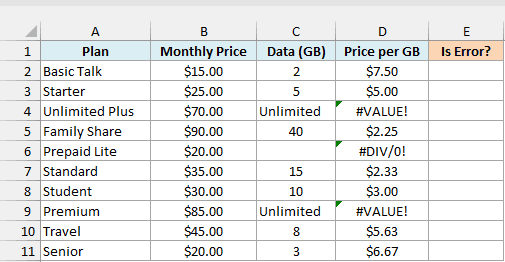
Below is a list of phone plans with their monthly price and data, and I want to check which Price per GB values are errors in column E.
Here is the formula:
=ISERROR(D2:D11)
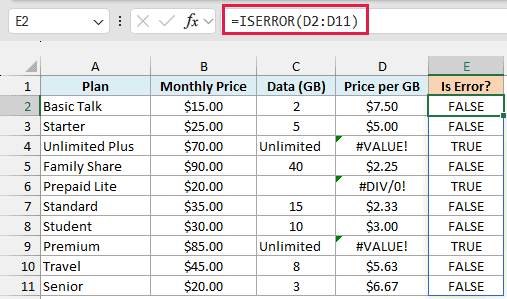
You enter this formula once in cell E2, and in Excel 365 and 2021 or later the results spill down to E11. If any cell in that range already has something in it, you’ll get a #SPILL! error until you clear it.
ISERROR checks each cell in D2:D11 and returns TRUE for the three errors and FALSE for the rest.
The Unlimited Plus and Premium plans show #VALUE! because their data is the text “Unlimited”, and you can’t divide a price by text. Prepaid Lite shows #DIV/0! because its Data (GB) cell is blank.
If you are using Excel 2019 or earlier, enter the below formula in cell E2 and then copy it down the range:
=ISERROR(D2)
Example 2: Use IF ISERROR to Find a Word in Text
Here’s another practical scenario, where the error from another function tells you something useful.
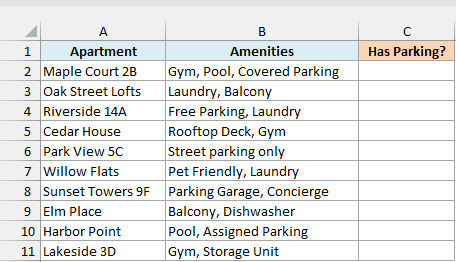
Below is a list of apartments with their amenities, and I want to show “Yes” in column C if the amenities mention parking and “No” if they don’t.
Here is the formula:
=IF(ISERROR(SEARCH("parking",B2:B11)),"No","Yes")
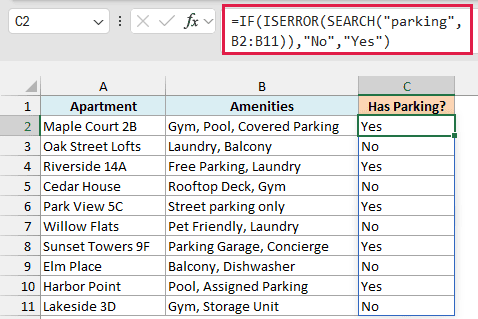
How this formula works:
- SEARCH(“parking”,B2:B11) looks for the word “parking” in each amenities cell. If it finds it, it returns the position where the word starts, and if it doesn’t, it returns a #VALUE! error.
- ISERROR(…) turns that into TRUE when the word was not found and FALSE when it was.
- IF returns “No” for TRUE and “Yes” for FALSE.
So Maple Court 2B, Riverside 14A, Park View 5C, Sunset Towers 9F, and Harbor Point get a “Yes”. The SEARCH function is not case-sensitive, so “Covered Parking” and “Parking Garage” count even though I searched for “parking” in lowercase.
You might wonder why I didn’t use the IFERROR function here. IFERROR returns the formula’s own result when there’s no error, so you’d see the position number (like 6 for Riverside 14A) instead of “Yes”.
The IF function with ISERROR lets you decide what to show in both cases, which is exactly what you need for a Yes/No column.
If you are using Excel 2019 or earlier, enter the below formula in cell C2 and then copy it down the range:
=IF(ISERROR(SEARCH("parking",B2)),"No","Yes")
Example 3: Count Errors in a Range
Now let’s look at how to count errors instead of flagging them one by one.
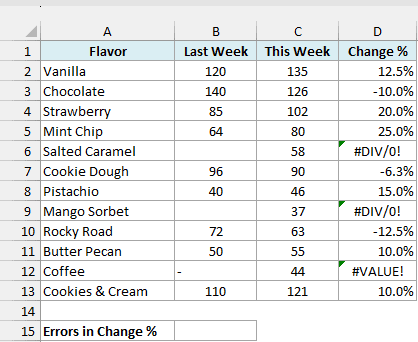
Below are the weekly sales for an ice cream shop, with the change from last week in column D, and I want to count how many Change % values are errors in B15.
Here is the formula:
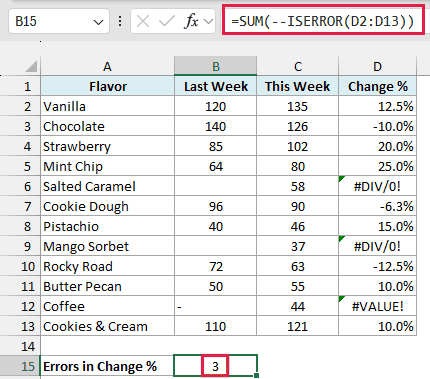
=SUM(--ISERROR(D2:D13))
How this formula works:
- ISERROR(D2:D13) returns a list of TRUE and FALSE values, one for each cell, with TRUE for every error.
- — (two minus signs) converts TRUE to 1 and FALSE to 0.
- SUM adds up those 1s and 0s, which gives the number of errors.
The result is 3. Salted Caramel and Mango Sorbet are new flavors with no sales last week, so their change shows a #DIV/0! error, and Coffee shows #VALUE! because someone typed a dash instead of a number.
If you are using Excel 2019 or earlier, the SUM version above only works if you press Ctrl+Shift+Enter, so enter the below formula in cell B15 instead:
=SUMPRODUCT(--ISERROR(D2:D13))
The SUMPRODUCT function handles the TRUE/FALSE list on its own, so it returns the same 3 in every version of Excel.
Example 4: Highlight Rows With Errors Using ISERROR
This next one uses ISERROR inside conditional formatting to color the entire row whenever there’s an error.
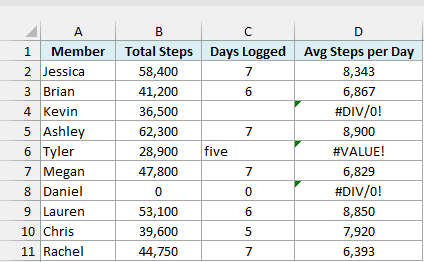
Below is the step count for a walking challenge, with the average steps per day in column D, and I want to highlight every row where that average is an error.
Here are the steps to do this:
- Select the data in A2:D11 (without the headers).
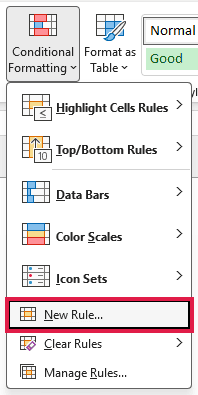
- Click the Home tab, then click Conditional Formatting and choose New Rule.
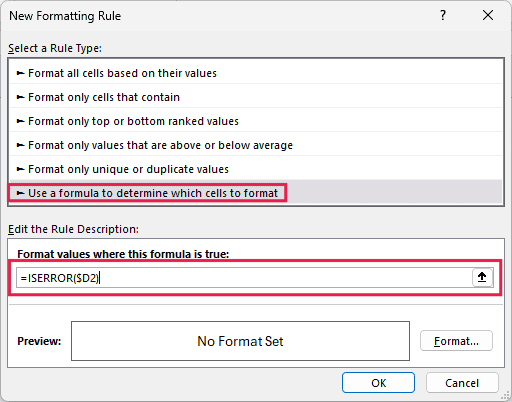
- In the New Formatting Rule dialog box, click ‘Use a formula to determine which cells to format’.
- In the formula box, enter the below formula.
=ISERROR($D2)
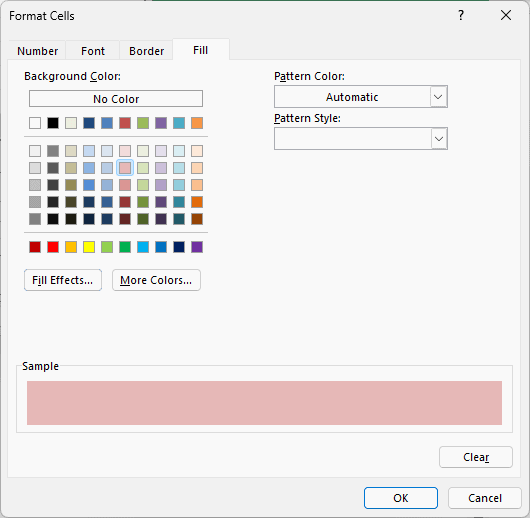
- Click the Format button, go to the Fill tab, and pick a light red color.
- Click OK, and then click OK again.
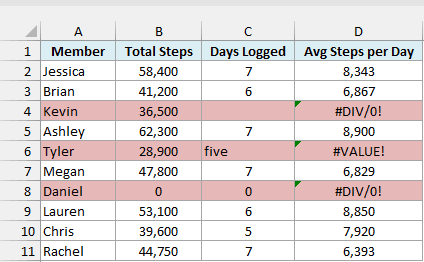
The rows for Kevin, Tyler, and Daniel are now highlighted. Kevin’s Days Logged cell is blank and Daniel’s is 0, so both give #DIV/0!, and Tyler’s shows #VALUE! because “five” was typed as text.
Conditional formatting checks this formula for every cell in the selection, one row at a time. For row 4, it checks =ISERROR($D4), and since D4 is an error, every cell in that row gets the color.
Important: The dollar sign goes only before the D. If you use $D$2, every row checks D2, which isn’t an error, so nothing gets highlighted.
Leaving out the dollar sign causes a different problem. Each column would then check a different column (B checks E, C checks F, and so on), so only the cells in column A would get the color.
Example 5: Find Names Missing From Another List
Let’s step it up with a lookup, where ISERROR tells you whether a value exists in another list.
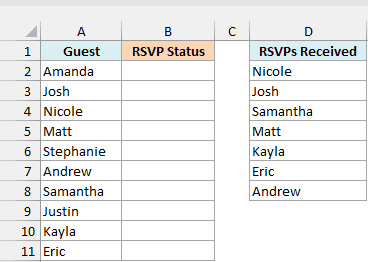
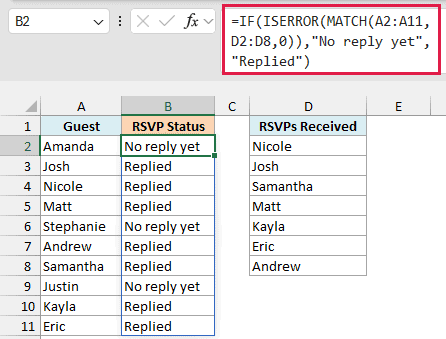
Below is a list of party guests, along with a list of the RSVPs received so far, and I want to show in column B whether each guest has replied.
Here is the formula:
=IF(ISERROR(MATCH(A2:A11,D2:D8,0)),"No reply yet","Replied")
How this formula works:
- MATCH(A2:A11,D2:D8,0) looks for each guest’s name in the RSVP list. It returns the name’s position when it finds it, and a #N/A error when it doesn’t.
- ISERROR(…) returns TRUE for the names MATCH couldn’t find.
- IF shows “No reply yet” for those and “Replied” for everyone else.
So Amanda, Stephanie, and Justin get “No reply yet”, because their names aren’t in the RSVP list.
A not-found lookup always gives #N/A, so you could use the ISNA function here instead. The difference is that ISERROR also catches other errors, so a broken range (like #REF!) would show up as “No reply yet” too.
If you are using Excel 2019 or earlier, enter the below formula in cell B2 and then copy it down the range:
=IF(ISERROR(MATCH(A2,$D$2:$D$8,0)),"No reply yet","Replied")
Example 6: ISERROR With VLOOKUP (and Simpler Ways)
You’ll often see ISERROR paired with the VLOOKUP function in older workbooks, so let me show you how that works, and then simpler ways to do the same thing.
Below is a list of coffee shop orders, along with a menu that has the price of each item, and I want to get the price of each order in column C, with “Not on menu” for items the menu doesn’t have.
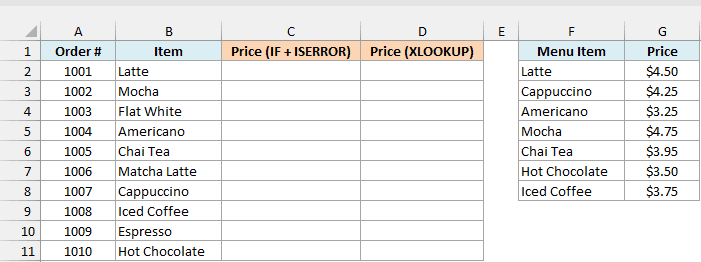
Here is the formula using IF, ISERROR, and VLOOKUP:
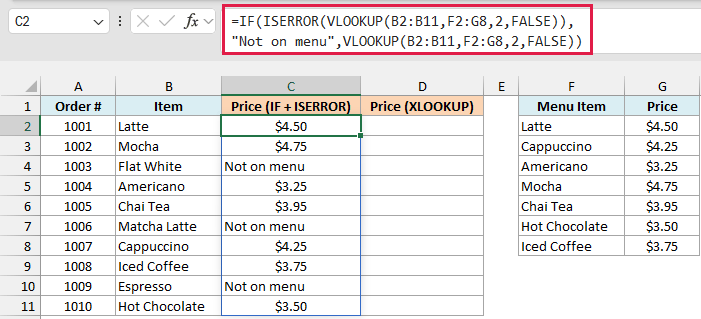
=IF(ISERROR(VLOOKUP(B2:B11,F2:G8,2,FALSE)),"Not on menu",VLOOKUP(B2:B11,F2:G8,2,FALSE))
How this formula works:
- VLOOKUP(B2:B11,F2:G8,2,FALSE) looks up each item in the menu and returns its price, or #N/A if the item isn’t there.
- ISERROR(…) checks whether that lookup failed.
- IF shows “Not on menu” when it failed, and runs the same VLOOKUP again to show the price when it didn’t.
Flat White, Matcha Latte, and Espresso aren’t on the menu, so they show “Not on menu”, and every other order gets its price.
This works, but you have to write the VLOOKUP formula twice, and Excel runs it twice for every order that’s found. That’s a lot of formula for a simple job, and it’s easy to change one VLOOKUP and forget the other.
In Excel 365 and 2021 or later, the XLOOKUP function has a built-in argument for what to show when there’s no match. Here is the formula that does the same job in column D:
=XLOOKUP(B2:B11,F2:F8,G2:G8,"Not on menu")
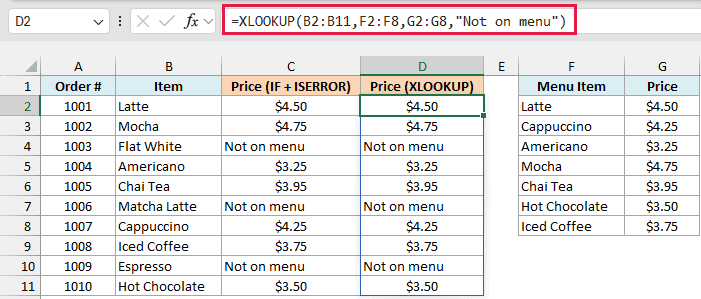
The fourth argument, “Not on menu”, is what the XLOOKUP function returns when it can’t find an item. So you get the same results as column C with one short lookup and no ISERROR.
The IFERROR function is the other simpler way. It wraps the VLOOKUP formula once and shows “Not on menu” when the lookup fails, with no ISERROR needed.
The below IFERROR formula works in any recent version of Excel, so it’s the one to use in Excel 2019 or earlier, where XLOOKUP isn’t available. Enter it in cell C2 and then copy it down the range:
=IFERROR(VLOOKUP(B2,$F$2:$G$8,2,FALSE),"Not on menu")
Example 7: Remove Rows With Errors Using FILTER
Let’s finish with a way to get a clean copy of your data without the error rows.
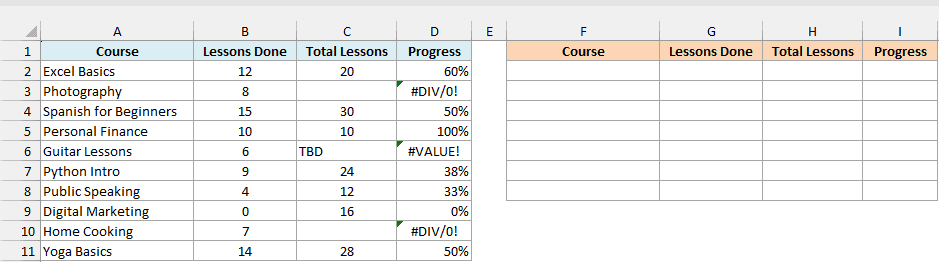
Below is a list of online courses with how many lessons I’ve done and the total number of lessons, and I want a list of only the courses where Progress is not an error, starting in F2.
Here is the formula:
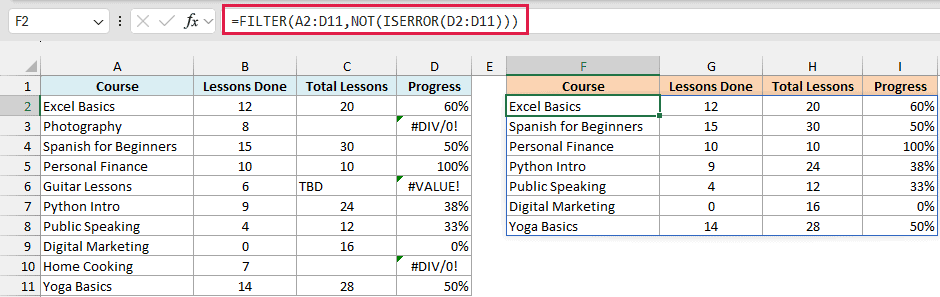
=FILTER(A2:D11,NOT(ISERROR(D2:D11)))
How this formula works:
- ISERROR(D2:D11) returns TRUE for every course whose Progress is an error.
- NOT(…) flips those values, so the rows without errors become TRUE.
- FILTER(A2:D11,…) returns only the rows marked TRUE, with all four columns.
Photography and Home Cooking have no total lessons yet, and Guitar Lessons says “TBD”, so those three are left out. The other seven courses show up in F2:I8.
The original data stays as it is, so once you fill in the missing totals, those courses automatically show up in the filtered list too.
The FILTER function is only in Excel 365 and 2021 or later.
If you are using Excel 2019 or earlier, enter the below formula in cell E2 as a helper column and copy it down, and then apply a filter (Data tab > Filter) to that column and show only FALSE:
=ISERROR(D2)
So these are seven ways you can use the ISERROR function in Excel, from simply flagging errors to counting them, highlighting them, and filtering them out.
I hope you found this article helpful.
Other Excel Articles You May Also Like:
