

The DPRODUCT function multiplies the numbers in a column, but only from the rows that match conditions you type into a few cells. Excel has a SUMIF for adding with conditions but no PRODUCTIF, so DPRODUCT is the built-in way to multiply with conditions.
Multiplying a column might sound odd at first, since most of the time you add numbers in Excel. But some numbers are meant to be multiplied, like growth factors, pass rates, price multipliers, or the length, width, and height of a box.
In this tutorial, I’ll show you how to use DPRODUCT with one condition, multiple conditions, and wildcards. I’ll also cover the sneaky 0 it returns when there’s nothing to multiply.
Follow along with the example file
DPRODUCT Function Examples.xlsx
DPRODUCT Function Syntax
Here is the syntax of the DPRODUCT function:
=DPRODUCT(database, field, criteria)
- database – The whole data range, including the header row. Each row is a record and each column is a field.
- field – The column whose numbers you want to multiply. You can give its header in double quotes (like “Inches”) or its position in the database as a number (like 3 for the third column).
- criteria – The range that holds your conditions. Its top row has headers that match the headers in your data, and the conditions go in the cells right below them.
The layout of the criteria range decides how your conditions combine. Conditions on the same row must all be true (Example 3), while conditions on separate rows mean any one of them can be true (Example 4).
If you leave the cell under a criteria header empty, it matches every row. So an empty condition multiplies the whole column.
The DPRODUCT function works in Excel for Microsoft 365, Excel 2024, 2021, 2019, and 2016, on both Windows and Mac.
When to Use the DPRODUCT Function
Use this function when you need to:
- Multiply growth factors for the years or months that meet a condition, to get the total growth
- Find the chance that every step passes, by multiplying pass rates for one group
- Combine stacked discounts or multipliers that apply to an item
- Multiply values for rows that match one value or another (OR logic) in a single formula
Let me show you a few practical examples of how to use the DPRODUCT function.
Example 1: Calculate a Box’s Volume With One Condition
Let’s start with a simple example.
Below is a list of shipping boxes with each box’s length, width, and height on separate rows, and I want the volume of the Medium box in cell E5.
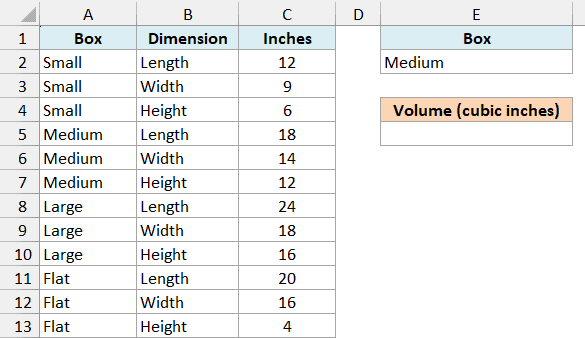
Here is the formula:
=DPRODUCT(A1:C13,"Inches",E1:E2)
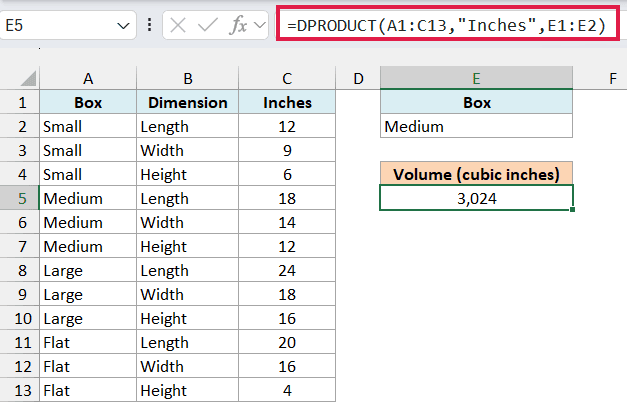
This gives us 3,024, which is 18 x 14 x 12, the volume of the Medium box in cubic inches.
In the above formula, A1:C13 is the full data with its headers, “Inches” is the column to multiply, and E1:E2 is the criteria range. The header in E1 tells DPRODUCT which column to check, and E2 holds the box to look for.
Since Medium sits in a cell and not inside the formula, you can type Large in E2 and the volume updates right away.
Important: The criteria header must match the data header exactly. If E1 said “Boxes” instead of “Box”, no row would match, and DPRODUCT would quietly return 0 instead of an error.
I placed the criteria range to the right of the data on purpose. Microsoft recommends not putting it below your data, because that’s where new rows usually get added.
Example 2: Multiply Growth Factors Since a Year (Field as a Column Number)
Here’s a more practical use of DPRODUCT, finding how much an investment grew over several years.
Below is an index fund’s yearly return from 2016 to 2025 with a growth factor for each year, and I want to know how much the money grew from 2021 onward, with the result in cell E5.
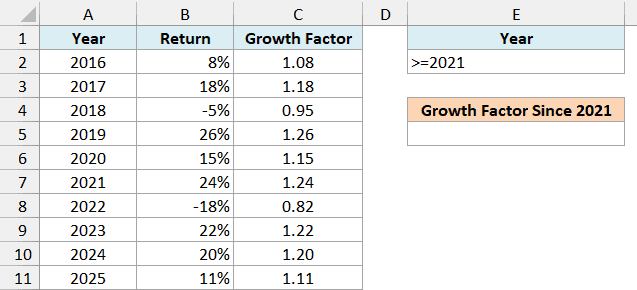
Returns combine by multiplying 1 plus each return, so a 24% gain becomes a growth factor of 1.24 and an 18% loss becomes 0.82. Column C holds these growth factors, and that’s the column DPRODUCT multiplies.
Here is the formula:
=DPRODUCT(A1:C11,3,E1:E2)
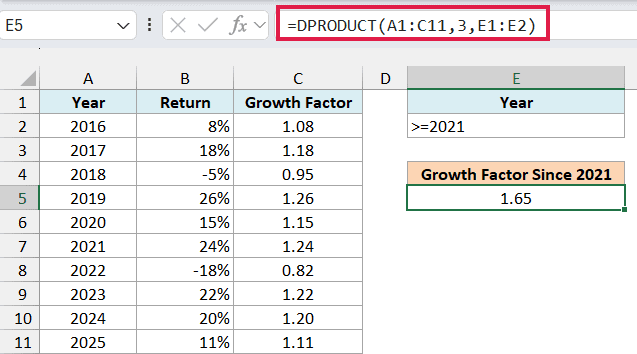
This returns 1.65, which means money in this fund grew 1.65 times from the start of 2021 to the end of 2025. So $10,000 invested at the start of 2021 would be worth about $16,523.
The condition in E2 is >=2021, typed straight into the cell, so only the years 2021 to 2025 get multiplied. Any comparison operator works the same way, such as <2020 or <>2022.
This time, I used 3 as the field instead of “Growth Factor”. Since Growth Factor is the third column in A1:C11, DPRODUCT multiplies that column.
A column number is quicker to type, but it can break without warning. If someone inserts a column inside the data, 3 will point to a different column, while “Growth Factor” keeps working.
Column C gets its growth factors from the formula =1+B2:B11, which spills down the whole column.
If you are using Excel 2019 or earlier, enter the below formula in cell C2 and then copy it down the range:
=1+B2
Important: Don’t point DPRODUCT at the percentage column itself. Multiplying the raw returns for 2021 to 2025 gives -0.000209, which means nothing here.
Example 3: DPRODUCT With Multiple Criteria (AND)
Now let’s look at rows that need to meet two conditions at the same time.
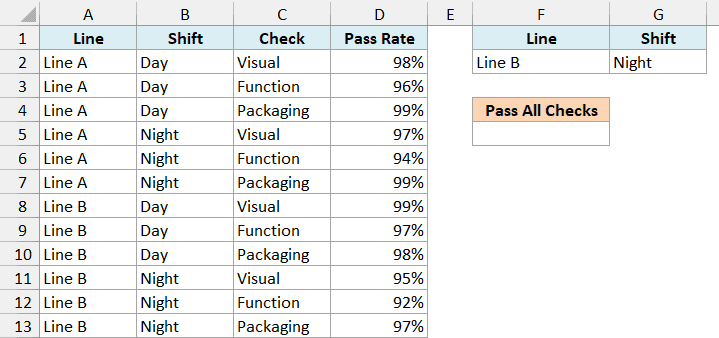
Below are the pass rates of three quality checks for two production lines on two shifts, and I want the chance that a unit made on Line B during the night shift passes all three checks, in cell F5.
Here is the formula:
=DPRODUCT(A1:D13,"Pass Rate",F1:G2)
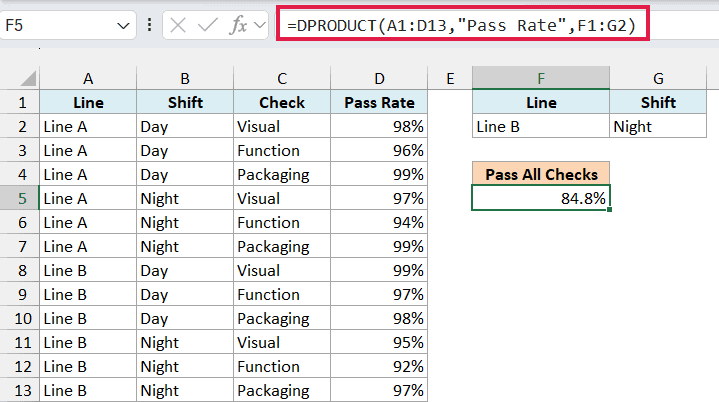
This gives us 84.8%. That’s 95% x 92% x 97%, so about 85 out of every 100 units from the Line B night shift pass every check.
The criteria range now has two headers, Line and Shift, and both conditions sit on the same row. When conditions share a row, a check is included only if it matches all of them.
Here the pass rates go straight into DPRODUCT, unlike the returns in Example 2. A pass rate is already the share of units that get through, so multiplying the rates gives the share that gets through all three checks.
You can add more conditions the same way. Put another header in H1 with its condition in H2, and extend the criteria reference to F1:H2.
Example 4: Multiply Values That Match Either Condition (OR)
This next one uses OR logic, which is where the criteria range really helps.
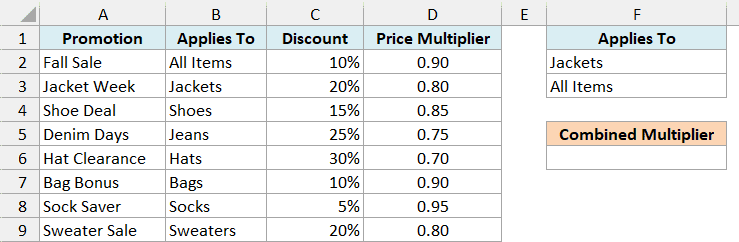
Below is a store’s list of promotions with the discount each one gives, and I want the combined price multiplier for a jacket, which gets both the Jacket Week discount and the Fall Sale on all items, in cell F6.
Here is the formula:
=DPRODUCT(A1:D9,"Price Multiplier",F1:F3)
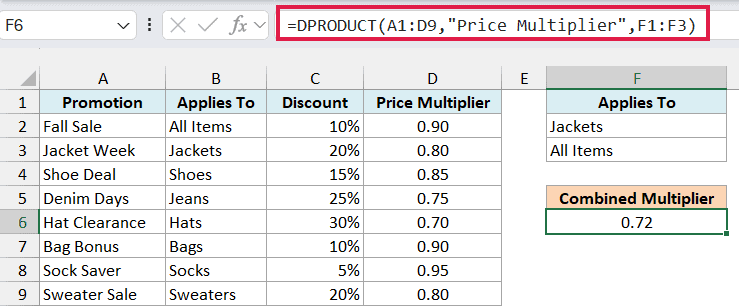
This returns 0.72, so a jacket costs 72% of its original price. A $150 jacket would cost $108.
Jackets and All Items are on separate rows under the same Applies To header. Separate rows work as OR, so a promotion is included if it applies to jackets or to all items.
Column D has the formula =1-C2:C9, which turns each discount into the share of the price you still pay. Like the returns in Example 2, discounts don’t multiply directly, but these price multipliers do.
If you are using Excel 2019 or earlier, enter the below formula in cell D2 and then copy it down the range:
=1-C2
The 0.72 result also shows why stacked discounts don’t simply add up. 20% off plus 10% off is 28% off, not 30%, because the second discount applies to the already reduced price.
If you have Excel 365 or Excel 2021, you can get the same result with the PRODUCT and FILTER functions. Here is the formula in H6, which uses the conditions in H2 and H3:
=PRODUCT(FILTER(D2:D9,(B2:B9=H2)+(B2:B9=H3)))
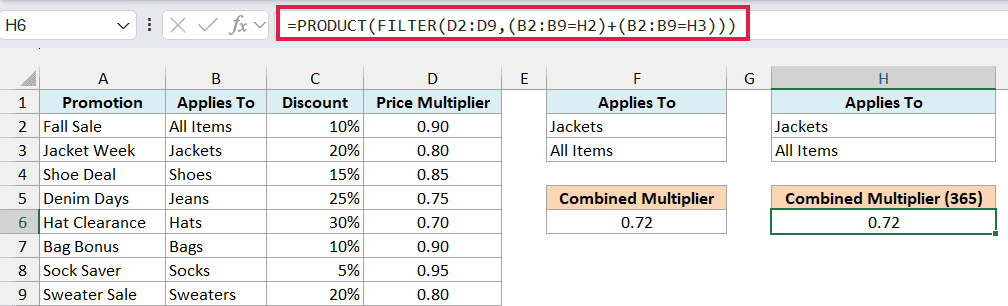
It returns the same 0.72. The + between the two conditions works as OR, so the FILTER function keeps the rows that match either H2 or H3, and the PRODUCT function multiplies them.
The two formulas behave differently when nothing matches. The FILTER function returns a #CALC! error, while DPRODUCT returns 0, which the next example deals with.
You can’t combine the two by feeding a FILTER result into DPRODUCT, though. The database has to be a real range on the sheet, and Excel won’t even let you enter the formula otherwise.
Example 5: How DPRODUCT Handles Blank Cells, Text, and No Matches
Now let’s see what DPRODUCT does with blank cells and text, and what it returns when there’s nothing to multiply.
Below is a creator’s monthly follower growth factor for each social media platform, where some months are blank or marked Paused, and I want YouTube’s total growth in cell E5.
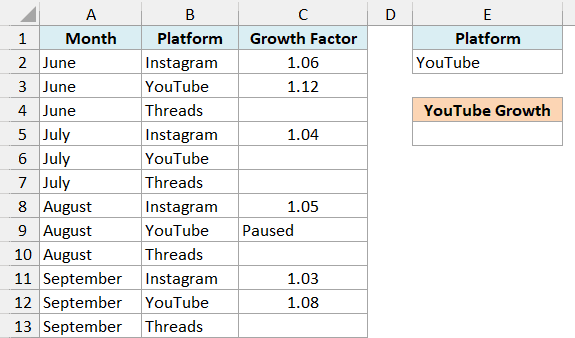
Here is the formula:
=DPRODUCT(A1:C13,"Growth Factor",E1:E2)
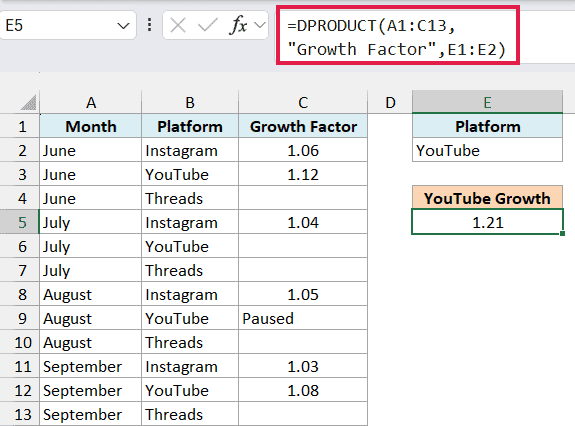
This returns 1.21. YouTube has four months, but only June and September have a number, so DPRODUCT multiplies just 1.12 and 1.08.
The blank July cell and the Paused text in August are skipped, which works like multiplying by 1. That’s what you want here, because if they counted as 0, the whole result would be 0.
Threads is different, because none of its months have a number. If you put Threads in E2, DPRODUCT returns 0, not an error.
That 0 is a problem, because it looks like a real result. DPRODUCT also returns 0 when no row matches at all, and the IFERROR function can’t help, since there’s no error to catch.
To show a message instead, first check whether there’s anything to multiply. Here is the formula in G5, which uses a second criteria range in G1:G2 with Threads under the Platform header:
=IF(DCOUNT(A1:C13,"Growth Factor",G1:G2)=0,"No data yet",DPRODUCT(A1:C13,"Growth Factor",G1:G2))
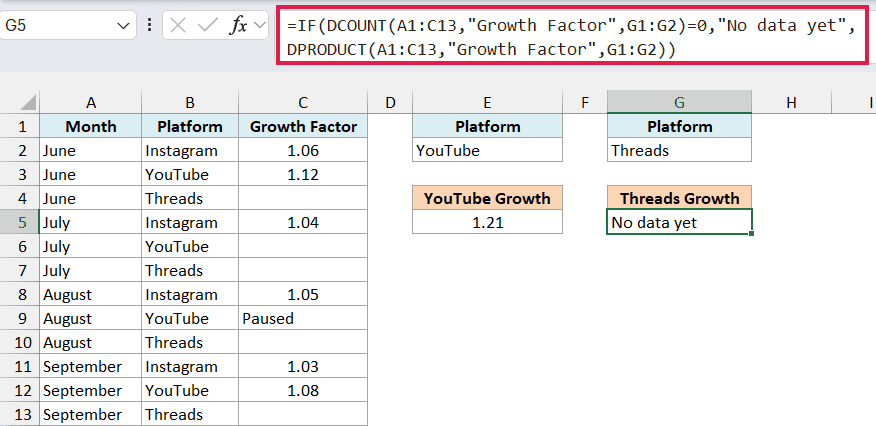
Since Threads has no numbers, the formula shows No data yet instead of 0.
The DCOUNT function takes the same database, field, and criteria, and counts the numbers DPRODUCT would multiply. When that count is 0, the IF function shows the message, and otherwise it returns the DPRODUCT result.
Important: A real 0 in the column also makes DPRODUCT return 0, since anything multiplied by 0 is 0. So when you see an unexpected 0, check the data for a zero as well as the criteria.
Example 6: Use Wildcards in DPRODUCT Criteria
Let’s end with a condition based on part of a text value.
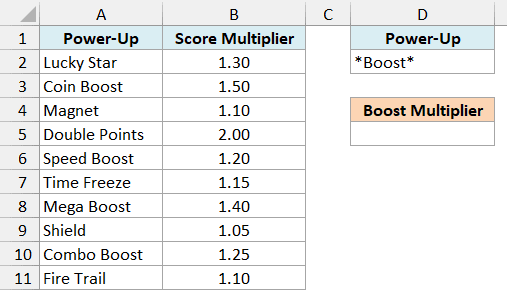
Below is a list of power-ups in a video game with the score multiplier each one gives, and I want the combined multiplier of every power-up with Boost in its name, in cell D5.
Here is the formula:
=DPRODUCT(A1:B11,"Score Multiplier",D1:D2)
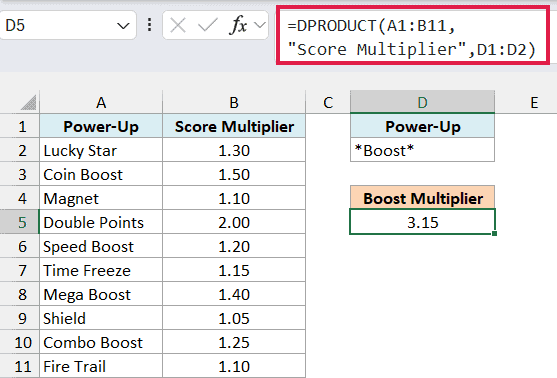
This gives us 3.15, which is 1.5 x 1.2 x 1.4 x 1.25 from Coin Boost, Speed Boost, Mega Boost, and Combo Boost.
The condition in D2 is *Boost*, where the asterisk (*) is a wildcard that stands for any number of characters. So *Boost* matches Boost anywhere in the name, and a question mark (?) would stand for exactly one character.
You need the wildcard because a plain text condition matches values that begin with that text. Typing just Boost here would find nothing, and DPRODUCT would return 0.
Important: A plain text condition also matches longer values that start with that text, so Coin on its own would pick up Coin Boost here. To match only cells that are exactly Coin, enter ="=Coin" in the criteria cell.
Text conditions also aren’t case-sensitive, so *boost* and *BOOST* pick up the same items.
So these are some practical ways to use the DPRODUCT function in Excel. I covered single conditions, AND and OR conditions, factor columns for returns and discounts, blank cells, and wildcards.
I hope you found this Excel tutorial useful.
Other Excel Articles You May Also Like:
