

The DSTDEVP function gives you the standard deviation of one column in your data, but only for the rows that meet the conditions you set. Standard deviation tells you how spread out the numbers are around their average.
Like the other database functions in Excel, DSTDEVP takes its conditions from a few cells on the sheet, not from inside the formula. So you can change what gets measured just by editing a cell.
The P at the end stands for population. Use DSTDEVP when the rows that match your conditions are the whole group you care about, and use the DSTDEV function when they’re only a sample of a bigger group.
In this tutorial, I’ll show you how to use DSTDEVP with one condition, multiple conditions, and OR conditions. I’ll also cover how it compares with the DSTDEV function and why it can return 0 when only one row matches.
Follow along with the example file
DSTDEVP Function Examples.xlsx
DSTDEVP Function Syntax
Here is the syntax of the DSTDEVP function:
=DSTDEVP(database, field, criteria)
- database – The whole data range, including the header row. Each row is a record and each column is a field.
- field – The column you want the standard deviation of. You can give its header in double quotes (like “Price”) or its position in the database as a number (like 3 for the third column).
- criteria – The range that holds your conditions. Its top row has headers that match the headers in your data, and the conditions go in the cells right below them.
The layout of the criteria range decides how your conditions combine. Conditions on the same row must all be true (Example 3), while conditions on separate rows mean any one of them can be true (Example 4).
If you leave the cell under a criteria header empty, it matches every row. So an empty condition gives you the standard deviation of the whole column, the same number the STDEV.P function returns.
The DSTDEVP function works in Excel for Microsoft 365, Excel 2024, 2021, 2019, and 2016, on both Windows and Mac.
When to Use the DSTDEVP Function
Use this function when you need to:
- Find how much values vary for rows that meet one or more conditions, with the conditions kept in cells you can change
- Measure the spread for rows that match any one of several values (OR logic) in a single formula
- Compare how consistent two groups are when both sit in the same table
- Get the standard deviation of a group when your data covers every member of that group
Let me show you a few practical examples of how to use the DSTDEVP function.
Example 1: Population Standard Deviation for One Group
Let’s start with a simple example.
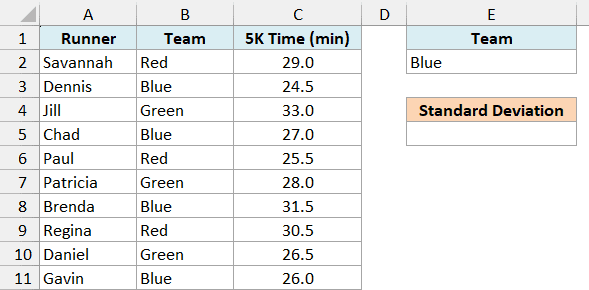
Below is a list of every runner in a small running club with their team and 5K time, and I want the standard deviation of the Blue team’s times in cell E5.
Here is the formula:
=DSTDEVP(A1:C11,"5K Time (min)",E1:E2)
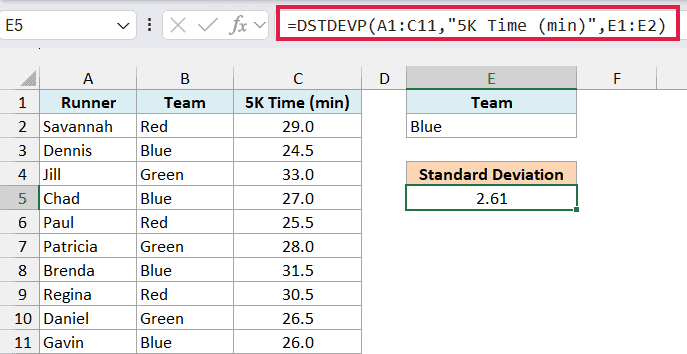
This returns 2.61. The Blue team’s four runners average 27.25 minutes, so their times typically sit about 2.6 minutes away from that average.
In the above formula, A1:C11 is the full data with its headers, “5K Time (min)” is the column to measure, and E1:E2 is the criteria range. The header in E1 tells DSTDEVP which column to check, and E2 holds the value to look for.
Since this list has every runner on the Blue team, the matching rows are the whole group, which is exactly the case DSTDEVP is built for. If you type Red in E2, you get the Red team’s standard deviation instead.
Important: The criteria header must match the data header exactly. If E1 said “Teams” instead of “Team”, no row would match, and DSTDEVP would return a #DIV/0! error.
A text condition like Blue matches any value that starts with Blue, and it ignores case. So a team called Blue Jays would get included too.
The DSUM tutorial shows how to force an exact match with ="=Blue".
I placed the criteria range to the right of the data on purpose. Microsoft recommends not putting it below your data, because that’s where new rows usually get added.
Example 2: DSTDEVP With a Number Condition (Field as a Column Number)
Here’s another practical scenario.
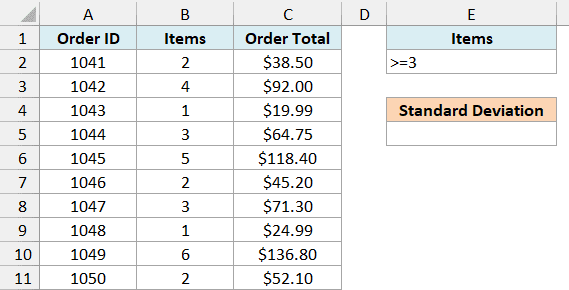
Below is a list of every order an online shop got yesterday with the number of items and the order total, and I want the standard deviation of the totals for orders with 3 or more items in cell E5.
Here is the formula:
=DSTDEVP(A1:C11,3,E1:E2)
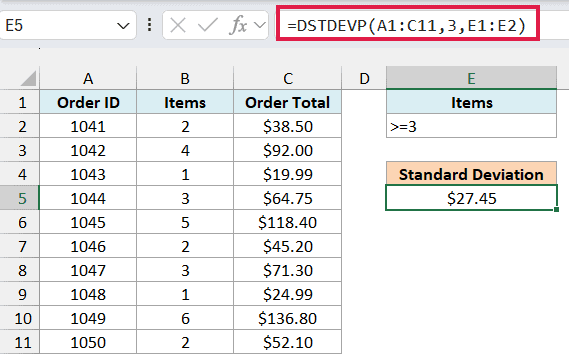
This gives us $27.45. Five orders have 3 or more items, and their totals average $96.65, so this tells you how far those totals usually stray from that average.
The condition in E2 is >=3, typed straight into the cell. Any comparison operator works the same way, such as >50, <10, or <>0.
This time, I used 3 as the field instead of “Order Total”. Since Order Total is the third column in A1:C11, DSTDEVP uses that column.
A column number is quicker to type, but it can break without warning. If someone inserts a column inside the data, 3 will point to a different column, while “Order Total” keeps working.
Example 3: DSTDEVP With Multiple Criteria (AND)
Now let’s look at rows that need to meet two conditions at the same time.
Below is a pet store’s full list of items with the animal, category, and price, and I want the standard deviation of the prices of dog toys in cell F5.
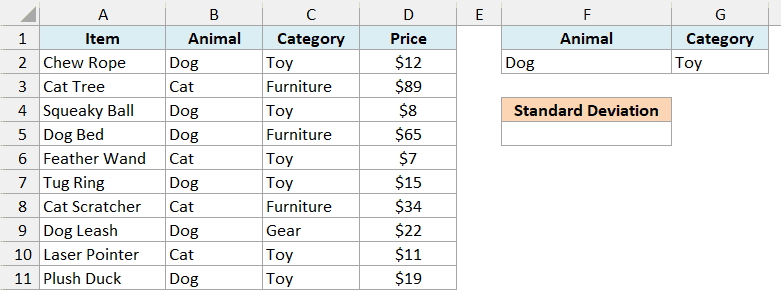
Here is the formula:
=DSTDEVP(A1:D11,"Price",F1:G2)
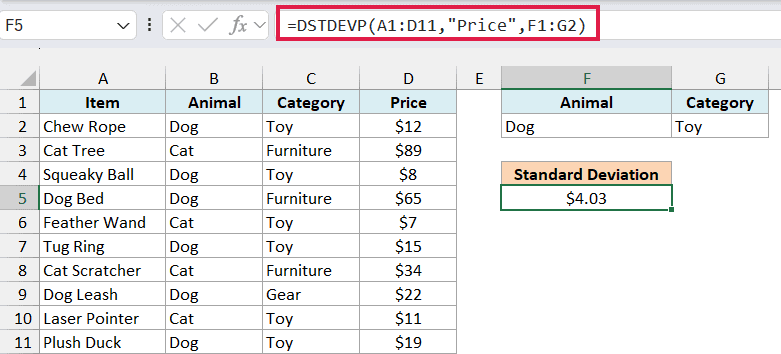
This returns $4.03, which is the spread of the four dog toy prices ($12, $8, $15, and $19).
The criteria range now has two headers, Animal and Category, and both conditions sit on the same row. When conditions share a row, an item is counted only if it meets all of them, so the dog bed, the dog leash, and the cat toys are left out.
You can add more conditions the same way. Put another header in H1 with its condition in H2, and extend the criteria reference to F1:H2.
Example 4: Standard Deviation for Rows That Match Either Condition (OR)
This next one shows how to measure the spread across two groups combined.
Below is a list of every package a small online seller shipped this week with the destination state and shipping cost, and I want the standard deviation of the shipping costs for Texas and Florida combined in cell E6.
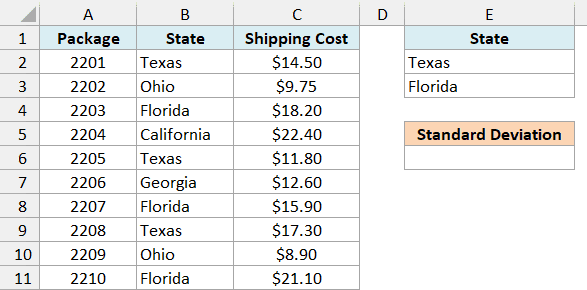
Here is the formula:
=DSTDEVP(A1:C11,"Shipping Cost",E1:E3)
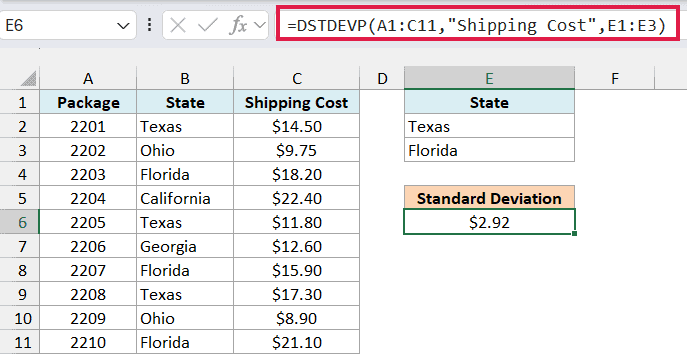
This gives us $2.92, the standard deviation of the six packages that went to Texas or Florida.
The OR logic comes from the criteria range. Texas and Florida are on separate rows under the same State header, and separate rows work as OR, so a package is counted if it matches either one.
Important: Make sure the criteria range has no empty rows. If you used E1:E4 here, the blank row would match every package, and you’d get $4.34, the standard deviation of all ten packages.
Example 5: DSTDEVP vs DSTDEV (Population vs Sample)
Now let’s look at the question that confuses a lot of people, which is whether to use DSTDEVP or the DSTDEV function.
Below is a list of every employee at a small company with their department and overtime hours last month, and I want the standard deviation of the Sales team’s overtime with both functions in column E.
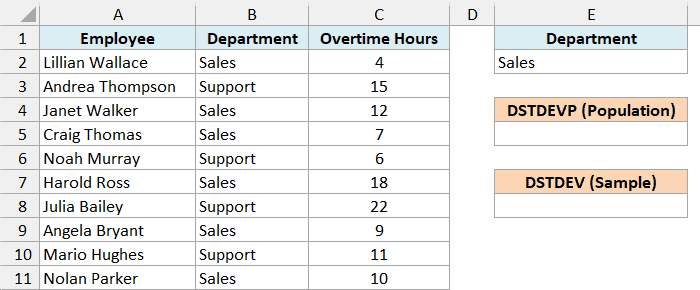
Here is the DSTDEVP formula in E5:
=DSTDEVP(A1:C11,"Overtime Hours",E1:E2)
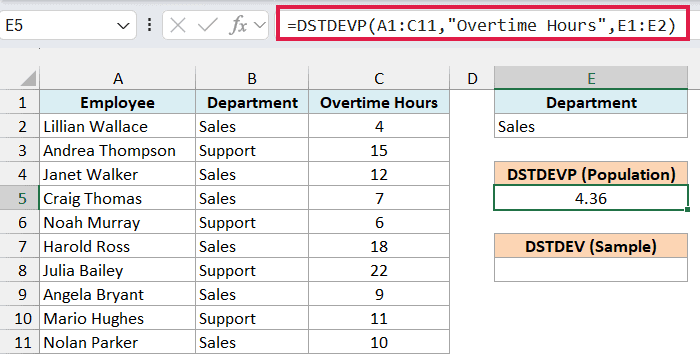
This returns 4.36.
And here is the DSTDEV formula in E8, with the same three arguments:
=DSTDEV(A1:C11,"Overtime Hours",E1:E2)
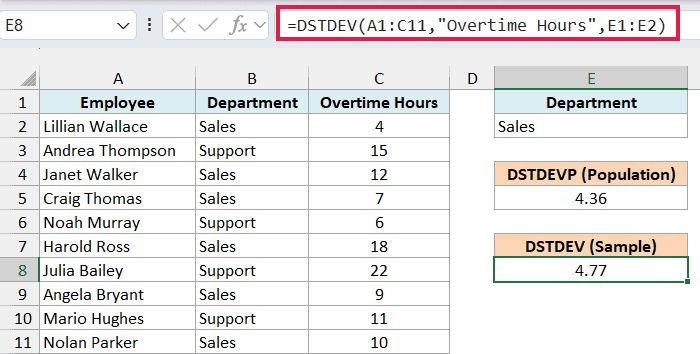
This returns 4.77, a little higher than DSTDEVP.
The difference comes from one step in the math. DSTDEVP divides by the number of matching values (6 here), while the DSTDEV function divides by one less (5), which makes its result slightly bigger.
Which one is right depends on what your data covers. These six people are the entire Sales team, so if you want to describe this team’s overtime, DSTDEVP is the correct choice.
Now say the company had 60 salespeople, and you only had overtime numbers for six of them. Then your data is a sample, and you’d use the DSTDEV function to estimate the spread for the whole team.
The gap between the two shrinks as more rows match. With six rows the difference is easy to see, but with hundreds of rows both functions return almost the same number.
Example 6: Compare How Consistent Two Groups Are
This is where standard deviation gets really useful.
Below are all the orders two delivery drivers handled last Saturday with each delivery time, and I want the standard deviation for each driver in E5 and F5.
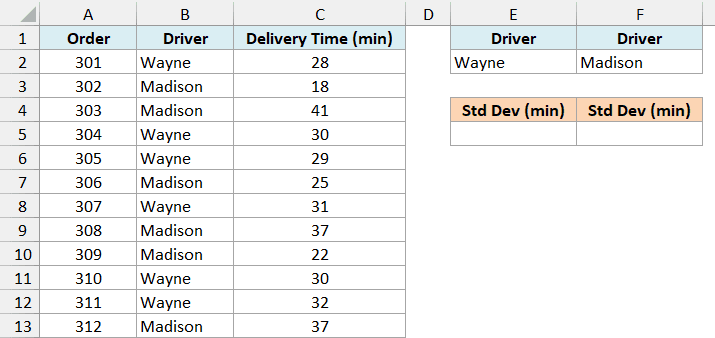
Here is the formula I entered in E5 and then copied to F5:
=DSTDEVP($A$1:$C$13,"Delivery Time (min)",E1:E2)
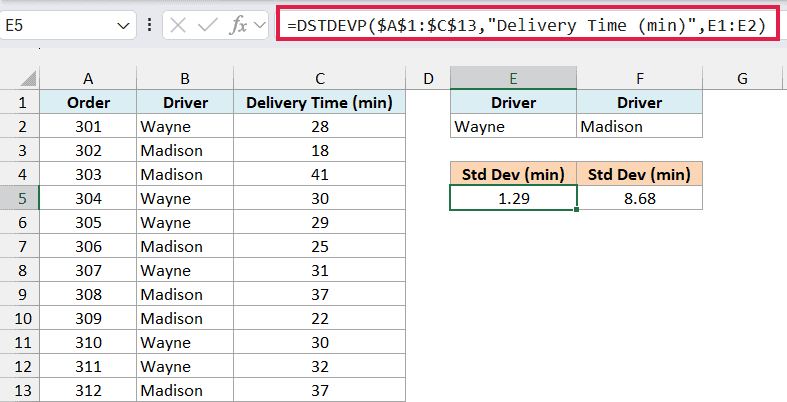
Wayne gets a standard deviation of 1.29 minutes, while Madison gets 8.68.
Both drivers average exactly 30 minutes per delivery, so the average alone makes them look the same. The standard deviation shows the real difference, because Wayne’s times stay between 28 and 32 minutes, while Madison’s swing from 18 to 41.
The dollar signs keep the database fixed at A1:C13 when you copy the formula. The criteria range has no dollar signs, so it shifts from E1:E2 to F1:F2 and picks up Madison’s name.
This setup needs its own criteria range for every group, which gets tedious with a long list of groups. If you have Microsoft 365, the STDEV.P tutorial shows how to get the standard deviation for every category at once with the GROUPBY function.
Example 7: Why DSTDEVP Returns 0 When Only One Row Matches
Let’s end with a result that can easily mislead you.
Below is a list of every workshop a community center ran this month with its category and number of sign-ups, and I want the standard deviation of sign-ups for the Music category in cell E5.
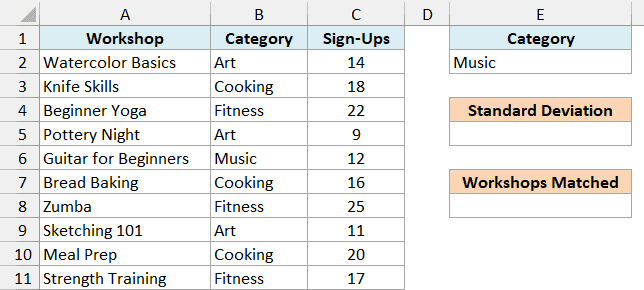
Here is the formula:
=DSTDEVP(A1:C11,"Sign-Ups",E1:E2)
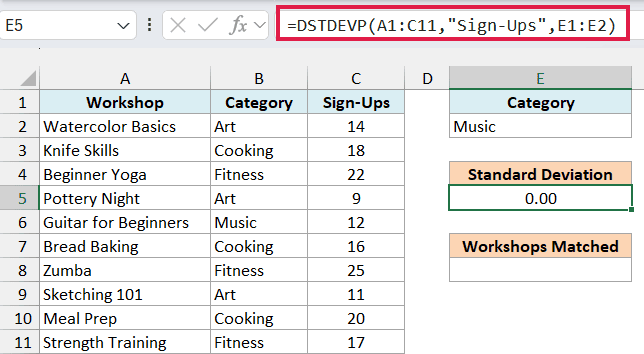
This returns 0.00, which makes it look like Music sign-ups don’t vary at all. But there’s only one Music workshop, and a single number has no spread, so DSTDEVP returns 0 instead of an error.
The DSTDEV function works differently here. It needs at least two numbers, so with one match it returns a #DIV/0! error.
And when no row matches at all, both DSTDEVP and the DSTDEV function return #DIV/0!.
To see how many rows are behind the result, I used the DCOUNT function in E8:
=DCOUNT(A1:C11,"Sign-Ups",E1:E2)
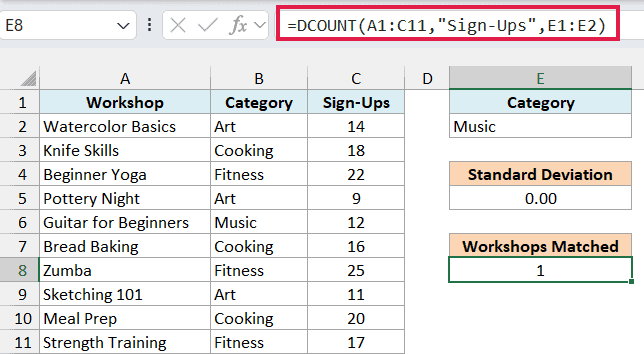
This returns 1, which confirms the 0 comes from a single workshop. The DCOUNT function takes the same arguments as DSTDEVP and counts the numbers it would use, so it’s a quick check you can put next to any DSTDEVP result.
DSTDEVP only uses numbers in the field column. A blank cell or text like TBD in the Sign-Ups column is skipped, and the DCOUNT function skips it too, so the count always matches what DSTDEVP measured.
So these are some practical ways to use the DSTDEVP function in Excel. I covered single conditions, number conditions, AND and OR conditions, the difference from the DSTDEV function, comparing two groups, and the 0 you get when only one row matches.
I hope you found this Excel tutorial useful.
Other Excel Articles You May Also Like:
