

The DVARP function measures how spread out the numbers in a column are, using only the records that match your conditions. The number it returns is the population variance of those values.
The “P” stands for population. Use it when the matching rows are the whole group you care about, like every game in a finished season, and not just a sample of a bigger group.
As one of Excel’s database functions, DVARP reads its conditions from a few cells on the sheet (the criteria range) instead of from inside the formula. That way, you can change what gets measured just by editing a cell.
In this tutorial, I’ll show you how to use DVARP with one condition, multiple conditions, date ranges, and formula-based conditions. I’ll also cover how it differs from DVAR and what it does with blanks and single values.
Follow along with the example file
DVARP Function Examples.xlsx
DVARP Function Syntax
Here is the syntax of the DVARP function:
=DVARP(database, field, criteria)
- database – The whole data range, including the header row. Each row is a record and each column is a field.
- field – The column whose variance you want. You can give its header in double quotes (like “Points”) or its position in the database as a number (like 3 for the third column).
- criteria – The range that holds your conditions. Its top row has headers that match the headers in your data (formula conditions are the one exception, covered in Example 7), and the conditions go in the cells right below them.
The field header isn’t case-sensitive, so “points” works just as well as “Points”. You can also point to the header cell itself, like C1, instead of typing the name.
How you lay out the criteria range decides how the conditions combine. Conditions on the same row must all be true (Example 3), while conditions on separate rows mean any one of them can be true (Example 4).
If you leave the cell under a criteria header empty, it matches every row. DVARP then returns the population variance of the whole column.
That’s the same number you’d get from the VAR.P function, which is Excel’s regular population variance function with no conditions.
The DVARP function works in Excel for Microsoft 365, Excel 2024, 2021, 2019, 2016, and earlier versions.
When to Use the DVARP Function
Use this function when you need to:
- Measure how spread out the values are for rows that meet one or more conditions, with the conditions kept in cells you can change
- Get the variance for a group that is complete, such as every game in a season or every employee in an office
- Combine OR conditions (this value or that value) in a single variance formula
- Get the variance between two dates or two numbers
Let me show you a few practical examples of how to use the DVARP function.
Example 1: Get the Population Variance for One Group
Let’s start with a simple example.
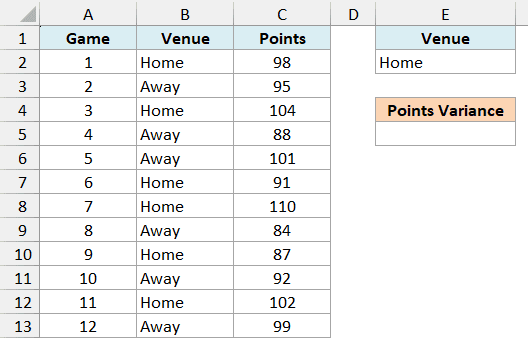
Below is a basketball team’s points in every game of a finished season, along with whether each game was played at home or away, and I want the variance of the points scored in home games in cell E5.
Here is the formula:
=DVARP(A1:C13,"Points",E1:E2)
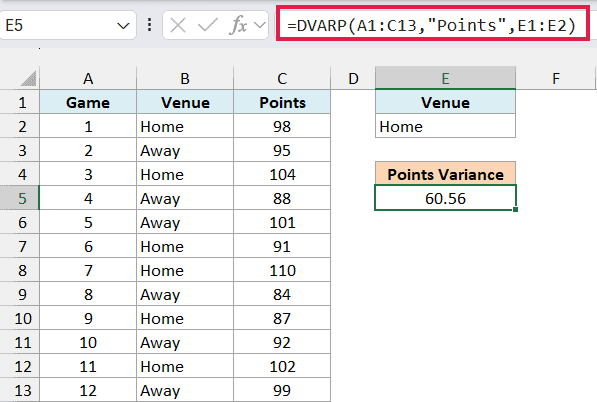
This returns 60.56, the population variance of the points in the six home games.
In the above formula, A1:C13 is the whole table including its headers, “Points” is the column to measure, and E1:E2 is the criteria range. DVARP keeps only the rows where the Venue is Home and then works out the variance of their points.
I used DVARP here because the season is over. These six games are all the home games there are, so they’re the whole population, not a sample.
Variance is measured in squared units, so 60.56 means “squared points”, which is hard to picture. If you want the spread in plain points, take its square root (7.78), which is what the DSTDEVP function gives you directly.
Important: The criteria header must match the data header exactly. If E1 said “Venues” instead of “Venue”, no row would match and DVARP would return a #DIV/0! error.
A text condition like Home matches any value that starts with Home, and it isn’t case-sensitive. That’s fine here, but a venue called Home Court would also get picked up.
To match only Home, type =”=Home” in E2. A condition that starts with = matches only that exact value.
You can’t type =Home on its own, because Excel would treat it as a formula. Wrapping it as =”=Home” makes the cell hold the text =Home, which DVARP reads as the condition.
I placed the criteria range to the right of the data on purpose. Microsoft recommends not putting it below your data, because that’s where new rows usually get added.
Example 2: DVARP vs DVAR (Population vs Sample Variance)
Now let’s see how DVARP differs from its sibling, the DVAR function.
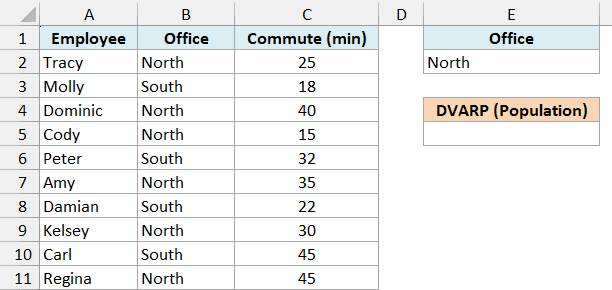
Below is a list of all the employees at a small company with their office and one-way commute time, and I want the variance of the North office commute times in E5, and then compare it with DVAR in F5.
Here is the DVARP formula:
=DVARP(A1:C11,"Commute (min)",E1:E2)
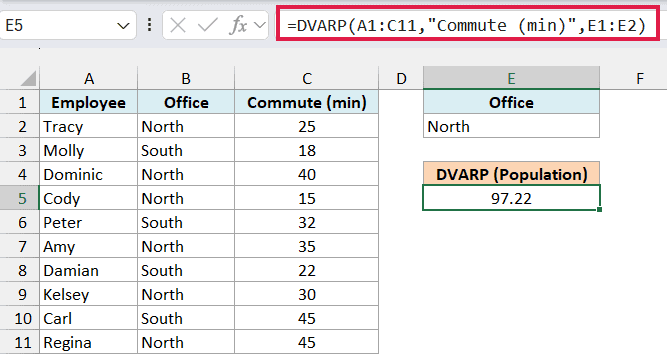
This returns 97.22 for the six North office employees.
And here is the DVAR formula with the same arguments:
=DVAR(A1:C11,"Commute (min)",E1:E2)
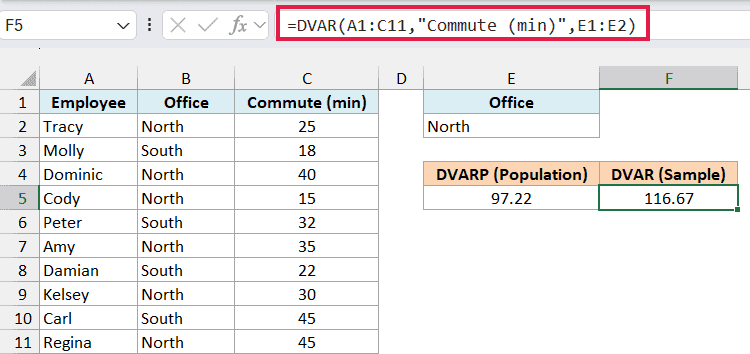
This returns 116.67, which is higher, even though both formulas look at the same six commute times.
The difference is in the last step. Both functions add up the squared distance of each value from the average, which comes to 583.33 here.
DVARP divides that total by the number of values (6), while DVAR divides it by one less (5).
Here, these six people are every employee in the North office. That makes them the whole population, so DVARP is the right choice.
You’d use DVAR when your rows are only a sample. For example, say you surveyed 6 of the 60 people in an office and wanted to estimate the variance for all 60.
In that case, DVAR’s smaller divisor makes up for the fact that a small sample tends to underestimate how spread out the full group is.
The gap between the two shrinks as you add more rows, so it matters most with small groups like this one.
If you want the full story on sample vs population variance, there’s a separate tutorial that covers it with the VAR.S and VAR.P functions.
Example 3: DVARP With Multiple Criteria (AND)
Here’s another practical scenario, this time with two conditions that must both be true.
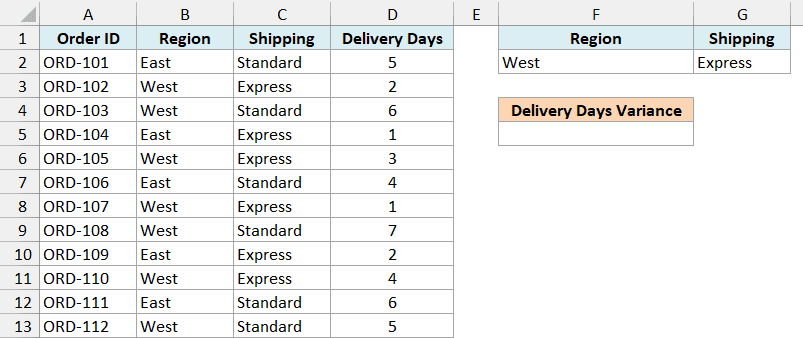
Below is a list of online orders with each order’s region, shipping type, and delivery days, and I want the variance of delivery days for West orders shipped Express in cell F5.
Here is the formula:
=DVARP(A1:D13,4,F1:G2)
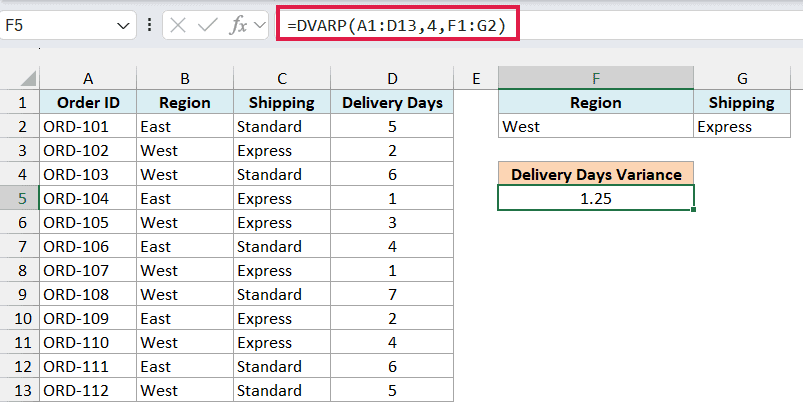
This gives us 1.25, the variance of the four West orders that were shipped Express.
The criteria range F1:G2 has two headers, Region and Shipping, and both conditions sit on the same row. When conditions share a row, an order counts only if it meets all of them.
This time, I used 4 as the field instead of “Delivery Days”. Since Delivery Days is the fourth column in A1:D13, DVARP uses that column.
A column number is quicker to type, but it can quietly break. If someone inserts a column inside the data, 4 will point to a different column, while “Delivery Days” keeps working.
And if the number is bigger than the number of columns in the database, DVARP returns a #VALUE! error.
Also, if you filter this list (say, to show only the West orders), DVARP won’t limit itself to the visible rows. It includes hidden and filtered-out rows too, because only the criteria range decides which rows go into the result.
Example 4: Population Variance With OR Criteria
Now let’s look at rows that need to match one value or another.
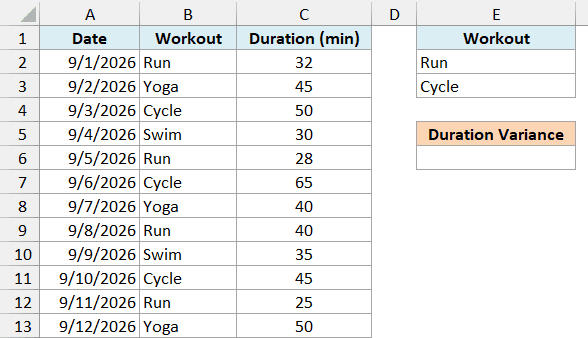
Below is a workout log for the first 12 days of September with the type of workout and how long it lasted, and I want the variance of the duration of all Run and Cycle sessions combined in cell E6.
Here is the formula:
=DVARP(A1:C13,"Duration (min)",E1:E3)
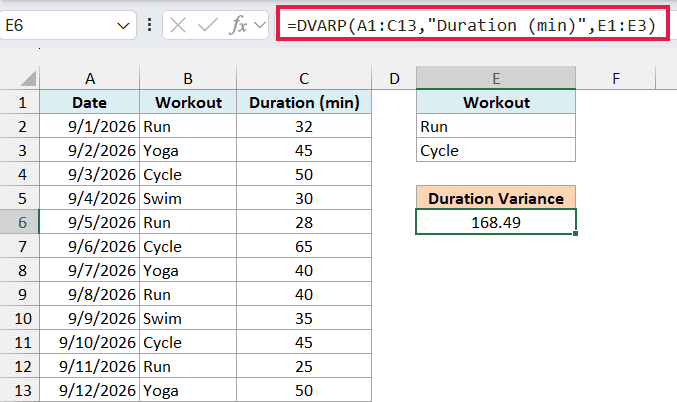
This returns 168.49, the variance of the seven Run and Cycle workouts taken together.
The OR logic comes from the criteria range. Run and Cycle are on separate rows under the same Workout header, and separate rows work as OR, so a workout counts if it matches either one.
Important: Make sure the criteria range has no empty rows. If you used E1:E4 here, the blank row would match every workout, and you’d get 119.24, the variance of all 12 workouts.
Example 5: Variance Between Two Dates
Let’s step it up with a date range you can change without touching the formula.
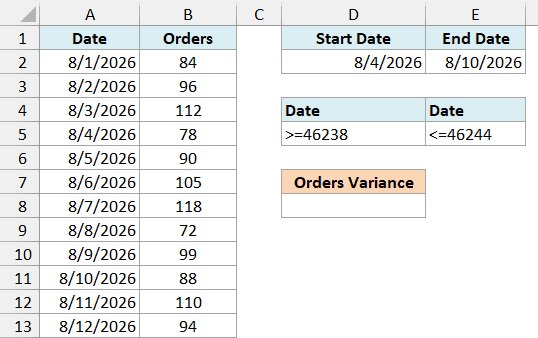
Below is a food truck’s daily order count for the first 12 days of August, and I want the variance of the daily orders between the start date in D2 and the end date in E2, with the result in D8.
Here is the formula:
=DVARP(A1:B13,"Orders",D4:E5)
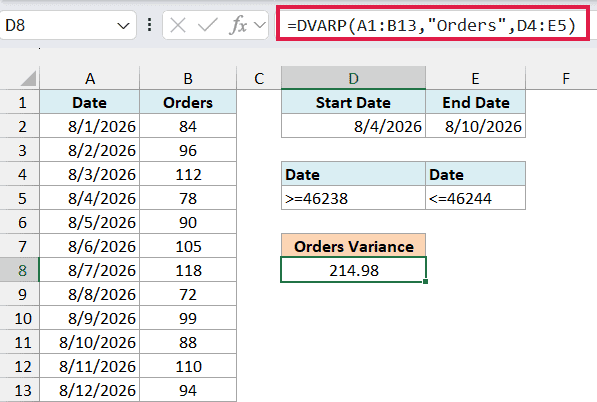
This gives us 214.98, the variance of the daily orders from August 4 to August 10, 2026.
The criteria range D4:E5 uses the Date header twice on the same row. Since conditions on one row must all be true, a day counts only if it’s on or after the start date and on or before the end date.
The two conditions are built with formulas. D5 has =">="&D2 and E5 has ="<="&E2, which join a comparison operator with the dates in D2 and E2.
They show up as >=46238 and <=46244 because Excel stores dates as serial numbers, and 46238 is August 4, 2026. That’s expected, and DVARP reads them correctly.
To check a different week, just change the dates in D2 and E2, and the result updates.
If you add a new row every day, you can convert the data to an Excel Table. Say you name the Table TruckLog, then you’d use TruckLog[#All] as the database, and new days get included automatically.
The [#All] part matters because it includes the header row. DVARP needs those headers to find the Orders column and to match the criteria headers.
Example 6: How DVARP Handles Blanks, Text, and a Single Value
Now let’s see what DVARP does when the column you’re measuring isn’t all numbers.
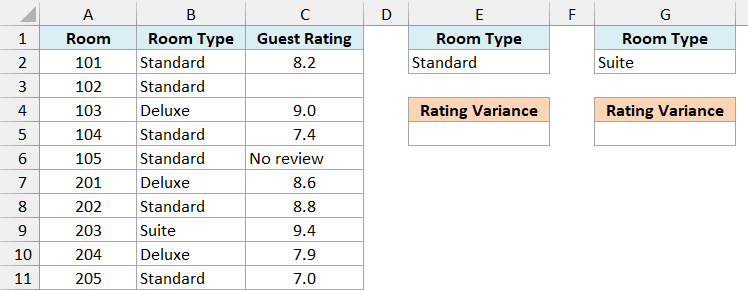
Below is a list of hotel rooms with each room’s type and its latest guest rating, where some rooms don’t have a rating yet, and I want the rating variance for Standard rooms in E5 and for Suite rooms in G5.
Here is the formula for Standard rooms:
=DVARP(A1:C11,"Guest Rating",E1:E2)
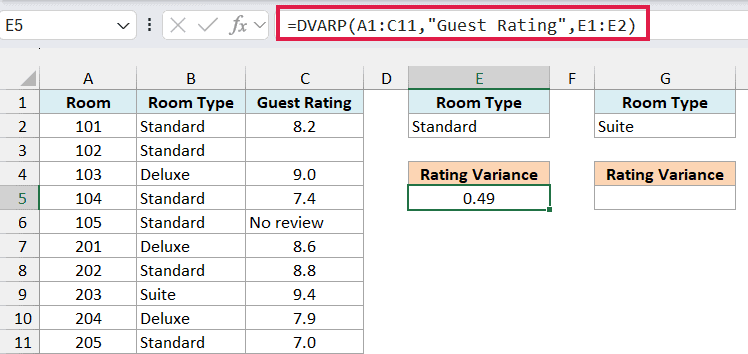
This returns 0.49. There are six Standard rooms, but room 102 has no rating yet and room 105 says No review, so DVARP uses only the four numbers (8.2, 7.4, 8.8, and 7.0).
The blank and the text are skipped, not counted as 0. That’s what you want here, because a missing rating isn’t a rating of 0, and counting it would make the variance way bigger.
Here is the formula for Suite rooms:
=DVARP(A1:C11,"Guest Rating",G1:G2)
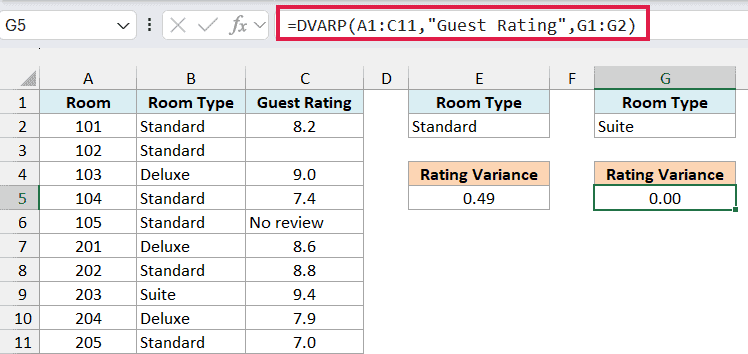
This returns 0. There’s only one Suite room, rated 9.4, and a single value has nothing to vary from, so its population variance is 0.
This is one place where DVARP and DVAR behave differently. DVAR divides by the count minus one, which is 0 here, so it returns a #DIV/0! error for the same Suite.
If no room matches at all (say, you typed Penthouse in G2), DVARP returns #DIV/0!. You can wrap the formula in the IFERROR function to show a message like No ratings instead, but check that the formula works first, since IFERROR hides every error.
Example 7: Use a Formula as the Criteria
Let’s look at a condition that compares two columns in the same row.
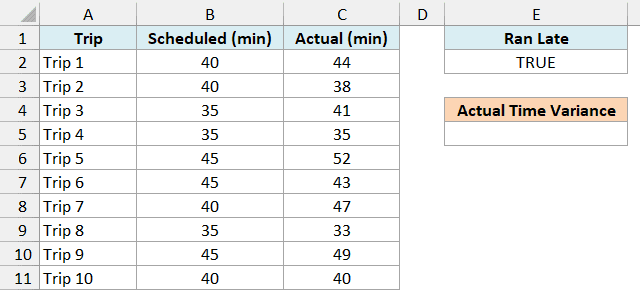
Below is a bus route’s trip log with the scheduled and actual time of each trip, and I want the variance of the actual trip time for only the trips that ran late, in cell E5.
Here is the formula:
=DVARP(A1:C11,"Actual (min)",E1:E2)
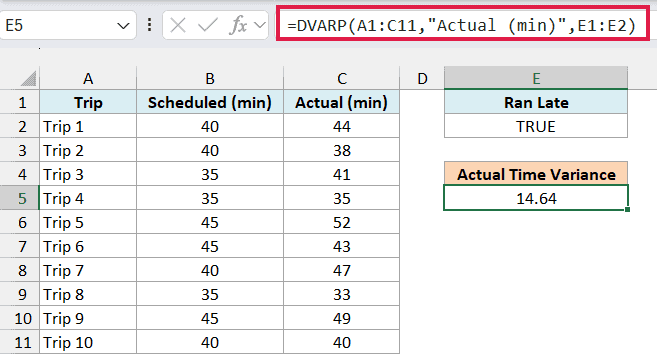
This returns 14.64, the variance of the actual time of the five trips that took longer than scheduled.
The criteria range is E1:E2, and E2 holds the formula =C2>B2. It checks whether the actual time is more than the scheduled time.
E2 shows TRUE because it’s checking the first trip only (44 minutes against 40). For each later row, DVARP moves the C2 and B2 references down, so every trip gets its own check.
Unlike the earlier examples, a formula condition needs a header that doesn’t match any header in your data, which is why I used Ran Late. If E1 said Actual (min), DVARP would treat it as a normal condition and return #DIV/0!.
Important: Keep C2 and B2 as relative references in the criteria formula. If you lock them as $C$2 and $B$2, every row gets checked against Trip 1, and you’d get 32.96, the variance of all ten trips.
Example 8: Population Variance With VAR.P and FILTER
If you’re on Excel 2021 or later (including Microsoft 365), there’s another way to get a conditional population variance, without a criteria range.
Below is a list of podcast episodes with each episode’s category and length, and I want the variance of the Comedy episode lengths in E5, using the category typed in E2.
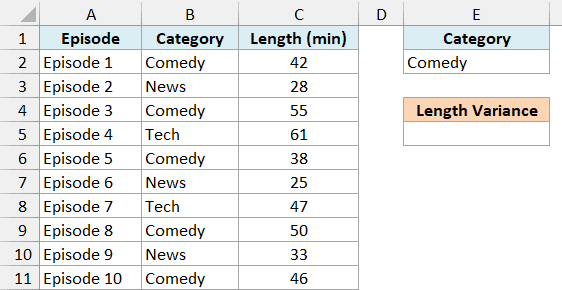
Here is the formula:
=VAR.P(FILTER(C2:C11,B2:B11=E2))
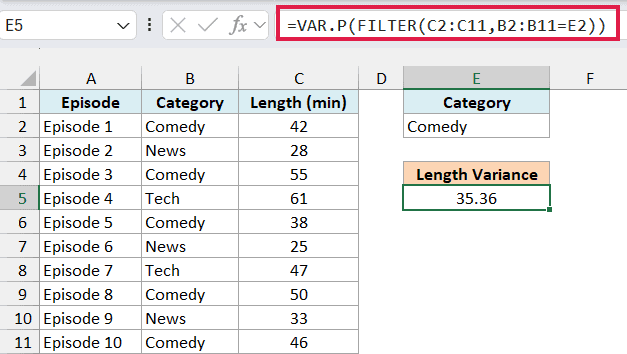
This returns 35.36, the variance of the five Comedy episodes.
Here, the FILTER function returns only the lengths where the category matches E2. VAR.P then works out their population variance, which is the same number DVARP would give you with E1:E2 as the criteria range.
FILTER passes a blank cell through as empty, and VAR.P skips it, so blanks are left out here just like they are in DVARP.
Important: Don’t swap FILTER for the IF function inside VAR.P. On the Example 6 hotel data, =VAR.P(IF(B2:B11=”Standard”,C2:C11)) returns 10.25 instead of 0.49, because IF turns the blank rating into 0.
DVARP is still the better pick if you’re on an older version of Excel, or if you like keeping the conditions in cells, especially for OR conditions and formula criteria.
You also can’t combine the two. DVARP needs a real range on the sheet as its database, so Excel won’t even let you enter a formula that uses a FILTER result as the database.
So these are some practical ways to use the DVARP function in Excel. I covered single conditions, the difference from DVAR, AND and OR conditions, date ranges, blanks and single values, formula-based conditions, and the VAR.P and FILTER alternative.
I hope you found this Excel tutorial useful.
Other Excel Articles You May Also Like:
