

The VARA function in Excel gives you the variance of a sample, and it doesn’t skip text or TRUE/FALSE values the way the VAR.S function does. Variance is a measure of how spread out your values are around their average.
In your cells, VARA treats TRUE as 1, and FALSE and any text as 0. That’s handy when a word like “Skipped” really means zero, but it can quietly change your answer when the text means something else.
In this article, I’ll show you how VARA works with plain numbers, logical values, and text, and how to use it on one group of records with the FILTER function.
Follow along with the example file
VARA Function Examples.xlsx
VARA Function Syntax
Here is the syntax of the VARA function:
=VARA(value1, [value2], ...)
- value1 is the first value, cell reference, range, or array in your sample. This argument is required.
- value2, … are optional additional values, references, ranges, or arrays. You can use up to 255 arguments in total.
Most of the time, one range holds the whole sample, so you’ll only need value1. The extra arguments are there for when your data sits in separate places.
Values you type straight into the formula follow a different rule than values in cells. A number in quotes, such as “10”, is read as the number 10, and TRUE counts as 1.
A word typed into the formula is different. Something like =VARA(2,4,"Skipped") returns a #VALUE! error, because Excel can’t read “Skipped” as a number.
The VARA function works in Excel for Microsoft 365, Excel 2024, 2021, 2019, and 2016, on both Windows and Mac. Example 4 also uses the FILTER function, which needs Excel 2021 or later.
When to Use the VARA Function
Use this function when you need to:
- Find the sample variance of TRUE/FALSE results stored in cells, such as pass/fail or yes/no logs.
- Count text entries as zero when the text really means zero, such as “Skipped” or “Closed”.
- Understand why an existing VARA formula gives a different answer than the VAR.S function on the same data.
Let me show you a few practical examples of how to use this function.
Example 1: Calculate Sample Variance in Excel
Let’s start with a simple example where every value is a number.
Below are delivery times for ten pizza orders, picked as a sample from a busy week, and I want the sample variance of these times in cell B14.
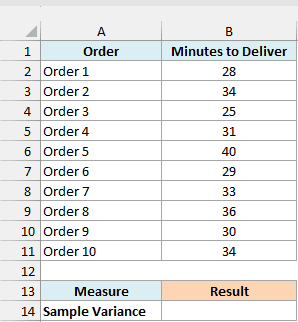
On the 1 Delivery Times sheet, here is the formula:
=VARA(B2:B11)
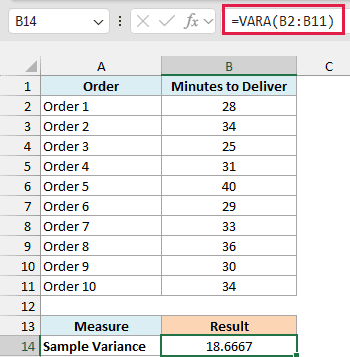
The formula returns 18.6667. VARA takes all ten delivery times in B2:B11 and gives back one number for the whole sample.
Here is how VARA gets there. The average delivery time is 32 minutes, so VARA squares each order’s distance from 32 and adds those squares up, which gives 168.
Because this is a sample, VARA divides that 168 by one less than the number of values. With ten orders, that’s 168 divided by 9, which is 18.6667.
The result is in squared units (square minutes), which is hard to picture. The square root of the variance gives you the standard deviation, about 4.32 minutes here, and my standard deviation guide explains it in detail.
If these ten orders were every order you cared about, you’d want population variance instead, and the VARPA function is VARA’s population version. The variance tutorial explains how to choose between sample and population.
For a column of plain numbers like this one, the VAR.S function gives exactly the same result and is the more common choice. VARA only starts to behave differently once text or TRUE/FALSE values show up, which is what the next examples cover.
If one of the delivery times came from a lookup formula that returned #N/A, VARA would return #N/A too. So fix any error in the source cells first.
Example 2: Find the Variance of TRUE/FALSE Values
Now let’s use data that isn’t stored as numbers at all.
Below is a ten-day log of whether a morning commuter train was on time (TRUE) or late (FALSE), and I want the sample variance of these results in cell B14.
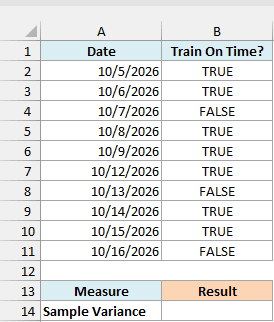
On the 2 Train On Time sheet, here is the formula:
=VARA(B2:B11)
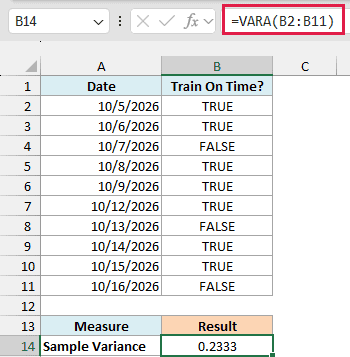
The result is 0.2333. VARA reads the seven TRUE values as 1 and the three FALSE values as 0, then calculates the variance of those ten numbers.
This tells you how mixed the results are, not how often the train was on time. A log where the train was on time every single day would give a variance of 0.
The VAR.S function would not work here. It skips TRUE and FALSE in cells, so it would find no numbers in B2:B11 and return #DIV/0!.
Example 3: VARA vs VAR.S When Text Counts as Zero
Text needs a bit more care, because Excel has no idea what a word means in your data.
Below is a ten-day piano practice log, where “Skipped” means the student didn’t practice that day and one day wasn’t logged at all, and I want to compare two variance results in column B.
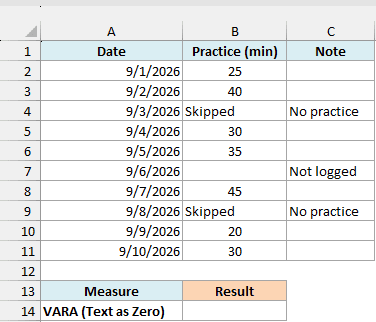
On the 3 Practice Minutes sheet, enter this formula in cell B14:
=VARA(B2:B11)
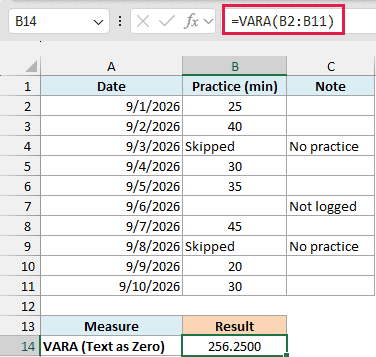
The result is 256.2500. VARA counts both “Skipped” cells as 0 minutes and skips the empty cell in B7, so it works with nine values.
Now enter this formula in cell B15 to see what happens when the text is ignored:
=VAR.S(B2:B11)
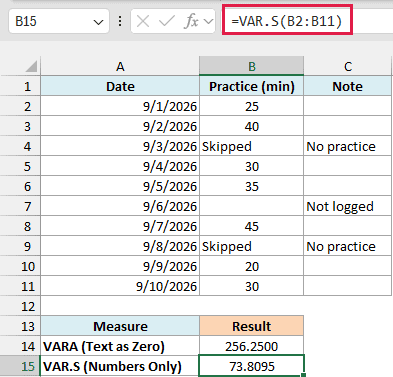
The result is 73.8095. The VAR.S function ignores the two “Skipped” cells as well as the blank one, so it only uses the seven days with a number.
The gap is big because the two zeros sit far below the other practice times. VARA’s answer is the right one here, since a skipped day really was zero minutes.
The day that wasn’t logged is different. Nobody knows how long that practice was, so leaving the cell blank keeps it out of both results.
Important: VARA treats every text cell in a range as 0, including a number stored as text and a cell where a formula returns “” (it looks blank, but it isn’t). Fix the data first if that text doesn’t truly mean zero.
Numbers stored as text are the sneaky one, because they look like normal numbers. If you see a green triangle in the corner of those cells, convert them to numbers before using VARA.
Example 4: Calculate Variance for One Group with FILTER
Let’s step it up and calculate the variance for only some of the rows.
Below are twelve receipts from two coffee shop locations, with TRUE when the customer bought a pastry, and I want the sample variance for the Downtown store in cell B16.
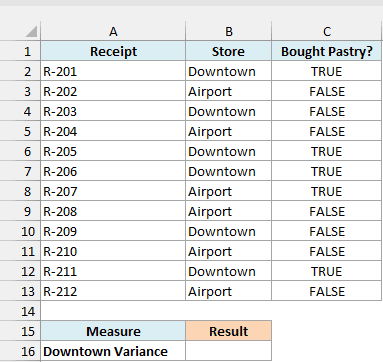
This example uses the FILTER function, so it needs Excel 2021, Excel 2024, or Microsoft 365.
On the 4 Pastry by Store sheet, here is the formula:
=VARA(--FILTER(C2:C13,B2:B13="Downtown"))
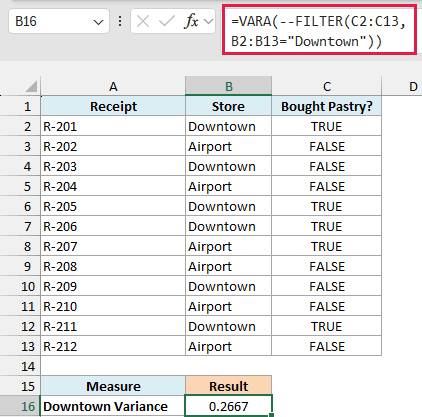
The result is 0.2667. It’s the sample variance of the six Downtown receipts, where four customers bought a pastry and two didn’t.
How this formula works:
B2:B13="Downtown"checks which receipts came from the Downtown store.FILTER(C2:C13,B2:B13="Downtown")returns the TRUE/FALSE values for just those six receipts.- The two minus signs (
--) turn each TRUE into 1 and each FALSE into 0. - VARA then calculates one variance from those six numbers, so the result stays in a single cell.
Important: VARA counts TRUE and FALSE in cells, but it ignores them in a list returned by another function like FILTER. Without the two minus signs, this formula finds no numbers and returns #DIV/0!.
Once the values are converted to 1s and 0s, the VAR.S function would give the same result here.
If no receipts match the store name, FILTER returns a #CALC! error. If only one receipt matches, VARA returns #DIV/0!, since one value isn’t enough for a sample variance.
So these are the ways you can use the VARA function in Excel, from a simple list of numbers to TRUE/FALSE results and text that stands for zero.
Just remember that VARA counts text and logical values in cells, so make sure those values really mean what VARA assumes they mean.
I hope you found this article helpful.
Other Excel Articles You May Also Like:
