

The DVAR function tells you how spread out the numbers in one column are, but only for the rows that meet your conditions. For example, you could get the variance of test scores for just one class, without filtering the data first.
Your conditions don’t go inside the formula. They sit in a small criteria range on the sheet, so you can switch to a different group by typing a new value in a cell.
DVAR treats the matching rows as a sample of a bigger group, which is the usual case. If those rows are the entire group, you’d use the DVARP function instead, and I’ll show you the difference in Example 1.
In this tutorial, I’ll show you how to use DVAR with one condition, AND and OR conditions, dates, wildcards, and formula-based conditions. I’ll also cover why DVAR can return #DIV/0! even when a row matches.
Follow along with the example file
DVAR Function Examples.xlsx
DVAR Function Syntax
Here is the syntax of the DVAR function:
=DVAR(database, field, criteria)
- database – The whole data range, including the header row. Each row is a record and each column is a field.
- field – The column whose variance you want. You can give its header in double quotes (like “Minutes”), its position in the database as a number (like 3 for the third column), or a reference to the header cell.
- criteria – The range that holds your conditions. Its top row has headers that match the headers in your data, and the conditions go in the cells right below them. The one exception is a condition written as a formula, which uses a made-up header (Example 8).
The layout of the criteria range decides how your conditions combine. Conditions on the same row must all be true (Example 3), while conditions on separate rows mean any one of them can be true (Example 4).
If you leave the cell under a criteria header empty, it matches every row. So an empty condition gives you the variance of the whole column.
The DVAR function works in Excel for Microsoft 365, Excel 2024, 2021, 2019, and 2016. On a Mac, it works in Excel for Microsoft 365, 2024, and 2021.
When to Use the DVAR Function
Use this function when you need to:
- Measure how consistent the values are for one group, such as one store, one product, or one person
- Compare the spread of values across groups by changing a single criteria cell
- Get the variance for rows that match any one of several values (OR logic) in one formula
- Get the variance for a date range, or for rows picked by a formula
Let me show you a few practical examples of how to use the DVAR function.
Example 1: Variance for One Group With DVAR
Let’s start with a simple example.
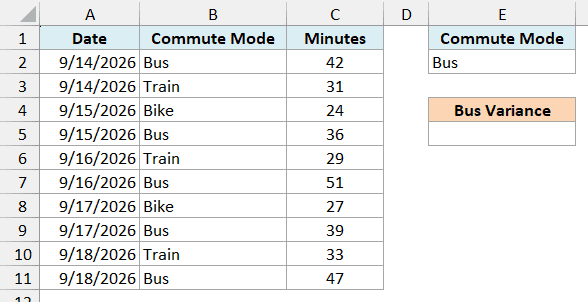
Below is a commute log with the travel mode and the minutes for each trip, and I want the variance of the bus commute times in cell E5.
Here is the formula:
=DVAR(A1:C11,"Minutes",E1:E2)
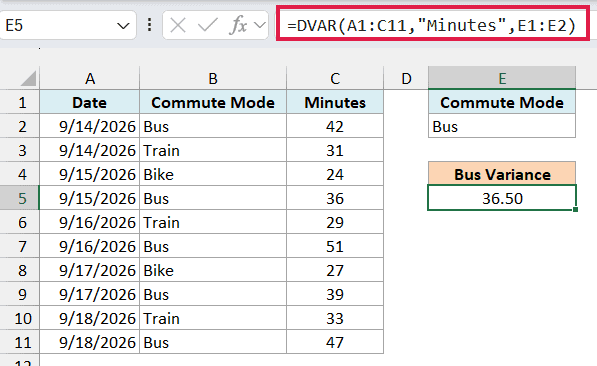
This gives us 36.50, which is the variance of the five bus trips (42, 36, 51, 39, and 47 minutes).
In the above formula, A1:C11 is the full data with its headers, “Minutes” is the column to measure, and E1:E2 is the criteria range. E1 holds the Commute Mode header and E2 holds Bus, so only the bus trips are used.
Since Bus sits in a cell and not inside the formula, you can type Train in E2 and the variance updates right away.
Variance works by taking how far each trip is from the average, squaring those gaps, adding them up, and dividing the total. That’s why the result is in squared minutes.
A bigger variance means the times jump around more. Squared minutes are hard to judge on their own, though, so variance is most useful when you compare one group with another (Example 2 shows how to get back to normal units).
DVAR treats these five trips as a sample of all your bus commutes, so it divides that total by the count minus one (4 here). That’s the same math as the VAR.S function, which also returns 36.50 for these five numbers.
If these five trips were the complete set you care about, you’d use the DVARP function instead. It divides by the full count of 5 and returns 29.20 for the same data.
Important: The criteria header must have the same text as the data header. If E1 said “Commute Type” instead of “Commute Mode”, no row would match, and DVAR would return a #DIV/0! error.
If you use the FILTER function, you might try to narrow the data with it and pass the result to DVAR. Excel won’t accept that formula because the database has to be a range on the sheet, so do the narrowing in the criteria range instead.
Example 2: Use a Comparison Operator (Field as a Column Number)
Here’s another practical scenario.
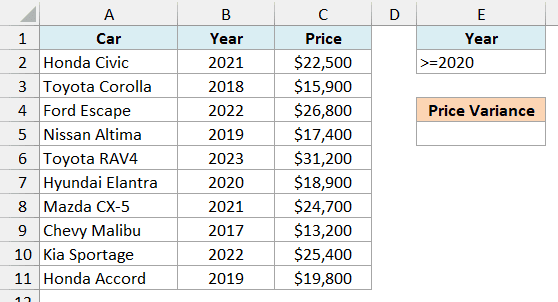
Below is a list of used cars with the year and price of each, and I want the price variance for cars from 2020 or later in cell E5.
Here is the formula:
=DVAR(A1:C11,3,E1:E2)
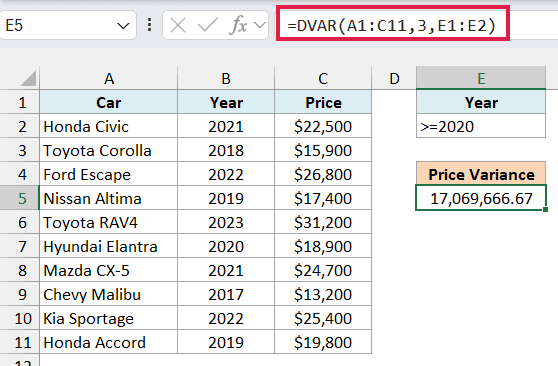
This returns 17,069,666.67, the variance of the prices of the six cars from 2020 onward.
The condition in E2 is >=2020, typed straight into the cell. Other comparison operators work the same way, such as >, <, <=, or <> (not equal to).
This time, I used 3 as the field instead of “Price”. Since Price is the third column in A1:C11, DVAR measures that column.
A column number is quicker to type, but it can break without warning. If someone inserts a column inside the data, 3 will point to a different column, while “Price” keeps working.
Now, about that huge number. The prices are in dollars, so the variance is in squared dollars, which is why it looks so much bigger than any price in the list.
Pro Tip: To see the spread in dollars, use the DSTDEV function with the same three arguments. It returns the standard deviation, which is the square root of the variance, about $4,132 here.
Example 3: DVAR With Multiple Criteria (AND)
Now let’s look at rows that need to meet two conditions at the same time.
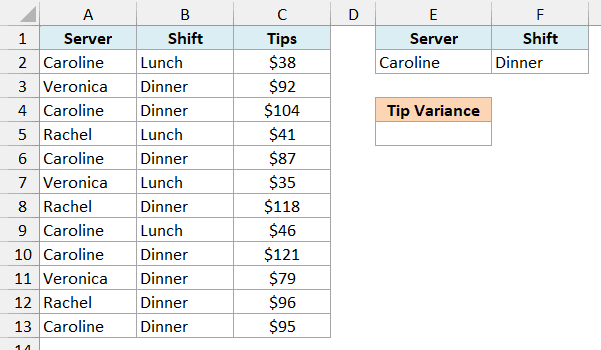
Below is a restaurant’s tip log with the server, the shift, and the tips earned, and I want the variance of Caroline’s dinner tips in cell E5.
Here is the formula:
=DVAR(A1:C13,"Tips",E1:F2)
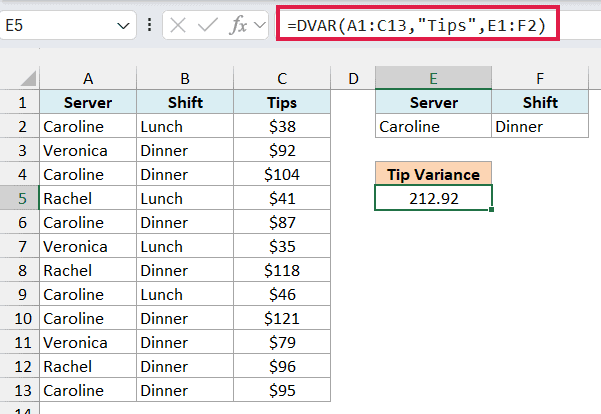
This gives us 212.92, the variance of Caroline’s four dinner shifts.
The criteria range now has two headers, Server and Shift, with Caroline and Dinner on the same row. When conditions share a row, a shift counts only if it meets all of them.
So Caroline’s lunch shifts and the other servers’ dinner shifts are left out.
To add a third condition, put another data header in G1 (such as Tips) with its condition in G2 (such as >90), and change the criteria to E1:G2.
Example 4: Variance for Rows That Match Either Condition (OR)
This next one uses OR logic, where a row only needs to match one of the conditions.
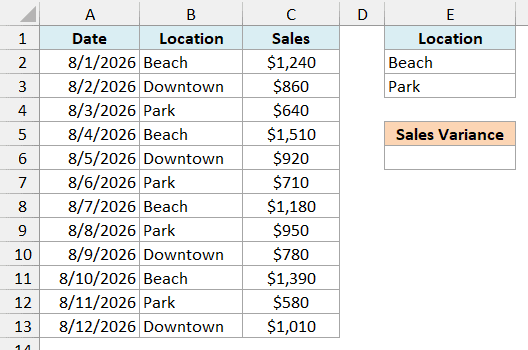
Below is a food truck’s sales log with the location it parked at each day, and I want the variance of sales on the Beach and Park days combined in cell E6.
Here is the formula:
=DVAR(A1:C13,"Sales",E1:E3)
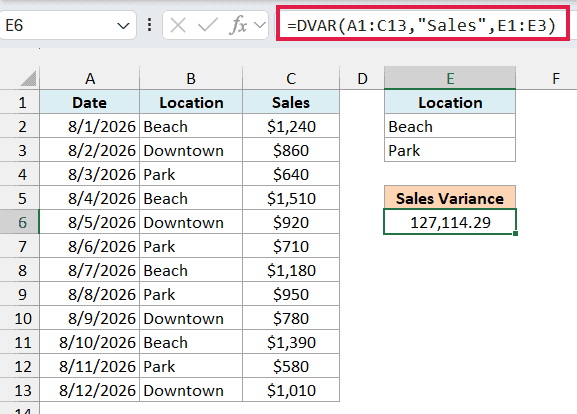
This returns 127,114.29, which is the variance of the eight Beach and Park days.
The OR logic comes from the criteria range. Beach and Park are on separate rows under the same Location header, and separate rows work as OR, so a day is used if its location matches either one.
Important: Make sure the criteria range has no empty rows. If you used E1:E4 here, the blank row would match every day, and you’d get 87,717.42, the variance of all 12 days, with no error to warn you.
Example 5: DVAR Between Two Dates
Let’s step it up with a date range you can change without touching the formula.
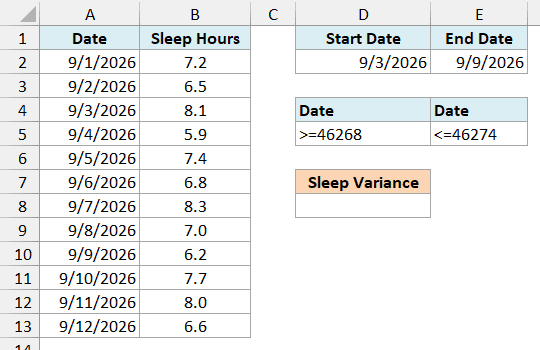
Below is a sleep log with the hours slept each night, and I want the variance of the sleep hours between the start date in D2 and the end date in E2, with the result in D8.
Here is the formula:
=DVAR(A1:B13,"Sleep Hours",D4:E5)
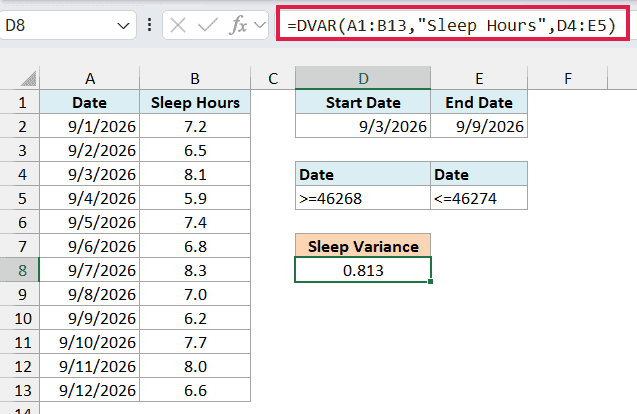
This gives us 0.813, the variance of the seven nights from September 3 to September 9, 2026.
The criteria range D4:E5 uses the Date header twice on the same row. Since conditions on one row must all be true, a night counts only if it’s on or after the start date and on or before the end date.
The conditions are built with formulas. D5 has =">="&D2 and E5 has ="<="&E2, which join each comparison operator with the date in the input cell.
They display as >=46268 and <=46274 because Excel stores dates as serial numbers, and 46268 is September 3, 2026. When you change the dates in D2 and E2, the variance updates for the new range.
Example 6: Why DVAR Returns #DIV/0! With Only One Value
Now let’s look at an error that’s specific to sample functions like DVAR.
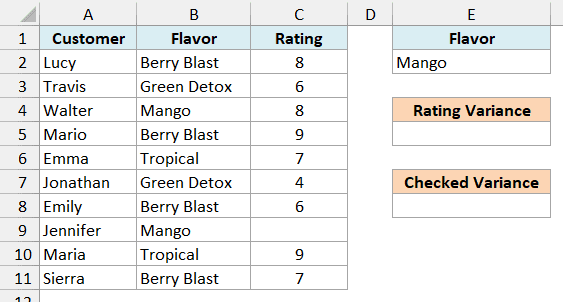
Below is a list of smoothie ratings with each customer’s flavor and rating, and I want the variance of the Mango ratings in cell E5.
Here is the formula:
=DVAR(A1:C11,"Rating",E1:E2)
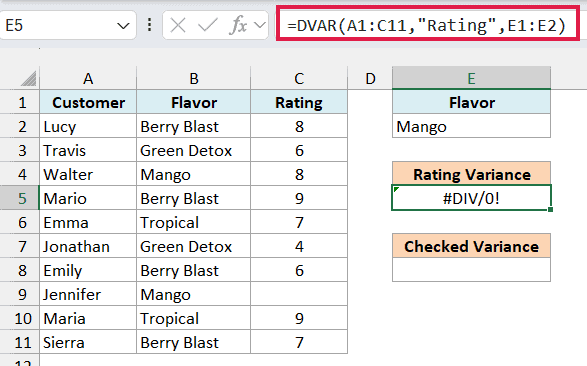
This returns a #DIV/0! error, even though Mango shows up twice in the data.
That’s because Jennifer didn’t leave a rating. DVAR skips blank cells (and text) in the field column, so only Walter’s rating of 8 is left.
A sample variance needs at least two numbers. DVAR divides by the count minus one, so with a single number, it ends up dividing by zero.
The DVARP function would return 0 here, which isn’t a useful answer either, because one rating tells you nothing about how much ratings vary.
You get the same #DIV/0! when no row matches at all. To show a clear message instead, here is a formula in E8 that checks the count first:
=IF(DCOUNT(A1:C11,"Rating",E1:E2)<2,"Need 2+ ratings",DVAR(A1:C11,"Rating",E1:E2))
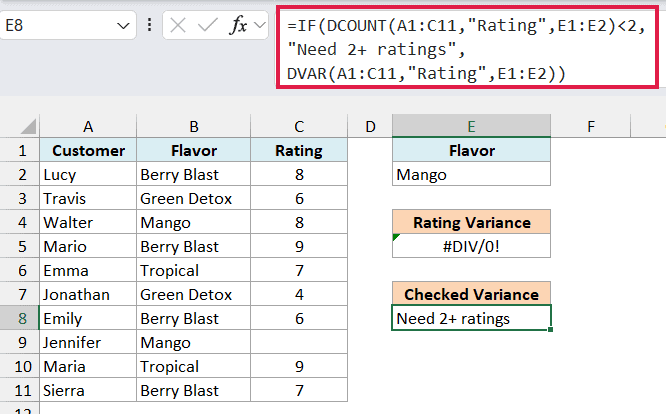
Since Mango has only one rating, the formula shows Need 2+ ratings instead of the error.
The DCOUNT function takes the same three arguments and counts the numbers that DVAR would use. When there are at least two, you get the variance, so typing Berry Blast in E2 returns 1.67.
This works better than wrapping DVAR in the IFERROR function, which would also hide a typo in the field name, while this check only steps in when there aren’t enough numbers.
Example 7: Use Wildcards in DVAR Criteria
Let’s look at matching part of a text value.
Below is a hotel’s room list with the nightly rate for each room type, and I want the variance of the rates for every suite in cell D5.
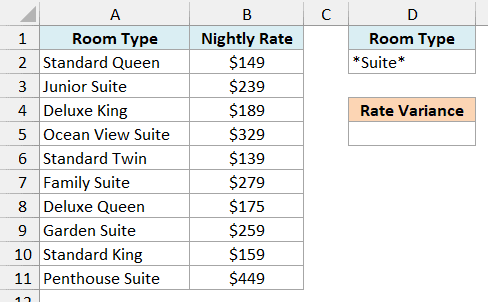
Here is the formula:
=DVAR(A1:B11,"Nightly Rate",D1:D2)
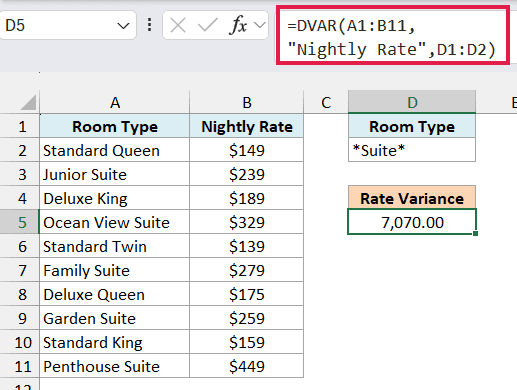
This gives us 7,070.00, the variance of the five suite rates.
The condition in D2 is *Suite*, where the asterisk (*) is a wildcard that stands for any number of characters. So *Suite* matches the word Suite anywhere in the room type.
You need the asterisks because a plain text condition matches values that begin with that text. None of the room types here start with Suite, so typing just Suite in D2 returns #DIV/0!.
Text conditions also aren’t case-sensitive, so *suite* picks up the same five rooms.
Example 8: Use a Formula as the Criteria
Let’s end with a condition that you can’t type as a plain value.
Below is a coffee shop’s daily cups sold over two weeks, and I want the variance of the weekend sales in cell D5.
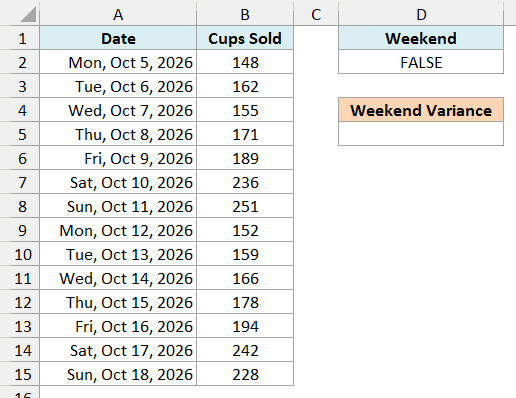
Here is the formula:
=DVAR(A1:B15,"Cups Sold",D1:D2)
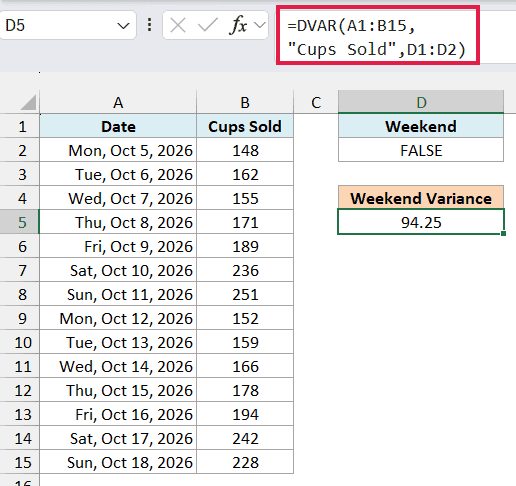
This returns 94.25, the variance of the four weekend days.
The criteria range is D1:D2, with a made-up header, Weekend, in D1 and the formula =WEEKDAY(A2,2)>5 in D2. With 2 as its second argument, the WEEKDAY function numbers Monday as 1 and Sunday as 7, so anything above 5 is a Saturday or Sunday.
D2 shows FALSE because it’s checking the first row, Monday, October 5. For each later row, DVAR moves the A2 reference down, so every date gets its own check.
Important: The header in D1 must not match any header in your data, which is why I used Weekend. If D1 said Date, DVAR would treat the formula as a normal condition and return #DIV/0!.
Also keep A2 as a relative reference. If you lock it as $A$2, every row gets checked against Monday, October 5, so nothing passes and you get #DIV/0!.
So these are some practical ways to use the DVAR function in Excel. I covered single conditions, AND and OR conditions, date ranges, wildcards, formula-based conditions, and the #DIV/0! error you get when fewer than two numbers match.
I hope you found this Excel tutorial useful.
Other Excel Articles You May Also Like:
