

The DMIN function finds the smallest number in a column, but only for the rows that meet conditions you set.
You’d use it to get things like the lowest price for one product, the fastest time in one event, or the earliest due date for one person.
A regular MIN formula looks at every number in a range, while DMIN only considers the rows that match your conditions.
You type those conditions into a small block of cells on the sheet (called a criteria range), so changing a condition is as simple as typing a new value in a cell.
Below, I’ll walk you through eight examples that start with a simple one-condition minimum and build up to dates, zeros, wildcards, and formula-based conditions.
Along the way, you’ll also see the one DMIN habit that can quietly hand you a wrong answer, which is returning 0 when nothing matches.
Follow along with the example file
DMIN Function Examples.xlsx
DMIN Function Syntax
Here is the syntax of the DMIN function:
=DMIN(database, field, criteria)
- database – The whole data range, including the header row. Each row is a record and each column is a field with its own header.
- field – The column you want the smallest value from. You can give its header in double quotes (like “Price”) or its position in the database as a number (like 3 for the third column).
- criteria – The range that holds your conditions. Its top row has headers that match the headers in your data, and the conditions go in the cells right below them.
The way you lay out the criteria range decides how your conditions combine. Conditions on the same row must all be true (Example 3), while conditions on separate rows mean any one of them can be true (Example 4).
An empty cell under a criteria header puts no limit on that column, while the other conditions still apply. So if the whole condition row is empty, DMIN gives you the smallest value in the entire column.
The DMIN function works in Excel for Microsoft 365, Excel 2024, 2021, 2019, and 2016, on both Windows and Mac.
When to Use the DMIN Function
Use this function when you need to:
- Find the lowest value for rows that meet one or more conditions, with the conditions kept in cells you can change
- Find the smallest value for rows that match any one of several values (OR logic)
- Get the earliest date that matches a condition, such as the next due date for one person
- Find the minimum while skipping zeros, or based on a calculated condition such as weekend dates
Let me show you a few practical examples of how to use the DMIN function.
Example 1: Find the Fastest Time With One Condition
Let’s start with a simple example.
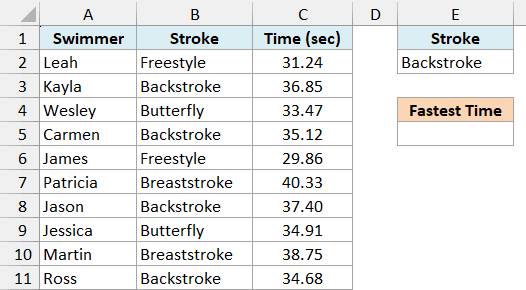
Below is a list of swimmers with the stroke each one swam and their time in seconds, and I want the fastest Backstroke time in cell E5.
Here is the formula:
=DMIN(A1:C11,"Time (sec)",E1:E2)
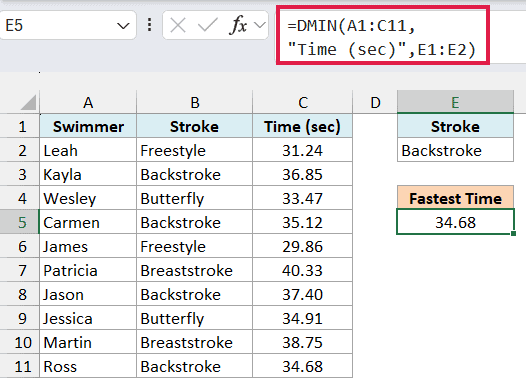
This gives us 34.68, which is Ross’s time and the fastest of the four Backstroke swims. Since a lower time means a faster swim, the smallest value is exactly what we need here.
In the above formula, A1:C11 is the full data with its headers, “Time (sec)” is the column to check, and E1:E2 is the criteria range. The Stroke header in E1 tells DMIN which column to look at, and E2 holds the value to match.
Because the stroke sits in a cell and not inside the formula, you can type Freestyle in E2 and the result changes to 29.86 right away.
Important: When no row matches, DMIN returns 0, not an error. A stroke that isn’t in the list, or a criteria header that doesn’t exactly match the data header (like Strokes instead of Stroke), gives you a 0 that looks like a real result.
The criteria range sits to the right of the data, and that’s deliberate. Microsoft advises against putting it below the list, since that’s where new rows usually get added.
Example 2: Cheapest Plan Above a Speed (Field as a Column Number)
Here’s another practical scenario.
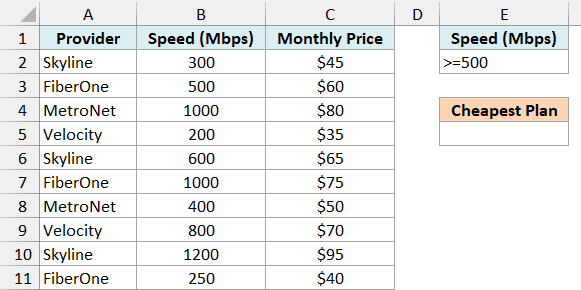
Below is a list of home internet plans with each plan’s speed and monthly price, and I want the cheapest plan with a speed of at least 500 Mbps in cell E5.
Here is the formula:
=DMIN(A1:C11,3,E1:E2)
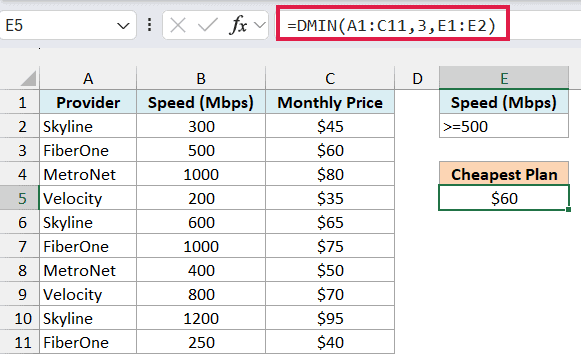
This returns $60, the FiberOne plan with 500 Mbps. The cheapest plan in the list is actually $35, but it only offers 200 Mbps, so the condition leaves it out.
The condition in E2 is >=500, typed straight into the cell. Any comparison operator works the same way, such as >100, <50, or <>0.
This time, I used 3 as the field instead of “Monthly Price”. Since Monthly Price is the third column in A1:C11, DMIN looks for the smallest value in that column.
A column number is quicker to type, but it can point to the wrong column later. If someone inserts a column inside the data, 3 no longer means Monthly Price, while the header name keeps working.
Example 3: DMIN With Multiple Criteria (AND)
Now let’s look at rows that need to meet two conditions at the same time.
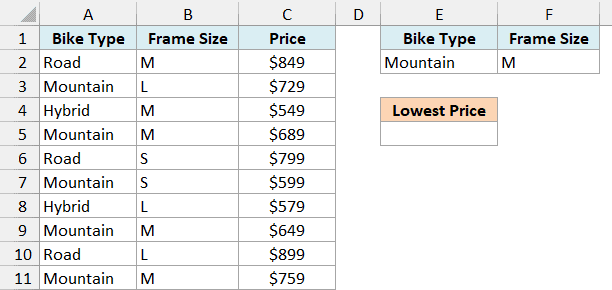
Below is a bike shop’s price list with each bike’s type, frame size, and price, and I want the lowest price for a Mountain bike in size M in cell E5.
Here is the formula:
=DMIN(A1:C11,"Price",E1:F2)
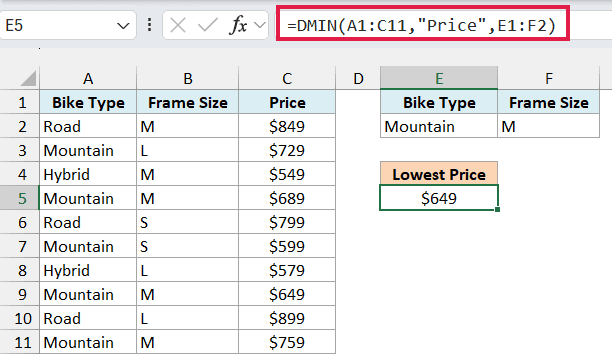
This gives us $649, the cheapest of the three Mountain bikes in size M.
The criteria range has two headers, Bike Type and Frame Size, and both conditions sit on the same row. When conditions share a row, a bike counts only if it meets all of them.
That’s why the $599 Mountain bike isn’t the answer. It’s a size S, so it fails the Frame Size condition.
Pro Tip: The MINIFS function gives the same $649, with each column and condition written into the formula. DMIN lets you add OR rows or switch the tested column without touching the formula, and it works in Excel 2016, which doesn’t have MINIFS.
Example 4: Find the Minimum With OR Criteria
Let’s try a condition where a row can match either of two values.
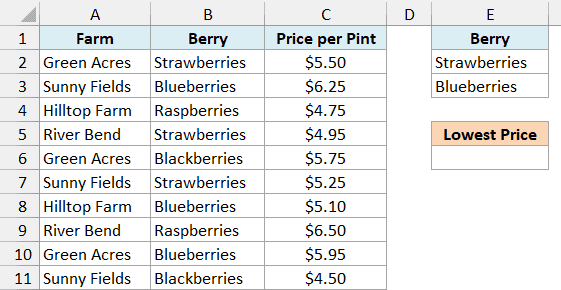
Below is a farmers market price list with each farm’s berries and the price per pint, and I want the lowest price for Strawberries or Blueberries in cell E6.
Here is the formula:
=DMIN(A1:C11,"Price per Pint",E1:E3)
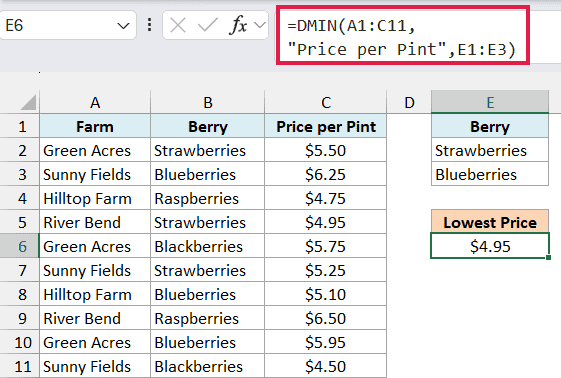
This returns $4.95, the River Bend strawberries.
The OR logic comes from the criteria range. Strawberries and Blueberries sit on separate rows under the same Berry header, and separate rows work as OR, so a row counts if it matches either one.
The MINIFS function can get the same answer, but it needs a more complex formula that lists both berries inside it and wraps it in the MIN function.
With DMIN, you can add a third berry by typing it in E4 and extending the criteria range to E1:E4.
Important: Make sure the criteria range has no empty rows. If you used E1:E4 here and left E4 blank, the empty row would match every berry, and you’d get $4.50 (the Blackberries) instead.
Example 5: Get the Earliest Date With DMIN
DMIN works with dates too, because Excel stores dates as numbers.
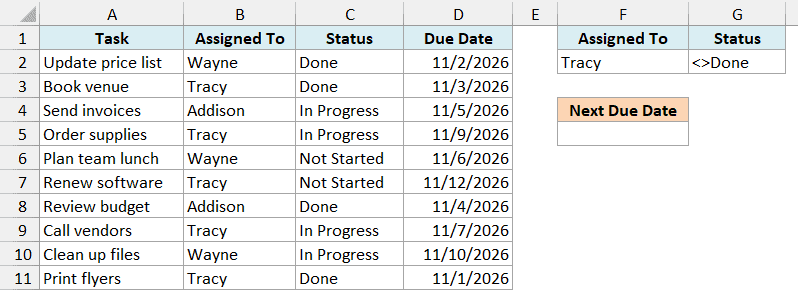
Below is a task list with who each task is assigned to, its status, and its due date, and I want Tracy’s next due date for tasks that aren’t done yet in cell F5.
Here is the formula:
=DMIN(A1:D11,"Due Date",F1:G2)
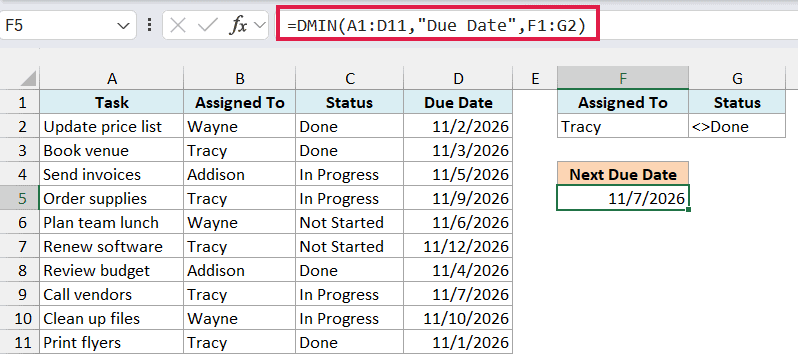
This gives us 11/7/2026, the due date for Call vendors, which is the earliest of Tracy’s three open tasks.
The two conditions sit on the same row. F2 matches Tracy, and G2 holds <>Done, which means “not equal to Done”, so finished tasks are left out.
Without the Status condition, you’d get 11/1/2026. That’s the due date for Print flyers, a task Tracy has already finished.
Since a date is a number to Excel, DMIN returns a number too. If your result shows something like 46333 instead of a date, change the cell’s number format to Date.
Example 6: Find the Minimum Value Excluding Zeros
Now let’s look at a problem you’ll run into with real data: zeros.
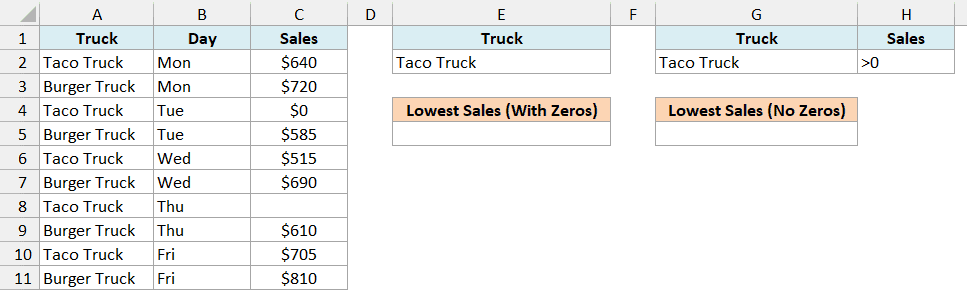
Below is a week of sales for two food trucks, and I want the Taco Truck’s lowest sales day in cell E5. The Taco Truck was closed on Tuesday, which was entered as 0, and Thursday’s sales haven’t been entered yet.
Here is the formula:
=DMIN(A1:C11,"Sales",E1:E2)
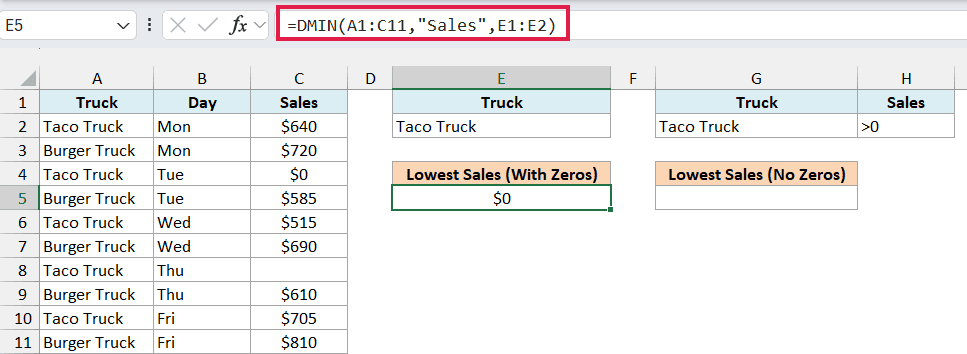
This returns $0, which isn’t a real sales day. It comes from Tuesday, when the truck was closed, because DMIN counts a 0 like any other number.
The blank Thursday cell isn’t the cause. DMIN skips blank cells and text, so only actual zeros pull the minimum down.
To leave out the zeros, add a second condition on the Sales column. Here is the formula in G5:
=DMIN(A1:C11,"Sales",G1:H2)
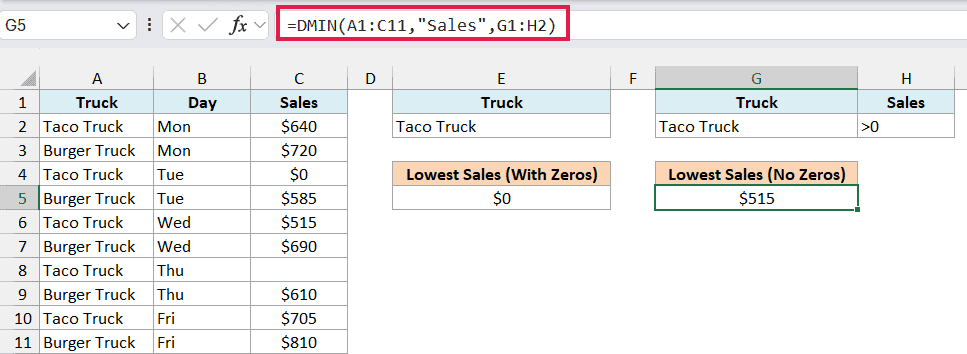
This gives us $515, the Taco Truck’s real lowest day, which was Wednesday.
The criteria range G1:H2 has Taco Truck under Truck and >0 under Sales. Both are on the same row, so a day counts only if it’s a Taco Truck day with sales above 0.
Pro Tip: If you type Closed instead of 0 for days with no sales, DMIN skips that cell like any other text. The simple formula in E5 would then return $515 too.
Example 7: Use Wildcards in DMIN Criteria
Let’s look at matching part of a text value.
Below is a furniture store’s price list, and I want the price of the cheapest chair, wherever the word Chair appears in the item name, with the result in D5.
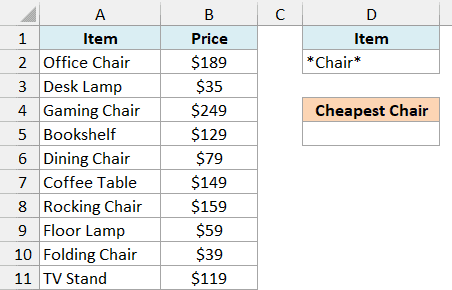
Here is the formula:
=DMIN(A1:B11,"Price",D1:D2)
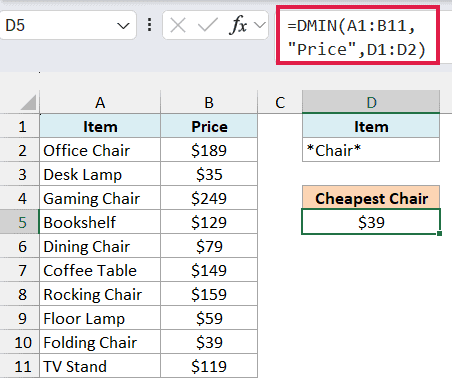
This gives us $39, the Folding Chair.
The condition in D2 is Chair. The asterisk (*) is a wildcard that stands for any number of characters, so this matches any item with Chair in its name.
A question mark (?) works the same way but stands for exactly one character.
You need the asterisk at the front because a plain text condition in DMIN matches values that begin with that text. No item here begins with Chair, so typing just Chair would return 0.
Because of this begins-with rule, a plain text condition is never a strict exact match. If your list had both Desk and Desk Lamp, typing Desk would pick up both items.
To match only the item that is exactly Desk, enter =”=Desk” in the criteria cell. The cell shows =Desk, and you need the quotes because typing =Desk on its own would make Excel treat it as a formula.
Text conditions also aren’t case-sensitive, so chair and CHAIR pick up the same items.
Example 8: Use a Formula as the Criteria
Let’s end with a condition that the MINIFS function can’t handle without a helper column.
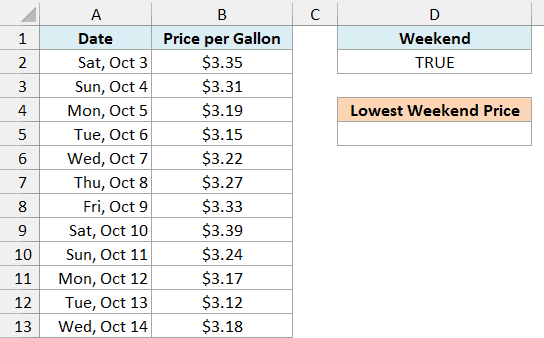
Below is a list of daily gas prices for two weeks in October, and I want the lowest weekend price in cell D5.
Here is the formula:
=DMIN(A1:B13,"Price per Gallon",D1:D2)
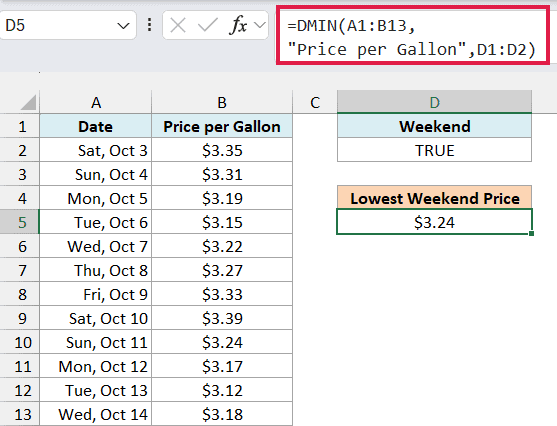
This returns $3.24, the price on Sunday, October 11.
The criteria range is D1:D2, and D2 holds the formula =WEEKDAY(A2,2)>5. With 2 as its second argument, the WEEKDAY function numbers Monday as 1 and Sunday as 7, so anything above 5 is a Saturday or Sunday.
D2 shows TRUE because it’s checking the first row, Saturday, October 3. For each later row, DMIN moves the A2 reference down, so every date gets its own check.
The header in D1 must not match any header in your data, which is why I used Weekend. If D1 said Date, DMIN would treat D2 as a normal condition and return 0.
Important: Keep A2 as a relative reference in the criteria formula. If you lock it as $A$2, every row gets checked against October 3, a Saturday, so all 12 days count and you get $3.12, the lowest price overall.
If you’re on Excel 365 or Excel 2021 and later, you can also get the lowest weekend price by combining the MIN function with the FILTER function, without a criteria range.
What you can’t do is use the FILTER result as the database inside DMIN. DMIN needs a real range of cells there, so Excel won’t even let you enter that formula.
So these are some practical ways to use the DMIN function in Excel. I covered single and multiple conditions, OR logic, dates, zeros, wildcards, and formula-based conditions.
I hope you found this Excel tutorial useful.
Other Excel Articles You May Also Like:
